Showing posts with label Android Apps. Show all posts

Sunday, October 4, 2020

How to choose a Best Kids Security, Family GPS Tracker or Parental Control Application?


How to choose a Best Kids Security, Family GPS Tracker or Parental Control Application? 

Hi friends, in this tutorial I will help you a little bit to find out a best kids security application or Family GPS Tracker application or Parental Control Application. So if you are a parent and need to secure your kids safety then you must use any of the kid’s security application available on Google Play Store. In this topic I will try to find out a best kids security application for your Android device. Thank you..


How to choose a Best Kids Security, Family GPS Tracker or Parental Control Application?

How to choose a Best Kids Security, Family GPS Tracker or Parental Control Application?YouTube Video Tutorial in Hindi, Click on the link below.

https://youtu.be/DrL8ZEg4qkM


10 Best Kids GPS Trackers and Devices of 2020?

Which parental control app is the best?

2020 Best Parental Control Apps & Software?

Best kid’s GPS tracker

Best parental control software

Child safety GPS tracker smart watch

How to find a good school for my child


10 Best Kids GPS Trackers and Devices of 2020?, Which parental control app is the best?,2020 Best Parental Control Apps & Software?, Best kid’s GPS tracker, Best parental control software, Child safety GPS tracker smart watch, How to find a good school for my child,


Tuesday, September 10, 2019

Airtel Thanks App - How To Add and Remove Account?


As you all know, that if you are using Airtel SIM on your Smartphone then you can install and use My Airtel App or now called Airtel Thanks App to manage all your Airtel Product, such as Airtel Dish, Prepaid or Postpaid Numbers and Airtel Landline or Broadband Connection. Install Airtel Thanks and use to know your account details such as Balance and Data Balance, Offers for you, Validity etc.

When you use Airtel app, the Airtel number need to login you use, so this number or primary Airtel number can not be removed from your account, but if you want you can add your other Airtel Number or Products to your Airtel account using this app, so that you can manage all the Airtel products at one place, such Recharge, Balance and Validity etc. So here I will tell you how you can remove or add account to the Airtel Thanks app.

Airtel Thanks App - How To Add and Remove Account?

Airtel Updated App How to Remove and Add Account? Video Tutorial

Remove Account From Airtel Thanks App:


  • Open Airtel App and click on MORE (Below right corner)
  • Then click on Settings and scroll down to Account
  • Now choose the Airtel Product you need to remove (For Example I need to remove an Airtel number)
  • Click on that number and now you will find Remove Account
  • Click on Remove Account then click on Remove again
  • Then click on OK
  • Now the number has been removed from the Airtel app

How to Add Account to Airtel App?


  • Click on More tab below
  • Then click on My Airtel
  • Then click on Add Account
  • Now enter the Airtel Number you need to add and click on Request OTP.
  • Then confirm the OTP and you are done.
  • Now go to Settings and see there your number has been added.


Thursday, July 18, 2019

Udaan B2B App | Udaan.com E-commerce service | India's Online Wholesale Market


Udaan B2B App | Online Trading  Platform | India's Online Wholesale Market

Udaan is a B2B online trade platform, for small and medium business in India. Where traders, wholesalers, retailers and manufactures are meet on a single platform in India. So it's very easy to sale wholesale products for manufactures and wholesalers and for retailer get there product online with home delivery facility. This application is available both Android and iPhone, Get it on Google Play or App Store.

Udaan B2B App - Online Trading  Platform - India's Online Wholesale Market

Note: We are not promoting any application or business, as this is a Tutorial and Info channel, this is only the details of the application which can help the audience.

Udaan B2B App India's Online Wholesale Market Watch Video.

Using Udaan.com or Udaan application you can book or order items and it will be delivered to your given address and the main part of the E-commerce service is it's provide all the items at wholesale price. So if you are a retailer then buy from wholesalers and do your retailing business. If you are wholesaler then also start selling your products on Udaan.com.

If you are alone and difficult to maintain the retail business, then this app or Udaan.com will help you regarding this. All the materials available on Udaan is at wholesale price, so buy and grow your business siting at your place.

Udaan.com या Udaan एप्लिकेशन का उपयोग करके आप आइटम बुक या ऑर्डर कर सकते हैं और इसे आपके दिए गए पते पर वितरित किया जाएगा और ई-कॉमर्स सेवा का मुख्य भाग यह है कि यह सभी वस्तुओं को थोक मूल्य पर प्रदान करता है। इसलिए यदि आप रिटेलर हैं तो थोक विक्रेताओं से खरीदें और अपना रिटेलिंग व्यवसाय करें। यदि आप थोक व्यापारी हैं तो अपने उत्पादों की बिक्री भी शुरू कर दें।


यदि आप खुदरा व्यापार को बनाए रखने के लिए अकेले और कठिन हैं, तो यह ऐप या Udaan.com आपको इस बारे में मदद करेगा। उदान पर उपलब्ध सभी सामग्री थोक मूल्य पर है, इसलिए अपने स्थान पर बैठकर अपने व्यवसाय को खरीदें और बढ़ाएं।

 
Tags:
 
Udaan shopping app
Udaan online shopping app
Udaan company
Udaan online trading app
Udaan app verify your business
Udaan b2b
India's B2B Marketplace of Retailers, Manufacturers, Traders
Udaan - India's B2B trading platform
Udaan: Online Trading App – Apps on Google Play
What is udaan?
What is udaan b2b?
Who is the owner of Udaan?
What is the business model of Udaan?
What is UDAN scheme?
What is udaan Flipkart?
Udaan.com
E-commerce service
India's Largest B2B Marketplace

Wednesday, July 17, 2019

Buy Mobile Spare Parts and Accessories Online at Wholesale Price in India


Hi friends, if you are a Mobile Technician has a shop or if you are retailing Mobile spare parts and Accessories, this topic must help to you. In India there is a B2B (Business to Business) Online trading platform where you can buy Mobile spare parts and accessories at wholesale price, and which will be delivery to the shop or given address. So friends please go through the topic or watch the video below to know how you can buy Mobile spare parts and accessories online at wholesale price for your business.

Udaan - B2B Online Trading Platform in India, yes friends Udaan also has an Android and iOS application, just install it on your smartphone and register, then you can able to buy items at wholesale price by siting at your place.

Note: This topic is online for Information and we are not promoting any application or website. If you interested or satisfy with the Udaan app then use this app for purchasing goods online in India at wholesale price.


Buy Mobile Spare Parts and Accessories Online at Wholesale Price in India


Buy Mobile Spare Parts and Accessories Online at Wholesale Price in India
To register on Udaan you need to enter your Mobile number and your business details, after that you will receive an OTP through SMS just enter OTP and proceed. To verify your business on Udaan you must have any one of these documents GST Certificate, Shop and Establishment License, Udyog Aadhaar, Trade Certificate/License and FSSAI Registration.

How to Verify Your Business on Udaan?

How to Get Udyog Aadhaar Online?

For example you can watch the above video, how to buy Mobile spare parts and accessories online in India at wholesale price. Thank you...
 

Sunday, July 14, 2019

How To Verify Your Business On Udaan App Using Udyog Aadhaar


Hello friends, as you know Udaan application is a B2B (Business to Business) app, and it's very useful for retailers, which allows to buy items at wholesale price in India Online. So if you are an Udaan app user then must read the topic or tutorial to know how you can verify your business on Udaan application using Udyog Aadhaar, yes if you do not verify your business on Udaan app then you will not able to buy items or goods at wholesale price. There are 5 documents given on the Udaan to verify the business such as GST Certificate, Shop and Establishment License, Udyog Aadhaar, Trade Certificate or License and FSSAI Registration. 

Verify Your Business On Udaan Using Udyog Aadhaar

Here i will tell you the easiest process to verify your business on Udaan and which is using Udyog Aadhaar, yes friends you can verify business using this and the Udyog Aadhaar is free and takes 10 minutes to get it Online, just visit the Udyog Aadhaar website and fill-up the for and get the Udyog Aadhaar Certificate.

HOW TO VERIFY YOUR BUSINESS ON UDAAN - VIDEO TUTORIAL HERE.

HOW TO GET UDYOG AADHAAR ONLINE - VIDEO TUTORIAL HERE.

Verify Your Business On Udaan Procedure Using Udyog Aadhaar:


  • Open Udaan application
  • Then go to your Udaan Account (Click on top left 3 lines and click on your Name)
  • Then click on Business Profile, then click on Verify Your Business.
  • Now select Udyog Aadhaar, it will open Buyer Verification page.
  • Click on Upload then click on Upload Document.
  • Here you can upload the document from library or take photo using the phone camera, I prefer take a photo of your document and click OK.
  • Then enter the name of business as it appear in the proof, then click on Submit.
  • Read the term and conditions, then click on Confirm and Proceed.
  • It will take 2 days to verify your business on Udaan.

So in this way you can verify your business on Udaan to get items at wholesale price in India. You can also watch the tutorial video on our YouTube Channel.

Saturday, July 6, 2019

How to Make Video Using Pictures on Android Smartphone | Image Slideshow | Android Apps


If you are searching to know how you can make video using your pictures with background music and effects or transitions, there here is the answer please go through the topic you will know the process to make video out of pictures using Android applications. So if you do not know which Android application is used to make picture slideshow or image slideshow or make video using pictures then here you will know the applications to make slideshow.

How to Make Video Using Pictures on Android

First of all I need tell you that you can use any Video Editor application to make video using your pictures or create picture slideshows with music and effects. So you can install Video Editor from Google Play and edit your pictures to create or make video with music. For example you can use Power Director, KineMaster, FilmoreGo, Action Director Video Editor, Quik, Video Editor and Video Maker, Magisto, PicsArt Animator etc.

Top 3 Video Editor Android 

For example here we will use KineMaster to make picture slideshow or make video using the pictures or images. So let's install KineMaster form Google Play and follow the below steps, You can also get the video tutorial on the Free Computer Tricks YouTube channel.

How to Make Video Using Pictures
  • Open KineMaster and Click the plus to create a new project.
  • Then select the aspect ratio which ever you need.
  • Now click on Media and browse photos or pictures and select pictures you need add to the timeline.
  • To stop photo animation go to CROP and press the = sign in center.
  • In between the phone you will see a white space, there you can add the transition effect, touch the white space and select the transition effect.
  • To add music, click on Audio and select the track you need to add.
  • Now all set, you just need to export the video.
  • Click on the share icon on the left side and adjust the Bitrate and then click on Export.
  • After complete the exporting project you will find the video ready and now you can play the video.


How to Make Video Using Pictures Video Tutorial.

 So in this way you can make picture slideshow or make video using the pictures. If you need to watch the video tutorial then please the Free Computer Tricks YouTube channel. Thank You............

Friday, July 5, 2019

How to Add and Remove Numbers From Blacklist - Vivo Smartphones


Hello and welcome to free computer tricks, today we will learn how to add and remove phone number from blacklist on your VIVO phone. So friends please go through the complete topic to know the procedure to manage the blacklist setting of your Android smartphone and this tutorial is for VIVO smartphones.

How to Add and Remove Numbers From Blacklist - Vivo Smartphones

If once the number added to blacklist the caller could not call you, if he/she called they got busy tone instead of ring. so this is one of the best settings if somebody disturbing you, but some times our relative phone also been added due to miss-operating, so in that case if they called you your phone will not ring and they can only here the busy tone. After removing the phone number the person will allow to call you, so here I will tell how you can add someone's number to blacklist and also remove someone's number to restore the incoming call.

How to Add and Remove Numbers From Blacklist ?

  • Go to phone Settings
  • Then go to Security and Privacy
  • Then click on Block Unwanted
  • Then click on Block Black Listed Numbers
  • Now click Add to Add a number to the blacklist
  • To remove any number from blacklist click on Edit then select the number and click on Delete.

Finally in this way you can add a number to blacklist and also remove a number from blacklist. so friends if you need to manage the blacklist this topic will definitely help you and you can also watch video, to watch video tutorial please visit here.

Thursday, July 4, 2019

The Top 3 Video Editing Apps That I am Using on My Android Phone For Making YouTube Videos


Hi friends, today I will share the top 3 video editing Android application, that I am using on my Android smartphone for making YouTube videos. Yes this is my personal point of view about the top 3 video editing apps which I am using and found very good features to edit your videos as pro. So please go through the topic or tutorial here to know the top 3 video editor Android application for your Android smartphones.

www.freecomputertricks.in Top 3 Favorite Video Editor For Android

This is my personal review and which you called personal experience to find these top 3 video editing application. As most of my friends asking me that which are the best video editing Android apps which I am using for my YouTube videos and creating picture slideshow and also includes good features, so friends here the top 3 video editing Android application that I am using. The numeric digit is only for numbering all the 3 application has there special and different features for video editing.

1) POWER DIRECTOR

PowerDirector or Power Director is one of the best video editor app which has multiple track timeline video editing, video effects, slow motion, reverse video etc. This is one of the easy video editor lets you create voice overs & action movie effects using chroma key. You can also produce 4K movies and share them on social media.

Power Director - Video Editor App, Best Video Maker CyberLink

SOME OF THE FEATURES OF POWER DIRECTOR IS HERE.

  • PHOTO VIDEO EDITOR FOR QUICK EDITING
  • Video Stabilizer
  • CHROMEBOOK COMPATIBLE
  • CREATE VIDEO EFFECTS
  • EDIT BACKGROUND & ADD EFFECTS
  • PIC AND VIDEO COLLAGE MAKER
  • MOVIE MAKER WITH MUSIC & VOICE OVER
  • PHOTO VIDEO EDITOR
  • CREATE VIDEO IN SLOW MOTION
  • SAVE VIDEO & SHARE
 
1080p/4K only available with in-app purchase and needs hardware support: https://www.cyberlink.com/prog/ap/powerdirector-mobile/4K.jsp 

Supported devices: https://www.cyberlink.com/prog/ap/powerdirector-mobile/soc.jsp

You can download Power Director APK from Google Play Store for Android devices.

2) KINEMASTER

KineMaster video editor is a full-featured video editor for Android. KineMaster has some powerful tools that are easy to use, like multiple video layers, blending modes, voiceovers, chroma key, speed control, transitions, subtitles, special effects etc. Download KineMaster to create, edit, and share your own amazing videos and picture slideshows.You can download KineMaster app from Google Play Store Here.
 
KineMaster - Video Editor - KineMaster Corporation

FEATURES OF KINEMASTER.

  • Multiple layers of video, images, stickers, special effects, text, and handwriting
  • Blending modes to create startling, beautiful effects
  • Add voiceovers, background music, and sound effects
  • Editing tools to trim, splice, and crop your video
  • The Asset Store provides music, clip graphics, fonts, stickers, transitions, and more to enhance your video, updated weekly
  • Speed control for time lapse and slow motion effects
  • Auto volume, ducking, and volume envelope tools for immersive audio
  • Keyframe animation tool to add motion to layers
  • Multiple aspect ratios supported
  • Export 4K 2160p video at 30FPS
    Share on YouTube, Facebook, Dropbox and more
  • Many, many more features, options, and settings!

3) FILMORAGO

The FilmoraGo also is a powerful video editor application, which will not stamp a watermark or place a time limit on your clip. With FilmoraGo you can make video with music and effects, FilmoraGo helps you make funny videos. And your amazing video could be easily shared to your friends on Youtube, Instagram, Facebook, WhatsApp etc. You can download FilmoraGo Free video editor from Google Play Store.
 
FilmoraGo - Free Video Editor For Android

FilmoraGo Key Features

  • Mix PHOTO & VIDEO: Fully featured video studio right in your pocket
  • ONE CLICK AMAZINGNESS: Awesome template and effects with a Touch
  • MUSIC: Find The Perfect Soundtrack or start lip syncing!
  • EXPORTED TO FIT POPULAR RATIOS
  • ALL-IN-ONE VIDEO EDITOR
  • PROFESSIONAL EDITING TOOLS
  • MORE FREE MATERIALS TO DOWNLOAD
  • SAVE AND SHARE
  • INTERNATIONAL LANGUAGE SUPPORT

So friends these are the top 3 video editor for Android, that I am using for my video editing and if you like the features you can use it on your Android devices and tell me which is your favorite Android video editing application by posting the comment, Thank you.....

Thursday, June 27, 2019

How to Book Passenger / General / Unreserved Train Ticket Using Your Smartphone - UTS On Mobile


Hi friends, how to book passenger train ticket or general ticket or Unreserved ticket using your smartphone, yes friends you can book unreserved ticket without standing in Que, just install a small app and book passenger ticket direct from your phone and no need to take print out, you can show the soft copy of the booked ticket.

As you know friends, IRCTC Rail Connect application is for booking Reservation Tickets, such as Sleeper, Chair Car, Air Conditioned, Tatkal Tickets etc. but Indian Railway also has an application to book Unreserved or General or Passenger Tickets in your smartphone and this app available for Windows, iPhone and Android operating system, so you can install it any of your Smartphone.


How To Book Passenger Train Tickets On Your Smartphone

By Using this app you can book Normal Passenger Ticket along with that you can also book Platform Ticket and Season Ticket too. Indian Railway Unreserved Ticketing allows you 2 mode of booking of General or Unreserved Tickets one is BOOK AND TRAVEL PAPERLESS and other one is BOOK AND PRINT but I prefer to use Book and Travel Paperless, in which you can travel by showing the soft copy of the booked ticket.

How to Register For Booking Unreserved Tickets?


  • Download and install UTS Application on your smartphone.
  • Open the UTS App and click on Login (Top right corner).
  • Then click on REGISTER.
  • Enter your details there, such as your Mobile number, Name, Password, Confirm password, Gender and Date of birth etc.
  • Now click on GENERATE OTP.
  • In the next step the OTP will automatically read, just click on SUBMIT OTP.
  • And you are done, that means you have successfully registered on UTS app.
  • And now you can log in using your Mobile Number and Password.

Note: In One Mobile or IMEI, One user registration is allowed although it has Dual SIM.

How to Book Unreserved Ticket Using UTS App?

  • Open the UTS on Mobile Application.
  • Log in using your registered Mobile number and password.
  • After Log in it will ask to access the location or GPS click OK.
  • Now click on BOOK TICKET and then NORMAL BOOKING.
  • Then click on BOOK AND TRAVEL PAPERLESS and click OK.
  • Now the app find the nearest Train Station using GPS.
  • Choose the From Station and give the destination Station and click on DONE.
  • Now choose the VIA if any.
  • Then choose the number of passengers and select the Payment Type. 
  • Then click on OK.
  • Then verify your booking details and click on BOOK TICKET.
  • Choose the payment option and pay.
  • After payment success you Unreserved ticket will be booked.
  • Then go back to the home screen of the UTS app and click on SHOW BOOKED TICKET.

That's all now you have the booked the UR ticket on your phone successfully. So friends this the complete way to register and book Unreserved Train tickets using your smartphone, if you need to watch the video tutorial on YouTube then please visit here.
 

Friday, June 1, 2018

Kimbho Swadeshi Messaging App Launched By Patanjali - The App is a Security Disaster


As all you may know that Patanjali has released a Messaging application called Kimbho on Wednesday 29 May 2018 to compete with Whatsapp. The Baba Ramdev's Patanjali Communication launched this app collaborating with BSNL (Bharat Sanchar Nigam Limited). The Kimbho app has been launched and it hits more than 1 Million downloads from Google Play in a day, a spokesperson from Patanjali, SK Tijarawala tweeted, “Now Bharat will speak. After launching Patanjali-BSNL SIM cards. The Yoga Guru launched this Made In India Messaging app (Ab Bharat Bolega) which is full of Swadeshi Messaging Application and it's avalable both for iPhone iOS and Android APK, the app can be download from Apple Store for iOS users and Android user can directly download from Google Play.
Kimbho Swadeshi Messaging App Launched By Patanjali


But here is a twist, the Swadeshi messaging app Kimbho has been removed from Play Store after one day of it's launched, due to some security issues. French security researcher who is known as Elliot Anderson on Twitter has called it a “security disaster”. He said that the Kimbho app had several security bugs and he could access all messages of all the users.


https://twitter.com/fs0c131y/status/1001920040118169601

Beware of Fake Kimbho Apps on Play Store:

As this app has been removed from Google Play, but still if you search Kimbho app on Google Play store, you will find there are so many apps called "Kimbho" and these apps are not official Patanjali Kimbho application available on Google Play. Due to security reason the app has been disappeared from Google play, but it may relaunch official after develop and fix the bugs. Before you going to install such other non-official apps please verify it then move forward, otherwise you may face security issues on your Android device.

Kimbho is a Security Disaster:

As I said before the French security researcher Elliot Anderson on Twitter said "this app is a security disaster, I can access the messages of all the users" and again he twitted The Kimbho App is a copy paste of another application. The description and the screenshots in the app stores are the same. Moreover, the Kimbho app is making request to bolo messenger.
https://twitter.com/fs0c131y/status/1002064300914114561

So finally we know that the Kimbho app has some security issues and let the developer to fix the security bugs and it may re-launch soon, please do not worry, if you have already installed the app please remove it as the app is not working now and have patience until the Official Kimbho app release. One more thing I want to say please do not use any unsecured messaging apps, which leak your personal messages or your message can steal by hackers, have safer and secure Android apps always, Thank your and visit again to get more updates.

Tuesday, August 29, 2017

How To Use Android Apps Without Install


Google launched a new feature on Android smart phone called "Instant App", in which you can use Android Apps without installing on your device It will directly execute from link. So here in this topic we will discuss how to use Android Apps without installing on your Android phone or how to use Google Instant App.

As the feature is recently implemented by Google, so it's not available for all Android version. Now you will not able to run all Android Apps using Instant App feature on your smart phones, as the developers for the respective app should rebuild using new coding. The new coding for Instant App is available on Android Studio, if you are a developer you can download the latest "Android Studio" on which you can use the Instant App feature to rebuilt a Install App for the users.
 
Google Instant App For Android - Use Android Apps Without Installation

How to Use Android Apps Without Install?

To use this new feature on Android smart phones, that Apps can run without installation on the Android phone, you need to enable the Instant App feature in Settings of your Android smart phone, if the feature is not available on your device then try to update Android Operating System, if still you are not able to see the "Install App" feature on your smart phone then it may not support in your phone.

In the next topic we will discuss, How to enable and use Instant Apps on your Android smart phone or you can search this website to know more about Android Instant Apps.

Wednesday, November 9, 2011

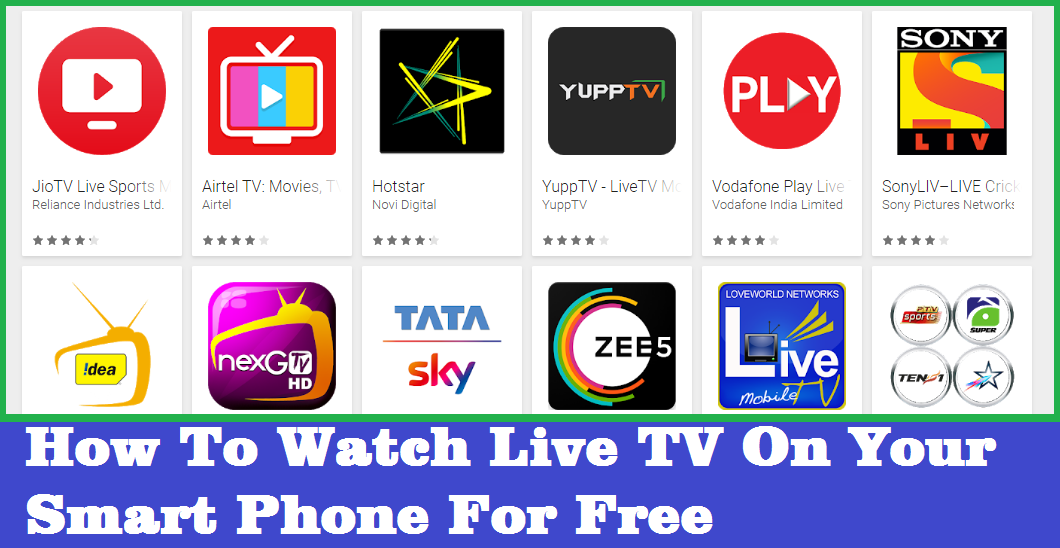
How To Watch Live TV On Your Smart Phone For Free


Hi friends, welcome all, in this topic I will show you how you can watch live TV channels on your Android smartphone. Now a days you can watch live streaming TV channels on your phone by using the Free TV applications. Watch free live streaming Television channels such as Star Network, Zee Network and all other regional TV channels by using Free Live TV Android application such as Airtel TV, Hot Star, Jio TV, Yupp TV, Vodafone Play Live TV, SonyLIV Live TV, Idea Mobile TV, nexGTV HD Mobile Live TV, Tata Sky Mobile Live TV and Voot TV shows etc. for More live TV Android Apps please visit Live TV Google Play.

Now you can watch Live TV on your Mobile using the free Live Streaming TV application and it's free, download TV application through the Google Play and watch TV by using your phone's Internet connection. It provides many channels such as Sports, News, Entertainment, Infotainment, Movies, Devotional, Music, Lifestyle, Kids and many more with English and Hindi Channels and also available with various Indian regional languages such as Tamil, Telugu, Malayalam, Bengali, Kannada, Marathi, Oriya (Odia), Assamese, Punjabi, Bhojpuri, Gujurati, Urdu etc.
How To Watch Live TV On Your Smart Phone For Free
For Nokia Mobile download nexGTv nano here https://store.ovi.com/nexGtv nano or open ovi store on your mobile then search for nexGTv nano then install and enjoy. I have tested it on Nokia 5800. Some other popular free Live TV apps for your Android smartphone given below.

NexGTV: 
For Android download it form Android Google Play 
For Apple Phone check here https://itunes.apple.com/nexGTv nano
For Windows OS : Microsoft Store

Airtel Live TV:
For Android OS : Download From Google Play Store
For iOS : Download from Itunes Apple Store

Hot Star Live TV:
For Android : Download
For iOS: Download

All Live TV Applications:
For Android: Download from Google Play
For iOS: Download iTunes Apple Store or Apple TV App

📚 You May Also Like to Read