Showing posts with label YouTube Tips and Tricks. Show all posts

Sunday, July 20, 2025

YouTube Channel Banner कैसे बनाएं? Step-by-Step गाइड हिंदी में || Download PSD Template File for YouTube Banner from MediaFire Link


 लेखक: PARTHASARATHI PANDA (M.Com)

ब्लॉगर | यूट्यूबर | वेबसाइट डिज़ाइनर
FREE COMPUTER TRICKS | HELP ODIA
YouTube: @FreeComputerTricks, @PsPStudio2, @PSPFARMING


🔰 भूमिका (Introduction)

YouTube पर एक सफल चैनल चलाने के लिए सिर्फ वीडियो बनाना ही काफी नहीं है, बल्कि आपके चैनल का प्रोफेशनल लुक भी बहुत मायने रखता है।
YouTube Channel Art यानी Banner Image आपके चैनल का पहला इंप्रेशन होता है। इस लेख में हम सीखेंगे कि कैसे एक परफेक्ट YouTube चैनल बैनर बनाया जाता है — वो भी बिल्कुल फ्री में और आसानी से।


YouTube Channel Banner कैसे बनाएं? Step-by-Step गाइड हिंदी में


🔍 YouTube Channel Banner क्या है?

YouTube बैनर एक वाइड हेडर इमेज होती है जो आपके चैनल के ऊपर दिखाई देती है। इसका मुख्य उद्देश्य होता है आपके ब्रांड, कंटेंट और पर्सनालिटी को दर्शाना।

  • Recommended Size: 2560 x 1440 pixels

  • Safe Area (Text/Logo): 1546 x 423 pixels

  • Maximum File Size: 6 MB

  • Format: JPG, PNG


✅ एक अच्छा YouTube Banner क्यों ज़रूरी है?

  1. First Impression: आपके चैनल पर नया विज़िटर पहले बैनर को देखता है।

  2. Branding: आपकी कंटेंट थीम और ब्रांड को दर्शाता है।

  3. Professionalism: आपके चैनल को प्रोफेशनल लुक देता है।

  4. Information: आप अपलोड टाइम, सोशल मीडिया या tagline जोड़ सकते हैं।


YouTube Channel Banner कैसे बनाएं? Step-by-Step गाइड हिंदी में


🛠️ YouTube Banner कैसे बनाएं? (Step-by-Step Guide)

✳️ Step 1: Canva जैसे Free Tool पर जाएं

  1. वेबसाइट खोलें: www.canva.com

  2. लॉगिन या अकाउंट बनाएं

  3. सर्च बार में टाइप करें: "YouTube Channel Art"


✳️ Step 2: टेम्पलेट चुनें

  • Canva में आपको हज़ारों रेडीमेड टेम्पलेट मिलेंगे।

  • आप अपनी थीम (Gaming, Vlogs, Education, Tech, etc.) के अनुसार टेम्पलेट चुनें।


✳️ Step 3: Customize करें

  • अपना Channel Name, Tagline, और Logo जोड़ें

  • Colors, Fonts, Backgrounds को अपने हिसाब से एडजस्ट करें

  • Social Media Icons या Upload Schedule भी डाल सकते हैं

  • ध्यान दें कि Text Safe Area (1546 x 423 px) के भीतर सारी जरूरी जानकारी हो


YouTube Channel Banner कैसे बनाएं? Step-by-Step गाइड हिंदी में
YouTube banner design Download


✳️ Step 4: Download करें

  • ऊपर दिए गए "Download" बटन पर क्लिक करें

  • Format चुनें: PNG या JPG

  • High-Quality Image सेव करें (6MB से कम)


✳️ Step 5: अपने YouTube चैनल पर Upload करें

  1. YouTube खोलें और Sign In करें

  2. अपने चैनल पर जाएं

  3. “Customize Channel” > Branding टैब चुनें

  4. Banner Image के आगे Upload पर क्लिक करें

  5. Image चुनें और Save करें


📌 कुछ प्रो टिप्स (Pro Tips for Better Banner)

  • अपने चैनल के Niche के अनुसार कलर और फ़ॉन्ट चुनें

  • मोबाइल व्यू के लिए Safe Zone में ही Text रखें

  • अपने Upload Schedule या Call to Action जोड़ें

  • Logo और Profile Picture से मेल खाता डिज़ाइन रखें

  • Simple और Clean डिज़ाइन रखें — ज्यादा भराव नहीं


🎁 Extra Tool Suggestions:

Tool Nameवेबसाइट लिंकविशेषता
Canvacanva.comEasy Drag & Drop
Adobe Expressexpress.adobe.comप्रोफेशनल टेम्पलेट
Snappasnappa.comFast Design
Fotorfotor.comPhoto Editing
Crello (VistaCreate)crello.comब्रांडिंग फीचर्स


🔚 निष्कर्ष (Conclusion)

एक बढ़िया YouTube Channel Banner आपके चैनल की पहचान को मजबूत करता है और दर्शकों पर गहरी छाप छोड़ता है। Canva जैसे फ्री टूल्स की मदद से आप बिना किसी डिजाइनिंग स्किल्स के भी शानदार Banner बना सकते हैं।

अगर आप चाहते हैं कि आपके चैनल का लुक प्रोफेशनल हो, तो इस गाइड को जरूर फॉलो करें और आज ही एक आकर्षक YouTube बैनर बनाएं।


YouTube Channel Banner कैसे बनाएं? Step-by-Step गाइड हिंदी में


DOWNLOAD YOUTUBE BANNER PSD FORMAT AND EDIT WITH PHOTOSHOP

DOWNLOAD HERE


✍️ लेखक परिचय:

लेखक: PARTHASARATHI PANDA (M.Com)
एक समर्पित ब्लॉगर, वेबसाइट डिज़ाइनर और यूट्यूब कंटेंट क्रिएटर।
लक्ष्य है – डिजिटल दुनिया को सबके लिए आसान बनाना।


🌐 मेरी वेबसाइट्स:


▶️ मेरे YouTube चैनल्स:


📘 Facebook:


#YouTubeBanner #HindiGuide #CanvaBanner #YouTubeTips #FreeComputerTricks #PSPStudioOdia


How to Create a YouTube Channel Banner Like a Pro (Beginner to Advanced Guide) - Free Computer Tricks


 Author: PARTHASARATHI PANDA (M.Com)


Creating an attractive and professional YouTube channel banner is one of the first steps to branding your channel and making a great first impression. Whether you're a tech vlogger, farming educator, or content creator in any niche, your channel art visually represents your brand.

In this blog post, we’ll walk through how to create a YouTube banner step-by-step, the ideal dimensions, free tools you can use, and pro tips to make your channel stand out on all devices.


How to Create a YouTube Channel Banner Like a Pro (Beginner to Advanced Guide) - Free Computer Tricks


📌 What is a YouTube Channel Banner?

A YouTube banner (also called channel art) is the large image displayed at the top of your channel. It tells visitors what your channel is about and builds visual branding.


📏 YouTube Banner Size and Guidelines

Before you start designing, here are the official YouTube banner size recommendations:

ParameterValue
📐 Banner Size2560 x 1440 pixels
🔒 Safe Area (Visible on all devices)1546 x 423 pixels
💾 File Size Limit6 MB
📂 File FormatsJPG or PNG


The safe area is the most important part. All text and logos should fit within that center area to avoid being cut off on mobile devices.


How to Create a YouTube Channel Banner Like a Pro (Beginner to Advanced Guide) - Free Computer Tricks


🛠️ How to Create a YouTube Channel Banner – Step-by-Step

✅ Step 1: Choose a Free Design Tool

You don't need Photoshop to make amazing banners. Use these free and easy tools:

Canva is highly recommended for beginners due to its drag-and-drop features.


✅ Step 2: Start with the Correct Banner Size

When starting a design:

  • Open a custom canvas: 2560px x 1440px

  • Use a YouTube safe zone guide (you can search or download templates)

  • Make sure important text fits inside 1546x423 pixels center area


You can download a PSD FILE HERE:
📥 Download YouTube Banner Template


✅ Step 3: Add Your Channel Branding Elements

Design your banner by adding:

  • Your Channel Name

  • A Tagline (e.g., “Free Computer Tricks | Odia Tech Tips”)

  • Upload Schedule (optional)

  • Icons for social media or your website (if you want)

🎯 Tip: Keep your text readable and your design clean and simple.

Use branding colors that match your channel logo and thumbnails.


✅ Step 4: Download the Final Banner

Once you're happy with your design:

  • Click Download

  • Choose format: PNG or JPG

  • Keep the file size under 6MB


How to Create a YouTube Channel Banner Like a Pro (Beginner to Advanced Guide) - Free Computer Tricks


✅ Step 5: Upload to Your YouTube Channel

Follow these steps to upload your new banner:

  1. Go to your YouTube Studio

  2. Click on "Customization" in the left menu

  3. Go to the "Branding" tab

  4. Under Banner image, click Upload

  5. Upload your new banner and crop if necessary

  6. Click Publish


📱 What Will Viewers See on Different Devices?

  • TV shows the full banner

  • Desktop shows a medium crop

  • Mobile only shows the safe area

That’s why it’s crucial to place all your important info (text, logo, tagline) inside the safe zone.


🎨 YouTube Banner Design Tips

TipWhy It Matters
✅ Use Bold FontsMakes text readable on mobile
✅ Use Brand ColorsBuilds identity across videos
✅ Center Text in Safe ZoneEnsures mobile compatibility
✅ Less is MoreAvoid clutter and too many elements
✅ Use High-Resolution ImagesNever use blurry images


🔗 Helpful Resources

ResourceLink
YouTube Channel Art HelpYouTube Official Guide
Free Canva TemplatesVisit Canva
Banner Size InfoSafe Zone Example Image
Sample Banner PSDMediafire Download


🎬 Bonus: Watch This Video

Want to learn by watching?

🎥 How to Make a YouTube Banner in Canva (Step-by-Step)


🧠 Final Thoughts

Creating a professional YouTube channel banner doesn’t require expensive tools or graphic design skills. With free resources like Canva and a basic understanding of the layout, you can easily design a stunning banner that helps you grow your brand and connect with your audience.

Stay consistent, use clear branding, and always test how it looks on mobile before finalizing.


How to Create a YouTube Channel Banner Like a Pro (Beginner to Advanced Guide) - Free Computer Tricks


✍️ Author Profile

Author: PARTHASARATHI PANDA (M.Com)

A dedicated blogger, website designer, YouTube content creator, and social media influencer from India. With a Master’s degree in Commerce (M.Com), PARTHASARTHI creates and shares knowledge to help people grow digitally and personally.

Writes and speaks in English, Hindi, and Odia to support audiences across languages and regions. His mission is to empower everyone — from students to farmers — with free and useful content online.


MY WEBSITES/BLOGS


MY YOUTUBE CHANNELS


📘 FACEBOOK
https://www.facebook.com/parthasarathi.panda1


Friday, July 18, 2025

25 Free and Powerful Computer Tricks to Boost Your Productivity and Efficiency


25 Free and Powerful Computer Tricks to Boost Your Productivity and Efficiency

In today’s fast-paced digital world, using a computer efficiently can significantly impact your productivity—whether you’re a student, professional, freelancer, or even a casual user. While most people use their computer every day, many are unaware of the small yet powerful tricks that can make work faster, easier, and more efficient.

In this post, we’ll explore 25 free and incredibly useful computer tricks that can help you get the most out of your system, speed up daily tasks, and enhance your overall digital experience. These are simple, effective, and don’t require installing any paid software.


25 Free and Powerful Computer Tricks to Boost Your Productivity and Efficiency


1. Essential Keyboard Shortcuts

Keyboard shortcuts are one of the quickest ways to speed up your workflow. Instead of clicking through menus, you can get things done with just a few keystrokes.

Copy, Cut, and Paste (Ctrl + C / X / V)

These are arguably the most-used shortcuts. Instead of right-clicking to copy and paste, just use:

Ctrl + C: Copy

Ctrl + X: Cut

Ctrl + V: Paste


Great for quickly moving text, images, or files around.

Undo and Redo (Ctrl + Z / Y)

Make a mistake? Undo it with Ctrl + Z. Changed your mind about undoing? Redo it with Ctrl + Y.

Find in Page or Document (Ctrl + F)

Need to locate a word or phrase in a long document or webpage? Use Ctrl + F to bring up the search bar and type what you're looking for.

Save (Ctrl + S)

This is a habit every user should adopt. Press Ctrl + S frequently while working to avoid losing progress.

Open and Close Tabs (Ctrl + T / W)

In web browsers:

Ctrl + T: Opens a new tab

Ctrl + W: Closes the current tab


Fast and intuitive for tab management.

Switch Between Tabs (Ctrl + Tab)

Cycle through open tabs in most browsers or programs with Ctrl + Tab. This works well in multitasking situations.

Minimize All Windows (Windows Key + D)

Need a quick peek at your desktop? Press Windows Key + D to minimize all windows instantly.

Lock Your Computer (Windows Key + L)

Walking away from your computer? Press Windows + L to lock it and protect your privacy.

Open Task Manager (Ctrl + Shift + Esc)

Having performance issues or a frozen app? Launch Task Manager directly with Ctrl + Shift + Esc to close unresponsive programs.

Open Run Dialog (Windows Key + R)

Quickly launch apps and settings with the Run command. For example, typing notepad opens Notepad instantly.

Refresh Page (F5)

Reload a web page or refresh the contents of a window by pressing F5.


25 Free and Powerful Computer Tricks to Boost Your Productivity and Efficiency


2. Smart Browser Tricks

Whether you’re researching, shopping, or binge-watching, browser productivity is key.

Reopen Closed Tabs (Ctrl + Shift + T)

Accidentally closed a tab? No problem. Press Ctrl + Shift + T to bring it back. You can do this multiple times to recover previous tabs.

Navigate History (Alt + Left / Right Arrow)

Go back or forward in browser history using:

Alt + Left Arrow: Back

Alt + Right Arrow: Forward


Much faster than clicking the back or forward buttons.

Zoom In and Out (Ctrl + Mouse Wheel)

Control the zoom level of your browser (or many other apps) with the Ctrl + Mouse Scroll shortcut.

Top and Bottom of Page (Home / End)

Home: Scroll instantly to the top of a webpage or document

End: Jump to the bottom


Perfect for long pages or reports.

View Browsing History (Ctrl + H)

Need to revisit a site? Open your history instantly by pressing Ctrl + H.


25 Free and Powerful Computer Tricks to Boost Your Productivity and Efficiency


3. Time-Saving Desktop & File Explorer Tricks

Being organized and efficient on your desktop can save hours over time.

Rename Files Quickly (F2)

Click on a file and press F2 to rename it immediately without right-clicking.

Take Screenshots (Windows + Shift + S / Mac: Shift + Cmd + 4)

Capture part of your screen using:

Windows + Shift + S to open Snip & Sketch

Shift + Cmd + 4 on Mac for selective screenshotting


These allow you to grab only what you need.

Search for Files & Apps Instantly

Windows: Press the Windows key and start typing the app or file name.

Mac: Use Cmd + Space to open Spotlight search.


No need to dig through folders.

Clean Up Your Computer

Improve performance with regular maintenance:

Uninstall unused programs

Clear temporary files using Disk Cleanup (search cleanmgr)

Move old files to external drives or cloud storage


A clean computer runs faster and crashes less.

Password Protect Folders

If you need to secure sensitive data:

Use free tools like 7-Zip to create a password-protected archive.

Alternatively, use built-in BitLocker (Windows Pro editions) to encrypt drives.


Note: Be cautious and don’t lose your password.


4. Bonus Tips for Advanced Users

Once you’ve mastered the basics, these next-level tricks can push your productivity even further.

Split Screen for Multitasking

Drag a window to the side of the screen (or use Windows Key + Left/Right Arrow) to snap it to one half. Then select another window to fill the second half. Great for research + writing, coding + previewing, etc.

Clipboard History (Windows Key + V)

On Windows 10/11, enable clipboard history to access multiple copied items. Press Windows + V to view them. Enable it from Settings > System > Clipboard.

Use Virtual Desktops (Windows Key + Ctrl + D)

Separate your workspaces with virtual desktops. Use:

Windows + Ctrl + D: New desktop

Windows + Ctrl + Left/Right: Switch between them

Windows + Ctrl + F4: Close a desktop


Perfect for separating work, browsing, and entertainment.

Pin Apps to Taskbar

Right-click any app and select “Pin to taskbar” for quick access. You can then open it with Windows Key + number (1 for the first pinned app, 2 for the second, etc.).


5. Maintain Your Digital Workspace

Being productive isn’t just about shortcuts—organization matters too.

Declutter Your Desktop

Avoid having dozens of icons. Use folders to group related items. Fewer distractions mean faster focus.

Use Cloud Storage

Google Drive, Dropbox, and OneDrive are great for syncing files across devices. It also protects your files from accidental loss.

Set Up Auto-Start Programs Carefully

Some apps start automatically with your computer and slow it down. Disable unnecessary ones:

Press Ctrl + Shift + Esc > Startup tab in Task Manager

Disable apps you don’t need at launch


Use a Password Manager

Remembering all your passwords is hard—and risky. Use free tools like Bitwarden or LastPass to store strong, unique passwords securely.

Update Software Regularly

Security patches and performance fixes are essential. Always keep your OS, browser, antivirus, and key software up to date.


Conclusion

By incorporating these 25 powerful and free computer tricks into your routine, you’ll soon notice a real difference in your workflow. Whether you’re managing files, navigating the web, or simply switching between tasks, these tips help you work smarter, not harder.

You don’t need to be a tech genius to take advantage of these shortcuts and tricks. Most require just a little practice, and the time saved each day adds up quickly.

Got more tips or tricks you use every day? Share them in the comments and let’s learn from each other!


Author : Parthasarathi Panda (M.Com)


Thursday, July 17, 2025

How YouTube Promotes Videos: A Creator's Guide to Discovery & Growth - Free Computer Tricks


 If you're a YouTube creator, you’ve probably wondered:

  • "How does YouTube decide which videos to promote?"

  • "Does the yellow monetization icon affect my video's reach?"

  • "Are tags still relevant in 2025?"

These questions are common—and important. Whether you’re just starting out or already have a growing audience, understanding YouTube’s search and recommendation system can help you make smarter content decisions. So let’s walk through how YouTube promotes videos and what you, as a creator, should focus on to grow your channel sustainably.


How YouTube Promotes Videos: A Creator's Guide to Discovery & Growth - Free Computer Tricks


📌 YouTube Doesn’t Push Videos — It Pulls for Viewers

Let’s start with a myth buster: YouTube doesn’t just randomly “promote” videos. Instead, its recommendation system works to find the right videos for each individual viewer. That means there isn’t one big promotion button being pushed behind the scenes—it’s personalized for everyone.

When someone opens the YouTube homepage, search, or suggested videos section, the platform’s algorithms are actively pulling videos that match that user’s interests. In other words, YouTube's goal isn’t to help creators go viral—it’s to help viewers find content they’ll enjoy and keep them watching longer.

So, every viewer sees a different YouTube.


How YouTube Promotes Videos: A Creator's Guide to Discovery & Growth - Free Computer Tricks


🧠 How Are Videos Ranked?

YouTube’s ranking system considers hundreds of signals, but they generally fall under two key categories:

1. Viewer Personalization

This is based on an individual viewer’s behavior:

  • What videos they watch, ignore, or dismiss.

  • How often they watch a channel or a topic.

  • What types of videos they engage with most.

2. Video Performance

Once your video is shown to viewers, the system watches how they interact:

  • Do they click or skip?

  • How long do they watch? (Average View Duration, Percentage Viewed)

  • Do they like, comment, or share?

  • Do they rate it positively in surveys?

YouTube doesn’t decide if a video is “good.” Viewers do.


🎯 The Algorithm Doesn’t Favor Types—It Favors Viewers

Creators often ask, “What kind of videos does the algorithm prefer?” The truth is: the system has no preference.

Whether you make 10-second Shorts, 10-minute vlogs, tutorials, or animations—YouTube follows the audience, not the format.

So instead of chasing trends or guessing what the algorithm wants, focus on knowing your audience:

  • What do they like?

  • What problems can you solve for them?

  • What kind of content keeps them coming back?


🔄 Does Changing a Title or Thumbnail Help?

Yes, it can help—but not because you "trick" the algorithm.

When you change a title or thumbnail, it changes how viewers perceive the video. If the new version is more appealing, you might see more clicks. But keep in mind:

  • If a video is already performing well, don’t fix what isn’t broken.

  • If your video underperforms, experimenting with titles or thumbnails might give it a second chance.


💛 Does the Yellow Icon Affect Discovery?

Nope. YouTube’s recommendation system doesn’t know (or care) whether a video is monetized.

However, if your video contains racy, violent, or graphic content, it might be both demonetized and not recommended widely—because it’s not considered appropriate for all audiences.

So while monetization itself doesn’t impact discovery, content suitability does.


How YouTube Promotes Videos: A Creator's Guide to Discovery & Growth - Free Computer Tricks


📉 Will One Underperforming Video Hurt Your Channel?

No—YouTube doesn’t punish you for a single flop.

Each video is evaluated independently based on how it performs when shown to viewers. What matters is how people respond when your video is recommended to them—not whether your last upload had 50K views or 500.

However, if your entire channel sees declining interest over time, or if viewers stop engaging with most of your uploads, that can affect your overall impressions and traffic.


📆 How Often Should You Upload?

You may think uploading daily or weekly is the secret to growth, but that’s a myth.

YouTube has found no correlation between time gaps in uploads and long-term growth. Some creators post once a month and do great. Others upload multiple times a week with limited results.

In short:

  • Quality > Quantity

  • Consistency is good, but not at the cost of burnout.

  • Focus on making each upload meaningful for your audience.


🤔 Why Are Views Lower Than Subscriber Count?

Here’s a hard truth: Not all subscribers are active viewers.

Many people subscribe to dozens (or even hundreds) of channels. But their viewing habits change over time. Just because someone subscribed doesn’t mean they’ll watch every new video—or any, for that matter.

That’s why views are always lower than subscriber count. Instead of worrying about subs, pay attention to:

  • Who’s watching?

  • Where are they coming from?

  • Which videos are retaining viewers?

YouTube Analytics is your best friend here.


📈 What Else Affects Video Discovery?

Three important external factors can influence how your video performs:

1. Topic Interest

Some topics are hot—others, not so much. Interest in a topic fluctuates over time. Use tools like Google Trends to track interest in your niche and plan content accordingly.

2. Competition

Even if your video performs well, it may receive fewer impressions if other videos on the same topic perform better. You’re not just competing with the algorithm—you’re competing with other creators.

3. Seasonality

Viewer behavior changes with the seasons. School holidays, festivals, exam time, vacation periods—all impact traffic. For example, a tech channel might boom during the festive gadget-buying season.


How YouTube Promotes Videos: A Creator's Guide to Discovery & Growth - Free Computer Tricks


🏷️ Do Tags Still Matter?

Honestly? Not much.

Tags are mostly used to correct spelling variations like:

  • "YouTube" vs "UTube"

  • "MrBeast" vs "Mr Beast"

In 2025, YouTube’s systems rely more on titles, descriptions, captions, and most importantly—viewer behavior.


✅ Final Tips for Creators

Let’s wrap up with some actionable advice:

  • Focus on knowing your audience, not hacking the algorithm.

  • Craft compelling titles and thumbnails—they’re your first impression.

  • Don't worry if one video flops. Learn from it.

  • Post consistently, but don’t burn yourself out.

  • Use YouTube Analytics to find what’s working and double down on it.

  • Experiment. Adapt. Grow.

At the end of the day, YouTube is a viewer-first platform. If you make content that resonates with people, the algorithm will follow them—to your videos.


🙌 Thanks for Reading

Want to learn more? Check out YouTube's official Creator Academy and Help Center for in-depth resources and tips.

Have questions or want to share your experience with YouTube's recommendation system? Drop a comment below 👇 — I’d love to hear from you!


Authour: Parthasarathi Panda

https://www.youtube.com/@PsPStudio2

https://www.youtube.com/@FreeComputerTricks


📝 Meta Description:

  1. Discover how YouTube promotes videos in 2025 with tips on algorithms, thumbnails, tags, viewer behavior, and more. A must-read for content creators!

  2. Learn how YouTube’s recommendation system works, what impacts your video rankings, and how to grow your views organically. SEO-friendly insights for creators.

  3. Explore YouTube’s search & discovery system. Find out how personalization, video performance, and seasonal trends affect your video’s reach.

  4. This guide explains how YouTube selects which videos to recommend, how titles and thumbnails affect reach, and whether tags and monetization matter.


🔍 Search Keywords & Tags (Hashtags + Regular):

🔑 Keywords:

  • How YouTube promotes videos

  • YouTube recommendation algorithm 2025

  • YouTube video discovery tips

  • Increase YouTube views 2025

  • YouTube monetization and video ranking

  • Why my YouTube views are low

  • YouTube search algorithm explained

  • How to rank on YouTube

  • YouTube audience targeting

  • Tags vs thumbnail vs title SEO YouTube


#Hashtags:#YouTubeTips #YouTubeAlgorithm #ContentCreator #YouTubeSEO #GrowOnYouTube #VideoMarketing #YouTubeDiscovery #YTMonetization #YouTubeViews #YouTubeGrowth


You can also make topic with these Titles:

SEO Blog Titles (English Only):

  1. How YouTube Promotes Videos in 2025: Complete Guide for Creators

  2. YouTube Algorithm Explained: How Videos Get Recommended

  3. Secrets of YouTube Video Promotion: What Every Creator Must Know

  4. How to Get More Views on YouTube: Understanding the Algorithm

  5. YouTube Search and Discovery System: Full Breakdown (2025 Update)

  6. Why Some YouTube Videos Get Promoted — And Others Don’t

  7. How the YouTube Algorithm Works in 2025 to Boost Your Videos

  8. How to Rank Your Videos on YouTube: Proven Tips for Creators

  9. Does the Yellow Icon Affect YouTube Views? Algorithm Truth Revealed

  10. YouTube Video Discovery in 2025: What Matters Most to the Algorithm


Saturday, July 12, 2025

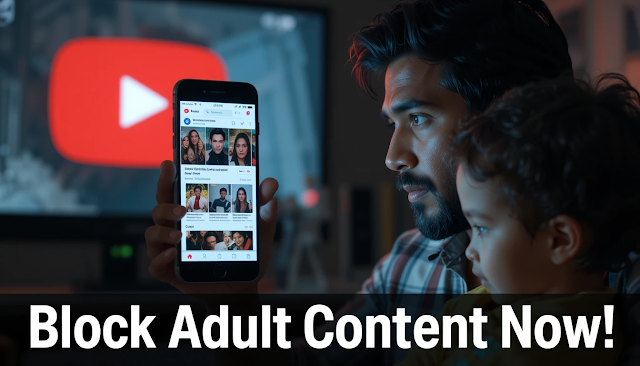
YouTube Showing Adult Content on Home Screen? Here's How to Block It Permanently


Introduction

YouTube is one of the most popular video platforms globally, offering a mix of educational, entertainment, news, and creative content. However, as widely used as it is, many users — especially parents — are increasingly concerned about inappropriate or adult content appearing on the YouTube Home Screen.

Have you ever opened YouTube and been shocked by some inappropriate thumbnails or suggestive video recommendations? Even without searching for such content, these videos often appear, making it unsafe for children and uncomfortable for families. In this blog post, we will explore why adult content shows up, how to block it, and what settings and tools can help you create a safer YouTube experience, especially for children.


YouTube Showing Adult Content on Home Screen? Here's How to Block It Permanently - AI Generated Image


1. Why Is YouTube Showing Adult Content on the Home Screen?

YouTube’s algorithm is designed to recommend videos based on:

  • Your watch history

  • Search history

  • Videos you liked, disliked, or interacted with

  • What’s trending in your region

Unfortunately, even if you don’t intentionally watch adult or inappropriate content, a single click or a misleading title or thumbnail can affect your recommendations. Sometimes, even innocent-looking videos can link to more inappropriate ones due to poor moderation or misleading tags.


2. What Is Considered "Adult" or Inappropriate Content on YouTube?

Adult or inappropriate content can include:

  • Thumbnails showing revealing clothing or suggestive images

  • Titles with double meanings or sexual references

  • Music videos with explicit visuals

  • Videos meant for mature audiences but not marked properly

  • Clickbait videos targeting views

While YouTube does have Community Guidelines, it is impossible to manually filter all content instantly, so some inappropriate content slips through.


YouTube Showing Adult Content on Home Screen? Here's How to Block It Permanently -AI Image


3. How to Block Adult Content on YouTube: Step-by-Step

Let’s dive into how you can block or minimize such content from showing on your home screen.


Enable Restricted Mode

Restricted Mode is a feature designed to help filter out potentially mature content. It’s not 100% accurate, but it’s a strong first step.

📱 On Mobile (YouTube App):

  1. Open YouTube App

  2. Tap your profile picture

  3. Go to Settings > General

  4. Toggle on Restricted Mode

💻 On Desktop:

  1. Go to YouTube.com

  2. Scroll down to the bottom of the page

  3. Click "Restricted Mode: Off"

  4. Enable Restricted Mode

🔒 Tip: If you are a parent, lock Restricted Mode by signing into your child’s account and setting up supervised access via Google Family Link.


YouTube Showing Adult Content on Home Screen? Here's How to Block It Permanently - AI Image


Clear Watch & Search History

If you or someone else using your device has watched inappropriate content, YouTube will keep recommending similar videos.

To reset YouTube's recommendations:

  1. Go to Settings > History & Privacy

  2. Tap on:

    • Clear Watch History

    • Clear Search History

  3. Enable Pause Watch History if you want to prevent YouTube from tracking future activity

This will stop YouTube from pushing unwanted content based on your old viewing habits.


Report or Block Inappropriate Videos/Channels

When you come across an inappropriate video or thumbnail:

  • Tap the three-dot menu (⋮) on the video

  • Select “Don’t recommend channel” OR “Not interested”

  • You can also click Report and select the reason (Nudity, Sexual content, Misleading, etc.)

This teaches YouTube not to show similar videos again.

❗ Reporting consistently helps improve the algorithm for everyone.


Use YouTube Kids App for Children

If you’re worried about your child using YouTube, it’s best to switch to the YouTube Kids app, which is specifically designed for children under 13. It contains curated, child-friendly content.

Features:

  • Set screen time limits

  • Choose content types based on age

  • Disable search option

  • Manually approve videos/channels

📥 Available on Google Play and Apple App Store

YouTube Kids is much safer than regular YouTube, and gives parents more control.


Use Third-Party Tools & Browser Extensions

If you're browsing on desktop, there are several browser extensions that can help:

  • BlockSite – Blocks access to certain websites or categories

  • uBlock Origin – Powerful content blocker that can block certain keywords, thumbnails, or ad-type content

  • Safe YouTube – Allows ad-free and safe YouTube playback for kids

🖥️ Parental Control Apps like Qustodio, Net Nanny, and Google Family Link also allow content monitoring and blocking.


YouTube Showing Adult Content on Home Screen? Here's How to Block It Permanently - AI Image


Supervised YouTube Accounts (for Kids over 13)

YouTube allows Supervised Accounts for teens and pre-teens. These allow parents to:

  • Decide the content level (Explore, Explore More, Most of YouTube)

  • Monitor what their child watches

  • Disable comments, likes, and uploads

Set this up via Google Family Link and connect your child’s Google Account with yours for monitoring.


4. Tips for Parents to Maintain a Safe YouTube Environment

Even with tech solutions, real safety comes from awareness and involvement. Here are practical tips:

👪 Watch With Your Children: Be present while they browse YouTube.

📺 Set Screen Time Limits: Don’t let kids use YouTube unsupervised for long hours.

🧠 Educate Your Kids: Teach them to avoid thumbnails or titles that look suspicious or inappropriate.

👍 Subscribe to Good Channels: Find and subscribe to educational or family-friendly channels so that the home screen is filled with appropriate content.

🚫 Block Suspicious Content Quickly: Don’t wait – the sooner you act, the better the algorithm understands.


5. Real-Life Example: Why It Matters

A father in Odisha once noticed his 9-year-old child opening YouTube only to find suggestive thumbnails on the Home Screen — even though the child hadn’t searched for anything like that. On further inspection, it was found that someone had watched a video using his phone earlier, influencing the algorithm.

After turning on Restricted Mode, clearing Watch History, and installing YouTube Kids, the issue was resolved. The father also taught his child how to avoid clicking on inappropriate-looking thumbnails.

This shows that YouTube is not inherently dangerous, but it does require careful settings and responsible use.


6. Frequently Asked Questions (FAQs)

Q1. Is Restricted Mode 100% accurate?
No. While it helps a lot, some inappropriate content may still slip through. Combining it with other settings is best.

Q2. Can I block a specific video permanently?
You can tell YouTube not to recommend it, or report it — but you cannot completely block a video globally.

Q3. Will clearing history delete all data?
It will only clear your YouTube watch and search history, not other app data or subscriptions.

Q4. Is YouTube Kids safe?
Yes, it’s safer than regular YouTube, but still needs occasional parental supervision.


Conclusion: Take Control of Your YouTube Experience

YouTube is a great platform, but like every tool, it depends on how you use it. With inappropriate or adult content slipping into suggestions, especially on the Home Screen, it’s essential to take control of your settings and usage habits.

By using the steps shared above — enabling Restricted Mode, clearing history, reporting inappropriate content, using YouTube Kids, and educating children — you can create a much safer YouTube environment for yourself and your family.

Remember: Safe content doesn't happen by accident. It happens by intentional actions and smart settings.


If you found this blog helpful, please share it with others. Together, we can build a safer digital space!

📚 You May Also Like to Read