Showing posts with label 3G Data Card. Show all posts

Sunday, August 25, 2013

Huawei Mobile Broadband 3G Data Card Auto APN - Download Mobile Partner With Auto APN Settings


Huawei Mobile Partner software with auto APN (Access Point Name) settings for Huawei dongle users. So now all the Huawei Dongle users in India can use this Mobile Partner to get the Auto APN settings. This Mobile partner software can detect the APN automatically when you change the SIM card i.e. Idea, Airtel, Voadafone, BSNL, Tata Docomo, Aircel etc. whether it's 3G or 2G.

How to install customized firmware in Huawei Data Cards


If you want to change of your Huawei 3G data card dashboard, with auto APN for Indian Mobile Operators, you have to use customized Mobile Partner With All APN and install it on the modem.

  • Connect the Huawei Modem to System
  • Now you should download the customized Mobile Partner With ALL APN (India) and install this on your Modem
  • Now your Huawei Modem firmware is upgrade to the Customized firmware
  • Install the Dashboard ( My Computer--> CD Drive )
Update Wizard Dashboard Huawei

Search Google to download Customized Mobile Partner  with all APN

If you want to add APN (India) for the Huawei Modem Manually See below


  • Go to Tools-->Options-->Profile Management
  • Click on New to create a new profile, enter the profile name, APN (Static) and dial-up/Access Number and save. To add another profile follow the step again.
Manually add APN to Huawei Modem
Access Point Name (APN) in India

Airtel
Profile Name- Airtel
APN- airtelgprs.com
Access No.- *99#

BSNL
Profile Name- BSNL
APN- bsnlnet
Access No.- *99#

Idea
Profile Name- Idea
APN- internet
Access No.- *99#

Aircel
Profile Name- Aircel
APN- aircelgprs
Access No.- *99#

BPL
Profile Name- BPL
APN- bplgprs.com
Access No.- *99#

Reliance
Profile Name- Reliance
APN- SMARTNET
Access No.- *99#

Reliance 1
Profile Name- Reliance 1
APN- rcomnet
Access No.- *99#

Tata Docomo
Profile Name- Tata Docomo
APN- TATA.DOCOMO.INTERNET
Access No.- *99#

Tata Docomo 3G
Profile Name- Tata Docomo 3G
APN- tatadocomo3g
Access No.- *99#

Virgin
Profile Name- Virgin
APN- vinternet.in
Access No.- *99#

Vodafone
Profile Name- Vodafone
APN- www
Access No.- *99#

MTNL Delhi
Profile Name- MTNL Delhi
APN- pps3g
Access No.- *99#

MTNL Mumbai
Profile Name- MTNL Mumbai
APN- gprsppsmum
Access No.- *99#


How to install BSNL 3G Data Card in Windows 7 (64bit) - BSNL 3G Data Card 'no device detected' on Windows 7 64-bit


When you try to install the BSNL 3G data card on a windows 7 64-bit computer, the install will complete successfully but the BSNL 3G modem will not be detected by the computer. That means when you install the BSNL 3G data card and run the application it shows 'No Device Detected'. In that case it means your HSPA Bsnl 3G data card Modem is not installed on the computer.

BSNL 3G Data Card 'No Device Detected'
So you have to install the modem of BSNL 3G data card manually, the detailed procedure is given below. In this topic you can know how to install BSNL 3G data card modem on a Windows 7 64-bit operating system, then you can solve your problem of BSNL 3G data card NO DEVICE DETECTED.


Steps to solve No Device Detected BSNL 3G data card

  • Plugin the BSNL 3G data card to Computer

  • Install the BSNL 3G application


  • Then go to C Drive (Windows drive)--> Program Files (x86)

  • Open the folder 'BSNL 3G Data Card' then 'Driver'

  • Now install the HSPADataCard_Installer or Setup


That's all now your BSNL 3G data card is installed successfully with the modem driver on the Windows 7 64bit. Run the BSNL 3G application to check and you will not get the error message 'No Device Detected'.

Friday, September 28, 2012

Setup Mobile Broadband in Linux Mint 13 Maya / Use Data cards in Linux


Here is the way how you can setup mobile broadband connection in Linux mint 13 Maya and using of 3G data cards in it. Connect your mobile phone through USB cable or plug data card into the computer and do some settings to get connected with internet.

In Linux you can use any SIM card with any 3G Data cards like BSNL, Vodafone, Airtel etc. For example if you are using BSNL 3G data card you have to use only BSNL SIM cards other wise it will not work in windows Operating System, but in Linux it will work fine. As we know that Linux is free and open source Operating system, you can download from internet and use it.

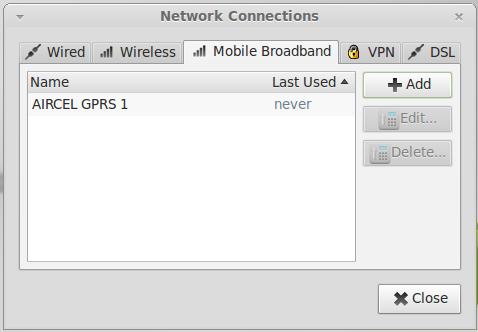
Linux Mint 13 Mate network Connections
So for this you need Linux platform, here is the example of Linux Mint 13, it is user friendly and easy to use for normal user. If you want just install along with the Windows or run form the CD/DVD directly (live CD) when you want to use Linux Mint 13 put the DVD into the Drive then start the PC as First boot Device CD/DVD Drive and the Linux will start. 

It's easy to configure just follow the steps below and get connected with any SIM using any Data Card. Linux Mint 13 Maya will not show which Data Card you are using, select the Country then select the operator and connect that's all.

To download Linux Mint 13 go to http://linuxmint.com
Steps:- 
  • Connect your Data card
  • Go to Menu -> All applications -> Scroll down and click on Network Connections 
  • On Network Connections Click on Mobile Broadband -> Click Add -> Click Continue 

Linux Mint 13 Aircel GPRS
  • Choose your Provider's Country or Region Select India and click Continue 
  • Then Choose your Provider from the list suppose Aircel 
  • Choose your Billing Plan for Aircel GPRS and Continue 
  • Then confirm Mobile Broadband Settings Click Apply then Save 
  • Then Click on Network Icon from the task bar then click on Aircel GPRS 

Now your are connected to internet.

The settings is same for data card and Mobile, main thing is you have to set the operator as per your SIM Operator. The above example is for Aircel SIM card. The above steps for setting is same for data card or mobile if you put Aircel SIM Card in it.

Thursday, November 3, 2011

How To Use Other SIM in BSNL 3G Data Card


You must have notice that Whenever you insert a SIM card other then Bsnl in your Bsnl 3G Data Card and open the BSNL 3G program to access internet on your computer, a massage appears and says that "Invalid SIM" then the application closes.It happens because BSNL 3G Data Card does not support other SIM cards like Airtel, Aircel, Vodafone, docomo etc. only you have to use BSNL SIM cards.

But don't worry about that, now you can use other SIM cards in the BSNL 3G Data Card by doing some Registry settings on your computer. This Trick will work on any version of Windows.I have tested the trick on Teracom BSNL 3G Data Card LW273 and it's working fine. Just follow the steps below.

How You Can Use Other SIM Card On Your BSNL 3G Data Card?
  • Go to your Registry Editor (Start ->Run Type regedit then press Enter)
  • Double click on HKEY_LOCAL_MACHIN then SOFTWARE
  • Now come down and click on Linktop3G
  • Then Double Click on Engineer from the right panel
  • Change the default Value data from 1 to 0 then click OK and close the Registry Editor.
  • Then close the BSNL 3G Application and check the process if the BSNL 3G.exe is running then end the process or simply you can Restart the Computer. 
Now the Bsnl Data card is unlocked, put any operator SIM in your BSNL 3G Data Card and open the application it will not show any error message. If you are changing SIM card then you must configure the Access Point Name (APN) on the Data card, To know all operator APN please go thorough the below details.

How to Use Airtel SIM Card on BSNL 3G Data Card?

For Example: If you want to use Airtel SIM Card on your BSNL 3G Data Card, please follow the below settings and apply on the Data Card.
  • Open the BSNL 3G Application
  • Click on Settings then click on Connection
  • Click on Add to Add New Profile
Profile Name - Airtel
Number - *99#
User Name - None (should be empty)
Password - None (should be empty)
APN - airtelgprs.com
How to Use Other SIM Cards in our
Click on Apply then click on Set Default
Now click Connect button to get connected to the internet.

HERE IS THE APN SETTINGS FOR OTHER OPERATORS:

Reliance
APN: rcomnet
Number: *99#

Idea
APN: internet
Number: *99#

Docomo
APN: TATA.DOCOMO.INTERNET
Number: *99#

BSNL 3G
APN: bsnlnet
Number: *99#

BSNL 2G
APN: bsnlnet
Number: *99#

Vodafone
APN: www
Number: *99#  

In this way you can use any other SIM cards on your BSNL 3G Data Card, So please do the above settings and follow the complete tutorial then you can use Internet connection on your Windows Laptop or Desktop Computer using BSNL Data card.

📚 You May Also Like to Read