Showing posts with label Bhulekh Odisha. Show all posts

Monday, March 18, 2019

How to Know Your House Number (ଘର ନମ୍ବର) Online in Odisha


Hi friends, today we will learn how to know your house number (ଘର ନମ୍ବର) online in Odisha? If you do not have the house number plate on your home wall and need to know how to get the house number online, then here is the right place to get the house number online with easy procedure and here is the example of Odisha state. So if you are belongs to Odisha and need know the House Number then please follow the below procedure to get the house number or home number or census home number for Odisha State.
How to Know Your House Number (ଘର ନମ୍ବର) Online in Odisha (Odia)

House Number Odisha, India to know the house number you need to have the Voter ID card number and visit the below website and then follow the below procedure to get the house number instant on your screen. The website is completely safe as the website is Chief Electoral Officer, Odisha official website. What you need to do is, just enter the Voter ID Number and then get the house number of yours.
How to Know Your House Number (ଘର ନମ୍ବର) Online in Odisha ଘର ନମ୍ବର ଜାଣନ୍ତୁ


Chief Electoral Officer, ODISHA

Visit the above website and then click on SEARCH YOUR NAME IN THE VOTER LIST, then select SEARCH BY IDENTITY CARD then type the captcha letter and finally click on SEARCH. Now you will get the house number of your home along with other electoral information.

House Numbering:-

House numbering is a system of giving an unique number to each building or house in a street or area. for more information you can visit Wikipedia page by visiting the link https://en.wikipedia.org/wiki/House_numbering.


How to check or know your House Number?


  • Visit - http://www.ceoorissa.nic.in/main.html
  • Then click on "Search your name in the voter list"
  • Now select "Search by identity card"
  • Now enter the Voter Id Number
  • Then enter the captcha letters and then press Search.
  • That's all now you will get the Hose number of your building or home.

ଓଡ଼ିଆରେ

  • ଏହି web ସାଇଟ କୁ ଜାଆନ୍ତୁ http://www.ceoorissa.nic.in/main.html
  • ତା ପରେ "Search your name in the voter list" ଉପରେ କ୍ଲିକ କରନ୍ତୁ.
  • ତାପରେ "Search by identity card" ସିଲେକ୍ଟ କରନ୍ତୁ.
  • ତାପରେ ଭୋଟର ID ନମ୍ବର ଏନ୍ଟର କରନ୍ତୁ.
  • ତାପରେ ସର୍ଚ କରନ୍ତୁ.
How to get House Number Without Voter ID?

  • Visit http://www.ceoorissa.nic.in/FindYourName.html
  • Then choose your Assembly constituency or District Name 
  • Then enter Elector's details means for example enter your details such as Your first Name and Last name with Relation's first name and last name.
  • Then enter the captcha letter and click on search.
How to get House Number Without Voter ID
Watch the Video Tutorial Here

https://www.youtube.com/watch?v=8SDU_i48FFc

You can also visit the http://www.ceoorissa.nic.in/FindYourName.html page and enter the voter Id number to get the Electoral details with your house number.

Monday, September 1, 2014

Bhulekh Odisha Website Not Showing Odia Font On Internet Explorer 11 & Windows 7


Bhulekh land records web portal of Odisha, as you know most of the users can not use this website, because on the latest version of Internet Explorer, Firefox and Google Chrome not showing the Odia font on the website. But by doing some settings and use some browser add-ons/ extension you can able to see Odia font on the bhulekh Odisha website.

As you know for Google Chrome and Firefox there is a tutorial on this blog see the below blog posts to know how to use Bhulekh.ori.nic.in on Google Chrome and Firefox and it's working fine on Windows 7 having Internet Explorer 11.


Bhulekh Land Records Web Portal Of Odisha On Google Chrome


Most of my friends and visitors says that, they are not able to see Odia font on Internet Explorer 11, So here is the topic about how to use bhulekh.ori.nic.in on Internet Explorer 11 to see Odia font.

Bhulekh Odisha Portal On Internet Explorer

  • First go bhulekh.ori.nic.in download and install Odia font
  • Now Open Internet Explorer 11 on Windows 7
  • Go to the website bhulekh.ori.nic.in
  • Then go to Settings/Tools on Internet Explorer 11 (Right top corner on IE or Open IE 11 and Press Alt+x)


Internet Explorer 11 settings to view Odia font on bhulekh odisha
  • Click on Compatibility View Settings
  • Compatibility View Settings Window will appear

Change Compatibility View Settings IE 11
  • In Add this website box make sure nic.in is there then Click on Add Button (if nic.in is not there type it manually and click Add button)
Websites you have added to compatibility View IE11
  • Then Click on Close
bhulekh odisha website on Internet Explorer 11

That's all now you will able to see Odia font on the bhulekh Odisha website, now open the bhulekh Odisha website it will work fine on Internet Explorer 11.

Wednesday, August 27, 2014

Bhulekh Odisha Web Portal, Odia Font Not Showing on Google Chrome and Firefox


Bhulekh.ori.nic.in not showing the Oriya/Odia Font and how to use Firefox and Google Chrome Browser to view Odia font on the bhulekh odisha website. Here is the complete and step by step tutorial to use bhulekh land record portal of odisha on Google Chrome and Firefox on Windows 7 and Windows 8.

How to Use Bhulekh Odisha Website?

As you know bhulekh.ori.nic.in is a land records web portal of odisha, where you can know the Khatiyan, Plot and Tenant details. Click on RoR View and Select State, Sub-Division and Tehsil then select Village it will show the Number of Khatiyan, Tenants and Plots.


If you know your Khatiyan Number then click on Khatiyan then select the Khatiyan No. and Click on RoR Front Page/RoR Back Page it will show the Khatiyan Details. The same can be done with Plot No. select Plot then select Plot No. and Click on the RoR Front Page/RoR Back Page.


If you don't know the Khatiyan No. and Plot No. then one more option is there called Tenant, Click on Tenant and choose the Tenant Name then click on RoR Front page/RoR Back Page where you can get the Khatiyan Details.

But we can not see the odia font on the bhulekh website odisha using Google Chrome and Firefox, so this tutorial is completely about that issue.

How to Browse Bhulekh.ori.nic.in on Firefox and See The Odia/Oriya Language

  • Open FireFox Browser
  • Download Odia Font from the bhulekh Odisha website
  • Add IE Tab V2 Extension to Mozilla Firefox 
  • To Add IE Tab V2 Go to IE TAB V2 (Enhanced IE Tab)
  • Click Add to Firefox then Click on Allow
  • Now Click on Install Now
  • Then Click on Restart Now to restart the Firefox
  • After restart the Firefox, it will open the IE Tab Page Click on Install IE Tab Icon
  • Then you will see IE Tab Icon on the Firefox
  • Now Open bhulekh.ori.nic.in website and Click on IE Tab Icon


bhulekh odisha website on Google chrome and Firefox

That's all now you can use bhulekh odisha website with Odia language and all the function will work fine on it.


Sunday, August 24, 2014

How to Use Bhulekh Land Records Web Portal Of Odisha On Google Chrome - bhulekh.ori.nic.in


In the previous topic How to Use Bhulekh Odia Portal on Internet Explorer 8 you got the procedure to use bhulekh Odisha portal on Internet Explorer 8, but many of my friends ask how to use Bhulekh Orissa land record portal on Google Chrome. So for that I find a solution through which you can use Bhulekh Odisha on Google Chrome.
So this topic/tutorial will help you to browse the Bhulekh.ori.nic.in using Google Chrome, see the below step by step process to use it.

How to Browse Bhulekh Land Record Web Portal Of Odisha Using Google Chrome


1) Install Odia Font on Windows 7
  • Download Odia Font and Install
  • Go to bhulekh.ori.nic.in and click on Download Odia Font ( On left top side of the website )
  • Open the font and Click on Install
Install Odia Font to Use Bhulekh Odisha Web Portal

2) Use Google Chrome Latest Version

3) Install IE Tab Extension On Google Chrome
  • Now Open Google Chrome Browser
  • Install IE Tab from Chrome Web store
  • Go to Here & Download IE Tab Extension for Google Chrome Click on Free Button. (Remember to Use Google Chrome, do not use any other browser to download IE Tab, because this tutorial is for Google Chrome IE Tab extension )
Add IE Tab to Google Chrome

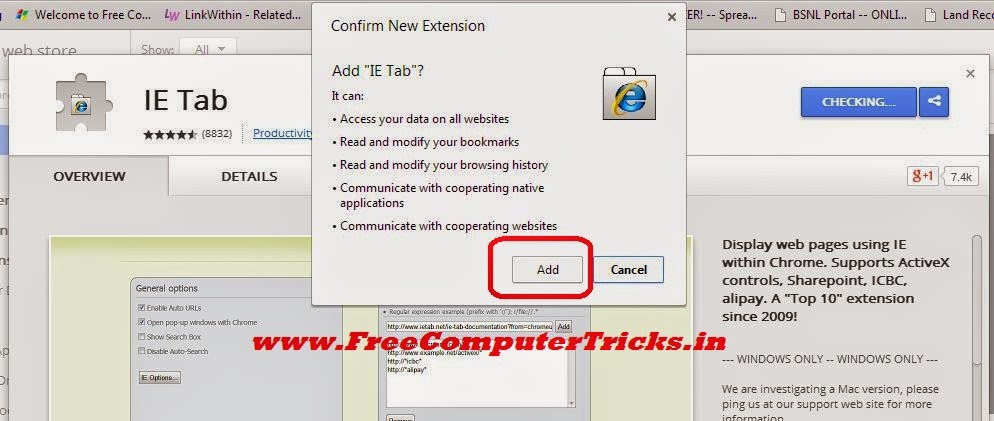
  • Confirm New Extension Add "IE Tab"? Click on Add Button
Confirm New extension - Click on Add

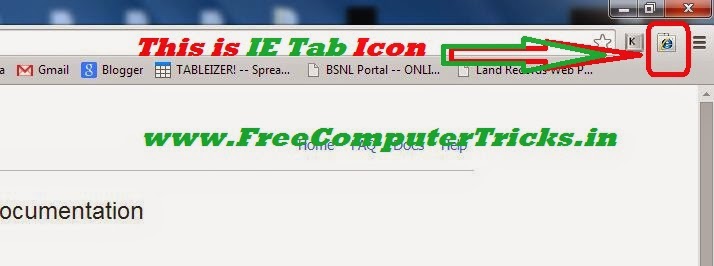
  • Then it will install the IE Tab for Google Chrome and you will see IE Tab Icon on the right side top corner of the browser (next to the address bar) (see the below image)
IE Tab Icon on Google Chrome

  • Now click on the IE Tab Icon on the Google Chrome Browser
  • It will download a small application called ietabhelper.exe (Size about 400KB)
  • Install ietabhelper.exe (Double Click and Click on Run)


4) How to Use the IE Tab On Google Chrome to Browse Bhulekh Odisha Portal
  • After finish the 3rd step close the Google Chrome Browser and Open It
  • Go to the Bhulekh Odisha Website Don't worry you will not able see odia font.
  • So now Click on IE Tab icon on the Chrome (Right Top Corner) and see the difference.

Bhulekh Land Records Web Portal Of Odisha on Google chrome
So now you can use Google chrome to browse bhulekh Odisha portal and you will see the Odia font and all other functions will work fine. Please read the hole topic carefully and follow all the steps, then you will able to use bhulekh website on Google Chrome in Odia language. If you have any question about this tutorial feel free to post comments. This topic is for Odia Script using Google Chrome on Windows 7 Operating System to browse bhulekh.ori.nic.in.

Regards:

Monday, April 29, 2013

http://bhulekh.ori.nic.in/ Oriya/Odia Script Help For Internet Explorer and Firefox - http://www.freecomputertricks.in


Bhulekh which is a Land records web portal, where you can find the land records of your state,District, Subdivision and Tehsil. All the States of India has the bhulekh portal in their regional languages, that means you can check the land record details in your own language, such for odisha you can see it in odia and the web address is http://bhulekh.ori.nic.in.


bhulekh orissa/odisha before install odia font

When you open the website http://bhulekh.ori.nic.in, normally you will not able to see Oriya script to select the location like state,district, subdivision and tehsil of odisha/orissa state. So here is the topic regarding how you can enable Oriya script to visit bhulekh orissa bhubaneswar and know your land records. Bhulekh land records web portal of odisha.


Bhulekh Odisha Web Portal, Odia Font Not Showing on Firefox

Steps to install odia font for bhulekh.ori.nic.in
  • Go to the website http://bhulekh.ori.nic.in and Download Odia Font (From the left side of the web portal) Click on it.
  • One new window will open
  • Again click on Download Oriya Font and save it
  • Then copy it to C:\Windows\Fonts Folder to install
  • or open the font ORBW-TTMukta EN Normal and click on install
  • To know whether it's installed or not check the Fonts Folder of Windows directory and search for the font ORBW-TTMukta EN Normal

bhulekh odisha after odia font
Now open Windows Internet Explorer and visit the website bhulekh.ori.nic.in and you will able to see the Oriya script. The feature is only work for windows Internet explorer not for Firefox. But I am trying to do in Firefox and searching for the solution how you can also able to see in Mozilla Firefox browser.


Incoming Search Terms:
Odia script for bhulekh odisha, oriya language help for FireFox and Internet explorer bhulekh, odia script help for websites, odia language or script for web sites, bhulekh.ori.nic.in oriya help, how to see odia script on bhulekh.ori.nic.in, how to check your land records, how to check land records online for odisha/orissa
Download land records for odisha state, odisha state land record portal bhubaneswar Oriya script help.


📚 You May Also Like to Read