Here is the complete tutorial to flash karbonn a1+ mobile phone using Upgrade Download Tool. In this topic you will able to know the flashing procedure of karbonn a1+ and the CFT Calibrate & IMIE Issue of the phone and also know how to create a modified USB cable for the Karbonn A1+.
Firmware and Tools To Download
- A1 Plus_Download Tool_Latest
- PZ286FM_KMOEB_karbonn_A1_FOREIGN_V2.0.8
These Karbonn A1+ Tools and Firmware can be download from moulnisky website, so first download these files and extract using unzip software then follow the steps below to flash the phone.
1) How to Flash Karbonn A1+ Using Upgrade Download Tool?
- Open Upgrade Download Tool
- Choose the PAC File (Load Packet -->PZ286FM_KMOEB_karbonn_A1_FOREIGN_V2.0.8_usr_r12726.tar.gz.pac File)
- Then choose the HWInfoImg (XYL_XYL635143-1B_ILI9487_35_CMO_KMOEB_PZ286_DZTX_HW_info)
- Connect the Karbonn A1+ to Computer with Modified USB Cable
- Then Click on Start Downloading
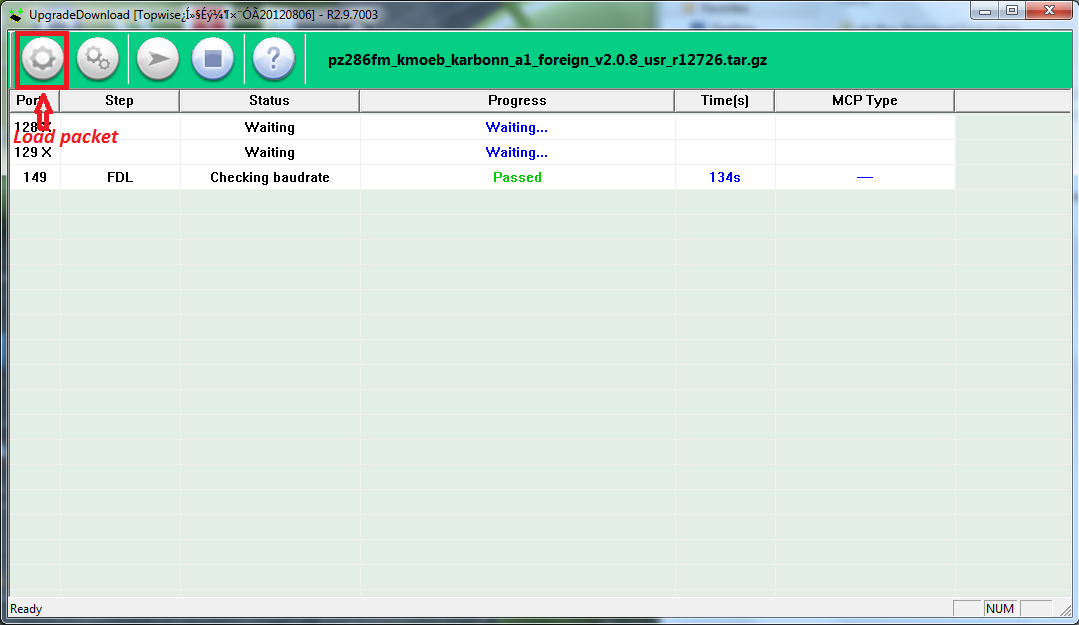 |
| karbonn k1+ Flash With Upgrade Download Tool |
After flash success switch On the phone, you will get some error message on screen i.e. No IMEI and CFT Not Calibrate, don't worry about this see the below step to solve this.
2) Karbonn A1 PLUS IMEI & CFT Issue
- Open The Folder A1 PLUS-IMEI&CFT Issue
- Then Open FactoryDownload.exe
- Just Click on Ok on Download Settings
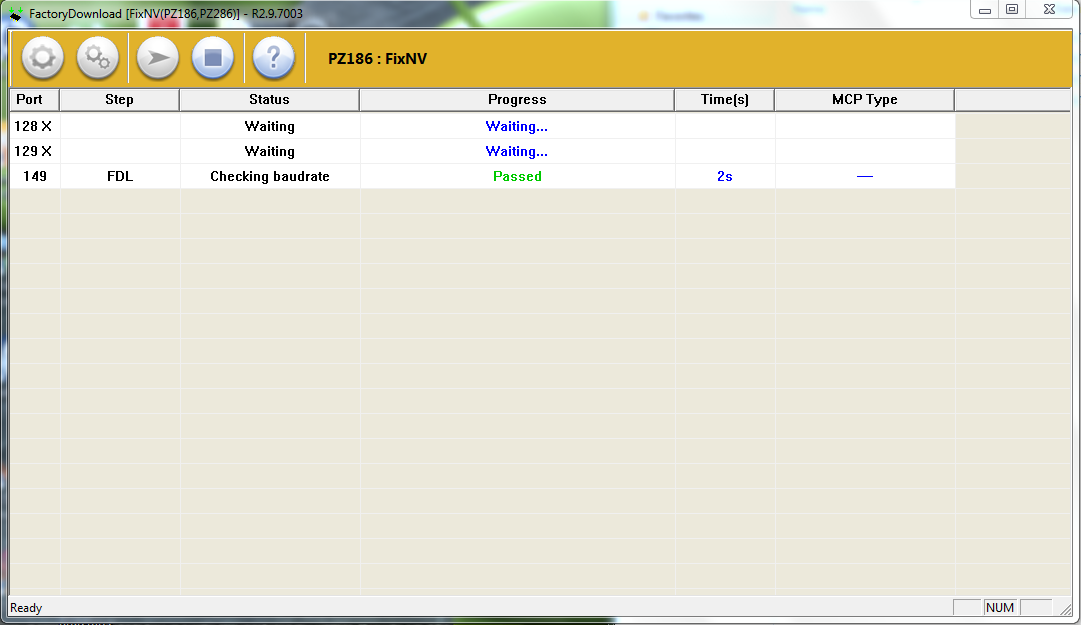 |
| Karbonn A1+ CFT Not Calibrate/No IMEI Issue Solved |
Karbonn A1+ IMEI Solution
- Connect with Normal Micro USB Cable
- Set the COM Port and Click on Write
 |
| Karbonn A1 Plus IMEI Solution |
How to Create Modified USB Cable For Karbonn A1+?
Take a Nokia CA-101 USB Cable
Pin - 1= VCC
Pin -2= D-
Pin -3 = D+
Pin -4 = Empty
Pin -5 = GND
Just Joint the Pin 4 and 5 to Create the Android Modified Cable
(Sold one wire with Black color wire PIN-5 and another wire to the empty PIN then short the both wire)
 |
| Modified USB Cable For Karbonn A1 Plus and all other Feature-phones & Smartphones |
This Cable is useful for Feature Phone and Android Smartphones