Showing posts with label Lenovo Flash Tool. Show all posts

Saturday, December 1, 2018

Lenovo K8 Plus (XT1902-2) FRP Reset File and Tool Free Download


How to Account Unlock or FRP, Lenovo XT1902-2 (K8 Plus) FRP Unlock File and Tool Download Here. You can reset frp lock or Google account lock using the small frp unlock file and it's easy to bypass the account lock or Gmail lock. What you need to do is, just download the frp file and SP flash tool (Link given below) and flash the frp file using Smart Phone Flash Tool and it's done. You can also watch the video tutorial of Lenovo K8 Plus FRP bypass, please visit the link given below to watch the video.
Lenovo XT1902-2 (K8 Plus) FRP Unlock File and Tool Download Here

Lenovo K8 Plus MT6757 (MediaTek) chipset Android version 7.1.1 frp unlock done using SP Flash Tool. If you have forgot the Gmail id and password which previously used in that phone, then you need to unlock Account verification process to use other Gmail id and password and here is the complete solution to unlock the Lenovo K8 Plus XT1902-2. Just follow the procedure and reset Google account on the Lenovo Moto K8 Plus.

Download Lenovo K8 Plus FRP File and Flash Tool:

Password = Lenovo@K8Plus@FCT
Download Lenovo XT1902-02 FRP File | Download Link
Download SP Flash Tool (SP_Flash_Tool_v5.1844_Win.rar) | Download Link
Lenovo K8 Plus FRP Reset File and  Tool Free Download

How to Flash Lenovo FRP File?
  • Download and Unzip the FRP file and flash tool.
  • Now Open SP flash tool.
  • Load the MT6757_Android_scatter.txt file.
  • Download Agent = MTK_AllInOne_DA.bin
  • Click on Start Button and connect the switched off phone.
  • After Download OK, remove the phone and switch ON it.

That's all now you have successfully remove the FRP lock or reset the Google account lock of the Lenovo K8 plus Android 7.1.1 smartphone. You can also watch the frp flashing process video, please visit the below link.

Lenovo K8 Plus FRP Reset Done Using SP Flash Tool Video Tutorial Here.
 

Wednesday, October 31, 2018

Lenovo S960 MT6589 Flash File | Flash Tool | USB Driver | IMEI Repair Tool | Flashing Error Solution


Hi friends, here is the all in one solution for Lenovo S690 Android smartphone. If you have any software issue on the phone then please visit this page and 100% you will recover your phone. Here we will discuss about Lenovo S960 Flash Tool, flash file/firmware, USB driver, IMEI Repair Tool without box and SP flash tool flashing errors, so these solution covers all most all software issue on the phone. Please go through the whole topic and you will know where to download Lenovo S960 tested and working flash file or firmware, how to flash Lenovo S960 using SP flash tool, Download and install Lenovo USB driver, Install Lenovo IMEI Repair USB Driver or Android CDC driver, how to repair Lenovo IMEI using SN writer Tool and SP flash tool Lenovo S960 flashing errors and solutions, you can also get the video tutorial for these solution on the YouTube Channel of Free Computer Tricks.

OK Let's begin, first check the below download link of tested Lenovo S960 firmware and USB driver and all other tools for software repair. Download Lenovo S960 tools as per your requirements and follow the procedure to fix the software issue on that phone.
Lenovo S960 MT6589 Flash File - USB Driver - IMEI Repair Tool

Lenovo S960 MT6589 Firmware (Stock ROM)

Download lenovo s960 flash file download here, the below is the details of Lenovo S960 firmware and download link, the flash file comes with zip file which includes flash file, USB driver, SN write tool and SP flash tool and if you need only the USB driver, SN write tool and SP flash tool then also can download, link given at the end of the post.

Download Lenovo S960 Stock Firmware (Flash File)

File Name: Lenovo_S960_MT6589_S215_141111.zip
Size: 1.4 GB
Download Link: MediaFire direct download link
Download Here Lenovo S960 Flash File | Download Link

How to flash Lenovo S960?
  • Download Lenovo flash file from the above link.
  • Extract the downloaded zip file.
  • Now open SP Flash Tool and Load the Android scatter file.
  • Un-select Preloader to avoid dead risk.
  • Click on Download button and connect the switched off phone to PC.
  • Wait until the process complete and then remove the phone and switch ON it.
Lenovo S960 MTK USB Driver and SN Write Tool Download

Here is the separate link to download lenovo MediaTek USB driver to flash the phone and IMEI repair driver or Android CDC driver to repair or restore IMEI of the phone and SN write tool to repair IMEI of the phone, if you want to know how to repair IMEI of Lenovo S960 then read the below steps or you can also watch Lenovo IMEI repair procedure video on YouTube.

Download Lenovo MTK All in one flashing USB Driver | Download Link
Download Lenovo MTK IMEI Repair Tool/SN Write Tool | Download Link
(SN Write Tool v2.1504.00)


Lenovo S960 Flashing Tool (SP Flash Tool Supported Version)

The Sp flash tool version bundled with firmware is not supported the with MT6589 as tested, so you need to use the compatible SP flash tool for Lenovo S960 to flash the MediaTek MT6589 firmware, the below is the download link of Lenovo S960 MT6589 Flash tool or the supported version of SP Flash Tool.

Download Lenovo S960 Flash Tool (SP Flash Tool Tested) | Download Link
(SP_Flash_Tool_v5.1648_Win)

Lenovo S960 Shows Tool DL Image Fail On Screen and Reboot (Solution)
Lenovo MTK Shows Tool DL Image Fail On Screen and Reboot (Solution)
If after flashing lenovo s960 shows tool dl image fail on the start up screen and reboot, then here is the solution for this, what you have to do is download SP flash tool and download the Lenovo tool dl image fail small file, link given below then do the settings on the SP flash tool as the above image and flash/download it using the tool and the problem of tool dl image fail will be solved. If you do this setting on the SP flash tool while flashing the phone then you do not need to use this file.

Lenovo S960 Tool DL Image Fail File Download | Download Link


Watch the Following Video Tutorials For Lenovo S960: 

Lenovo S960 How To Flash Using SP Flash Tools?
Lenovo S960 Tool DL Image Fail Solution.
Lenovo S960 How to Repair IMEI Without Box?
Lenovo S960 Flashing and IMEI Repair USB Driver Issue Solution.

Wednesday, October 24, 2018

PB2-650M Lenovo Phab 2 Flash Tool | Tested Firmware Download | Flashing Video


Hi friends hope all going well, to day I will show you how to flash Lenovo Phab 2 (PB2-650M) Android smartphone and here you will also download the tested Lenovo Phab 2 firmware/stock ROM and Lenovo Phab 2 flash tool (SP Flash Tool) and the Lenovo Phab 2 flashing video tutorial on YouTube (Link given below). So here is the all in one software solution for Lenovo Phab 2 PB2 650M, such as firmware download link (tested), flash tool and flashing tutorial, along with that you will also know the Lenovo phab 2 flashing error or SP flash tool flashing errors with the complete solution. To know flashing error solution you need to watch the video link given below.

Here you will get the direct link to download Lenovo phab 2 tested firmware with flash tool. As per the comment received on the YouTube video, they do not get the link to download Lenovo phap 2 flash file and Download agent and Authentication file etc. Please go through this topic and you will get all the firmware solution for Lenovo Phab 2 PB2-650M and all the necessary file to flash the phone.
Lenovo Phab 2 PB2-650M All in One Flashing Solution Here (Flash Tool - Flash File - USB Driver - Flashing Tutorial Video)

Lenovo Phab 2 PB2-650M Flashing Procedure:

As you know the phone has comes with MediaTek MT6735 chipset/processor and it can be flash using SP Flash Tool, please follow the below steps to know the complete flashing procedure of Lenovo Phab2.

Steps To Flash The Phone:-
  • Download Lenovo Flash File and Flash Tool and Other Files (Link given below)
  • Unzip the downloaded files.
  • Install MediaTek USB driver if required (Driver included in the firmware zip file)
  • Now Open SP Flash Tool.
  • Click download agent and select "DA_SWSEC_CRYPTO20_0403.bin"
  • Press CTRL+ALT+S to enable Authentication file
  • Click authentication file and select "auth_sv5_98998_philip.auth
  • Click Scatter loading and select Android scatter from \SW\target_bi
  • Press Download and connect switched off device using usb cable
  • Please Wait for finish.
PB2 650M Lenovo Phab 2 Flashing Video Tutorial
https://www.youtube.com/watch?v=FDoAz58T1xk


Download Lenovo Phab 2 Firmware/Stock ROM

The below is the download link for Lenovo Phab 2 PB2-650M flash file or firmware and this link is all in one link where you get all required files and tools to flash the Lenovo phab 2 device.

Download : PB2-650M_S038_170228_ROW Full ROM package | Download Link
Password = lenovo-forums.ru 

Visit the above link and cancel all pop up windows and click on download, as that page has other language so it's difficult to get the download link, so the below is the how to download image to know where to click on that page to start download.
PB2 650M Lenovo Phab 2  flash file download link - How to Download PB2-650M_S038_170228_ROW
So visit that page link to download Lenovo Phab 2 and see the above image to know download link and how to download ROM from that page.

Friday, June 22, 2018

Lenovo A6000 Firmware All Versions Download Here (With Flashing Procedure)


All versions of Lenovo A6000 Firmware/Flash File/ROM Download link available here and know how to flash Lenovo A6000. If you have owned Lenovo A6000 and want to flash or update your phone by downloading Lenovo A6000 all version firmware, then you are in the right place. Here you can download all version Lenovo A6000 Stock ROM (Firmware) to flash the phone and also get to know how to flash Lenovo A6000 using flash tool, Miracle Box and OTA Full Update using SD Card.

As we know Lenovo A6000 comes with Android 4.4 and can be upgrade to 5.0 by flashing with latest Lenovo A6000 stock ROM. Download latest version of Lenovo Firmware and flash the phone using Lenovo flash tool or you can also use any other flashing box which supports Qualcomm flashing or you can also Lenovo QFIL flash tool to flash the stock ROM, For T-flash or SD Card update you need to download Memory card OTA update file and flash or update the phone using Recovery Mode.

Lenovo A6000 Stock Firmware:

Lenovo A6000 has various version of stock firmware such as Kraft-A6000_S032_150327_WCDB, Kraft-A6000_S040_150805_WCB1, Kraft-A6000_S042_151012_WC29 etc. and the Firmware or flash file used for flashing the phone, if you are facing any software issue on the Lenovo A6000 such as stuck on Logo or hang on logo or restart problem or apps are not working properly then you need to flash the phone suing Lenovo stock firmware which can be download here and links are provided below.

Why and How To Download A6000 Firmware?

As I said before if you have any software issue on your Lenovo A6000 phone, then you must need to flash the phone and here you download all version of firmware here for the Lenovo phone. Update or flash firmware on your phone is completely free and to get latest feature of Android operating system you must need to upgrade the phone's software using this method. So as software update is free for your phone then why not do it to get the latest security updates for your phone, just download the firmware and flash with flash tool.

Requirements For Flashing:
  • Download Lenovo Firmware.
  • Download Lenovo Flash File.
  • An Windows PC or Laptop.
  • Internet connection to Download Stock ROM or you can download Firmware using Cyber Cafe of Internet Cafe.
  • Flashing procedure to Flash Lenovo A6000 Android smartphone. 
  • Install Qualcomm COM Port USB driver.
Flashing Steps To Flash Lenovo A6000 Using Download Tool:
  • Download Lenovo Firmware and Extract it.
  • Open Lenovo Flash Tool and load the firmware.
  • Click on Start button and connect the phone with Download mode.
  • Lenovo A6000 Download Mode or Qualcomm EDL Mode (Hold Both Volume Keys and Insert USB Cable)
  • When the flash complete, remove the phone and manually switch on it.
  • After switch on follow the on screen setup process to complete and see the phone's desktop.
  • That's all now you are done and successfully flashed the Lenovo A6000 phone.
Disclaimer: Take a backup your phone's data before installing stock ROM or flashing the phone, because flashing the phone will erase all your user data on the phone.

Lenovo A6000 All Version Firmware Direct Download Link:

Download official Lenovo A6000 Stock ROM all versions from the below links. Anyone can download Lenovo firmware or flash file and flash tool to flash the phone, the below are the download links and details of firmware version given below.

Download Lenovo A6000 Stock ROM KitKat S013
File name: Lenovo_A6000_S013_Q102113_20161230.zip
File size: 1.1 GB
Android version: 4.4.4

Download: Click Here To Start Download

Download Lenovo A6000 Stock ROM KitKat S034
File name: Lenovo_A6000_S034_Q113507_20170301.zip
File size: 1.2 GB
Android version: 4.4.4

Download: Click Here To Start Download

Download Lenovo A6000 Stock ROM KitKat S032
File name: Kraft-A6000_S032_150327_WCDB.zip
File size: 1.03 GB
Android version: 4.4.4

Download: Click Here To Start Download

Download Lenovo A6000 Stock ROM Lollipop S062
File name: Lenovo_A6000_S062_Q102113_20161223.zip
File size: 1.1 GB
Android version: 5.0.2

Download: Click Here To Start Download

Download Lenovo A6000 Stock ROM KitKat S002
File name: A6000_S002_150612_8G_BG.zip
File size: 900 MB
Android version: 4.4.2

Download: Click Here To Start Download

Download Lenovo A6000 Stock ROM KitKat S058
File name: Lenovo_A6000_Kraft-A6000_S058_151030.zip
File size: 1.13 GB
Android version: 4.4.4

Download: Click Here To Start Download

Download Lenovo A6000 SE 16 GB Stock ROM Lollipop S010
File name: A6000_S010_160420_16G_WC390C36C6.zip
File size: 1.1 GB
Android version: 5.0.2

Download: Click Here To Start Download

Download Lenovo PC Suite:

You can download the Lenovo PC Suite which called Lenovo Moto Smart Assistant to update your phone using this Windows PC suite. If the phone is in working condition and you need to update the Android Operating system of the phone then use the official way to update the phone using Lenovo MOTO Smart Assistant or Lenovo Motorola PC Suite on your Computer. This software or Utility also helps you install all necessary USB driver for your Lenovo phone all models such as Qualcomm USB driver, ADB Driver and MTP USB Driver etc. So install the Lenovo PC Suite for Windows to get all in one Driver solution for Lenovo smartphones.

Download Lenovo Moto PC Suite | Download Link

Sunday, April 15, 2018

How To Flash Lenovo K8 Note Plus (XT1902-2)


Lenovo Mobile flashing and how to flash lenovo Android smart phones? Here you will know how to flash Lenovo K8 Note plus XT1902-02 using SP flash tool? Before we going to the Lenovo flashing process, let's have a look at the features and RAM, ROM and CPU information of Lenovo K8 Note Plus XR1902-02. The lenovo Android smart phone comes with latest Android operating system version 7.1.1 Nougat and with 64GB Internal Storage along with 3GB RAM/4GB RAM. The Lenovo phone has MediaTek Helio X23 Deca-core 2.3GHz 64-Bit Processor and it's available in Mobile Store and also you can get it through online store with a price tag approx Rupees 10,000 for 3GB RAM and 11,834 for 4GB RAM.
How To Flash Lenovo K8 Note Plus (XT1902-2)
How to flash Lenovo K8 Note Plus?

The lenovo k8 note plus has the MediaTek chip-set and can be flash with Smartphone flash tool or SP flash tool, the k8 note plus has the MediaTek MT6757 Helio X23 Deca-core 2.3GHz 64-Bit processor. To flash the phone you need to download Lenovo K8 Note Plus XT1902-02 firmware and SP Flash Tool and then follow the below steps.

Steps:-

Download Lenovo K8 Note Plus (XT1902-2) Firmware.
Download SP Flash Tool.
Now extract the firmware using the password and extract Smartphone flash tool.
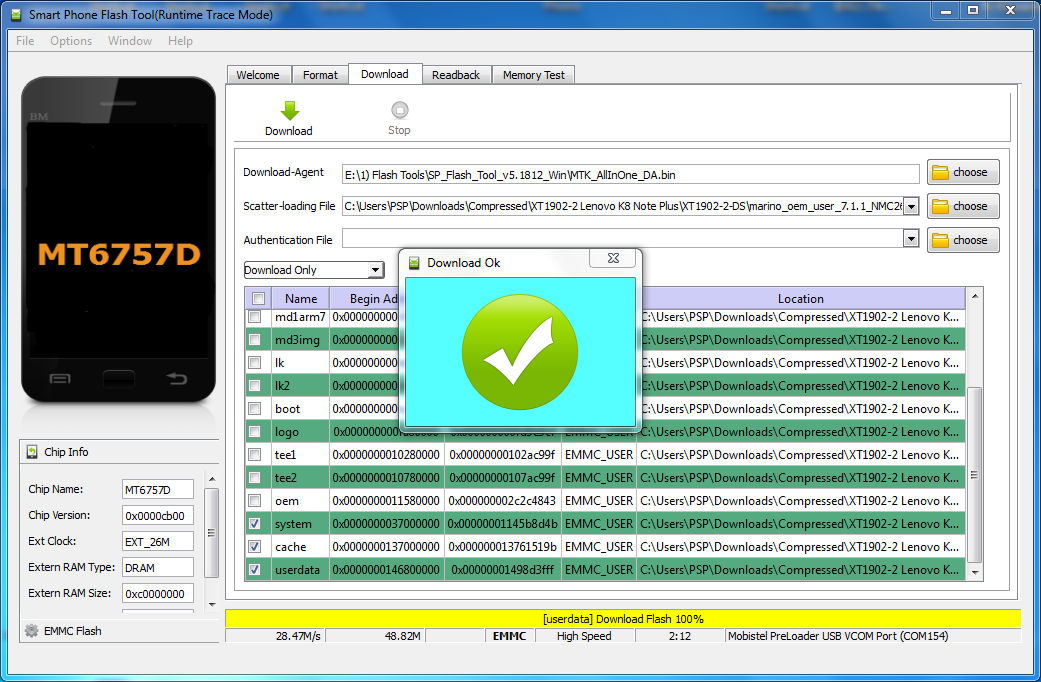
Then open SP Flash tool and select MT6757_Android_scatter.txt
Now select "Download Only" and select all partition except 'preloader'.
In our case we selected System, Cache and Userdata partition.
Now click on "Download" and connect the switched of phone to Computer.
Then wait until you see "Download OK" and then disconnect the phone from PC and switch on the phone.

XT1902-2 Lenovo K8 Note Plus Flash OK
You May Also Like To Read:-

Mi Account Unlock 100% Working Solutions
All FRP Unlock/Bypass Tool Free Download
All Android FRP Unlock Solutions
Smartphone USB Driver Download For Windows Computer

Downloads:

XT1902-2 Firmware Details:
File Name: XT1902-2-DS BY GD_Mekail92.rar
marino_oem_user_7.1.1_NMC26.74-31_31_release-keys_oem_SVC
CPU: MT6757
Zip file size: 1.79 GB

Lenovo K8 Note Plus Flashing Video Tutorial


Lenovo K8 Note Plus Firmware Download Here
Smart Phone Flash Tool (SP Flash Tool) Download Here
How to Flash using SP Flash Tool Tutorial or Flashing Guide
For K8 Note Firmware zip file password visit GSM Developers

or


Here is the password for this
XT_GD_Mekail92@Gsm Developers

Thursday, March 22, 2018

LENOVO K8 Note XT 1902-3 DL Image Failed Solution Here


Hi friends to we will solve the DL image failed problem on LENOVO XT 1902-3 (K8 NOTE) after flashing or frp unlock. As you know if you flash or do FRP unlock on the Lenovo K8 Note then you must face the "DL Image failed" problem on the phone, that means after flashing the phone will restart again and again showing "DL image failed" on the screen. So here is the solution for DL Image Failed on Lenovo K8 Note.


Lenovo K8 Note DL Image Failed Problem after flash Solved (DL Image Fail Done)

Downloads: 

LENOVO XT 1902-3 (K8 NOTE) DL Image Fail File Here

Lenovo K8 Note DL Image Failed How to flash with SP Flash Tool

Lenovo K8 Note Dl Image Failed Solution:

  • Download the above file and extract it.
  • Now open SP Flash Tool and Select the Scatter file.
  • Now go to "Options" on SP Flash tool and then select "Download".
  • Then in the right side you will see "DA DL All With Checksum".
  • Then select/tick the "USB Checksum" and "Storage Checksum".
  • Now click on Download and connect the switched off phone to the Computer.

That's all after flash just switch on the phone and it will not show DL image failed and the problem is solved.


Tuesday, April 29, 2014

Lenovo A390 Hangs On Logo Solved By Flashing With SP_Flash_Tool_v5.1352.01


Lenovo a390 hangs on logo or stop on logo, this problem is solved by flash the phone using SP_Flash_Tool_v5.1352.01. In this topic you will come to know that, how to flash the Lenovo A390 MTK 6577 CPU Smart phone with SP Flash Tool and also how to format Lenovo A390 with Volcano Tool. You can download the SP Flash Tool and Firmware of Lenovo A390 'A390_ROW_S315_130621' using Google search.


Lenovo A390 hangs on logo Solved


Lenovo A390 hangs on logo, first format with volcano tool in most cases the hang problem may solved otherwise try second method flash the phone with SP flash tool.


Lenovo A390 Format With Volcano Tool v2.6.2


Lenovo A390 Format Success with Volcano Tool using USB Cable
See the picture above and Click on Run then connect the USB cable to switched off phone.


Lenovo A390 Format Log Volcano Tool

Analysis of USB port,Please insert phone USB cable.
  Connecting...
  CPU TYPE:6577
  Hardware version:CB00
  Software version:E201
  Boot downloading complete!
  EMMC_ID:0x90014A2058494E594816A1001BAA5057
  EMMC_PRODUCT_NAME: SAMSUNG :0x2058494E5948
  EMMC_BOOT1_SIZE: 0x000200000
  EMMC_BOOT2_SIZE: 0x000200000
  EMMC_PRMB_SIZE: 0x000200000
  EMMC_GP1_SIZE: 0x000000000
  EMMC_GP2_SIZE: 0x000000000
  EMMC_GP3_SIZE: 0x000000000
  EMMC_GP4_SIZE: 0x000000000
  EMMC_USER_SIZE: 0x0E7000000


  Analysis of system files...
  PRELOADER:  addr:0x000000 --length:0x040000
  DSP_BL:  addr:0x040000 --length:0x5C0000
  MBR:  addr:0x600000 --length:0x004000
  EBR1:  addr:0x604000 --length:0x004000
  __NODL_PMT:  addr:0x608000 --length:0x400000
  __NODL_NVRAM:  addr:0xA08000 --length:0x500000
  __NODL_SECCFG:  addr:0xF08000 --length:0x020000
  UBOOT:  addr:0xF28000 --length:0x060000
  BOOTIMG:  addr:0xF88000 --length:0x600000
  RECOVERY:  addr:0x1588000 --length:0x600000
  SEC_RO:  addr:0x1B88000 --length:0x600000
  __NODL_MISC:  addr:0x2188000 --length:0x060000
  LOGO:  addr:0x21E8000 --length:0x300000
  __NODL_EXPDB:  addr:0x24E8000 --length:0x200000
  ANDROID:  addr:0x26E8000 --length:0x20100000
  CACHE:  addr:0x227E8000 --length:0xC800000
  USRDATA:  addr:0x2EFE8000 --length:0x33A00000
  __NODL_FAT:  addr:0x629E8000 --length:0x83718000
  __NODL_BMTPOOL:  addr:0xFFFF00A8 --length:0x000000
  
  
    Format addr:0x32FE8000 --Format length:0x2FA00000
  Read phone information success.
  Format range: Start Address: 0x32FE8000,Format Length :0x2FA00000
  Flash erasing complete!
  
  Please take out SIM and Memory card from phone when power on first time, or it will have Memory Lock .
>>If you meet Memory Lock,please take all cards from phone and restart phone again.

After Format success switch on the Lenovo A390 and wait 3 to 4 minutes, as you know after flash or format a smartphone it takes long time for first switch ON. If the process is not success that means if the phone is hangs on logo more then 4 minutes then you need to flash the phone using SP Flash tool, the below is the procedure to flash Lenovo A390 Android MTK smartphone.


How to Know the Software Version on Lenovo A390?

  • Press volume down and power button
  • Now go to Item Test (press home soft key to Enter)
  • Then Version (Here you can find the software version of Lenovo A390)

Download

SP_Flash_Tool_v5.1352.01
and
A390_ROW_S315_130621 (Firmware according to the phone's firmware)


How to Flash Lenovo A390 With SP_Flash_Tool


  • Open Flash Tool
  • Click on Scatter Loading and choose  MT6577_Android_scatter_emmc.txt
  • Now Click on Download
  • Then Connect the phone to your computer using USB Cable (Connect the USB to switched off phone)

Lenovo A390 Flash with SP Flash Tool


When you see Download OK that means Lenovo A390 firmware download success with SP flash tool. Now remove the phone and switch ON, remember after switch ON wait at least 3 minutes to complete the process.


Lenovo A390 Flash Done with SP Flash Tool

📚 You May Also Like to Read