Showing posts with label SP Flash Tool. Show all posts

Friday, May 17, 2019

SP FLash Tool V5.1904 : Latest Versions 2019 Free Download Here


Download Latest version SP Flash Tool or Smart Phone Flash Tool Here. Latest version of SP Flash Tool For MediaTek (MTK) Firmware Flashing, Download Latest Version 2018-2019 SP Flash Tools.

Hi friends, here is the latest and all updated links to download SP Flash Tool. 

Download SP Flash Tool V5.1904 - Smart Phone Flash Tool

Download SP Flash Tool V5.1904 
Smart Phone Flash Tool Version 5.1904

Download SP Tool V5.1904 | Download Link Here

Friday, November 30, 2018

Micromax Canvas 2 Q4310 FRP Unlock File and Unlock Tool Free Download


Hi friends, here is the free Account unlock solution for Micromax MediaTek Canvas 2 Q4310. Download free frp or Google account unlock file and flash tool, then follow the procedure here to unlock the phone, which is absolutely free, just download the Smartphone flash tool and FRP file and Google Account unlock.
Micromax Canvas 2 Q4310 Android 7.0 FRP Unlock File and Free Unlock Tool

Micromax Q4310 Software Info:
 

Model number: Micromax Q4310
Android version: 7.0
Android security patch: June 5, 2017
Internal Storage: 16GB
RAM: 3GB
Processor: MT6737
Baseband version: MOLY.LR9.W1444.MD.LWTG.MP.V110.5.[14,2017/06/01 21:38
Kernel version: 3.18.35 android@localhost #1
Build number: MMX_Q4310_SW_V2.0_HW_V2.0_20062017
Hardware version number: v2.0.0


Micromax Canvas 3 Q4310 Android 7.0 FRP Unlock File and Free Unlock Tool.
Micromax Canvas 2 Q4310 FRP Unlock File and Tool Free Download Here

Q4310 FRP Format Address SP Flash Tool:

Begin Address [HEX] : 0x6a00000
Format Length [HEX] : 0x100000


Q4310 FRP File and SP Flash Tool Download Here:

Password = Q4310@fct
Download Q4310 FRP Unlock File | Download Link
Download SP Flash Tool (SP_Flash_Tool_v5.1844_Win.rar) | Download Link

Q4310 How To FRP Reset - SP Flash Tool?
  • Open SP flash tool and load the Android scatter file.
  • Download Agent file select DA_SWSEC.bin
  • Now go to format Tab and select Manual format flash.
  • Now enter the begin address and format length.
  • Click on Start and connect the switched off phone to PC.
  • After format OK, remove the phone and switch on It.

Q4310 How To FRP Reset - SP Flash Tool
Watch the Video Tutorial Here 

Wednesday, October 31, 2018

Lenovo S960 MT6589 Flash File | Flash Tool | USB Driver | IMEI Repair Tool | Flashing Error Solution


Hi friends, here is the all in one solution for Lenovo S690 Android smartphone. If you have any software issue on the phone then please visit this page and 100% you will recover your phone. Here we will discuss about Lenovo S960 Flash Tool, flash file/firmware, USB driver, IMEI Repair Tool without box and SP flash tool flashing errors, so these solution covers all most all software issue on the phone. Please go through the whole topic and you will know where to download Lenovo S960 tested and working flash file or firmware, how to flash Lenovo S960 using SP flash tool, Download and install Lenovo USB driver, Install Lenovo IMEI Repair USB Driver or Android CDC driver, how to repair Lenovo IMEI using SN writer Tool and SP flash tool Lenovo S960 flashing errors and solutions, you can also get the video tutorial for these solution on the YouTube Channel of Free Computer Tricks.

OK Let's begin, first check the below download link of tested Lenovo S960 firmware and USB driver and all other tools for software repair. Download Lenovo S960 tools as per your requirements and follow the procedure to fix the software issue on that phone.
Lenovo S960 MT6589 Flash File - USB Driver - IMEI Repair Tool

Lenovo S960 MT6589 Firmware (Stock ROM)

Download lenovo s960 flash file download here, the below is the details of Lenovo S960 firmware and download link, the flash file comes with zip file which includes flash file, USB driver, SN write tool and SP flash tool and if you need only the USB driver, SN write tool and SP flash tool then also can download, link given at the end of the post.

Download Lenovo S960 Stock Firmware (Flash File)

File Name: Lenovo_S960_MT6589_S215_141111.zip
Size: 1.4 GB
Download Link: MediaFire direct download link
Download Here Lenovo S960 Flash File | Download Link

How to flash Lenovo S960?
  • Download Lenovo flash file from the above link.
  • Extract the downloaded zip file.
  • Now open SP Flash Tool and Load the Android scatter file.
  • Un-select Preloader to avoid dead risk.
  • Click on Download button and connect the switched off phone to PC.
  • Wait until the process complete and then remove the phone and switch ON it.
Lenovo S960 MTK USB Driver and SN Write Tool Download

Here is the separate link to download lenovo MediaTek USB driver to flash the phone and IMEI repair driver or Android CDC driver to repair or restore IMEI of the phone and SN write tool to repair IMEI of the phone, if you want to know how to repair IMEI of Lenovo S960 then read the below steps or you can also watch Lenovo IMEI repair procedure video on YouTube.

Download Lenovo MTK All in one flashing USB Driver | Download Link
Download Lenovo MTK IMEI Repair Tool/SN Write Tool | Download Link
(SN Write Tool v2.1504.00)


Lenovo S960 Flashing Tool (SP Flash Tool Supported Version)

The Sp flash tool version bundled with firmware is not supported the with MT6589 as tested, so you need to use the compatible SP flash tool for Lenovo S960 to flash the MediaTek MT6589 firmware, the below is the download link of Lenovo S960 MT6589 Flash tool or the supported version of SP Flash Tool.

Download Lenovo S960 Flash Tool (SP Flash Tool Tested) | Download Link
(SP_Flash_Tool_v5.1648_Win)

Lenovo S960 Shows Tool DL Image Fail On Screen and Reboot (Solution)
Lenovo MTK Shows Tool DL Image Fail On Screen and Reboot (Solution)
If after flashing lenovo s960 shows tool dl image fail on the start up screen and reboot, then here is the solution for this, what you have to do is download SP flash tool and download the Lenovo tool dl image fail small file, link given below then do the settings on the SP flash tool as the above image and flash/download it using the tool and the problem of tool dl image fail will be solved. If you do this setting on the SP flash tool while flashing the phone then you do not need to use this file.

Lenovo S960 Tool DL Image Fail File Download | Download Link


Watch the Following Video Tutorials For Lenovo S960: 

Lenovo S960 How To Flash Using SP Flash Tools?
Lenovo S960 Tool DL Image Fail Solution.
Lenovo S960 How to Repair IMEI Without Box?
Lenovo S960 Flashing and IMEI Repair USB Driver Issue Solution.

Wednesday, October 3, 2018

TECNO i3 Android 7.0 Google Account Unlock Tool and File Download


How to unlock Google account verification or Gmail lock or Google re-verification lock on your Android device and this tutorial is for Android smartphone for the TECNO i3 Android 7.0. By following this tutorial you can easily remove the FRP lock or Google lock of the Android device, as this device is has MediaTek MTK Chipset and it can be unlock using SP flash tool.

To know the unlock process you can watch the video tutorial link given below and here you can download the Flash tool and unlock file for TECNO i3 to reset or unlock FRP settings of the phone. Please go through the below details to download the file and tool.
TECNO i3 Android 7.0 Google Account Unlock Tool and File Download

Download the Google Account verification bypass or FRP unlock file from the below link and watch the video tutorial to know how to format the FRP lock of the phone using SP Flash Tool. If you have facing any problem during this process, please ask through comments either here or Video tutorial on YouTube.

TECNO i3 FRP Unlock Procedure:-
  • Download the FRP file from the link given below.
  • Open SP Flash Tool
  • Select Download Agent DA_SWSEC.bin
  • Select Android Scatter File MT6737M_Android_scatter.txt
  • Now go to FORMAT Tab and Select Manual Format
  • Use the text file to know the Format Address and Length
  • Click on Start button
  • Now connect the switched off phone by holding the Volume Down Key

DOWNLOAD LINK:-

TECNO i3 FRP Unlock Tool and Flash Tool and FRP Address Download Below
Gmail Google Account Verification Unlock Android TECNO | Download Here

Download Tecno i3 SP Flash TOOL
Download Smartphone Flash Tool (SP Flash Tool) | Download Link Here

TECNO I3 FRP WATCH THE VIDEO TUTORIAL ON YOUTUBE
TECNO i3 Android 7 0 FRP Unlock Done - SP Flash Tool

Sunday, August 12, 2018

How to Remove All MediaTek (MTK) FRP Lock Using SP Flash Tool - All Android Version


Here is the video tutorial for how you can remove or bypass FRP lock of any MediaTek (MTK) Android smartphone having any version of Android Operating System. So please watch the video and know the complete process to remove FRP on MTK phones using Smart Phone Flash Tool (SP Flash Tool). If you have any doubt please feel free to post or ask through comments.

How to Remove FRP Using SP Flash Tool?
As you know there is a FRP partition on the phone chip so if you get the FRP partition details such as Partition Begin address and Size or length of the partition then you can easily remove the Factory Reset Protection lock on any Android smartphones but is must be runs on MediaTek CPU or chip-set.
How to Remove FRP Lock Using SP Flash Tool?

Note: The partition details may be different based on Android version, please confirm the partition details before format otherwise the handset may dead or not switch on.

Watch the video to know how to remove or format MTK FRP Lock -


Here is the another video which helps you to find the FRP address of any MTK Android smartphones. Do you know if you have downloaded the respective firmware of the MediaTek Android smartphone then you can easily know the FRP address of the phone, but as I said before please verify the Android version of the phone with downloaded firmware, then follow the steps mentioned in the video tutorial.

If you like the video and it's really helpful to your then please share the video and visit the Free Computer Tricks YouTube channel to subscribe the channel and if you have any doubt then comment your problem regrading the FRP MediaTek.


Saturday, May 26, 2018

[Solved] Moto C Plus XT1721 FRP Unlock Android 7.0


Moto C Plus Android 7.0 frp unlock final solution here, you can download moto flash tool and frp unlock file link given below in this tutorial and flash the phone using Smart phone flash tool or SP flash tool. Remove XT1721 frp lock withing 1 minute and this method is free and work fine on Android 6.0 and Android 7.0.

If you forgot Google account reactivation Gmail id and password and want to recover your phone, then here is the all in one frp solution for Android 7.0 runs on MediaTek chipset. After hard reset of the Moto smart phones ask for FRP account and password and after giving correct email id and password the phone is not opening and keep asking to connect Wi-Fi and show unauthorized attempt to unlock this phone, enter correct id and password. In this topic or tutorial you will solve the frp lock on the Moto XT1721 phone.
Moto C Plus XT1721 FRP Unlock Done Using SP Flash Tool

How to Bypass FRP Lock of Motorola C Plus XT1721?
  • Download Moto Flash Tool and FRP File (Link Given Below)
  • Now Open SP Flash Tool then Browse and Select MTK Scatter File.
  • Select Download Agent DA_PL.bin file.
  • Then Go to SP Flash Tool Options and Select USB Checksum and Storage Checksum.
  • Now Click on Download and Connect the Switched Off Phone to PC.
  • After Download OK remove the phone and manually switch on it.
Downloads
XT1721 Flash Tool and FRP File | Download
File Password = FCT

Moto C Plus XT1721 Android 7 0 Free FRP Solution Without Any Box | Video Tutorial | Video Tutorial link

How to Take Screenshot on Moto C Plus XT1721?

To take screenshot on your Moto C Plus phone follow the below key combination.

Press Volume Down + Power Key at the same time

Thursday, April 19, 2018

How to Flash Vibe Lenovo K4 Note - Avoid Dead Risk and Tool DL Image Fail


Lenovo vibe K4 note flashing and firmware download, how to flash Lenovo Vibe K4 Note using Sp flash tool? If you flash the Lenovo with wrong procedure you may face Tool DL image fail problem and sometimes the handset may dead. In this article you will know how to flash Lenovo vibe K4 note without dead risk and tool dl image fail error.

When you flash or download firmware in Lenovo K4 Note, download the correct firmware version and use the latest Smart Phone flash tool to avoid dead risk of the phone. When you flash the phone do not select "preloader" and download the flash file to the phone and it's help you to avoid dead risk of the phone.


How to Flash Lenovo K4 Note to Avoid Dead Risk and Tool DL Image Fail
Flash Lenovo Vibe K4 Note Without Dead Risk:-


  1. Download the K4 Note firmware.
  2. Download Smart phone flash tool [Get the latest version Here].
  3. Extract the firmware and Sp flash tool.
  4. Now open the SP Flash tool and load the firmware.
  5. Now select all partition except preloader.
  6. Then click on "Download" option and connect the phone to PC.
Lenovo Vibe K4 Note FRP Unlock Solution.

Lenovo Vibe K4 Note Tool DL Image Fail Solutions:-


  1. Load the firmware scatter file in SP Flash Tool.
  2. Now go to Options in the SP Flash Tool then click on download.
  3. Now select "USB Checksum" and "Storage Checksum".
  4. Then Download the firmware to the phone.

Sunday, April 15, 2018

How To Flash Lenovo K8 Note Plus (XT1902-2)


Lenovo Mobile flashing and how to flash lenovo Android smart phones? Here you will know how to flash Lenovo K8 Note plus XT1902-02 using SP flash tool? Before we going to the Lenovo flashing process, let's have a look at the features and RAM, ROM and CPU information of Lenovo K8 Note Plus XR1902-02. The lenovo Android smart phone comes with latest Android operating system version 7.1.1 Nougat and with 64GB Internal Storage along with 3GB RAM/4GB RAM. The Lenovo phone has MediaTek Helio X23 Deca-core 2.3GHz 64-Bit Processor and it's available in Mobile Store and also you can get it through online store with a price tag approx Rupees 10,000 for 3GB RAM and 11,834 for 4GB RAM.
How To Flash Lenovo K8 Note Plus (XT1902-2)
How to flash Lenovo K8 Note Plus?

The lenovo k8 note plus has the MediaTek chip-set and can be flash with Smartphone flash tool or SP flash tool, the k8 note plus has the MediaTek MT6757 Helio X23 Deca-core 2.3GHz 64-Bit processor. To flash the phone you need to download Lenovo K8 Note Plus XT1902-02 firmware and SP Flash Tool and then follow the below steps.

Steps:-

Download Lenovo K8 Note Plus (XT1902-2) Firmware.
Download SP Flash Tool.
Now extract the firmware using the password and extract Smartphone flash tool.
Then open SP Flash tool and select MT6757_Android_scatter.txt
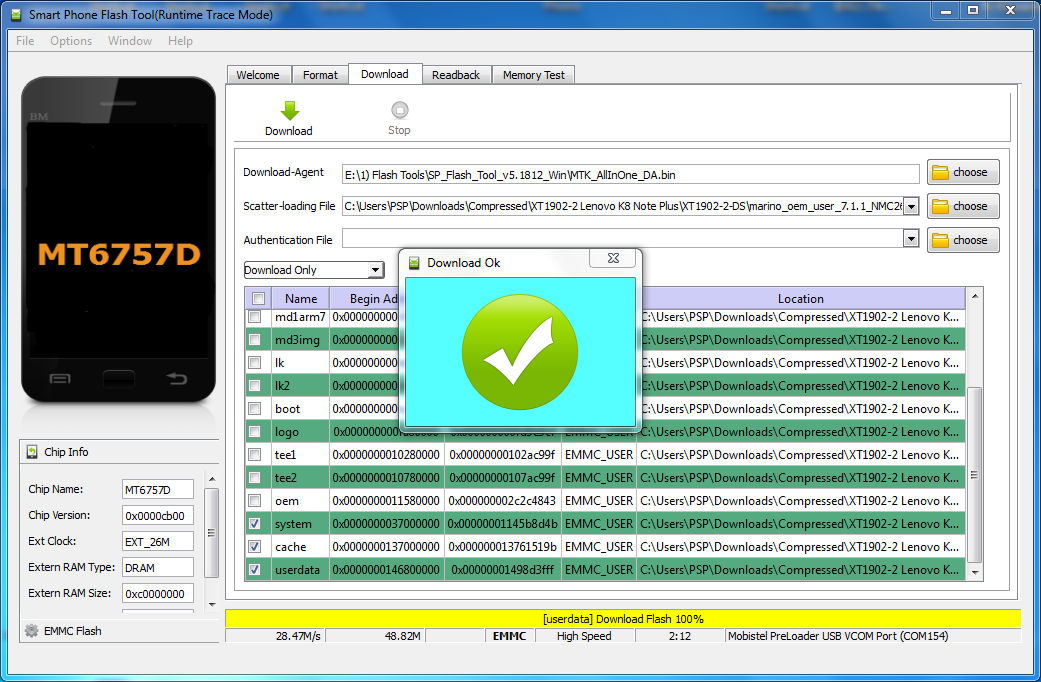
Now select "Download Only" and select all partition except 'preloader'.
In our case we selected System, Cache and Userdata partition.
Now click on "Download" and connect the switched of phone to Computer.
Then wait until you see "Download OK" and then disconnect the phone from PC and switch on the phone.

XT1902-2 Lenovo K8 Note Plus Flash OK
You May Also Like To Read:-

Mi Account Unlock 100% Working Solutions
All FRP Unlock/Bypass Tool Free Download
All Android FRP Unlock Solutions
Smartphone USB Driver Download For Windows Computer

Downloads:

XT1902-2 Firmware Details:
File Name: XT1902-2-DS BY GD_Mekail92.rar
marino_oem_user_7.1.1_NMC26.74-31_31_release-keys_oem_SVC
CPU: MT6757
Zip file size: 1.79 GB

Lenovo K8 Note Plus Flashing Video Tutorial


Lenovo K8 Note Plus Firmware Download Here
Smart Phone Flash Tool (SP Flash Tool) Download Here
How to Flash using SP Flash Tool Tutorial or Flashing Guide
For K8 Note Firmware zip file password visit GSM Developers

or


Here is the password for this
XT_GD_Mekail92@Gsm Developers

Saturday, April 14, 2018

How To Get The EMMC FRP Base Address and Length [HEX]


Today you will learn an interesting topic about manual erasing the FRP using SP Flash Tool but before you format Factory Reset Protection FRP HEX address, it's very important to know the perfect EMMC HEX address and length of FRP of the Android smart phone. So here you will know how to get the FRP address and length in the EMMC and then you can format phone using the same address to remove FRP lock of your phone.

How to Get EMMC Information:

To get the EMMC info or EMMC information you need to use any tool that support MediaTek read info and supports all latest mediatek MTK chip-sets. You can use Miracle Box V2.54 which is working without Box [Download Here] to read EMMC info to get the FRP address and length. To format FRP lock you can use Smartphone Flash Tool or SP Flash Tool, see the below details to know how remove FRP lock by formatting with SP Flash Tool.

How To Get The EMMC FRP Base Address and Length [HEX] Miracle Box
For Example:
Here is a phone with MediaTek MT6753 runs on Android 6.0 with so and so manufacturer and brand, after readinfo with Miracle Tool v2.54 we get the following EMMC information and in this EMMC info you will get the FRP begin address and length, just have look below.

MediaTek MT6753 EMMC Info:

   PROINFO  BaseAddr:0x80000  Size:0x300000
  NVRAM  BaseAddr:0x380000  Size:0x500000
  PROTECT1  BaseAddr:0x880000  Size:0xA00000
  PROTECT2  BaseAddr:0x1280000  Size:0xA00000
  LK  BaseAddr:0x1C80000  Size:0x80000
  PARA  BaseAddr:0x1D00000  Size:0x80000
  BOOT  BaseAddr:0x1D80000  Size:0x1000000
  RECOVERY  BaseAddr:0x2D80000  Size:0x1000000
  LOGO  BaseAddr:0x3D80000  Size:0x800000
  EXPDB  BaseAddr:0x4580000  Size:0xA00000
  SECCFG  BaseAddr:0x4F80000  Size:0x80000
  OEMKEYSTORE  BaseAddr:0x5000000  Size:0x200000
  SECRO  BaseAddr:0x5200000  Size:0x600000
  KEYSTORE  BaseAddr:0x5800000  Size:0x800000
  TEE1  BaseAddr:0x6000000  Size:0x500000
  TEE2  BaseAddr:0x6500000  Size:0x500000
  FRP  BaseAddr:0x6A00000  Size:0x100000
  NVDATA  BaseAddr:0x6B00000  Size:0x2000000
  METADATA  BaseAddr:0x8B00000  Size:0x2500000
  SYSTEM  BaseAddr:0xB000000  Size:0x90000000
  CACHE  BaseAddr:0x9B000000  Size:0x19000000
  USERDATA  BaseAddr:0xB4000000  Size:0x692B80000
  FLASHINFO  BaseAddr:0x746B80000  Size:0x1000000
>>Done.


Just check the above bold line which contains FRP base address and size, then you can use the same details in SP Flash Tool and format the FRP lock, to format with flash tool please see the below example.

Format FRP Lock With SP Flash Tool:


How to format FRP lock using SP flash tool
  • So now we got the FRP Address and length which is (FRP  BaseAddr:0x6A00000  Size:0x100000)
  • Now open SP flash tool and go to Format Tab
  • Then select "Manual Format Flash" and give the begin address and length to format.
  • Here we have begin address 0x6A00000 and length 0x100000
  • Enter the begin address [HEX] and Format Length [HEX]
  • Then click on Start button and connect the switched off phone to PC.

Sunday, December 17, 2017

Download SP Flash Tool V5.1744 Latest Version


Here on this page you can download SP Flash Tool latest version. The latest Smart Phone Flash Tool or SP Flash Tool is v5.1744. Download it from the direct link and flash MediaTek phones with latest firmware.This tool is for Windows operating system please the details and download it from the direct link of Google drive below.

Download Free SP Flash Tool V5.1744 Here

Download SP Flash Tool V5.1744

File Name: SP_Flash_Tool_v5.1744_Windows.rar
File Size: 34 MB

Download Here

To Know More....

How to Use SP Flash Tool to Flash Stock ROM?

Tuesday, November 7, 2017

How to Use SP Flash Tool to Flash Stock Firmware - Tutorial


As you know to flash MTK Android phones, we use a tool called Smart Phone Flash Tool or it's called SP Flash Tool. So today here we show you how to use SP Flash Tool to flash the stock ROM to the Android smart phones. SP flash tool is use to flash, upgrade and erase firmware of the any supported MTK Android smart phone. Here you will know how to flash stock ROM using SP flash tool with step by step description.

Downloads:

First you need to download Smart phone flash tool or SP Flash Tool, Download the tool Here.

Steps:

1)  After download the SP flash tool, extract the zip file using any file compression software.

2) After extract the .zip file you get the SP Flash tool folder which contains so many files, in this folder you will get "flash_tool.exe" just open it to use the Smart Phone Flash Tool. 

Smart Phone Flash Tool How to Use - flash_tool.exe
3) Now open the SP flash tool and you will see the Welcome screen of SP flash tool. See the below picture for better under stand.


Smart Phone Flash Tool Welcome Screen
4) Now go to Download Tab, where you can flash/download firmware of the phone using official MTK stock firmware.


Smart Phone Flash Tool - Download Tab
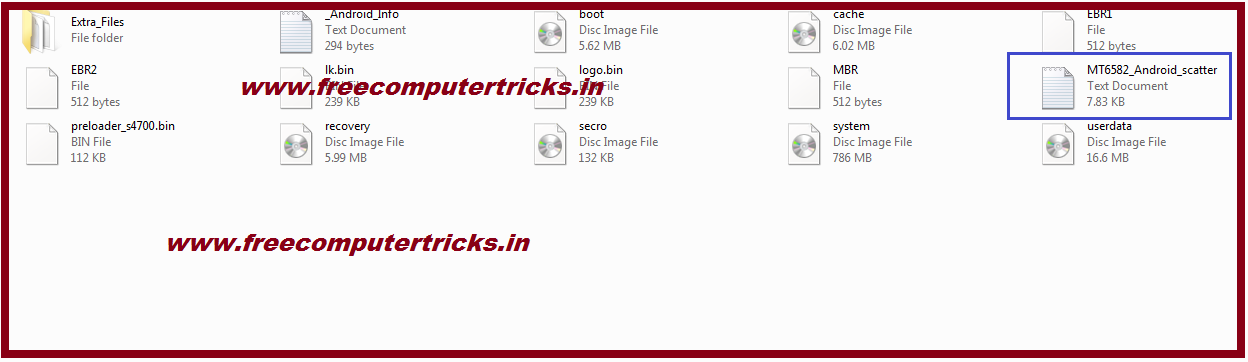
5) Now download MTK stock firmware and extract the .zip file, inside the firmware folder you will find a text file "MT6582_Android_scatter.txt" or "Android_scatter.txt" or it may be different as per your MTK CPU model number.


How to find Android scatter text file in the firmware folder - SP Flash Tool
6) Now click the "Choose" button just next to the "scatter loading file" box.


Load Android scatter text file - Sp flash tool

7) Now you will see the firmware is loaded to the SP flash tool and ready to Download firmware to the phone.


MTK firmware loaded using scatter text file to the Smart Phone Flash Tool
8) Now switch off the phone and connect to the PC and install MTK USB driver, after that click on "Download" button to flash the phone.

9) After download success you will get a message like "Download OK".


SP flash tool Download firmware OK
10) Now remove the phone and manually switch on the phone.

In this way you can use the Smart phone flash tool or SP flash tool to flash the MTK Android smart phones.

Note: For safe flash, please backup the full firmware and do not select the "preloader" while flashing with SP Flash Tool.

Saturday, September 30, 2017

Smart Phone Flash Tool V5.1728 Download


Here you can download Smart Phone Flash Tool or SP flash tool latest version. As you know SP flash tool is used for flashing firmware on MTK smart phones, so if you need to flash or upgrade MediaTek (MTK) CPU phones then this tool is very useful, download your phone stock firmware and flash it with this SP flash tool.

Smart Phone Flash Tool V5.1728 - SP Flash Tool Latest Version Download Here

Downloads:

Download Smart Phone Flash Tool V5.1728 from the below link.

SP Flash Tool V5.1728 Download Here


Sunday, August 13, 2017

Smart Phone Flash Tool Error Collection and Possible Solution


Here are some error comes, while you use SP flash tool or Smartphone flash tool to flash MTK phones. So here you will see the error message and find a possible solution regarding that, If you need to share your success of solution about the SP flash tool errors, then you can post through comments. Please see the below errors for Smart Phone Flash Tool and Solution.

Smart Phone Flash Tool Errors and Solutions

Flash Tools Error Collection & Possible Solution Here:

Here is the few solution for Smart Phone Flash Tool errors, just follow the below error messages and solution.


Credits: SP tools

1.BROM Error

S_UNKNOWN_TARGET_BBCHIP

[Description]
Unsupported target baseband chip type!

[Solution]
Please upgrade to the latest Flash Tool then try again.

S_UNSUPPORTED_VER_OF_BOOT_ROM

[Description]
Unsupported Boot ROM!

[Solution]
Please upgrade to the latest Flash Tool then try again.

S_SEC_INFO_NOT_FOUND

[Description]
Your ROM files doesn't enable secure feature! Secure-on BB must boot up with secure-on ROM files!

[Solution]
Please use a secure-on ROM file then try again.

S_BROM_DOWNLOAD_DA_FAIL

[Description]
[H/W] Fail to download DA to baseband chip's internal SRAM!

[Reason]
1.There’s a cable communication problem between Flash Tool and Boot ROM.
2.Target might be shutdown unexpectedly or target lost power supply.
3.The DA is not correct.

[Solution]
1.Try again.
2.Proceed H/W checking in download cable and target side com port.
3.Monitor if power-drop occurred in target side.

S_BROM_BBCHIP_HW_VER_INCORRECT

[Description]
[H/W] Target baseband chip is inconsistent with bin files!

[Solution]
Please select the correct image files for the target's baseband chip.

S_BROM_AUTOBAUD_FAIL


[Description]
[H/W] Boot ROM start command passed but fails to multiple Boot ROM baud rate!

[Reason]
1.There's a cable communication problem between Flash Tool and Boot ROM.
2.Target might be shutdown unexpectedly.

[Solution]
1.Try again.
2.Speed-Up Boot ROM baud rate” in advance mode (CTRL+ALT+V) then try again.
3.Proceed H/W checking in download cable and target side UART path.
4.Monitor if power-drop occurred in target side.

S_BROM_EXCEED_MAX_DATA_BLOCKS

[Description]
[MAUI] The number of Multi-Bin files is more than 10!

[Solution]
1.Please don't build more than 10 binary files.

S_DA_INT_RAM_ERROR

[Description] 
The download image is not match with phone memory.

[Solution] 
Please select correct image to match with phone memory and try again.

S_DA_EXT_RAM_ERROR

[Description] 
[H/W] DA didn't detect external RAM!

[Solution]
It maybe a SMT or an EMI issue, please use another phone to download.

S_DA_NAND_BLOCK_DATA_UNSTABLE

[Description] 
[H/W] Data of the block is unstable after erasing NAND Flash!

[Reason]
It maybe a SMT issue.

[Solution]
Please format all flash or use another phone to download.

S_SECURITY_SLA_INVALID_AUTH_FILE

[Description]

[User] An invalid authentication file is used!

[Solution]

This error message will occurs with MSP (MTK Secure Platform) code, Please keep up the MSP code and ask for help.

S_SECURITY_SF_SECURE_VER_CHECK_FAIL

[Description]

[User] The secure version of the secure-MAUI is older than that in the handset

[Solution]

Please choose a secure-MAUI with an equal or newer secure version.

S_SECURITY_DAA_FAIL

[Description]
lDA Security download error!

[Solution]
Security DA is not signed by a correct key, please select correct DA and try again.

S_DA_UPDATE_BOOTLOADER_EXIST_MAGIC_NOT_MATCHED

[Description]
DA DSP_BL check exist error.

[Solution] 
There is no DSP_BL in previous load on target, please format all and download again.

Wednesday, December 28, 2016

Karbonn A51+ Dead After Flash - The Complete Solution


Here we will discuss about the flashing procedure of Karbonn A51+, which is dead after flashing with SP flash tool. The phone has MTK CPU and can be flash using Smart Phone flash tool. Here is the step by step procedure to recover the Karbonn K51 Plus dead phone by flashing with the correct firmware.

Karbonn A51+ Not Switching ON:

After flashing with a51+ firmware using sp flash tool, the Karbonn A51+ dead and not switch ON now. This is the main problem of A51+, I searched for this problem on Google, but their is no described solution to recover the dead handset and finally I try some ways and here give you all the final solution to recover the dead Karbonn A51+ Android smartphone.

FAQ:
1) Karbonn A51+ Flash OK but mobile not switch on
2) Karbonn A51+ Preloader Corrupted
3) Karbonn A51+ flashing stuck on 3%
4) A51+ MediaTek preloader problem and PMT changed
5) How to flash Karbonn A51+
6) Karbonn A51+ after flash dead
7) Karbonn A51+ flash tool version

Karbonn A51+ Dead After Flash Solution

Karbonn A51+ Dead Phone Flash Success:

Download SP Flash Tool V3.1340.0
Download A51+ Firmware A51+V01005 01-08-2014 (Kitkat) or as per the Mobile Version.
Flash using SP Flash Tool V3.1340.0
If Unable flash then first Format the phone and then try to flash
If Unable Format with this version of Sp flash tool then first format with the latest version of SP flash tool then flash with this version of Sp flash tool.

Try the above process carefully to flash Karbonn A51+ phone using SP flash tool, remember use the SP flash tool version given here, if you use the latest version of SP flash tool flash the phone, flashing may success but the phone will not be switch on.

I tried with a dead Karbonn A51+ mobile and success with the above process, in my case the phone was dead and when try to format or flash with SP Flash Tool V3.1340.0, it shows some error, then I format the phone using Latest version of SP flash tool then again format with SP Flash Tool V3.1340.0, then I flash the phone and now it's OK and working fine.

Monday, November 21, 2016

How to Flash Intex Aqua T5 V0.5 With Smart Phone Flash Tool


Here is the process, how you can flash Intex aqua T5 Android smartphone using flash tool. If you normally flash the phone using smartphone flash tool, the flashing process will not complete or hang the preloader or stuck on 5% in the flashing process, so how you overcome this process is as below.

Intex Aqua T5 Flashing OK SP Flash Tool
Today I try to flash this Intex Aqua T5 smartphone using sp flash tool with the normal process as we do to flash MTK base smartphones using smartphone flash tool. i.e. Select the scatter file and click on download or sometimes we uncheck the preloader and then try to flash, but here in this phone I try both the process to flash the phone, but it stuck in 5% with some error message. Finally I got a solution for this problem and share it here.

Downloads:
Intex Aqua T5 V0.5 Firmware Here
 
How to flash Intex Aqua T5?
  • Download the above firmware for Aqua T5
  • Now Open flash tool and select scatter file
  • Select Download Only
  • Now select one by one image file and click Download

For Example first select USRDATA (only select this) then click on download and connect the switched off phone to the PC, then select ANDROID click on download. Download one by one using this process and leave the PRELOADER and try to switch on the phone if the phone not switching on then again flash PRELOADER only.

That's all now you are successfully flash the Intex Aqua T5 using smartphone flash tool.

Thursday, September 22, 2016

Huawei Y541-U02 Emergency Call Only SOLVED .. www.FreeComputerTricks.in


Here is the tutorial for Huawei Y541-U02 Android smart phone Emergency call only problem and how to solve this. The below is the step by step way to solve "Emergency call only" or "No Service" problem on Huawei Y541 U02 Android smartphone.

Emergency Call Only  Huawei Y541

There are two types of file available for Huawei Y541, one is SD update and another is PC Update .pac file, sometimes if you update using SD card using recovery mode this may cause for the "Emergency call" on the phone due to mismatch of the firmware or may be the version or may the CPU details of the phone. 

Yesterday I faced the same problem, flashed/update the Y541 U02 Phone using SD card (Version Y541-U02_V100R001C567B109), after update success there is no network on the phone it shows "emergency call only". So I search the Internet and found another version/type file for the phone, it was in .pac format and can be update using PC, then I used this file for Huawei phone and now it's working fine.

Y541 U02 Flash OK SPD CPU ( Y541-U02_V100R001C567B105_PC_Update_Asia Pacific PAC File )
Download Huawei Firmware Update


📚 You May Also Like to Read