Showing posts with label Micromax. Show all posts

Tuesday, February 25, 2020

Micromax X088+ Battery Error, Charging Error, Not Charging & Battery Temperature Error Solution


In this topic I will show you, how you can solve battery Micromax x088+ keypad phone charging errors, such battery errors, charging errors, not charging and battery temperature errors or battery BSI line jumper solution, so please go through the topic you will know the complete battery charging solution for Micromax keypad phone X088+.

If you have any doubt then please contact me through YouTube comments, that means visit any video on my YouTube channel and post your doubt through comment and there I am replying to all, so please visit the YouTube channel.


Micromax Charging Error Solution
Please check the below image and watch carefully the jumper diagram to know the charging error solution on your Micromax Keypad phone C088+ basic phone.

Charging Error Issues: If you are facing charging issue on any mobile phone such as charging error, not charging error, battery temperature errors, battery temperature too high, charging stops after few minutes, that means the phone has BSI line damaged, that means the middle point of battery connector being disconnected from charging ic which called BSI line so you need to check the BSI connectivity to solve this issue, here for example you will get Micromax X088+ BSI line jumper please check the below image.


Micromax X088+ BSI ways 
Micromax X088+ BSI line jumper HD Image Diagram

Friday, November 30, 2018

Micromax Canvas 2 Q4310 FRP Unlock File and Unlock Tool Free Download


Hi friends, here is the free Account unlock solution for Micromax MediaTek Canvas 2 Q4310. Download free frp or Google account unlock file and flash tool, then follow the procedure here to unlock the phone, which is absolutely free, just download the Smartphone flash tool and FRP file and Google Account unlock.
Micromax Canvas 2 Q4310 Android 7.0 FRP Unlock File and Free Unlock Tool

Micromax Q4310 Software Info:
 

Model number: Micromax Q4310
Android version: 7.0
Android security patch: June 5, 2017
Internal Storage: 16GB
RAM: 3GB
Processor: MT6737
Baseband version: MOLY.LR9.W1444.MD.LWTG.MP.V110.5.[14,2017/06/01 21:38
Kernel version: 3.18.35 android@localhost #1
Build number: MMX_Q4310_SW_V2.0_HW_V2.0_20062017
Hardware version number: v2.0.0


Micromax Canvas 3 Q4310 Android 7.0 FRP Unlock File and Free Unlock Tool.
Micromax Canvas 2 Q4310 FRP Unlock File and Tool Free Download Here

Q4310 FRP Format Address SP Flash Tool:

Begin Address [HEX] : 0x6a00000
Format Length [HEX] : 0x100000


Q4310 FRP File and SP Flash Tool Download Here:

Password = Q4310@fct
Download Q4310 FRP Unlock File | Download Link
Download SP Flash Tool (SP_Flash_Tool_v5.1844_Win.rar) | Download Link

Q4310 How To FRP Reset - SP Flash Tool?
  • Open SP flash tool and load the Android scatter file.
  • Download Agent file select DA_SWSEC.bin
  • Now go to format Tab and select Manual format flash.
  • Now enter the begin address and format length.
  • Click on Start and connect the switched off phone to PC.
  • After format OK, remove the phone and switch on It.

Q4310 How To FRP Reset - SP Flash Tool
Watch the Video Tutorial Here 

Thursday, November 29, 2018

Micromax E455 Qualcomm MSM8929 How to Flash and FRP Unlock/Google Account Reset


How to flash Micromax E455 MSM8929 Smartphone? Here is the process to flash the phone. If you need to know how to flash the Qualcomm Micromax E455 phone, then please go through the topic and watch the video on YouTube to know complete procedure to flash the phone using fastboot Mode. Download the Micromax E455 firmware and follow the tutorial.
 
Micromax E455 Qualcomm MSM8929 How to Flash and FRP Unlock Google Account Reset


How to remove Factory Reset Protection Lock of Micromax E455? As you know the Micromax E455 has Qualcomm chip-set MSM8929 and runs on Android version 5.0.2. So if you need to unlock the Micromax phone using free tool then here is the complete and 100% working solution for this. Just download the Qualcomm Free FRP Reset/Unlock tool from the link given below and follow the tutorial to know the procedure to unlock the phone.
 
Micromax E455 Qualcomm MSM8929 Flashing and Unlock


Micromax E455 forgot Gmail id and password, how to recover the phone? If you are facing this problem, that you have forgotten the Google account id and password used in that phone, then in that case you need to unlock FRP or reset the Google account, so that you can use another Gmail account on the same Android smartphone. So to unlock the phone this topic is most useful for the users, please watch the video on YouTube and follow the tutorial to know the Free FRP Unlock Way of Qualcomm Micromax E455 Android smartphone.

Micromax E455 FRP/Google Account Unlock Free Tool.
E455 Google verification unlock using Miracle Box 2.58.
Micromax E455 After Hard reset stuck on Wi-Fi screen.
Micromax E455 after hard reset asking to Enter Gmail id and password solution.
E455 Android 5.0.2 account unlock Miracle box 2.58.
E455 Qualcomm MSM8929 Free FRP Reset Tool 2019.


Micromax E455 Firmware Download Links:

Micromax E455 Flash File
H/W VER.:LLDMO18
S/W VER.:MMX_E455_SW_V16_HW_V1.0_25082015
Download Here
 

Micromax E455 Factory Firmware Download Link:

Micromax E455 MicromaxInfo Firmware Download | Download Link

How to Flash Micromax E455?

  • Download the E455 Firmware as per the phone S/W version.
  • Extract or Unzip the flash file.
  • Now connect the phone with Fastboot Mode.
  • Go to the Firmware folder and Double Click on fastboot_all_images.bat file.
  • Now the flashing process starts and wait until the process complete.
  • After flash complete Switch on the phone.
You can watch the Video Tutorial Here

Micromax E455 Fastboot Mode:

==> First Switch off the phone.
==> Hold Volume down and Connect USB cable.

Now you will see the Micromax Logo and Check the PC Device Manager.

Micromax E455 FRP Unlock:

Micromax E455 FRP or Google account unlock can be done in the same way, just flash the phone with the given firmware using fastboot mode and the Micromax E455 is permanently unlocked and you can use any other Google account on that phone after flashing.

Friday, August 31, 2018

Micromax Canvas 2 Plus 2018 C2A+ Firmware Download Here


Here is the download link for Micromax Canvas 2 plus 2018 firmware, which is C2A plus flash file to flash the MTK based Android smartphone. Here we provides direct download link for Micromax Canvas 2 plus flash file or Canvas 2 Plus firmware or Canvas 2 plus ROM, download the Micromax flash file and flash your Micromax Canvas 2 C2A+ smartphone.
Micromax Canvas 2 Plus C2A+ Firmware Download Here

Micromax Canvas 2 Plus C2A+ Flash File and Flash Tool Free Download Here.


! Before Flash !
1} Please confirm the device firmware and hardware version before flashing the phone, if it's mismatch then the device might be dead or cause bootloop.
2} Here is the Canvas C2A+ CPB firmware and you need to use YGDP Flash Tool to flash .cpb Mobile flash file, search this website to know the flashing steps correctly otherwise you may brick your phone and We are not responsible for any damage to your phone. 
3} Mobile flashing will erase all your user data, so you need to backup the phone first.

Micromax Canvas 2 Plus C2A+ Firmware Download Here

File Name: Micromax_C2A_180106_7.0_CPB.zip
File Size: 1.80 GB
Full file Name: Micromax_MicromaxC2A_7.0.014.P1.1801060311.PD5706M.HEM_MMX_PD5706M_OE.NOEFUSE

Download Here

Download Micromax C2A Plus Official Firmware

File Name: Micromax_C2A_Plus_MT6737T_08022018_7.0.zip
File Size: 1010 MB

Download Here


Micromax Canvas 2 Plus C2A+ Flash Tool Download

Download YGDP Flash Tool [ Visit Here]


Download Canvas 2 Plus USB Driver 


Micromax USB Driver Download Link

Tuesday, May 29, 2018

How to Root and Unlock Micromax A67 - All in One Unlock Solutions


How to Root, Unlock Pattern and Password Of Micromax A67 with ADB Mode Using Miracle Box V2.27a. Root Micromax A67 ADB Mode - Pattern Unlock and Password Unlock Micromax A67 ADB Mode. Here I will tell you how you can easily Root Micromax A67 and How to Unlock Pattern lock and password lock on Micromax A67.

Introduction:
As we all know, that Micromax A67 is an Android smartphone which has released on August Released 2013 and now it's discontinued. The 4.5 inches phone has Android 4.0.3 [Ice Cream Sandwich] and runs on Dual-core 1.0 GHz Cortex A5 CPU,  with 512 MB RAM and 4 GB internal storage and you can also expand external storage up to 32 GB suing Card slot (Micro-SD). This phone also has dual Camera facility 2 MP back camera and VGA camera in front.

How to Unlock Micromax A67 ADB Mode Factory Reset?

This phone has auto enabled USB debugging mode, so you do not need to enable USB debugging mode to root and unlock this phone. So the phone as automatically enabled it's USB debugging mode, you can easily root the phone using any flashing tool and unlock it. Here is the example of Miracle box which works without box, so you can unlock the phone free, just download free Miracle Box no hardware box needed, no flashing dongle need. You can download Miracle Box flash tool link given below in this article.

How to Wipe/Factory Reset Micromax A67 Miracle Box V2.27a?
  • First Root the Micromax A67 phone (Please see the Rooting steps below)
  • After root go to Android Tab, then ADB Tab.
  • Now select Wipe/factory Reset
  • Click on Start Button, when wipe data done, the phone will reboot and it's done.
How to Unlock Pattern or Password Of Micromax A67 - Miracle Box ADB Mode - Solved
-: You May Also Eager To Know :-


Micromax A67 Firmware Versions:

PA287AN_KMOEB_DM451_Micromax_A67_FOREIGN_V1.1.7
PA287AN_KMOEB_DM451_Micromax_A67_FOREIGN_V1.1.8

How to Root Micromax A67 Miracle Box V2.27A?
  • Open Miracle Box and go to Android Tab then Home(ADB).
  • Now select ROOT ADB and the click on Start Button.
  • Now switch ON the phone and connect it to Computer and install ADB and All USB drivers.
  • After Root complete it will show ROOT OK and reboot the phone.
  • Now you Micromax phone has been rooted, unlock the phone and enjoy.
How to Root Micromax A67 - Micromax Root Miracle Box ADB Mode - Solved
First root the Micromax Android smartphone and then unlock it, you can free tools to unlock Micromax Android smartphone, the below is the download link for free root and unlock tool for this Micromax phone.

Downloads:
Download Miracle Box Latest Version Working Without Box | Download Link

Conclusion:
So in this topic we learn how to root Micromax phone and how to unlock Micromax phone. This process is only for tutorial purpose, please do not misuse it, if so then it's completely your risk. The android smartphone can be ROOT and UNLOCK using this process with free Miracle Flash Tool, which supports flashing and unlock and root MediaTek, Qualcomm and Spreadtrum Chipset Android smartphones.


Please Visit Again To Get Updated Tips, Tricks , News and Tutorials About Smartphones.

Friday, June 24, 2016

All MTK Database Files For Micromax IMEI Repair


As you know Database/DB files in Android MTK Smart phone used for repair IMEI of the phone, so here is some DB files or Database Files for Micromax MediaTek CPU, using this file you can repair IMEI all most all MTK base Android phones.

The below is the details of the database files for Micromax Android smart phones. Here is some collection of these files.

Database File Details:

A82
CPU: MT6572

AQ4501
CPU: MT6582

Q340
CPU: MT6582

Q371
CPU: MT6582

Q372
CPU: MT6582

MTK IMEI Repair Database or DB Files
MTK Database Files Download Below


Wednesday, April 13, 2016

Micromax A67 Flashing Done With Miracle Box - Without HW Info File


Micromax A67 hang on logo solved by flashing the phone using Miracle box. In this process you do not need a Hardware Info file (A67 HW Info File) to flash the phone, only select the Micromax A67 .Pac file on Miracle then write flash. As you know if you flash this phone using download tool then you must select the HW info file in it, which cause a white display, touch not working, lines on LCD, Half Display and also you may face any other problem, on this situation you need to change the HW Info File on LCD Download Tool and flash it again and again. So here in this process with Miracle box you just flash the phone using A67 firmware your problem will be solved.

Micromax A67 Hang On Logo Solved:- Flash With Miracle Box.

A67 Micromax Flash Done With Miracle Box - No HW Info File
After flash success switch on the phone and see it will work fine, to flash the phone please follow the above screen shot.

Micromax A67 Pinouts:

You need to set pinouts manually to flash the phone or can use modified USB cable to flash the phone also. To know more about Micromax A67 Pinouts setting search this website.

Sunday, April 3, 2016

Micromax FRP Unlock & Gmail Bypass Solution Using Tool


Here is the tutorial about FRP (Factory Reset Protection) Unlock process, which helps you to remove the Factory Reset Protection on Android Device and unlock the device or phone to factory defaults. This feature is available on Android Lollipop or higher version of Android Operation System. If you have question, how to hard reset and remove Gmail verification on the phone then this topic will help you to do a complete Factory Reset of the device.

What is FRP?
FRP (Factory Reset Protection) is available on Android Operation System v5.0 Lollipop or higher. If the phone has this feature, when you factory reset the device and start the phone to use it again, it will ask for Gmail id and password which you have used on this particular device or phone. If you forgot the Email and Password then the device won't start and become unusable. So here is the process to unlock FRP and Complete Hard Reset of Android device.

Note: If the phone belongs to you and you forgot the Email id and Password, then use this process. In this process you will lose all data on the phone. Do not use this process or unlock FRP if the device not belongs to you.

Micromax FRP Unlock Solution:

Micromax FRP Unlock Tool
Download Micromax All In One Tool (Can be download searching Google)
Unzip the file and you will find an application Micromax
Open the application
Now put the phone into Fastboot mode and connect to PC using USB cable
First check the device on the tool by pressing 1
Now press 2 and hit Enter to Remove FRP.

Micromax FRP Unlock Tool:

* YU5010A and YU5010 FRP Remove Guide:
       1] Press And Hold The Vol+ Key And Connect The Device.
       2] Press 1 for Check The Device Connected Or Not.

       3] Press 2 And Then Press Enter For Remove FRP.

* YU4711 FRP Remove Guide:
       1] Go To Recovery of Device By Keys And Select Reboot To Bootloader.
       2] Connect Device With Pc And Press 3 And Enter For Remove FRP.

* Factory Mode Mix Guide :
       1] Connect Your Device With Pc And Press 4 And Enter For Fix [ADB Must]

Options:
1. Check Device.
3. Remove FRP [YU4711].
2. Remove FRP.
4. Factory Mode Fix.

Wednesday, September 10, 2014

How to Hard Reset Micromax A65 With Android System Recovery


Micromax A65 hard reset done with keys and format done with Volcano Tool, the below is the process to hard reset the Micromax A65 with buttons and how to format Micromax A65 with Volcano Tool.

Hi all, here is the process to hard reset or factory reset of Micromax A65. The hard reset of Micromax A65 can be done with keys and in this process you can unlock patter lock, solve the hang problem of Micromax A65 or hangs on logo or restart problem of the mobile. So see the below details to hard reset Micromax A65 wit buttons.


Micromax A65 Hard Reset
  • Press and Hold Volume Up + Power Until Android Logo appear(10-20seconds)
  • Now Press Volume Up Android System Recovery Options
  • Volume Down and Select wipe data/factory reset
  • Press Power button to OK
Micromax A65 hard reset done
That's all now on Android system recovery utility select reboot now and press power button to OK, now the device will restart and you have successfully hard reset the Micromax A65 or done the factory reset or format the data of that device.


Micromax A65 Format Done With Volcano Tool

Micromax A65 hard reset format with volcano tool

Thursday, September 4, 2014

Micromax X287 Read Flash Done With Volcano Tool V2.8.0


How to flash Micromax X287 with Volcano tool Utility version V2.8.0? the below is the process to read flash of Micromax X287 with Volcano Tool using USB Mode and in that way you can format, write flash, read info of Micromax X287.

Micromax X287 Read Flash Volcano Tool V2.8.0

  • Open volcano tool/utility
  • Go to MTK Tab
  • Select Read Flash
  • Select Boot 11_v5
  • Tick on USB Mode
  • Click on Start and Connect the Mobile with Micro USB Cable to PC


x287 micromax read flash with volcano tool
Micromax x287 Read Flash Volcano Tool Log:


Analysis of USB port,Please insert phone USB cable.
  Connecting...
  Hardware version:CA01
  Software version:0001
  CPU TYPE:625A
  Internal version:8000
  Boot downloading complete!
  Flash ID: 00C2002500360000
  Flash Type: SF_MX25U3235E             
  Chip Capacity: 0x400000(4MB)
  Baud adjust...complete.
  Flash reading complete!
  privacy:12895
  privacy:12345
  privacy:55555
  usercode:12345
  usercode:55555
>>The data has been saved in C:\Users\----\Desktop\X287\ZS626AA060_PCB01_gprs_MT6250_S00.ZS626AA_060A_V8_0_6.bin, size: 4 M.

Tuesday, April 22, 2014

Micromax launches Canvas Doodle 3 In India For Rs. 8,500/-


Micromax Canvas Doodle 3 Key Features 

  • Android Jellybean Operating System
  • 6" Display
  • 512MB RAM
  • 4GB ROM
  • Expandable Storage Up to 32GB
  • 5 Megapixel Main Camera
  • 0.3 Megapixel Front Camera
  • 2500 mAh Battery
 
Micromax Doodle 3 Price and Specs

Tuesday, April 15, 2014

Micromax A36 Hard Reset and Pattern Unlock Android Mutitool


How to hard reset Micromax A36 to remove pattern lock? Just put the Micromax A36 in Fast Boot Mode then Open Android Multitool and press 8 on keyboard then press Enter. See the below procedure.


Micromax Hard Reset or Wipe Data/Cache On Fast Boot Mode


  • Press Volume Down + Power Button Until See Fast Boot Mode

  • Then Open Android Multi Tool
  • Connect the Micromax A36 to PC Using USB Cable
  • Enter 8 on keyboard
  • Then Press Enter
  • After Wipe Data the device will restart automatically 


Micromax A36 Wipe Data on Fast Boot Mode Android Multi Tool


That's all now you have successfully remove the pattern lock on Micromax A36, remember all data will be erased.


Micromax X264 MTK 6260 CPU Read Flash With Volcano Tool


How to read flash Micromax X264 with Volcano Tool, the below is the procedure.


Steps:


  • Open Volcano Tool
  • Go to MTK Tab
  • Select Built-in-Boot-11(v5.1232)(625A/62XX)
  • Click on Read Flash
  • Don't Select Auto Detect Pinout
  • Tick on USB Mode
  • Click Run

Now connect the USB Cable to Switched off phone having battery in it


Micromax X264 How to read flash with volcano tool


Wednesday, April 9, 2014

Micromax A74 Hard Reset and Remove Pattern Lock


How to hard reset Micromax A74 with keys, the below is the way how you can factory reset the Micromax A74.


Steps:

  • Press and Hold Volume Up + Power Key until see Android Logo
  • Then Press Power Key again to see recovery option
  • Now press volume Down to select the task
  • Then press Volume Up or Power button to Enter


Micromax A74 Hard Reset

or 

You can Try Second Method


Sunday, March 23, 2014

Micromax A30 Flash Done With Broadcom Acar Flash Tool


Here is the way how you can flash the Micromax A30 mobile phone using flash tool, below is the procedure to flash the Micromax A30 Smarty 3.0.


Tools Required

BCM_FlashLoader_2070_release

Firmware Download

A30_R08_MMX_DS_NSL_RTM_1227_with_hookup

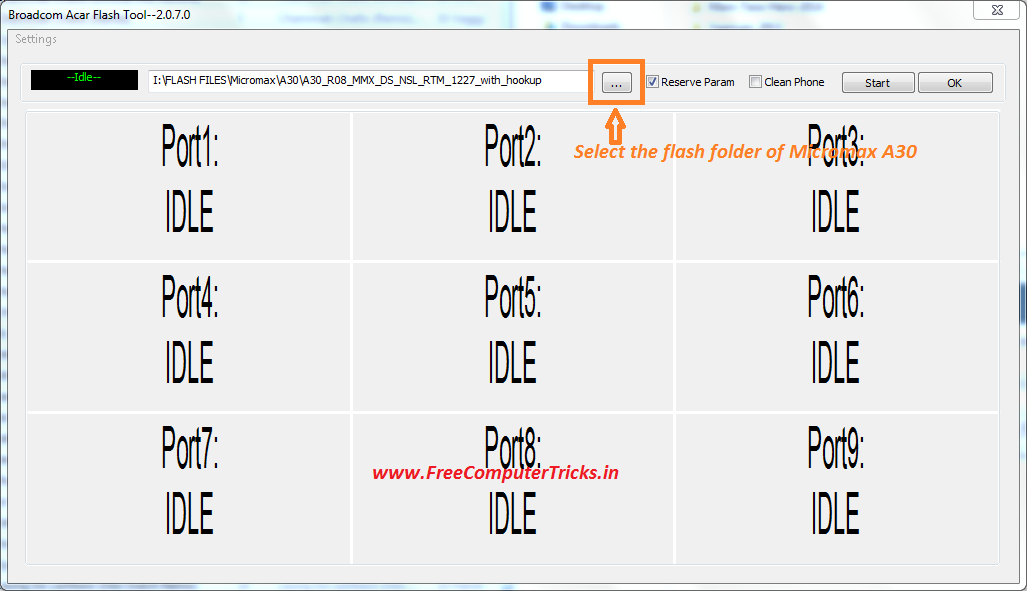
  • Now Open Flash Tool and Select the Flash Folder

Broadcom Acar Flash Tool Micromax A30
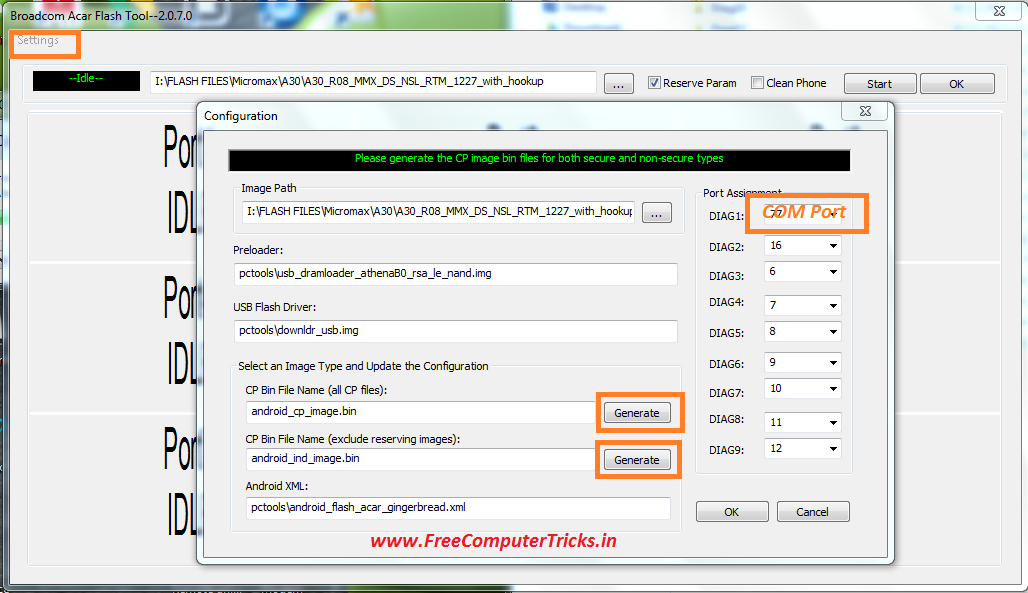
  • Go to Settings ---> Configuration and Click on Generate Buttons and Select the COM Port then Click on OK.


Micromax A30 Flash Tool Settings
Note: You can get the COM port details of the phone in Device Manager of the Computer, Set the correct COM Port.

  • Now remove the USB Cable and Battery form the phone and Click Start


  • Connect the USB Cable to the phone by pressing Volume Down Key, when it shows downloading start put the battery back into the phone and wait for finish the flash process.

Micromax A30 Boot key = Volume Down (-)


Saturday, March 1, 2014

Micromax A74 Hard Reset, Pattern Unlock Done - www.FreeComputerTricks.in


How to hard reset Micromax A74 Android 4.2.2 Mobile Phone ? Here is the way how you can do it through the keys.


Micromax A74 Mobile Hard Reset Keys


  • Press Volume - + Power Button
  • You will see some line written in China language 
  • Don't worry just go the the last line by pressing volume down key and to select press the power button.

Micromax A74 Hard Reset


  • That's all now your device will restart and the Micromax A74 has been set to factory default.


Search Tags: How to hard reset micromax a74, micromax a74 remove pattern lock, micromax a74 volcano box, micromax a74 pattern unlock, micromax a74 pattern lock removed with keys, micromax a74 hard reset key.


Monday, January 6, 2014

Micromax A35 Pattern Lock Removed With Android Multi Tools (Micromax A35 Fastboot Mode)


Micromax A35 pattern lock/hard reset done by using android multi tools and here is the way how you can do it yourself. If you have Mobile work shop then this trick will help you to format/hard reset/remove pattern unlock of Micromax A35 mobile phone. Please follow the steps below to remove pattern lock for the mobile Micromax A35.


Steps:

  • Download Android Multi Tools v1.02b (Using Google Search)

  • Now on the Micromax A35 Press Volume Down + Power Key For Fastboot Mode (20 to 30 Seconds)

  • Connect the USB Cable to the Phone

  • Install the Adb Driver on the Computer

  • Now open Android Multi Tools

  • Enter 8 to Wipe Data/Cache On Fastboot Mode

That's all now your device will restart automatically and you have successfully removed the pattern lock for the Micromax A35


Note: All Data will be erased on the phone while you do a Wipe Data.


Micromax A35 pattern Lock Solution (FreeComputerTricks.in)

Thursday, January 2, 2014

Micromax A67 Pattern Lock Solution - Micromax A67 Pattern Lock Removed With Volcano Box


Micromax A67 pattern lock successfully removed with volcano tool v2.4.2 and here is the process how to unlock pattern for the mobile micromax a67.


Micromax A67 Pattern Lock Solution Volcano Box

  • Use Volcano Tool v2.4.2 then go the MTK Tab

  • Click on One Key Root


  • Choose ADB Root and Click Run

  • Your Device will restart after successfully rooted

  • Now Choose Wipe_All (Hard Reset) or you can choose Reset Gmail (To reset pattern lock only)


  • Click on Run

  • Then your micromax a67 will again restart and it's done

Micromax A67 Pattern Lock Removed with Volcano


Tuesday, December 24, 2013

Micromax A72 Hard Reset and Remove Pattern Lock Using Volcano Box


How to hard reset micromax A72 to remove pattern lock ?


Steps: 

  • Open Volcano Tool and Use Jig P-05B

  • Go to MTK Tab

  • Tick on Read Info

  • Then Click on Run

  • When You See Analyzing Rx and Tx...


  • Now connect The Micromax A72 to Volcano box with cable (Use Phone's Battery) (don't use box power cable)

  • Then Press Volume Down + Power button until android logo appear

  • Then Press the Soft Menu Button to get wipe Data option ( Down Left Button)

See the Screen shot Below---


Micromax A72 pattern Lock Remove - When you see this (Analyzing Rx and Tx) Connect Jig to the Phone and Press Volume Down + Power Button Until the Android Logo Appear


When You see this on your Micromax A72 that means your work is done - Use the soft menu key to go to the recover menu


Micromax A72 patter Lock Removed 100% Solved


📚 You May Also Like to Read