Showing posts with label Mobile Tutorials. Show all posts

Thursday, February 27, 2020

How to Enable Wi-Fi Calling on J7? How to Make Wi-Fi Call Samsung J7


Hi friends, in this tutorial I will show how you can enable Wi-Fi calling on your Samsung J7 with step by step procedure to make a Wi-Fi call using your Android Samsung J7 smartphone, so please go through the post to know how to enable Wi-Fi calling on your Samsung J7 and how to make Wi-Fi calls on your Samsung J7 and this procedure is completely same on any Samsung smartphone with has Wi-Fi calling feature.

As you all know Wi-Fi calling has started in India and if you are using Reliance Jio or Airtel SIM card on your 4G Volte enabled handset then you can easily get the Wi-Fi calling from your operator and it's completely free of cost. So to use Wi-Fi calling you need to have a supported device with Jio or Airtel SIM card.

Samsung J7 Enable Wi-Calling? Samsung J7 Wi-Fi Call Testing

Wi-Fi calling is also called Voice Over Wi-Fi (VoWi-Fi) which allows you to make called through internet you have connected and this can be any operator Internet or broadband, just you need to connect to the Internet through the Wi-Fi and enable the option/setting then enjoy free Wi-Fi calling.


How to Enable Wi-Fi Calling on J7?

Procedure 1.

  • Open the Dial pad
  • Then click on More
  • Then click on Settings
  • Then enable Wi-Fi calling

Samsung J7 Enable Wi-Fi Calling Step By Step Procedure

Procedure 2.


  • Drag from the top
  • Then click on Wi-Fi calling


How to enable Wi-Fi calling on J7 Procedure 2

After enabling the Wi-Fi calling option you will see the Wi-Fi calling icon on your dial pad, remember which SIM has volte enabled that SIM only work for Wi-Fi calling and you must connected to the Internet.


Samsung J7 Wi-Fi Calling || Samsung J7 VoWiFi Calling || Free Wi-Fi Calling in India

Wednesday, November 30, 2016

Mi Store Shows Chinese Language - Solved


Xiaomi Redmi Mi Smart Phones after flashing shows Chinese language on the Mi store and some of the other application, how to solve this problem on Redmi MI phones. Here is the tutorial for those who face the problem of Chinese language or want to change Mi store language to English, then this topic will help you regarding that. If you are OTA update ROM then you will not face any kind of problem, but sometimes this problem comes when you flash the phone using some fastboot ROMs. See the below solution to solve the Chinese language showing in MI Store, applicable for all Xiaomi Redmi Mi phones.
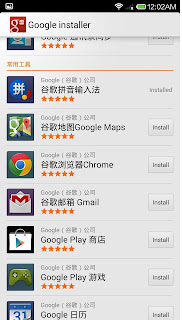
Mi Store Chinese Language Problem

FAQ?

1) After flash Redmi Mi 3s it shows Chinese language in Mi Store and some other application.
2) I changed the language to English in "Language & Inputs" but shows Chinese language in Mi Store.
3) After flash Xiaomi Redmi Mi Smart Phones it not showing "Play Store" app, what to do.
4) Some application shows Chinese language in Redmi Mi Note 3
5) How to change the Mi store Language Chinese to English India
6) In Mi phone already set the language to English but shows Chinese Language.
7) Xiaomi Redmi Mi Smart Phone Language Problem
8) How to solve the Chinese Language Problem on Mi Note 3S
9) MIUI shows Chinese Language
10) MIUI 6 showing Chinese Language in Mi Store and other applications
Mi Store English Language

Redmi Mi Chinese Language Solution:

This problem happens, when you flash the phone using any fastboot custom ROMs or any non global ROMs. So to solve the Chinese language problem in Mi phones please flash the phone using any Global ROM according to phones model, for example if the phones model number is Redmi 3S Prime (2016032) then download and use this Global ROM Image file below
land_global_images_V7.5.8.0.MALMIDE_20160712.0000.26_6.0_global

Friday, September 16, 2016

Nokia 5130 Motherboard Full Short Solution - Free Computer Tricks


Here is the topic about Nokia 5130 Mobile phone, how to remove short on the Nokia 5130 PCB or board. and here is the tutorial how to repair Nokia 5130 it it's short. If you are a mobile technician then you may know how to check whether the Mobile motherboard is short or not. 

Due to Mobile motherboard short you may face the following problems:
  • Mobile not switched on
  • Battery getting heat
  • Mobile is in Dead condition
So here is the solution for short problem on Mobile Motherboard, for example Nokia 5130, see the below image to solve the short problem. Just remove the capacitor near battery connector.

Nokia 5130 Full Short Solution Done
Remove the capacitor as shown on the above image, now check the Nokia 5130 and it will switch on, before do that check with the multi meter to confirm, that the motherboard short is gone. 

Saturday, December 26, 2015

Huawei Honor Holly U19 - How to Read and Write Odia Language


How to read and write Odia/Oriya Language on Honor U19? here is the solution to install Regional language on Android 4.4 phone and here is the example of Honor U19 Android smartphone which does not support Odia language. So to install regional language on honor U19 Android Mobile you have to Root the device, install Font Installer Root App, so for this you should have knowledge about Rooting and System Path etc.. Otherwise don't do it.

Note- This topic is for tutorial purpose, if you are not aware of this process then do not try or try at your own risk.

Install Odia Language On Honor U19

  • Install Kingo Root on the phone and Root the phone
  • Now download Font Installer Root from Play Store
  • Download Odia Font and Install Using Font Installer

Download and Install Kingo Root from Internet Using Google Search, then open the app and click one click root and wait until the process finished, remember the phone should have data connection.

Honor U19 Root Success With Kingo Root
Now Install Font Installer Root From Google Play

Font Installer Root
Now Download Odia Font Here

Google Indic Keyboard To Write Odia Language on Android Smartphones

Extract the Zip file, Open Font Installer  and Install the Odia font then restart, that's all now you will able read Odia language on the phone to write Odia language just download Google Indic Keyboard from Play Store.

Sunday, December 6, 2015

Honor Hol-U19 Lcd Light Off During Call - Proximity Sensor Calibrate On Android Phones


If you have problem with Proximity Sensor Calibrate, then you face the problem LCD light off during Incoming call and while make outgoing call also, that means on incoming call you will not able see anything on screen only you can hear ringtone and to receive the call you must press the power key for light on screen then you can receive the call, same on outgoing call, while you make outgoing call the lcd screen will goes off. To solve this problem just follow the below solution.

So here is the tutorial how to calibrate Proximity Sensor on Android Smartphones, The above problem comes due to either sensor hardware or software problem, that means if the phone has hardware problem then you must change the proximity sensor, no setting will help on this but if you have some setting problem then you can easily overcome the problem.

Proximity Sensor Calibrate on Android Smartphones:

Here is the example of Honor Hol U19 phone

Steps:

  • Switch off the phone now press volume down + power for factory mode

Honor Hol-U19 Factory kit test or factory mode
  • Now Click on Item Test

Proximity Sensor Calibrate on Android
  • Now click on Proximity Sensor Calibrate
Calibrate Proximity Censor, While call display light goes off
  • Now put the phone on a plane surface and do not cover the phone P sensor Click on Calibrate 

Proximity calibration test pass
  • Now you will see Test Pass on the screen, that means the proximity sensor is calibrate successfully, now remove the battery and put it back and switch on the phone and check by making calls.
 

Tuesday, February 24, 2015

iPhone 5S Hard Reset, Restore and Update Process Using iTunes


How to update, Restore or Hard Reset your iPhone? You can hard reset the iPhone 5S using iTunes and with a USB Cable. The below is the complete process to hard reset or restore your iPhone 5S A1529. 

If the iPhone is hanged or breezed or it's shows connect to iTunes, then this process will help you to recover the iPhone using the iTunes software. For this you should have a PC with Internet connection and iPhone 5S data cable/USB cable.


iPhone 5S Hard Reset, Restore and Update Procedure

How to Hard Reset iPhone 5S
  • Connect the iPhone 5S Data Cable to PC
  • Now press the Power button + Home Key Until it shut down
  • When Apple logo Appear release the Power key hold the Home key
  • Then you will connect to iTunes Logo
  • Now on PC iTunes Click on Restore
  • Then the latest iPhone software will download to PC and after complete you can restore or hard reset the iPhone


Restore iPhone Software Using iTunes


Thursday, February 5, 2015

Manual Internet Settings For Karbonn S2 Titanium Android Smartphone


Here you will know about the manual Internet setting for the Android Smartphone, the below is the example of Karbonn S2 Titanium and Titanium Plus. The complete step by step process of manual Internet Settings APN for the Karbonn S2 Titanium mobile phone. The same process can be follow for all other Android Smartphones, the option may slightly different but the basic GPRS or Internet Settings are same.


Here is the example of Karbonn S2, how to manually do the GPRS/Internet Settings on Karbonn S2?

Karbonn S Titanium Manual Internet Settings
  • Go to settings
  • Then go to More ---> Access Point Names

Manual Internet settings For Karbonn S2 Titanium
  • Select SIM You want to set the GPRS settings
  • Then Press the left soft key and select New APN
  • Now enter the Name i.e. Internet
  • Then set the APN (Access Point Names) as per the operator i.e. for Idea the APN is internet.


Manual Internet settings Karbonn S2 Titanium Plus
  • Now touch the left soft key again and select Save

Manual Internet/GPRS settings for Karbonn S2 Titanium
Then select the new APN or Internet settings 

To know the APN of all leading mobile operators Go here


Wednesday, January 21, 2015

Karbonn K222S SPD SC6531 Read Flash Done With Volcano Tool


How to flash, read flash, write flash and format Karbonn K222S, which has a SPD SC6531 CPU. The below is the process to flash Karbonn K222s with Volcano Utility.

Karbonn K222s Read Flash Volcano Tool
  • Open volcano tool
  • Go to SPD tab
  • Select Boot 15 SC6531 Only
  • Click on Run


Karbonn K222S SPD SC6531 Read Flash Success With Volcano Tool
In this way you can also format and write flash of Karbonn K222s with Volcano tool. This is tested but try it with your own risk.


Password  - fct56789


Sunday, December 14, 2014

Memory Card Unlock Using Advance Turbo Flasher (ATF) - Micro SD Card Password Removed With ATF


How to unlock MMC or SD card? if you have ATF (Advance Turbo Flasher) then you can easily unlock or remove password of the Memory Card. To remove password you have to buy a MMC Unlock Cable for the ATF and the procedure to remove password for the MMC or SD Card given below.


MMC or SD Card Unlock Using ATF (MMC-SD Card password removed)

Remove Micro SD Card Password With ATF

  • Connect the Box to Computer
  • Open ATF Application (Advance Turbo Flasher)
  • Go to Connection Manager
  • Connect the MMC/SD Card Unlocker to ATF and insert SD Card in it.
  • First Click on Read Card Info (It will show whether the Card is Password Protected or Not)
  • Then If you want to format the card it's easy Just Click on Total Erase Card, this option will erase/format the MMC/SD Card along with the Password but remember your Memory card data will be lost.
  • If you want to recover the password
  • Click on Start/Resume Brute Force
  • It will take some time to find the password for the MMC

Thursday, July 17, 2014

How to Flash Samsung S7562 With Odin - A Complete Procedure


Here is the topic how to flash Samsung s7562 with Odin, to flash Samsung s7562 with Odin follow the below steps.


How to flash Samsung S7562 with Odin3

Samsung S7562 Flash Odin


  • Open Odin3 v3.7
  • Select PIT file signed_kyle_v2_0604.pit
  • Boot Loader BOOTLOADER_S7562XXALK1_1102401_REV02_user_low_ship.tar
  • PDA CODE_S7562XXALK1_1102401_REV02_user_low_ship.tar
  • PHONE MODEM_S7562XXALJ3_1102401_REV02_user_low_ship.tar
  • CSC CSC_OXE_S7562OXEALL1_20121207.144751_REV02_user_low_noship.tar


Samsung S7562 Flash Done with Odin 3 v3.07

  • Then put the Samsung S7562 into Download Mode (Volume Down + Home +Power Key)
  • Then Connect the USB Cable to Computer and Click Start.
 

Sunday, June 22, 2014

Karbonn K46+ Not Switching On and Keypad Not Working Solution - www.FreeComputerTricks.in


Karbonn K46+ MTK CPU Mobile phone not switching ON or Dead and the keypad is not working, to repair this phone follow the procedure below, it's 100% working and tested.


Karbonn K46+ Hardware Solutions

Karbonn K46+ Dead/Not Switching ON Solution

If the mobile is not switching On then

First Check the phone with DC Power Supply, while press the power button the reading comes to 4/5 and when you release the power button the reading comes to 0.

In that case change the C/C (Charging Connector) the problem will solve.


Karbonn K46+ Dead or Not Switch On and Keypad Solution


Karbonn K46+ Keypad Not Working

If the keypad is not working in Karbonn K46+ then just Clean the Charging Connector or Change it the problem will be solved.


Search Tags: karbonn k46+ keypad ways, karbonn k46+ dead solution and not switched on, karbonn hardware solution, karbonn k46+ all hardware solutions, karbonn k46+ keypad jumper ways or keypad track, karbonn change charging connector, karbonn mobile hardware solution, karbonn k46+ keypad problem solved.

Thursday, April 24, 2014

Lava iris 349s Hang On Logo Solved By Hard Reset - Wipe Data Factory Reset


Lava iris 349s stuck on logo solved by wiping data or doing a factory reset, Lava iris 349s SPD CPU hard reset and remove pattern lock or wipe data/factory reset. Follow the below steps to Hard Reset your Lava iris 349s.

Lava iris 349s hanged on logo - solved by hard reset


Steps:

  • Press and Hold Volume Down + Power Button Until See Android Recovery Menu (20 to 30 Seconds)
  • Now select Wipe Data/Factory Reset using Volume down
  • Press power button to perform the action


Lava iris 349s hard reset keys - remove pattern lock and do factory reset Lava Mobiles

Search tags: lava iris 349s hard reset, how to remove pattern lock lava iris 349s, Lava mobile hard reset, lava iris 349s factory reset tool, all mobile hard reset method, lava iris 349s wipe data/factory reset.

Sunday, March 23, 2014

Micromax X263 MTK 6252 CPU Set Pinouts Volcano Tool - www.FreeComputerTricks.in


Here is the way how you can format Micromax X263 MTK CPU 6525 using Volcano Tool, So to do a Format you have to set the pin-outs manually and then you can able to format the Micromax Mobile phone with Volcano Tool V2.5.5.

Important : Before format first back up the flash file from the phone (Read Flash) It is always safe, because if your phone is dead after format then you can easily flash the phone with the back up file.


Micromax X263 MTK - 6252 Set pinouts Volcano Tool

Micromax X263 6252 CPU set pinouts done with volcano tool

  • After Pinout Setting Complete
  • Go to MTK Tab
  • Click on Format or choose any action
  • Uncheck Auto Detect Pinouts
  • Then Click on RUN

Thursday, January 16, 2014

Samsung M8800 Flash Done With MultiLoader_V5.56 - How to Flash Samsung M8800 With Downloader - www.FreeComputerTricks.in


Here is the process how you can flash the Samsung M8800 using Multi_Loader, the flashing process of Samsung M8800 is given below.


Samsung M8800 Flashing with MultiLoader

Steps:


  • Download MultiLoader_V5.56 (Search MultiLoader_V5.56.exe and Download)

  • Download Samsung Firmware (M8800DDIG1)

  • Open the Downloader V5.56

Choose Control MSM6275/MSM6280/MSM6290

Amss File : amss_compressed.bin

Rsrc1 : Rsrc_M8800_Open_Europe_Common.rc1

Rsrc2 : Rsrc2_M8800(Mid).rc2

Factory FS : FactoryFs_M8800_Open_Europe_Common.ffs


Samsung M8800 Flashing Done with Multi Loader V5.56


  • Press Volume Down + Camera then switch on the phone for Download Mode


  • Connect the Samsung M8800 to the Computer using USB Cable

  • Then Click on Download Button 

Samsung M8800 Download Mode (Volume- + Camera + Power Switch)


Wait for sometime to finish the process and now the Samsung M8800 has been successfully flashed, remove the USB Cable and Battery and put the battery back to the phone and switch on.

Saturday, January 11, 2014

How to Skip Screen Align on Samsung i780 After Format/Hard Reset - www.FreeComputerTricks.in


Normally when you format/hard reset the Samsung SGH-i780 it will ask to align the screen on first step. If you are unable to do the screen align then you must have a hardware problem on the phone, but don't worry about that you can easily skip the screen align by following the below steps. 


Steps:

  • First make a new text file using the computer and rename it to (Welcome.not) .not is the Filename extension

  • Copy the Welcome.not file to the root of the SD Card (Don't put the file inside any folder)


Samsung i780 Align Screen - How to Skip


  • Insert the Memory card to the Samsung i780 mobile phone


  • Wait until the format process complete

  • Now the device will not ask to align the screen on the Samsung i780

(Note: First Insert the Memory Card to the Mobile and then hard reset)

This trick has been tested on Samsung SGH-i780 and it's success.


!!Enjoy!!


How To Hard Reset Samsung i780 - www.FreeComputerTricks.in


How to format or hard reset the Samsung SGH-i780 using the key pad?

Steps:


Samsung i780 hard reset with keys

  • Switch on the Phone (Samsung SGH-i780)

  • Now Press and Hold Call + End Call Button


  • Just Press the Reset Button and release ( Don't Release Call and End Call Button)

  • Now you will get [Format Mode]

1. Format and Reboot - Press Space

2. Skip - Press any other keys

Samsung i780 Format Option

  • So to format the Samsung i780 press Space after format complete the phone will be restart 
That's all now your Samsung i780 hard reset/format has been successfully Done.


Friday, January 10, 2014

YXTEL C910 China Mobile Read Flash Success With Volcano Tool - www.FreeComputerTricks.in


This process will help you to read user locks and all other security codes of the mobile YXTEL C910. So to do that please follow the steps below to Read Flash for the mobile YXTEL C910 and save it for future use. The YXTEL C910 flash file can be used to flash the same model of YXTEL.


Steps:


  • Open Volcano Tool 

  • Go to Detect Tab

  • Set the Detect Type to [D+/D-]MTK&Mstar(Do Find BOOT)

  • Click on Detect

  • Then Click on Set Pinout


Set Pinout YXTEL C910 on Volcano Tool

  • Now Go Back to MTK Tab

  • Select Boot Built-in Boot-11(v5.1232)(625A/62xx)


  • Click on Read Flash

  • Un-Tick  Auto-detect Pinouts

YXTEL C910 Read Flash with Volcano Tool V2.4.2

  • Click on RUN


That's all Now you can get the user set codes for the mobile phone and also you can save the back up flash file of YXTEL C910 to your computer, which can be use on another YXTEL C910 mobile to flash.


Thursday, January 9, 2014

Samsung S5222 Restart Problem Solved - www.FreeComputerTricks.in


Today I faced a problem on Samsung S5222 Mobile, it restarts when you trying to call that Mobile number the Samsung S5222 restart. SO if you have the same problem then you can easily solve this problem by flashing the phone with Flash Tool E2, the below is the process how you can flash the Samsung S5222 with out using any box.


Steps:

  • Download Flash Tool For Samsung S5222 { C3750_C3650_FlashTool_E2_XMM2150 }

  • Download Samsung S5222 Firmware { S5222XXLAF_OXELAE } 

  • Open the Flash Tool {FlashTool_E2}

  • Choose the Flash Files: See the Below Screen Shot


Samsung S5222 Flashing Without using Any Box

  • Click Next
 
Samsung S5222 USB Flashing
  • Click on Start USB1


  • Remove the Battery From the phone and connect it to the computer after 2-3 seconds Insert Battery to the phone.

That's all now the restart problem of Samsung S5222 solved.


📚 You May Also Like to Read