Showing posts with label Lava Hard Reset. Show all posts

Tuesday, March 17, 2015

Lava Iris 349 Plus Wipe Data or Hard Reset Done With Volcano Tool


How to hard reset Lava Iris 349+ ? You can hard reset this phone using Volcano Android Tool, first you have to Root the device then wipe data or Reset Gmail using Volcano Tool/ Volcano Android Tool.

Device Model: Iris 349+
Android Release: 2.3.6


Lava Iris 349+ Root With Volcano Tool
  • Open Volcano tool
  • Go to Android Tab then ADB MODE
  • Select ADB Root
  • Connect USB Cable to the phone and Click Star
  • After root success the device will be restart

Lava Iris Root Success With Volcano Tool ADB Mode
Lava Iris 349 Plus Hard Reset/Wipe Data With Volcano Tool
  • After Root Success
  • Select Wipe All
  • Click on start


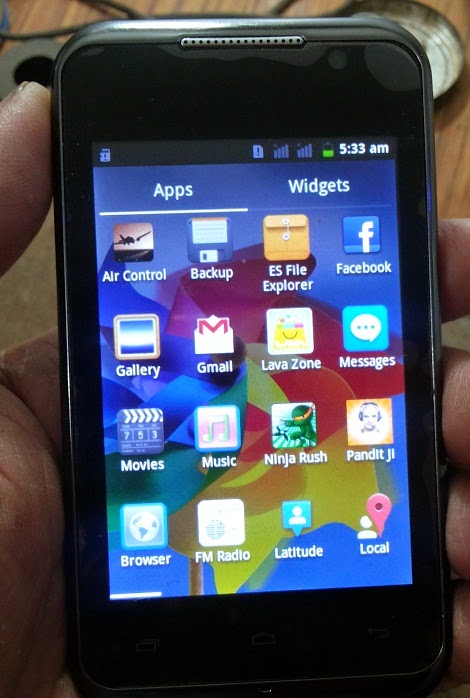
Lava Iris 349 Plus Wipe Data Hard Reset Done With Volcano Tool
In this way you can remove the pattern lock of Lava Iris 349+ and also do a factory reset of the device. While doing hard reset all data will be lost.

Wednesday, August 20, 2014

Lava iris 355 Hard Reset and Pattern Unlock Solution


Lava iris 355 pattern lock solution and here you can know how to hard reset, pattern unlock, pattern lock remove of Lava iris 355 Android smartphone. The below is the process to unlock pattern and hard reset of Lava iris 355 with keys.


Lava iris 355 hard reset power + volume up


Lava iris 355 Hard Reset


  • Press Power Button + Volume Up
  • Now you will see Factory Mode
  • Press Volume Down and Select Clear Flash
  • Press Power Button to OK

Thursday, July 31, 2014

LAVA iris 408e Hard Reset and Pattern Unlock Solution


Lava Iris 408e hard reset and pattern unlock or factory reset done with Android multi tools, put the Lava into Fastboot mode and wipe data/cache on fastboot mode, download the android multi tools and do your job.

lava iris 408e fastboot mode how to do
Lava Iris 408e Fastboot mode


  • Press and hold Volume Down + Power Key for 20 to 30 seconds for Fastboot

lava iris 408e hard reset with android multi tool

Lava Iris 408e Hard Reset


  • On fastboot mode
  • Connect the Mobile to PC
  • Open Android Multi Tools v1.02b
  • Press No 8 on Keyboard
  • Now press Enter

lava iris 408e pattern unlock with android multi tool (erasing cache and erasing user data done)

Then the lava iris will restart and you have successfully unlock the pattern lock and the phone is also set to factory defaults.


Monday, July 7, 2014

LAVA KKT14+ MTK 6260 Read Flash Done With Volcano Tool V2.5.0


How to flash Lava kkt14+ MTK 6260, Lava kkt14 rad flash and read phone code done with Volcano Tool V2.5.0. Lava KKT14 which has MTK 6260 CPU successfully read flash done with USB Cable.


Lava KKT14+ Read Flash Volcano Tool

  • Open Volcano Tool
  • Go to MTK Tab
  • Select Built-in Boot-11
  • Tick on Read Flash
  • Tick on USB Mode
  • Un-tick on Auto-detect Pinouts
  • Click on Run
  • Connect Lava KKT14+ with V3 USB Cable


Lava KKT14+ Volcano Tool Read Flash


LAVA kkt14+ Read Flash Volcano Log:

Analysis of USB port,Please insert phone USB cable.
  Connecting...
  Hardware version:CA00
  Software version:0000
  CPU TYPE:6260
  Internal version:8000
  Boot downloading complete!
  Flash ID: 00C2002500360000
  Flash Type: SF_MX25U3235E             
  Chip Capacity: 0x300000(3MB)
  Baud adjust...complete.
  Flash reading complete!
  privacy:9936
>>The data has been saved in C:\Users\XXXXX\Desktop\KKT14+\lava kkt14.bin, size: 3 M.


To Download Lava kkt14+ Flash File Go Here

Thursday, July 3, 2014

LAVA KKT40s Read Flash and Read Phone Lock Done With Volcano Tool V2.7.3


Lava KKT40s which has a MTK 625A CPU Read flash and read privacy code done with USB Mode using Volcano Tool V2.7.3. The below is the process to Read flash with Volcano Tool, as it's MTK CPU with read flash you will able to know the Phone Lock or Privacy Code.


LAVA KKT40s MTK 625A CPU Read Flash Done With Volcano Tool V2.7.3


How to Read Flash KKT40s Volcano Tool

  • Open Volcano Tool 
  • Click on MTK (MediaTek) Tab
  • Click on Read Flash Radio Button
  • Select Built-in Boot 11
  • Tick on USB Mode
  • Then Click on START and connect the switched off phone with USB Cable (With Battery)
 

After flash reading complete you will ask to save the flash file, just save it and you can find the privacy code in the Volcano Tool Log.

LAVA KKT40s Volcano Tool Log:

Analysis of USB port,Please insert phone USB cable.
  Connecting...
  Hardware version:CA01
  Software version:0001
  CPU TYPE:625A
  Internal version:8000
  Boot downloading complete!
  Flash ID: 00C2002500360000
  Flash Type: SF_MX25U3235E             
  Chip Capacity: 0x400000(4MB)
  Baud adjust...complete.
  Flash reading complete!
  privacy:1234
>>The data has been saved in C:\Users\XXXX\Desktop\KKT40S\FARSIGHTED50D_3232_11B_PCB01_gprs_MT6250_S00.LAVA_KKT40S_S109.bin, size: 4 M.

Wednesday, May 14, 2014

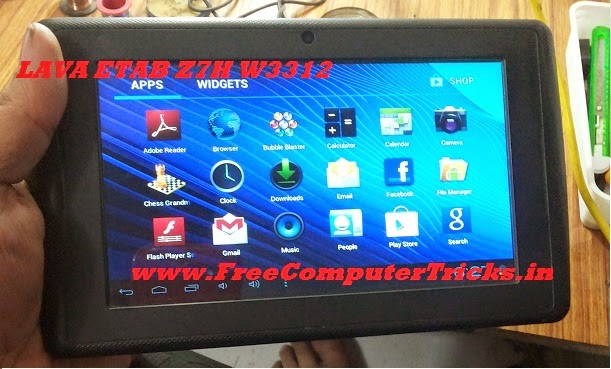
LAVA ETAB Z7H W3312 Hard Reset and Pattern Lock Solution - Hang on Logo Solved


How to hard reset Lava ETab z7h w3312 and pattern unlock, this trick will help you to overcome the hang problem of Lava w3312 Tab. So see the below procedure to know how to hard reset Lava w3312.


Android Phone Android ADB Interface on Device Manager


How to Hard Reset LAVA ETab W3312


  • Switch On The Tablet
  • Connect to PC with Micro USB
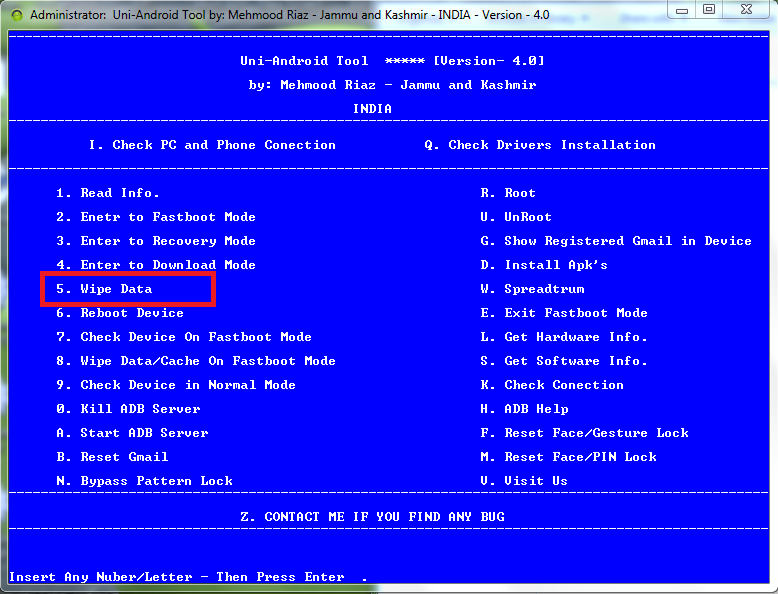
  • Open Android Mulit Tool
  • Press 5 and Hit Enter
  • Wait for Restart The Device
  • and You Have Done


LAVA ETAB Z7H W3312 Hard Reset Wipe Data in Normal Mode

Lava W3312 ETab Hard Reset Done


LAVA ETAB Z7H W3312 Hard Reset Done and Hang on Logo Solved


Search Tags: lava etab w3312 hangs on logo solved, lava w3312 hard reset and pattern unlock with android multi tool, lava etab hang on logo problem solved by hard reset, lava etab volcano tool format and hard reset, volcano tool tutorials, mobile flashing tutorials online, free mobile flash tutorials, all types of mobile phone software repair tips and tricks, www.freecomputertricks.in, how to flash lava etab w3312, factory reset wipe data lava etab w3312.

Thursday, April 24, 2014

Lava iris 349s Hang On Logo Solved By Hard Reset - Wipe Data Factory Reset


Lava iris 349s stuck on logo solved by wiping data or doing a factory reset, Lava iris 349s SPD CPU hard reset and remove pattern lock or wipe data/factory reset. Follow the below steps to Hard Reset your Lava iris 349s.

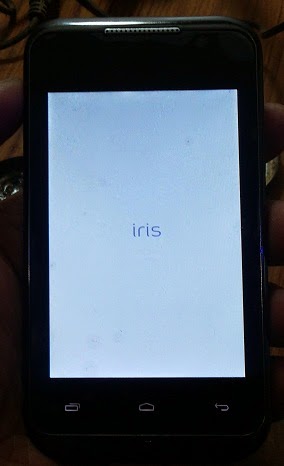
Lava iris 349s hanged on logo - solved by hard reset


Steps:

  • Press and Hold Volume Down + Power Button Until See Android Recovery Menu (20 to 30 Seconds)
  • Now select Wipe Data/Factory Reset using Volume down
  • Press power button to perform the action


Lava iris 349s hard reset keys - remove pattern lock and do factory reset Lava Mobiles

Search tags: lava iris 349s hard reset, how to remove pattern lock lava iris 349s, Lava mobile hard reset, lava iris 349s factory reset tool, all mobile hard reset method, lava iris 349s wipe data/factory reset.

📚 You May Also Like to Read