Showing posts with label Hard Reset. Show all posts

Sunday, December 12, 2021

F220B Hard Reset


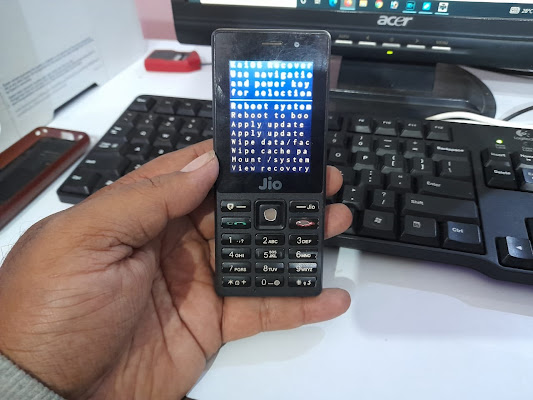
 In this topic you will learn how to hard reset JIO LYF F220B hard reset, so please go through the post to know the step by step procedure to hard reset/factory reset F220B Jio phone using keypad.

F220B Hard Reset FREE COMPUTER TRICKS


JIO LYF F220B Hard Reset?


  1. Switch off the phone.
  2. Now hold the * key and then power on the phone.
  3. After power on release the power button only, continue holding of * key until see the recovery option.
  4. Now choose the Wipe Data/Factory Reset and Press Power button
  5. Then choose Yes and press Power button to select.
  6. After format it will back to recovery menu
  7. Then choose REBOOT SYSTEM AND press power key for OK.


Now your F220B phone has been hard reset.

Sunday, September 23, 2018

Realme 2 (RMX1805) Hard Reset and FRP Not Success


As you know Realme has released it's next Android smartphone Realme 2 RMX 1805 with 3 GB RAM and 32 GB ROM and it's runs on Qualcomm platform with Android latest version 8.1 Oreo. The phone has Qualcomm Snapdragon 450 Octa Core 1.8 GHz Processor with a Mobile Battery Capacity of 4230 mAh, along with below key features.

Realme 2 (RMX1805) Hard Reset and FRP Not Success?
Realme 2 (RMX1805) Hard Reset and FRP Not Success

Realme2 Key Features:
  • 13 MP + 2 MP Dual Rear Camera
  • 8 MP Front Camera 
  • 4230 mAh Li-ion Battery
  • 6.2 Inch HD+ Display 
  • Qualcomm Snapdragon 450 Octa Core 1.8 GHz Processor 
  • Notch Full Screen Display
  • Finger Print and Face Unlock 
  • Triple Slot Dual Active 4G Sims
  • Dedicated Memory Slot Expandable Upto 256 GB

Realme 2 Hard Reset or Pattern Unlock:

You can boot the phone to Android recovery but when you chose wipe data or factory reset it will ask to enter the pattern lock or password of the phone used. So it's difficult to hard reset or unlock pattern or password of the phone. If you need to hard reset the phone you can search the flash file of Realme 2 to flash the phone using msm download tool.

RMX1805_11_A.12_180906_a4e29135.ofp
MsmDownloadTool.exe
md5sum.md5


Realme 2 Qualcomm FRP Unlock:

If you need to bypass, remove or unlock Factory Reset Protection of the Realme 2 Android phone, then in the same way you can try to flash the phone or you can try other Qualcomm Android 8.1 FRP bypass procedure available on YouTube.

You can also try the followings for FRP:

Friday, September 7, 2018

How to Avoid FRP Lock Issue While Hard Reset an Android Smartphone?


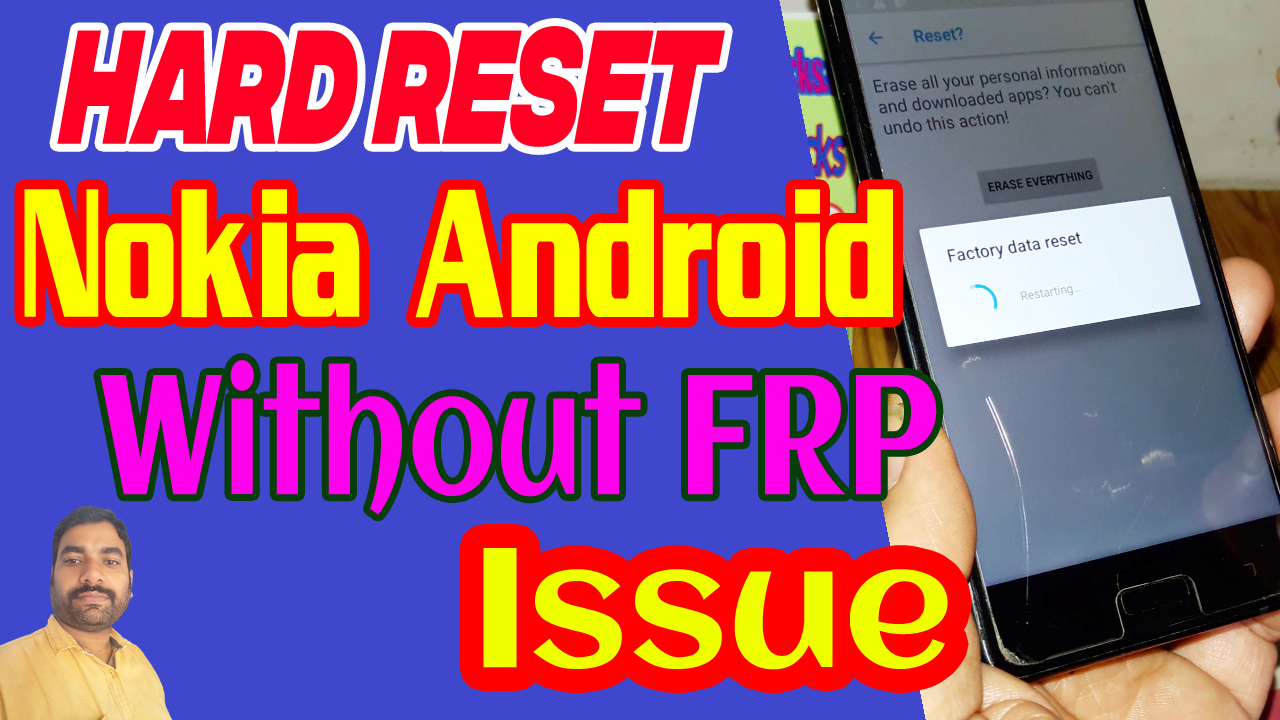
In this tutorial you will know how to Hard Reset Nokia Android Phone, without Google reactivation lock or Factory Reset Protection lock or so called FRP lock. Let me clarify this, when you Hard Reset any Android Smartphone (Android 5.0 or above) using the phone settings, after Factory Reset it will ask to enter the Gmail ID and Password previously used on that phone and it's called Factory Reset Protection Lock or FRP Lock and if you forgot the Gmail id and password then you must unlock the phone and Android unlock is a very long procedure and sometimes you may need to visit the nearest Phone Repair Shop. So this tutorial helps you to complete Hard Reset the Android phone any  Android version without re-lock issue and this process will also helps you to do Factory Reset the phone and after Hard Reset it will not ask any Gmail id and Password, if you forgot the Google account id then create a new one and use on the same phone.

Before Hard Reset Android 5.0 or Above, Please go through this Video Tutorial, which very helpful to the users who need to Reset the phone to it's Factory Defaults and after Hard Reset it will never ask to enter your Google account details and here is the example of Nokia 5 TA-1053 Android 8.1.0 Smartphone Hard Reset without Google Reactivation Lock and this is very useful for the end users.
How to Avoid FRP Lock Issue While Hard Reset an Android Smartphone?

This procedure is for Factory Reset using the Settings menu of the phone and it if the phone locked and you forgot the pattern lock or pin lock then this procedure will not work, and also if you are doing hard reset using buttons then also this may not work if you do not enable the OEM unlock and Developer Mode. To know the complete step by step procedure please watch the video below and if it's helpful then subscribe to my YouTube channel and like the video and share it to help others.


Search Tags:
Hard Reset Nokia Android Phones Without FRP
Factory Reset Nokia Android Smartphones Without Reactivation Lock
How to Hard Reset the Android phone without FRP issue
Nokia 5 Hard Reset without FRP Lock Issue
Nokia 5 Android Developer Mode
Nokia 5 OEM Unlock
Nokia 5 Hard Reset Procedure to avoid FRP Lock
Nokia TA-1053 FRP Bypass Without Box and PC
Google Account Bypass Nokia TA-1053
Nokia 5 Dual SIM FRP Bypass Solution 2018
Nokia 5 Android 8.1.0 FRP Bypass full procedure here
Android Security Patch 1 April 2018 FRP Unlock or Bypass
Nokia 5 FRP Unlock Using Technocare APK
Nokia 5 TA-1053 Developer Mode Factory Reset Gmail Account Bypass
Nokia 5 Forgot Google Account Details New trick 2018
Nokia 5 HMD Global TA-1053 FRP Unlock Full Procedure

Tuesday, May 29, 2018

How to Root and Unlock Micromax A67 - All in One Unlock Solutions


How to Root, Unlock Pattern and Password Of Micromax A67 with ADB Mode Using Miracle Box V2.27a. Root Micromax A67 ADB Mode - Pattern Unlock and Password Unlock Micromax A67 ADB Mode. Here I will tell you how you can easily Root Micromax A67 and How to Unlock Pattern lock and password lock on Micromax A67.

Introduction:
As we all know, that Micromax A67 is an Android smartphone which has released on August Released 2013 and now it's discontinued. The 4.5 inches phone has Android 4.0.3 [Ice Cream Sandwich] and runs on Dual-core 1.0 GHz Cortex A5 CPU,  with 512 MB RAM and 4 GB internal storage and you can also expand external storage up to 32 GB suing Card slot (Micro-SD). This phone also has dual Camera facility 2 MP back camera and VGA camera in front.

How to Unlock Micromax A67 ADB Mode Factory Reset?

This phone has auto enabled USB debugging mode, so you do not need to enable USB debugging mode to root and unlock this phone. So the phone as automatically enabled it's USB debugging mode, you can easily root the phone using any flashing tool and unlock it. Here is the example of Miracle box which works without box, so you can unlock the phone free, just download free Miracle Box no hardware box needed, no flashing dongle need. You can download Miracle Box flash tool link given below in this article.

How to Wipe/Factory Reset Micromax A67 Miracle Box V2.27a?
  • First Root the Micromax A67 phone (Please see the Rooting steps below)
  • After root go to Android Tab, then ADB Tab.
  • Now select Wipe/factory Reset
  • Click on Start Button, when wipe data done, the phone will reboot and it's done.
How to Unlock Pattern or Password Of Micromax A67 - Miracle Box ADB Mode - Solved
-: You May Also Eager To Know :-


Micromax A67 Firmware Versions:

PA287AN_KMOEB_DM451_Micromax_A67_FOREIGN_V1.1.7
PA287AN_KMOEB_DM451_Micromax_A67_FOREIGN_V1.1.8

How to Root Micromax A67 Miracle Box V2.27A?
  • Open Miracle Box and go to Android Tab then Home(ADB).
  • Now select ROOT ADB and the click on Start Button.
  • Now switch ON the phone and connect it to Computer and install ADB and All USB drivers.
  • After Root complete it will show ROOT OK and reboot the phone.
  • Now you Micromax phone has been rooted, unlock the phone and enjoy.
How to Root Micromax A67 - Micromax Root Miracle Box ADB Mode - Solved
First root the Micromax Android smartphone and then unlock it, you can free tools to unlock Micromax Android smartphone, the below is the download link for free root and unlock tool for this Micromax phone.

Downloads:
Download Miracle Box Latest Version Working Without Box | Download Link

Conclusion:
So in this topic we learn how to root Micromax phone and how to unlock Micromax phone. This process is only for tutorial purpose, please do not misuse it, if so then it's completely your risk. The android smartphone can be ROOT and UNLOCK using this process with free Miracle Flash Tool, which supports flashing and unlock and root MediaTek, Qualcomm and Spreadtrum Chipset Android smartphones.


Please Visit Again To Get Updated Tips, Tricks , News and Tutorials About Smartphones.

Friday, May 4, 2018

How to Hard Reset LYF F50Y Using Keypad Buttons


Jio phone F50Y, if you are searching for how to hard reset the phone, because the Jio LYF F50Y hang on logo or continuously restarts or stuck on logo only, then you are at the right place where you can learn how to hard reset LYF Jio Phone using the keypad buttons.
www.freecomputertricks.in How to hard reset Jio LYF F50Y Keypad phone using buttons
Jio LYF F50Y You can easily hard reset/factory reset the phone. This topic will very helpful to the Mobile technicians both for fresher or experienced, if they do not know the hard reset process of the phone.

How to Hard Jio LYF F50Y?
  • Switch off the phone first.
  • Now Hold the Up button (Home key - up, down, left and right).
  • Then press power key, when it's vibrate release all keys and wait.
  • or Hold the up key and Power key at the same time, when vibrate release all keys.
  • Now it will show the Recovery options.
  • Now select wipe data/factory reset then press Power key to OK.
This solution is working for below faults/problems on Your Jio LYF F50Y Phone:
  1. How to Solve LYF jIO F50Y Restart Problem
  2. Jio Phone F50Y Hang on logo & Remove password
  3. How to Solve Jio Lyf F50Y Hang Problem
  4. Jio phone hard reset buttons
  5. Lyf Jio Feature phone hard reset with keys

Thursday, May 3, 2018

Xiaomi Mi A2 (Mi 6X) Flashing, Hard Reset and FRP Unlock


How to flash Xiaomi Mi A2 or Mi 6X? In this tutorial we will show you all possible solution and method of Hard Reset and Factory Reset Protection (FRP) of Xiaomi Mi A2. Xiaomi Mi A2 after flash and hard reset it ask to enter Mi cloud account id and password, if you forgot the Mi Account Id and password you can recover or reset password by following the official page of Xiaomi such as [Mi Cloud] [Mi Account Reset Password] [Mi Account - Sign in Global]. If you unlock the Xiaomi Mi phone using official methods by following the above site links, then it's safe and the warranty of the phone will not void.
Xiaomi Mi A2 (Mi 6X) Flashing, Hard Reset and FRP Unlock - Xiaomi Mi Cloud Account Unlock Solution

But if you still facing problem to reset or recover your Mi cloud account details, then you can follow these steps to unlock Mi account or FRP unlock Mi account. You can unlock Xiaomi Mi A2 smart phone by flashing with firmware and Mi flash tool or you can use an Flashing Tool Box and which causes void warranty of the phone.

Note: Always try to recover you Mi cloud account by visiting the official page with official way.

Xiaomi Mi A2 Flashing:
  • Download Xiaomi Mi A2 Firmware and Mi Flash Tool [MIUI ROM Download] [Mi Flash Tool Download].
  • Now put the phone in to Download/EDL Mode or Fastboot Mode.
  • Open Mi Flash Tool and give the firmware path.
  • Now click on Start and wait until the flash process complete.

Xiaomi Mi A2 Hard Reset and Account Unlock:

Method 1:
  • You can use RB Soft Mobile Tool to hard reset and Unlock [Link].
  • Open the Xiaomi Mi Unlock tool.
  • Now boot the phone into Recovery Mode ( Press Volume Up + Power Key and then choose Recovery or Connect with Mi Assistance).
  • Now format user data and do frp reset by using this tool.

Method 2:
  • You can also use Miracle Box latest version (Miracle Box required), Download Miracle Box free version working without box Here.
  • Open Miracle Box Tool Software.
  • Go to Qualcomm Tab and then Extra and select Mi Account Unlock and choose your phone model number.
  • Connect the phone with EDL Mode.
  • Click on Start button and wait until the Unlock done.

Other Methods:
You can use UMT flash tool box to Unlock Xiaomi Phones.
You can also try NCK box to flash, hard reset and unlock account Xiaomi cloud.
You can use Falcon box for Mi Account Unlock.

To flash, hard reset and unlock Mi account you try the above methods at your own risk, we are not responsible any damage happen to the phone.

Thursday, November 16, 2017

LYF LF-2403N Hard Reset (Using Phone Keypad Buttons)


Here is the tutorial about, how to hard reset JIO LYF LF-2403N Keypad phone? You can hard reset the phone using hard keys and the below is the process to hard reset JIO phone.
LYF LF-2403N Hard Reset Keys - Hard Reset Done
Follow the below steps to hard rest LYF LF-2403N using the keypad, just hold the star key then power on the phone it will boot into the Recovery Mode and then you can hard reset the phone by selecting wipe data/factory reset.

JIO LYF LF-2403N Hard Reset:

1- Switch off the phone.
2- Now Hold Star Key "*" and then press power button.
3- Now it will show you the Recovery Mode.
4- Then use up/down key to select Wipe data/factory reset.
5- Then press Power key OK.

Sunday, November 12, 2017

Oppo A37fw Hard Reset 100% Working


How to hard reset OPPO A37fw? Here you will know all the working process to hard reset OPPO A37fw Android 6.0 smart phone. OPPO hard reset using Qualcomm FRP Reset Tool called "RBSoft V1.6 Mobile Tool", see the below process to Hard Reset OPPO A37fw. In this topic we will know the complete process to Hard Reset OPPO A37fw using "RBSoft V1.6 Mobile Tool" and "Msm8x39DownloadTool".

OPPO A37fw Hard Reset With RBSoft V1.6 Mobile Tool

OPPO A37fw Hard Reset:

1) Download "RBSoft V1.6 Mobile Tool" and Open it.
2) Then go to "Qualcomm" Tab.
3) Now put the OPPO phone to EDL Mode and Connect USB Cable.
4) Then Click on "Format User Data" and wait until the process complete.

OPPO A37fw Hard Reset Log:

Searching For EDL Port...Found At COM3
Building Connection...Ok
Reading Cpu Info...Ok
Sending Loader To Device...Ok
Waiting programmer to boot...Ok
Sending Config Data...Ok
Reading Partition List...Ok
Searching useradata...Found
Formating Userdata...Ok
Rebooting Device...Ok
RBSoft V1.6 Mobile Tool


OPPO Hard Reset and FRP Unlock Using Flash Tool

OPPO Qualcomm USB Driver Download 

Download All Mobile Firmware

Sunday, October 8, 2017

Xiaomi Redmi Mi 4a (2016116) Hard Reset and Mi Account Bypass Solved


How to hard reset Xiaomi Redmi Mi 4a and How to bypass Mi account on Mi 4a? Here is the solution for Mi 4a hard reset and remove mi account, follow the below process to unlock Mi 4a using simple steps. Mi 4a Android 6.0.1 MIUI version v8.2.9.0 hard reset and remove Mi account success with "RB Soft Tool", see the below details to know how to hard reset and mi account solution using RB Soft Tool?

Xiaomi Redmi Mi 4a  (2016116)Mi Account and Hard Reset OK RB Soft Tool 1.6

Redmi Mi 4a Hard Reset and Bypass Mi Account:

  • Download RB Soft Tool 1.6
  • Now put the Mi 4a to Recovery Mode (Hold Both Volume Key and Press Power)
  • Then connect USB cable to the Computer
  • Open RB Soft Tool V1.6 and go to Xiaomi Tab
  • Select Alternative method for Mi account and click on "Read Info"
  • Now Click on "Format" and wait until you see "Formatting Device Wait..OK"
  • Then phone will be automatically reboot

In this way you can remove Mi account and do hard reset on Xiaomi Redmi Mi 4a (2016116) Android 6.0.1 smart phone using RB Soft V1.06 Mobile Tool.

Xiaomi Redmi Mi 4a Recovery or Sideload Mode:

1) Hold both volume up and volume down then press power key.
2) After vibrate release power key only but continue holding both volume keys .
3) When you see a Mobile on screen with USB cable release volume keys.
4) Now connect the Mi phone to PC and Install Mi driver.
5) Then use the above process to unlock mi account and hard reset Mi smart phones.
Xiaomi Redmi Mi Recovery Mode - Redmi Mi 4a Recovery Mode Sideload Mode

Sunday, January 15, 2017

Panasonic ELUGA Note Unlock Privacy Protection Password - Free Computer Tricks


How to unlock Panasonic Eluga Note privacy protection password or Anti theft lock? Here in this topic or tutorial we will show you, how to remove or unlock privacy protection password on the Panasonic Eluga Note Android 6.0, see the below steps.

If you forgot the privacy protection password of the phone, then this tutorial will help you to remove or unlock password problem on the Android smartphone. This topic is applicable on Panasonic Eluga devices or can be use on any Android smartphone having MTK CPU. Password unlock and hard reset of the device will loss the user data stored on the phone, so all the data on the phone will be erased.

Panasonic Eluga Note Format and Flashing Success SP Flash Tool

FAQ?

* Privacy protection password solution on Android smartphones
* How to unlock password on Android phones
* How to unlock password on Panasonic Eluga phone
* How to unlock privacy protection password on Panasonic phones
* Anti theft unlock on Android smartphones
* How to flash Panasonic phone
* Smartphone flash tool tutorials
* Online mobile flashing tutorials free
* Panasonic flashing and unlock tutorials
* Unlock pattern and password on Eluga smartphone devices
* MTK privacy protection password remove or unlock. 
* I forgot the privacy protection password of my phone.
* How to remove or unlock Panasonic privacy protection password.

Panasonic ELUGA Note Privacy Protection Password Solution:

1) Download Panasonic ELUGA Note Firmware and SP flash tool.
2) Open SP flash tool and choose the Scatter file
3) Now go to Options --> Download and Select DA DL All with Checksum on the sp flash tool.
4) Now go to Format Tab and choose Auto Format Flash and Format whole flash except Bootloader and click on Start.
5) Then connect the switched off phone to PC using USB cable.
6) After complete format process disconnect the phone and go to Download Tab.
7) Select Download only and uncheck preloader and click on Download.
8) Now connect switch off phone to the PC.
9) Wait until the firmware download process complete.

Panasonic Eluga Note Flashing Firmware Success - SP Flash Tool

When you do format the phone using sp flash tool, you need to repair the IMEI of the phone, which can be done by using IMEI repair tool or use any flashing box.

Note: Always download correct firmware according to the phone's model number, hardware version and software version otherwise the phone may unusable. Format and hard reset may loss the user data.

Note: First of all read the whole topic carefully and then apply it. All the tips, tricks and tutorials on this website are personally tested and working fine but we are not responsible for any damage to the phone, but we support regarding the issue as much we can. You can share your doubt on this topic by posting comments.

If you like our post please do share on Facebook, Twitter and Google Plus.
Thursday, January 12, 2017

Xperia All Lock Remove FTF Files - Page 3


Xperia Pattern Lock and Password Lock remove .ftf file download here, here is the Page 3 for previous Page visit the below links.

Xperia Lock Remove FTF Flash Files:

1) Xperia Go ST27i_6.2.A.1.100_lock remove.ftf
2) Xperia L C2104_15.3.A.1.17_lock remove.ftf
3) Xperia M C1904_15.4.A.1.9_lock remove.ftf
4) Xperia M Dual C2004_15.5.A.1.5_lock remove.ftf
5) Xperia M2 D2303_18.3.C.0.37_lock remove.ftf
6) Xperia M2 Dual D2302_18.3.B.0.31_lock remove.ftf
7) Xperia Ray ST18i_4.1.B.0.587_lock remove.ftf
8) Xperia SP C5303_12.1.A.1.205_lock remove.ftf
9) Xperia T2 Ultra Dual D5322_19.1.1.C.0.56_lock remove.ftf
10) Xperia U ST25i_6.1.1.B.1.10_lock remove.ftf
11) Xperia Ultra C6802 lock remove .ftf
12) Xperia X10i_3.0.1.G.0.75_lock remove.ftf
13) Xperia X8  E15i_2.1.1.A.0.6_lock remove.ftf
14) Xperia Z C6602_5.1.A.0.283_lock remove.ftf
15) Xperia Z LTE C6603_10.5.1.A.0.283_lock remove.ftf
16) Xperia Z3 D6653_23.0.A.2.93_lock remove.ftf

Xperia Lock Remove FTF Flash File Page 3

Download FTF File Below:

Xperia Go ST27i_6.2.A.1.100_lock remove.ftf

Xperia L C2104_15.3.A.1.17_lock remove.ftf

Xperia M C1904_15.4.A.1.9_lock remove.ftf

Xperia M Dual C2004_15.5.A.1.5_lock remove.ftf

Xperia M2 D2303_18.3.C.0.37_lock remove.ftf

Xperia M2 Dual D2302_18.3.B.0.31_lock remove.ftf

Xperia Ray ST18i_4.1.B.0.587_lock remove.ftf

Xperia SP C5303_12.1.A.1.205_lock remove.ftf

Xperia T2 Ultra Dual D5322_19.1.1.C.0.56_lock remove.ftf

Xperia U ST25i_6.1.1.B.1.10_lock remove.ftf

Xperia Ultra C6802 lock remove .ftf

Xperia X10i_3.0.1.G.0.75_lock remove.ftf

Xperia X8 E15i_2.1.1.A.0.6_lock remove.ftf

Xperia Z C6602_5.1.A.0.283_lock remove.ftf

Xperia Z LTE C6603_10.5.1.A.0.283_lock remove.ftf

Xperia Z3 D6653_23.0.A.2.93_lock remove.ftf

Xperia All Lock Remove FTF Files - Page 2

Xperia All Lock Remove FTF Files - Page 1

How to Flash Sony Xperia Firmware FTF Files

How to Download File From Google Drive


Xperia All Lock Remove FTF Files - Page 2


As you know in the previous post, we have describe how to remove lock or password lock or pattern lock of Xperia phones and also provide some Xperia lock remove .ftf files, so here is some more ftf files for other Xperia phones.

You can get the Page 1 from the below link to download other Xperia model lock remove ftf files.

Also Read: Xperia Lock Remove FTF Flash Files Page 1


The below Xperia Lock remove ftf file can be download here:

1) LT26i lock remove.ftf
2) LT29i lock remove.ftf
3) U20i_Customized_IT_2.1.1.A.0.6_X10 U20i Unlock.ftf
4) WT19a Walkman_4.1.B.0.587_lock remove.ftf
5) WT19i Walkman_4.1.B.0.587_lock remove.ftf
6) WT19i_4.1.B.0.587_R1I_Lock Remove.ftf
7) Xperia E3 Dual D2212_18.4.B.1.20_lock remove.ftf
8) Xperia C C2305_16.0.B.2.16_lock remove.ftf
9) Xperia C3 Dual D2502_19.2.A.0.391_lock remove.ftf
10) Xperia E C1504_11.3.A.2.33_lock remove.ftf
Xperia Lock Remove Firmware Page 2

Download Xperia Lock Remove Flash Files Part 2:


LT26i lock remove.ftf


LT29i lock remove.ftf


U20i_Customized_IT_2.1.1.A.0.6_X10 U20i Unlock.ftf


WT19a Walkman_4.1.B.0.587_lock remove.ftf


WT19i Walkman_4.1.B.0.587_lock remove.ftf


WT19i_4.1.B.0.587_R1I_Lock Remove.ftf


Xperia E3 Dual D2212_18.4.B.1.20_lock remove.ftf


Xperia C C2305_16.0.B.2.16_lock remove.ftf


Xperia C3 Dual D2502_19.2.A.0.391_lock remove.ftf


Xperia E C1504_11.3.A.2.33_lock remove.ftf

If You Like To Read........

How to Download File From Google Drive


Xperia Lock Remove FTF Flash Files Page 1


How To Flash Xperia Using Flash Tool


Thursday, December 15, 2016

Samsung B110E SIM Lock & Phone Lock Solution


Here is the tutorial about, how you can unlock the phone lock as well as the SIM lock on Samsung B110E? see the below step by step details to flash B110e and SIM & Phone password lock problem solved. To unlock the B110e SIM and phone password follow the below details, download B110e flash file flash with flash tool or miracle box or volcano box or GPG dragon box or any other flash tool box.
 
www.freecomputertricks.in B110E Flash File Download

Samsung B110E SIM & Phone Lock Solution:

==> Download B110E Flash File Here
==> Flash the file using flash tool box

After complete flash process, switch on the device now it will not ask any SIM lock or password for the B110e phone. That's all now you have successfully removed the SIM and Password lock of B110e.
 

Sunday, November 27, 2016

Micromax Q400 FRP Unlock Solution - Solved


How to hard reset the Micromax Q400 and FRP Unlock/bypass Gmail account on Q400? The below is the details process to Hard Reset and FRP Unlock on Micromax Q400 Android smartphone. Here is direct link to download Micromax Q400 Flash Tool, FRP Tool and Q400 stock firmware. If you have Miracle box with key then it's easy to remove FRP on Micromax Q400.

Q400 FRP Reset OK

Micromax Q400 FRP Using Miracle Box:
1. Switch on the phone connect PC
2. Install the Driver
3. Open Miracle Software 
4. Select Motorola FRP Reset
5. Click on Start 

That's all now you have successfully do the FRP reset on the Micromax Canvas Blaze 4G Q400.

Downloads:

1. Micromax Q400 USB Driver Here
2. Micromax Q400 Flash Tool Here
3. ADB Tool Here

Micromax Q400 FRP Reset Without Any Box/Flash Tool

1. Download ADB Tool and extract it on the Desktop
2. Put the phone into Fastboot mode by Pressing Vol - key and power key then connect the handset to PC
3. Open MAF32.exe in the ADB Tool Folder
4. Now execute the below Command one by one

Commands:
==> fastboot oem unlock press enter key
==> fastboot -i 0x2a96 erase config press enter key
==> fastboot -i 0x2a96 reboot press enter Key

Then after reboot google Id will be rest

Thursday, November 24, 2016

Samsung J2 2016 (J210E) FRP Unlock Solution


In this topic we will show, how to FRP unlock or bypass FRP of Samsung J2 2016 Android Version 6.0.1 new security. If you forgot the Gmail account user id and password then this process will help you to recover your device using new Gmail id and password. This is a long process but don't worry, just have patience and follow the steps carefully.

Downloads:
  • Android_6_Google_Account_Manager.apk Here
  • com.rootjunky.frpbypass-1.0.apk Here
Both can be download here

Requirements:
  • First download the above two Android apps
  • Now Copy these files to a pen drive and a OTG Cable
  • 2 SIM Cards with PIN Lock
J2 2016 FRP Lock Reset OK

How to FRP Reset Samsung J2 2016 ?
  • Switch on the phone and connect to WiFi then switch off the phone
  • Put 2 SIM cards (With PIN Lock) and switch on the phone again
  • Now it will ask Unlock SIM
  • Enter the SIM 1 PIN Number and Press OK and wait until it shows signal (Only SIM 1 PIN)
  • Select Emergency Call and touch the Emergency Call icon (Down Left Corner) you return to the Lock screen don't worry just do it again and now you also come back to the lock screen
  • Now just put the second SIM PIN Number and press OK
  • In this step you will the SIM Card Manager on the phone, Press DONE
  • Now you will see the Contacts
  • Now to call, just select any one contact and end the call suddenly and Immediately Click on Message Icon (Select your contact number) If you do not save any contacts in the SIM then you must do it before.
  • Now type a Message like this asdfg@mail.com and send
  • Now you will see the email id underline on the message
  • Click on the Email id and Click on Send email
  • It will ask to Open With, Select Email
  • Now it will ask to Add new account (here you should give the working Gmail id and password)
  • Enter the Email Address and click on password box then click on Next, now enter the password click on sign in, click on Allow and wait until the process complete
  • Now the email will open, click on ATTACH, select OTHER (Bottom right corner)
  • Now select My Files (Now your are here My Files > Device Storage)
  • Just touch the My Files (on the top left side) to go back to the storage option (do not use the down right soft key to go back)
  • Now put the pen drive using OTG cable and click on device storage and come back again by touching the My Files
  • Now open the USB Storage, First install the Android_6_Google_Account_Manager.apk, there will be no open option just click on Done and come back and install com.rootjunky.frpbypass-1.0.apk and open it
  • Now you will see Re-type password, here you just select the Browser sign in on the top right corner
  • Now enter the Gmail id and Password, after sing in compete just restart the phone
Now it will not ask any Gmail id and after switch on the phone reset the device using settings options.

Monday, November 21, 2016

How to Flash Intex Aqua T5 V0.5 With Smart Phone Flash Tool


Here is the process, how you can flash Intex aqua T5 Android smartphone using flash tool. If you normally flash the phone using smartphone flash tool, the flashing process will not complete or hang the preloader or stuck on 5% in the flashing process, so how you overcome this process is as below.

Intex Aqua T5 Flashing OK SP Flash Tool
Today I try to flash this Intex Aqua T5 smartphone using sp flash tool with the normal process as we do to flash MTK base smartphones using smartphone flash tool. i.e. Select the scatter file and click on download or sometimes we uncheck the preloader and then try to flash, but here in this phone I try both the process to flash the phone, but it stuck in 5% with some error message. Finally I got a solution for this problem and share it here.

Downloads:
Intex Aqua T5 V0.5 Firmware Here
 
How to flash Intex Aqua T5?
  • Download the above firmware for Aqua T5
  • Now Open flash tool and select scatter file
  • Select Download Only
  • Now select one by one image file and click Download

For Example first select USRDATA (only select this) then click on download and connect the switched off phone to the PC, then select ANDROID click on download. Download one by one using this process and leave the PRELOADER and try to switch on the phone if the phone not switching on then again flash PRELOADER only.

That's all now you are successfully flash the Intex Aqua T5 using smartphone flash tool.

Wednesday, November 16, 2016

Redmi Note 3 Pro (2015116) Hard Reset and Flashing Procedure


How to hard reset the Xiaomi Redmi Note 3 Pro (Model Name - 2015116)? Here is the details procedure to flash the phone using Mi Flash Tool and the hard reset process. As you know when you try to flash using Fastboot Mode or ADB Mode with Mi flash tool you will not success and gets some error messages.

When you are going to do a hard reset of Redmi Note3 Pro using keys, it will not success, means you will not able to see the recovery mode as it may disabled by the manufacturer or there may be some trick behind it, so it's difficult to get the recovery mode on Xiaomi Redmi Note3 Pro. If there is no recovery mode then how you can do a hard reset in the case of Software problem, like Mi Note 3 Pro hangs, not working properly and stuck on Mi Logo etc. Do not worry there is a way, you can flash the phone using Mi Flash Tool.

Xiaomi Flashing Problems:
The Xiaomi Redmi Note 3 Pro flash failed with fastboot mode
Xiaomi Redmi Note 3 Pro no recovery mode
Mi note 3 pro flash failed in fastboot mode
Redmi Note 3 Pro Boot loader unlock
Bootloader locked mi note 3 pro 2015115
Note 3 Pro EDL Mode

Redmi Note 3 Pro EDL Mode Success
How to Boot into EDL Mode Mi Note 3 Pro (2015116)

  • Put the phone into fastboot mode
  • Connect it to the PC and let the driver installed
  • Now download this fastboot tool .... Here
  • Run the Tool and Type Number 4 to Enter EDL Mode and Hit Enter 
  • Now the phone will reboot into EDL Mode
  • Let the PC install the drivers if not found the driver install it

Tools & Downloads:

Check the Qualcomm Driver in Device Manager (For Example See Below)

Qualcomm HS-USB QDLoader 9008 Driver
Now flash the downloaded note 3 pro ROM using Mi flash tool Beta.

📚 You May Also Like to Read