How to Avoid FRP Lock Issue While Hard Reset an Android Smartphone?
In this tutorial you will know how to Hard Reset Nokia Android Phone, without Google reactivation lock or Factory Reset Protection lock or so called FRP lock. Let me clarify this, when you Hard Reset any Android Smartphone (Android 5.0 or above) using the phone settings, after Factory Reset it will ask to enter the Gmail ID and Password previously used on that phone and it's called Factory Reset Protection Lock or FRP Lock and if you forgot the Gmail id and password then you must unlock the phone and Android unlock is a very long procedure and sometimes you may need to visit the nearest Phone Repair Shop. So this tutorial helps you to complete Hard Reset the Android phone any Android version without re-lock issue and this process will also helps you to do Factory Reset the phone and after Hard Reset it will not ask any Gmail id and Password, if you forgot the Google account id then create a new one and use on the same phone.
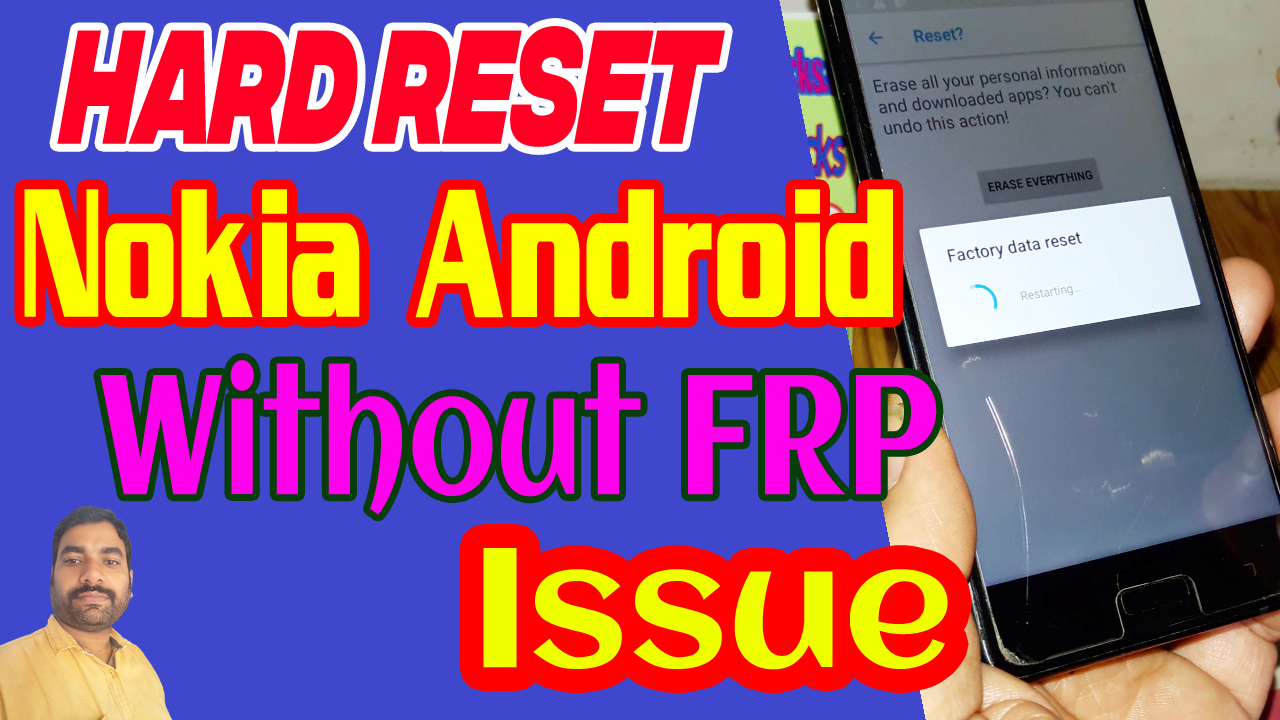
Before Hard Reset Android 5.0 or Above, Please go through this Video Tutorial, which very helpful to the users who need to Reset the phone to it's Factory Defaults and after Hard Reset it will never ask to enter your Google account details and here is the example of Nokia 5 TA-1053 Android 8.1.0 Smartphone Hard Reset without Google Reactivation Lock and this is very useful for the end users.
This procedure is for Factory Reset using the Settings menu of the phone and it if the phone locked and you forgot the pattern lock or pin lock then this procedure will not work, and also if you are doing hard reset using buttons then also this may not work if you do not enable the OEM unlock and Developer Mode. To know the complete step by step procedure please watch the video below and if it's helpful then subscribe to my YouTube channel and like the video and share it to help others.
Search Tags:
Hard Reset Nokia Android Phones Without FRP
Factory Reset Nokia Android Smartphones Without Reactivation Lock
How to Hard Reset the Android phone without FRP issue
Nokia 5 Hard Reset without FRP Lock Issue
Nokia 5 Android Developer Mode
Nokia 5 OEM Unlock
Nokia 5 Hard Reset Procedure to avoid FRP Lock
Nokia TA-1053 FRP Bypass Without Box and PC
Google Account Bypass Nokia TA-1053
Nokia 5 Dual SIM FRP Bypass Solution 2018
Nokia 5 Android 8.1.0 FRP Bypass full procedure here
Android Security Patch 1 April 2018 FRP Unlock or Bypass
Nokia 5 FRP Unlock Using Technocare APK
Nokia 5 TA-1053 Developer Mode Factory Reset Gmail Account Bypass
Nokia 5 Forgot Google Account Details New trick 2018
Nokia 5 HMD Global TA-1053 FRP Unlock Full Procedure
Before Hard Reset Android 5.0 or Above, Please go through this Video Tutorial, which very helpful to the users who need to Reset the phone to it's Factory Defaults and after Hard Reset it will never ask to enter your Google account details and here is the example of Nokia 5 TA-1053 Android 8.1.0 Smartphone Hard Reset without Google Reactivation Lock and this is very useful for the end users.
 |
| How to Avoid FRP Lock Issue While Hard Reset an Android Smartphone? |
This procedure is for Factory Reset using the Settings menu of the phone and it if the phone locked and you forgot the pattern lock or pin lock then this procedure will not work, and also if you are doing hard reset using buttons then also this may not work if you do not enable the OEM unlock and Developer Mode. To know the complete step by step procedure please watch the video below and if it's helpful then subscribe to my YouTube channel and like the video and share it to help others.
Search Tags:
Hard Reset Nokia Android Phones Without FRP
Factory Reset Nokia Android Smartphones Without Reactivation Lock
How to Hard Reset the Android phone without FRP issue
Nokia 5 Hard Reset without FRP Lock Issue
Nokia 5 Android Developer Mode
Nokia 5 OEM Unlock
Nokia 5 Hard Reset Procedure to avoid FRP Lock
Nokia TA-1053 FRP Bypass Without Box and PC
Google Account Bypass Nokia TA-1053
Nokia 5 Dual SIM FRP Bypass Solution 2018
Nokia 5 Android 8.1.0 FRP Bypass full procedure here
Android Security Patch 1 April 2018 FRP Unlock or Bypass
Nokia 5 FRP Unlock Using Technocare APK
Nokia 5 TA-1053 Developer Mode Factory Reset Gmail Account Bypass
Nokia 5 Forgot Google Account Details New trick 2018
Nokia 5 HMD Global TA-1053 FRP Unlock Full Procedure


