Showing posts with label Developer Mode. Show all posts

Friday, September 7, 2018

How to Avoid FRP Lock Issue While Hard Reset an Android Smartphone?


In this tutorial you will know how to Hard Reset Nokia Android Phone, without Google reactivation lock or Factory Reset Protection lock or so called FRP lock. Let me clarify this, when you Hard Reset any Android Smartphone (Android 5.0 or above) using the phone settings, after Factory Reset it will ask to enter the Gmail ID and Password previously used on that phone and it's called Factory Reset Protection Lock or FRP Lock and if you forgot the Gmail id and password then you must unlock the phone and Android unlock is a very long procedure and sometimes you may need to visit the nearest Phone Repair Shop. So this tutorial helps you to complete Hard Reset the Android phone any  Android version without re-lock issue and this process will also helps you to do Factory Reset the phone and after Hard Reset it will not ask any Gmail id and Password, if you forgot the Google account id then create a new one and use on the same phone.

Before Hard Reset Android 5.0 or Above, Please go through this Video Tutorial, which very helpful to the users who need to Reset the phone to it's Factory Defaults and after Hard Reset it will never ask to enter your Google account details and here is the example of Nokia 5 TA-1053 Android 8.1.0 Smartphone Hard Reset without Google Reactivation Lock and this is very useful for the end users.
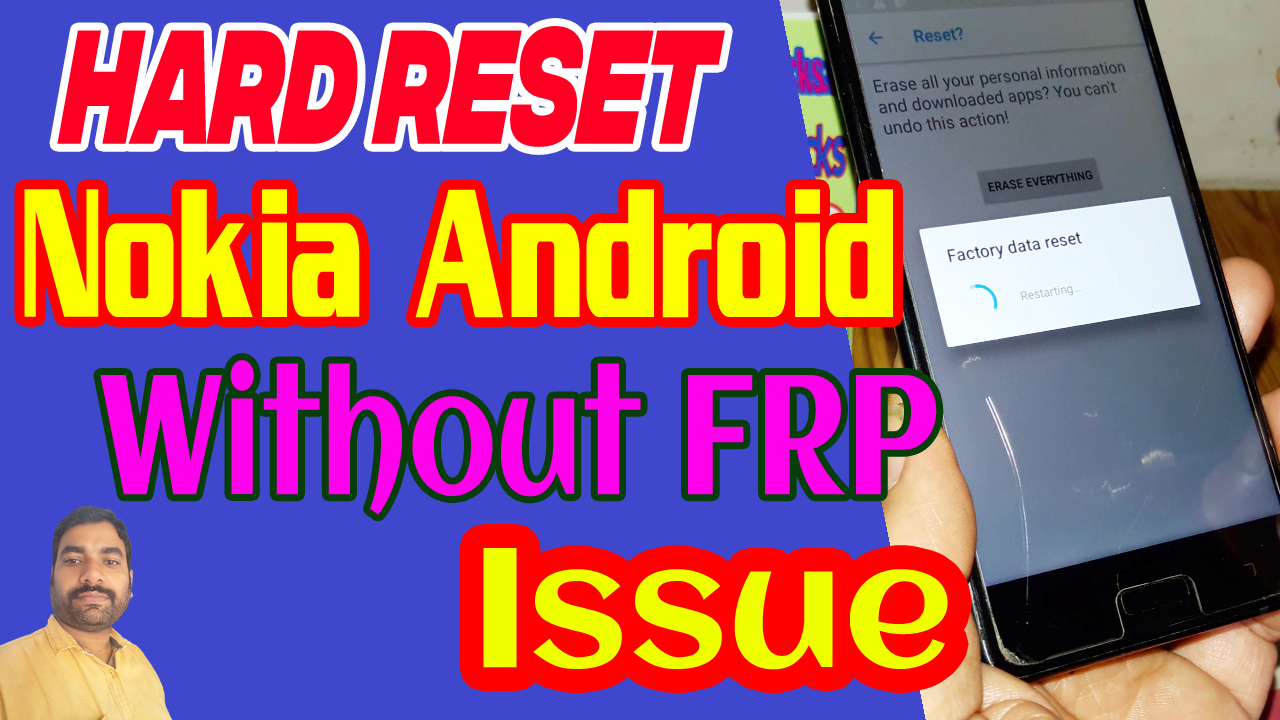
How to Avoid FRP Lock Issue While Hard Reset an Android Smartphone?

This procedure is for Factory Reset using the Settings menu of the phone and it if the phone locked and you forgot the pattern lock or pin lock then this procedure will not work, and also if you are doing hard reset using buttons then also this may not work if you do not enable the OEM unlock and Developer Mode. To know the complete step by step procedure please watch the video below and if it's helpful then subscribe to my YouTube channel and like the video and share it to help others.


Search Tags:
Hard Reset Nokia Android Phones Without FRP
Factory Reset Nokia Android Smartphones Without Reactivation Lock
How to Hard Reset the Android phone without FRP issue
Nokia 5 Hard Reset without FRP Lock Issue
Nokia 5 Android Developer Mode
Nokia 5 OEM Unlock
Nokia 5 Hard Reset Procedure to avoid FRP Lock
Nokia TA-1053 FRP Bypass Without Box and PC
Google Account Bypass Nokia TA-1053
Nokia 5 Dual SIM FRP Bypass Solution 2018
Nokia 5 Android 8.1.0 FRP Bypass full procedure here
Android Security Patch 1 April 2018 FRP Unlock or Bypass
Nokia 5 FRP Unlock Using Technocare APK
Nokia 5 TA-1053 Developer Mode Factory Reset Gmail Account Bypass
Nokia 5 Forgot Google Account Details New trick 2018
Nokia 5 HMD Global TA-1053 FRP Unlock Full Procedure

Wednesday, June 13, 2018

How To Enable Developer Mode or USB Debugging On A Locked Android Smartphone


How to Enable USB Debugging on Locked Android Phone, How to Enable USB Debugging Mode ADB mode on FRP Locked, How to Enable USB Debugging Mode or ADB on FRP Locked? My phone is locked and asking Google reactivation Gmail Id and Password but I forgot it, how to enable USB debugging to remove FRP lock? Get all these questions solved here.

There are various ways to get into a locked Android smartphone to enable Developer mode, enable OEM unlock and enable USB debugging to unlock the phone. If you are forgot the Email ID and Password synced before on that phone the this tutorial will help you to remove the factory reset protection FRP and use a new Google Gmail Id on it. Here we will show you all the possible ways to get into a locked phone and enable USB debugging or direct bypass the frp lock on any Android version operating systems.
How To Enable Developer Mode or USB Debugging  On A FRP Locked Android Phone - All Methods

Enable USB Debugging On A Locked Phone All Methods:
1) Enable USB Debugging Using Home Button.
2) Enable USB Debugging Using Talk Back Option.
3) Enable USB Debugging Using Android Keyboard Options.
4) Enable USB Debugging Using TestDPC APK.
5) Enable USB Debugging Using Advance Recovery Option.

1) Enable USB Debugging Using Home Button.
How to enable developer mode and USB debugging using physical home button on your Android smartphone? Do you know if the Android phone has a physical home button then you can easily get into the phone and enable developer mode and USB debugging on that phone. This method is working on most Android smartphones, if you are facing frp lock on your phone then you can give try this method to unlock frp lock or to enable USB debugging. This method will work if the phone has physical home button but may not work on the phone having soft home key. This technique works on all devices having Android 5.0 or Android 6.0 and also work on some devices which have Android 7.0 Mobile Operating System, those are not updated to the latest Android security patch.
How To Enable Developer Mode or USB Debugging  On A Locked Android Smartphone Using Home Key
Steps:
  • Hold the Home button Until you see Google App Search screen.
  • Now type Settings and choose phone Settings from search results.
  • Then go to About Phone and continuously tap on Build Number and when it shows now you are a developer, now stop and get back one step.
  • Now you will see Developer Options just above the About Phone on the Settings Menu.
  • Open Developer Options and now you will get most useful options there.
  • Then click on USB Debugging to enable it (debugging mode launches when USB is connected)
  • You can also enable OEM unlock to allow the device to be OEM unlocked and do Factory Data Reset which reset your device to its factory default settings and this will erase all data including files and downloaded apps.
2) Enable USB Debugging Using Talk Back Option.

You can also use Android Talk Back option to get into the Locked Android phone, then you can download and install any Android Launcher such as Go Launcher Oz APK and it will show the mobile desktop screen and also you can access the Settings of the phone. Then you can use Calculator method to enable USB debugging then you can do FRP Bypass using any free tool. In some Android 5.0 phone you can do direct unlock the phone by enabling the Developer Mode and OEM Unlock, then do Factory Reset the Android phone. If the phone has physical home button or hard key (Soft Home Key May Not Work) then you can easily enable Talk Back option and get into the Locked Android device. On some Android smartphones also has the Accessibility option through which you can also get into the Locked Android smartphone on any Android version.

How To Enable USB Debugging On A Locked Android Phone? All Possible Solutions Here.

Steps:
  • Continuously tap the home key 3 times to enable Talk Back option.
  • Get the Full Tutorial Here
  • Get the Video Tutorial To Know How to Enable USB Debugging Using Talk Back Option.

3) Enable USB Debugging Using Android Keyboard Options:

In some Android device you can get a settings option in the Google Android Keyboard or Any other Android Keyboards, click on the settings icon on the Android keyboard and go to help and support menu it will open the support page online, now select any word and search on internet, it will open with the Google App and now you can search and open Mobile Settings by searching it on Google App.

Every Android keyboard has the Settings icon, if you click and hold the symbol key it will show the settings icon and click on the settings icon to access the help and support page of the keyboard. If the phone has SwiftKey Android keyboard then you can easily use the above options to get into the Locked Android phone. To use this method change the Android default keyboard to SwiftKey and follow the above steps.

4) Enable USB Debugging Using TestDPC APK.

This is one of the popular way to enable USB debugging using TestDPC Android Application. Install the application and setup manged profile or setup device owner then encrypt the phone, then restart the phone after switch on the phone press the power key to lock the phone and press it again to see the screen and then drag the screen from top, now you will see the settings icon, open the settings and enable developer mode and OEM Unlock then do factory reset the phone.

In some Android device you will not have to follow the long process or do not need to use Encrypt option on the Test DPC Application, just install the application and press the power key to off the screen light and press again to on, now drag the screen from top and use the Settings icon.

For Step By Step Process To Use Test DPC on your Phone Please Follow the Complete Tutorial Here.

How to Enable USB Debugging and Developer Mode Using TestDPC (Test DPC Application) on a Locked Android Phone? Watch The Video Tutorial Here.

5) Enable USB Debugging Using Advance Recovery Option.

This option can also be find on some Android smartphone, through which you can enable USB debugging without entering into the locked device. This option can be used by simply booting the phone into Recovery Mode and click on Advance options then choose "Reboot with ADB" and then connect the phone to computer and use any unlock tool to bypass Android lock on your phone. This feature you will get in some Oppo and Vivo Android smartphones.

Watch Our All Video Tutorials On YouTube

So these are the most important ways, by using it you can easily enable USB Debugging mode on a locked Android smartphone runs on any version of Android operating system.

Wednesday, May 3, 2017

How to Enable Developer Mode/Options and OEM Unlock on Android Phone or Tablet


If you are a beginner in mobile technician and wondering about, how you can enable "Developer Mode or Developer Options" and "OEM Unlock" on any Android device, then you are in correct place to know the process. Here is the complete tutorial and step by step process to enable Developer Mode and OEM Unlock to do a hard reset of Android devices, which helps you to remove "Factory Reset Protection" (FRP) on the particular device. To enable OEM unlock first you need to enable Developer Mode on the Android device, which is normally not available for normal users. The enabling of Developer Mode is easy, what you need to do is just follow the below steps and in some Android devices it's slightly different but here you can get a overall idea about "Developer Mode" and OEM Unlock on any Android devices, see the below details and follow it carefully.

How to enable developer options on Android phone or tablet

Specially we are talking about Android Operating system, which runs on various smartphones of various manufacturers. That means here we will discuss about how to enable "Developer Mode" and "OEM Unlock" on any Android Smartphone, the steps to enable developer mode may be slightly differ on basic of Smartphone brand or manufacturer of the Smartphone, but you will get straight process and fundamental idea to enable developer mode on any brand Android smartphone, so please follow the process below. As now a days there are so many electronics devices use Android platform to run the device smoothly with improved features but to clarify, here the word "Android Device or Devices" is refer to the Android Smartphones and Android Tablet, runs on Android Operating System.

How to Enable Developer Options on Android Smartphone?

1- Go to Settings ---> About Device
2- Then click on Software Info and Now tab on "Build number" 7 times to enable Developer Mode.

Enable Developer Mode/Options on Popular Devices:

1- Basic Android Smartphone or Stock Android: Settings > About Phone > Build Number.

2- Samsung Developer Mode: Settings>About Device>Build Number

or

Settings>About Device> Software Info>Build Number

3- LG Developer Mode: Settings>About Phone>Software Information>Build Number.

4- HTC Developer Mode: Settings>About>Software Information>Build Number.

How to enable OEM Unlock on Android Phone or Tablet

How to Enable OEM Unlock on Android Smartphone or Tablet?

1- First enable Developer Mode (See the above Process to enable Developer Mode on Android Phone or Tablet).
2- Now come back to Settings and scroll down and click on Developer Options
3-  Now click on OEM Unlock it will ask Enable OEM Unlock click on ENABLE.

📚 You May Also Like to Read