Showing posts with label Micromax Hard Reset. Show all posts

Tuesday, May 29, 2018

How to Root and Unlock Micromax A67 - All in One Unlock Solutions


How to Root, Unlock Pattern and Password Of Micromax A67 with ADB Mode Using Miracle Box V2.27a. Root Micromax A67 ADB Mode - Pattern Unlock and Password Unlock Micromax A67 ADB Mode. Here I will tell you how you can easily Root Micromax A67 and How to Unlock Pattern lock and password lock on Micromax A67.

Introduction:
As we all know, that Micromax A67 is an Android smartphone which has released on August Released 2013 and now it's discontinued. The 4.5 inches phone has Android 4.0.3 [Ice Cream Sandwich] and runs on Dual-core 1.0 GHz Cortex A5 CPU,  with 512 MB RAM and 4 GB internal storage and you can also expand external storage up to 32 GB suing Card slot (Micro-SD). This phone also has dual Camera facility 2 MP back camera and VGA camera in front.

How to Unlock Micromax A67 ADB Mode Factory Reset?

This phone has auto enabled USB debugging mode, so you do not need to enable USB debugging mode to root and unlock this phone. So the phone as automatically enabled it's USB debugging mode, you can easily root the phone using any flashing tool and unlock it. Here is the example of Miracle box which works without box, so you can unlock the phone free, just download free Miracle Box no hardware box needed, no flashing dongle need. You can download Miracle Box flash tool link given below in this article.

How to Wipe/Factory Reset Micromax A67 Miracle Box V2.27a?
  • First Root the Micromax A67 phone (Please see the Rooting steps below)
  • After root go to Android Tab, then ADB Tab.
  • Now select Wipe/factory Reset
  • Click on Start Button, when wipe data done, the phone will reboot and it's done.
How to Unlock Pattern or Password Of Micromax A67 - Miracle Box ADB Mode - Solved
-: You May Also Eager To Know :-


Micromax A67 Firmware Versions:

PA287AN_KMOEB_DM451_Micromax_A67_FOREIGN_V1.1.7
PA287AN_KMOEB_DM451_Micromax_A67_FOREIGN_V1.1.8

How to Root Micromax A67 Miracle Box V2.27A?
  • Open Miracle Box and go to Android Tab then Home(ADB).
  • Now select ROOT ADB and the click on Start Button.
  • Now switch ON the phone and connect it to Computer and install ADB and All USB drivers.
  • After Root complete it will show ROOT OK and reboot the phone.
  • Now you Micromax phone has been rooted, unlock the phone and enjoy.
How to Root Micromax A67 - Micromax Root Miracle Box ADB Mode - Solved
First root the Micromax Android smartphone and then unlock it, you can free tools to unlock Micromax Android smartphone, the below is the download link for free root and unlock tool for this Micromax phone.

Downloads:
Download Miracle Box Latest Version Working Without Box | Download Link

Conclusion:
So in this topic we learn how to root Micromax phone and how to unlock Micromax phone. This process is only for tutorial purpose, please do not misuse it, if so then it's completely your risk. The android smartphone can be ROOT and UNLOCK using this process with free Miracle Flash Tool, which supports flashing and unlock and root MediaTek, Qualcomm and Spreadtrum Chipset Android smartphones.


Please Visit Again To Get Updated Tips, Tricks , News and Tutorials About Smartphones.

Sunday, April 3, 2016

Micromax FRP Unlock & Gmail Bypass Solution Using Tool


Here is the tutorial about FRP (Factory Reset Protection) Unlock process, which helps you to remove the Factory Reset Protection on Android Device and unlock the device or phone to factory defaults. This feature is available on Android Lollipop or higher version of Android Operation System. If you have question, how to hard reset and remove Gmail verification on the phone then this topic will help you to do a complete Factory Reset of the device.

What is FRP?
FRP (Factory Reset Protection) is available on Android Operation System v5.0 Lollipop or higher. If the phone has this feature, when you factory reset the device and start the phone to use it again, it will ask for Gmail id and password which you have used on this particular device or phone. If you forgot the Email and Password then the device won't start and become unusable. So here is the process to unlock FRP and Complete Hard Reset of Android device.

Note: If the phone belongs to you and you forgot the Email id and Password, then use this process. In this process you will lose all data on the phone. Do not use this process or unlock FRP if the device not belongs to you.

Micromax FRP Unlock Solution:

Micromax FRP Unlock Tool
Download Micromax All In One Tool (Can be download searching Google)
Unzip the file and you will find an application Micromax
Open the application
Now put the phone into Fastboot mode and connect to PC using USB cable
First check the device on the tool by pressing 1
Now press 2 and hit Enter to Remove FRP.

Micromax FRP Unlock Tool:

* YU5010A and YU5010 FRP Remove Guide:
       1] Press And Hold The Vol+ Key And Connect The Device.
       2] Press 1 for Check The Device Connected Or Not.

       3] Press 2 And Then Press Enter For Remove FRP.

* YU4711 FRP Remove Guide:
       1] Go To Recovery of Device By Keys And Select Reboot To Bootloader.
       2] Connect Device With Pc And Press 3 And Enter For Remove FRP.

* Factory Mode Mix Guide :
       1] Connect Your Device With Pc And Press 4 And Enter For Fix [ADB Must]

Options:
1. Check Device.
3. Remove FRP [YU4711].
2. Remove FRP.
4. Factory Mode Fix.

Friday, August 28, 2015

Micromax D320 Hard Reset and Forgot Password Done With Volcano Utility V3.0.5


How to hard reset Micromax D320? If you forgot the password and pattern lock for the Micromax D320 then you can solve the problem using Volcano Utility, the below is the process to flash or format or hard reset Micromax D320. This process will also helps you to remove Privacy protection password of Micromax D320. Follow the below steps to hard reset Micromax D320.

Micromax D320 Hard Reset
  • Open volcano utility
  • Select Android Tab -> USB Mode
  • Select Unlock Theft
  • Click on Start
  • Now connect switched off mobile to Computer Using USB Cable

Unlock Privacy Protection Password D320 Volcano tool

Micromax D320 Volcano Tool Log:
Analysis of USB port,Please insert phone USB cable.
  Connecting...
  CPU TYPE:MT6572
  Hardware version:CA01
  Software version:0000
  SecCfgVal :0x00000000
  BromVersion :0xFF
  BLVersion :0x01
  Boot downloading complete!
  EMMC_ID:0x90014A483447316404050AA2A7F01247
  EMMC_PRODUCT_NAME: SAMSUNG :0x483447316404
  EMMC_BOOT1_SIZE: 0x00400000
  EMMC_BOOT2_SIZE: 0x00400000
  EMMC_PRMB_SIZE: 0x00400000
  EMMC_GP1_SIZE: 0x00000000
  EMMC_GP2_SIZE: 0x00000000
  EMMC_GP3_SIZE: 0x00000000
  EMMC_GP4_SIZE: 0x00000000
  EMMC_USER_SIZE: 0x0E9000000(3.64 G)


  Analysis of system files...
  PRELOADER:  addr:0x000000 --length:0xC00000
  MBR:  addr:0xC00000 --length:0x080000
  EBR1:  addr:0xC80000 --length:0x080000
  PRO_INFO:  addr:0xD00000 --length:0x300000
  NVRAM:  addr:0x1000000 --length:0x500000
  PROTECT_F:  addr:0x1500000 --length:0xA00000
  PROTECT_S:  addr:0x1F00000 --length:0xA00000
  SECCFG:  addr:0x2900000 --length:0x020000
  UBOOT:  addr:0x2920000 --length:0x060000
  BOOTIMG:  addr:0x2980000 --length:0x600000
  RECOVERY:  addr:0x2F80000 --length:0x600000
  SEC_RO:  addr:0x3580000 --length:0x040000
  MISC:  addr:0x35C0000 --length:0x080000
  LOGO:  addr:0x3640000 --length:0x300000
  EBR2:  addr:0x3940000 --length:0x080000
  EXPDB:  addr:0x39C0000 --length:0xA00000
  ANDROID:  addr:0x43C0000 --length:0x3E800000
  CACHE:  addr:0x42BC0000 --length:0xE200000
  USRDATA:  addr:0x50DC0000 --length:0x52C00000
  BYTCFG:  addr:0xA39C0000 --length:0x600000
  FAT:  addr:0xA3FC0000 --length:0x44740000
  BMTPOOL:  addr:0xFFFF00A8 --length:0x000000
  
  
    Format addr:0x50DC0000 --Format length:0x52C00000
  Read phone information success.

  Successfully reset anti-theft lock

Sunday, May 17, 2015

Micromax A99 Hard Reset and Pattern Unlock Solution


How to hard reset Micromax A99? the below is the way to hard reset and pattern unlock for the Micromax A99 Android Smartphone. The Micromax A99 can be hard reset or do a factory defaults using the buttons.


Micromax A99 Hard Reset

  • Switch Off the Device 
  • Press Volume up + power key
  • Then Volume up key and select recovery press volume down key to OK
  • Now press volume up + power key at the same time for recovery option
  • Select wipe data and press power key to Enter


Micromax A99 Hard Reset Done With Buttons

Saturday, April 11, 2015

How To Flash Micromax A075 With Upgrade Download Tool R2.9.9005


How to flash Micromax A075 using flash tool? the below is the process to flash the phone using upgrade download tool. The phone has SPD chip-set and can be flash with Upgrade Download Tool Version R2.9.9005.

Downloads:
Micromax A075 firmware
PA287JN_KMOEB_DM521_MicromaxA075_FOREIGN_V1.1.5_u22688.pac
Upgrade Download Tool
Upgrade Download Tool Version R2.9.9005


Micromax A075 Flash Using Flash Tool
  • Open upgrade download tool
  • Load the .pac flash file
  • HW_info - YXD_Y83099_ILI9805C_52_IVO_SPI_KMO_A075_HW_info 
  • Set the pinouts with Volcano Tool
  • Then flash the phone


Micromax A075 Flash Done With Upgrade Download Tool R2.9.9005

Friday, April 3, 2015

Micromax A51 Flash Success With Broadcom Flash Tool


How to flash Micromax A51 with BrcmFlash Tool? The below is the complete and step by step procedure to flash Micromax A51 With Broadcom Flash Tool. Micromax A51 has a Broadcom CPU and can be flash with Flash Tool.

Downloads
BrcmFlashTool_V2.0.7.0
A51_R10_MMX_DS_NSL_0422 (Micromax A51 Firmware)


How to flash Micromax A51 With Flash Tool


  • Open Flash Tool
  • Go to Settings --> Configuration
  • Image Path - Choose the Flash Folder
  • CP bin file - Click on Generate & Generate
Micromax A51 Flash Tool Configuration
  • Now Assign the port
  • Then Click on OK
  • Now Click on Start and Connect the phone with PC using USB Cable


Micromax A51 Flash Done With Volcano Tool

 Note: Download the correct version of firmware for the Micromax A51 (See below battery to confirm the Software Version), otherwise the flashing process may stop in middle. If you get any error in the flashing process, can ask through comments.


Saturday, December 27, 2014

Micromax A63 Hard Reset and Pattern Unlock Done


How to hard rest Micromax A63? the below is the way to hard reset and pattern unlock solution for the phone. It's just simple to hard reset or factory settings of Micromax A63, see the details below.


Micromax A63 Hard Reset
  • Press Volume Up + Power Until Android Logo Appear
  • Press Power button to see recovery menu
  • Volume down to select wipe data and Volume Up to OK


Micromax A63 Pattern Unlock, Hard Reset, Too Many Pattern Attempts, Factory Reset and Wipe Data


Wednesday, December 24, 2014

Micromax A59 Hard Reset, Pattern Unlock and Pin Lock Solution


How to hard reset Micromax A59 with Android Tool and Buttons? the below is the complete solution to had reset Micromax A59 by which the phone goes to a factory settings and all the customization will be removed.  


Micromax A59 Hard Reset Solution
Micromax A59 Hard Reset


  • First Press Power Button
  • Then press & hold volume Down and leave power button
  • When Android logo appear Press volume UP
  • Select Wipe data/factory reset press Power Button to OK

Thursday, December 11, 2014

Micromax A092 Hard Reset and Pattern Unlock Done


How to hard reset or pattern unlock of the Micromax A092? the micromax A092 hard reset can be done with keys, just follow the below instruction to hard reset/wipe data in recovery mode for the A092 android smartphone.


Micromax A092 Hard Reset
  • Press and hold Volume Up + Power Key
  • Then select wipe data/factory reset
  • Press Volume Up for OK


Micromax A092 Hard Reset, factory reset or wipe data done

Saturday, September 20, 2014

Micromax Funbook Mini Hard Reset and Pattern Unlock Solution


How to hard reset and unlock patter of Micromax Funbook Mini? Here is the process to hard reset and unlock pattern lock for the Micromax calling tab. See the below details to know pattern lock solution for Micromax Tablet.

Micromax Funbook Mini Hard Reset
  • Volume Up + Power Key
  • Then Select Recovery and Press Volume Down Key OK 
  • Now you will see the Recovery Option
  • Select wipe data/factory reset and Press Power Key to OK


Micromax Funbook Mini Hard Reset and Pattern Unlock Done


After wipe data reboot the device, that's all now you have successfully hard reset the Micromax Funbook Mini and remove the pattern lock.

Monday, September 15, 2014

Micromax A075 Hard Reset and Pattern Unlock Solution


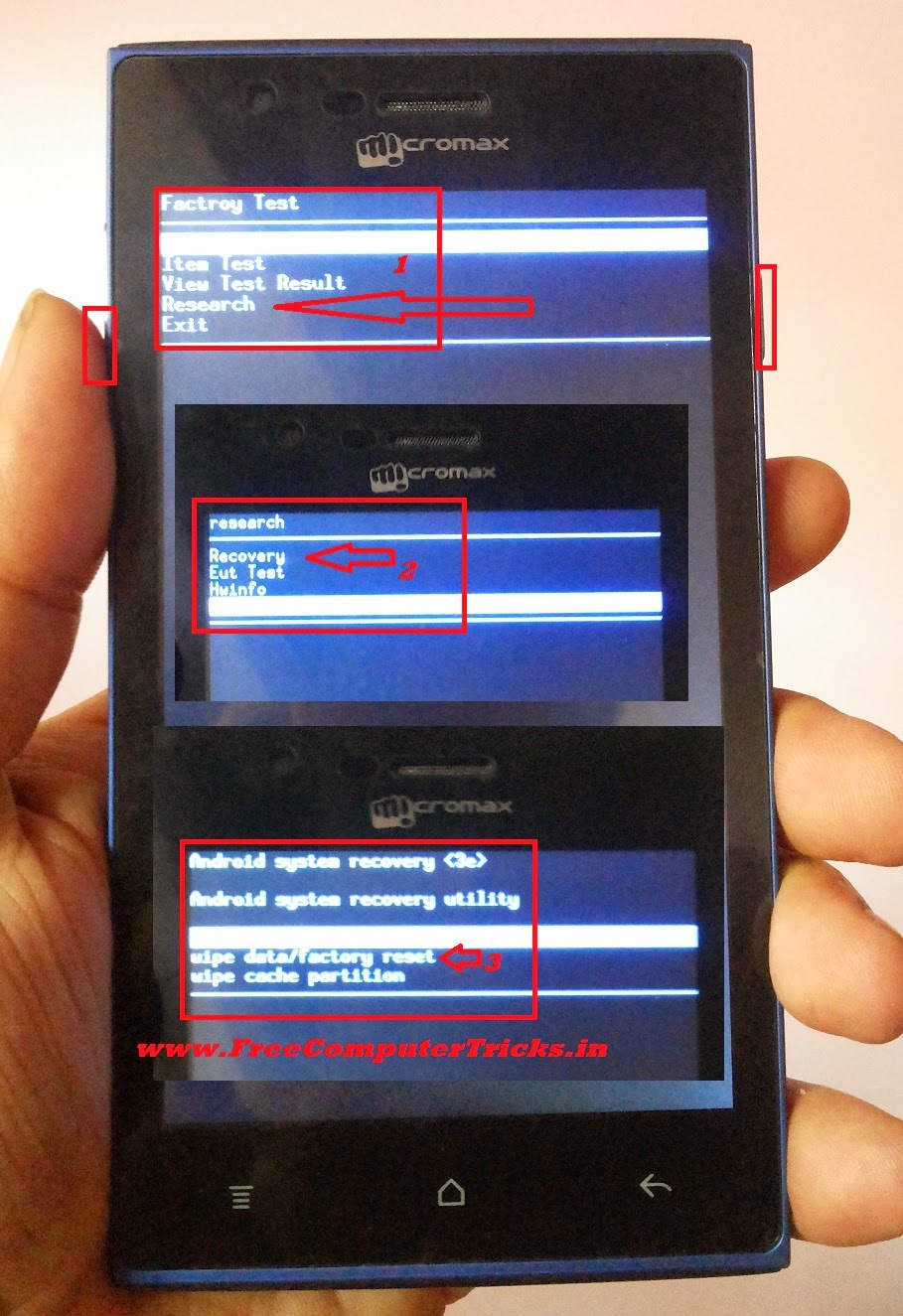
How to hard reset and unlock pattern of Micromax A075? see the below details to hard reset or pattern unlock of Micromax A075. Micromax A075 which runs Android Platform and the recovery option is slightly different then others.

Micromax A075 Hard Reset
  • Switch Off the Phone
  • Now press Volume UP + Power Button Until Factory Test
  • Then Move down and select Research and Press Power Button To OK
  • Select Recovery Press Power Button
  • Now the mobile will reboot in Recovery Mode
  • Select wipe data/factory reset and press Power key to OK
  • Then Reboot the device


How to Hard Reset Micromax A075


That's all now the Micromax A075 has been reset and the pattern lock also removed. Remember while hard reset all the data will be lost on the phone memory.

Wednesday, September 10, 2014

Micromax Ninja A54 Hard Reset and Pattern Unlock Android Smartphone


How to hard reset and remove pattern lock of Micromax A54? so here below is the procedure to hard reset and pattern unlock solution of Micromax A54.

Micromax A54 Hard Reset

  • Switch off the phone
  • Press and hold Volume Up + Power
  • Then wipe data/factory reset


Micromax a54 hard reset done
Micromax A54 Software Download Procedure 
 

  • Download and Extract the Micromax A54 Firmware to SD card (Memory Card)
  • Software/Firmware file name should be like - Micromax A54 LQAEB32_2013-01-23_factory_update.zip
  • Put the SD or memory card to the device
  • Press Power key and Volume up key together (Do not connect the phone to computer)
  • Wait until it power on, then flashing start automatically

How to Hard Reset Micromax A65 With Android System Recovery


Micromax A65 hard reset done with keys and format done with Volcano Tool, the below is the process to hard reset the Micromax A65 with buttons and how to format Micromax A65 with Volcano Tool.

Hi all, here is the process to hard reset or factory reset of Micromax A65. The hard reset of Micromax A65 can be done with keys and in this process you can unlock patter lock, solve the hang problem of Micromax A65 or hangs on logo or restart problem of the mobile. So see the below details to hard reset Micromax A65 wit buttons.


Micromax A65 Hard Reset
  • Press and Hold Volume Up + Power Until Android Logo appear(10-20seconds)
  • Now Press Volume Up Android System Recovery Options
  • Volume Down and Select wipe data/factory reset
  • Press Power button to OK
Micromax A65 hard reset done
That's all now on Android system recovery utility select reboot now and press power button to OK, now the device will restart and you have successfully hard reset the Micromax A65 or done the factory reset or format the data of that device.


Micromax A65 Format Done With Volcano Tool

Micromax A65 hard reset format with volcano tool

Saturday, September 6, 2014

How to Flash Micromax A34 With Upgrade Download Tool


Micromax A34 flash success with SW Upgrade Download Tool, Micromax A34 which has a Spreadtrum CPU and this can be flash with Spreadtrum Software Upgrade Download Tool. See the below software download guide to flash Micromax A34 with Upgrade Download Tool.

Downloads
  • SW flash TOOL.rar
  • Micromax A34 Firmware (PZ238DM_KMOEB_DM407_Micromax_A34_FOREIGN_V1.0.9.rar) and these can be download from the official firmware site or use Google Search.


Micromax A34 Flash Guide

  • Open UpgradeDownload.exe
  • Click on Load Packet and choose the Micromax A34 .pac flash file (PZ238DM_KMOEB_DM407_Micromax_A34_FOREIGN_V1.0.9_usr_r19487.tar.gz.pac)
  • HW Info Image Click on OK and go to HW_info folder then choose the HW Info Image file 
Micromax A34 flash done with Upgrade Download tool
  • Now click on Download Button to Flash the firmware of the phone
  • Connect the Modified USB Cable to Micromax A34
  • or You can set pinouts with Volcano Tool ( See the below image)


Micromax A34 Pinouts Setting with Volcano Tool
Micromax A34 Format Done With Volcano Tool

how to format Micromax A34 with Volcano Tool

Monday, September 1, 2014

Micromax A40 Hard Reset and Pattern Unlock Solution


How to hard reset or unlock pattern lock of Micromax A40? the below is the detailed procedure to hard reset and pattern unlock of Micromax A40 using Fastboot Mode and with Android Multi tools.

Micromax A40 Fastboot Mode


Press and Hold Volume Down + Power Key For Fastboot Mode
Micromax A40 Fastboot Mode

Micromax A40 Hard Reset

  • Put the phone in to Fastboot Mode (Volume Down+Power Key)
  • Connect the phone to PC using USB Cable and let the Fastboot driver to be install
  • Open Android Multi Tools
  • Press 8 then press Enter Key


Micromax a40 hard reset on fastboot mode android multi tool
That's all, after wipe data on fastboot mode the device will restart and the hard reset process for Micromax A40 is success.


Tuesday, August 26, 2014

Micromax A116 Hard Reset and Pattern Unlock 100% Solved


How to hard reset Micromax A116 canvas HD with keys? as you know with A116 we can go to the recovery mode but can not OK the task to wipe data/factory reset. So here is the complete procedure to hard reset Micromax A116 using hard keys/soft keys, the main thing on A116 is we have to press two soft key at the same time to OK/Enter.

Micromax A116 Hard reset solution is 100% working and tested OK.

Micromax A116 Hard Reset and Pattern Unlock 100% Solved with Buttons


Micromax A116 Canvas HD Hard Reset

  • Press Volume Down + Volume Up + Power Button
  • Then Volume UP for Recovery Mode
  • Press Power button to see Recovery Options
  • Now press volume down and select wipe data/factory reset
  • Press Two soft key at the same time to OK
  • Now Press volume Down and select yes-delete all user
  • Then again press two soft key at the same time to OK


Remember power switch is not the OK button on the Micromax A116, but here I press left soft key and Menu Soft key at the same time and the work has done. Now the Micromax A116 has been successfully reset to factory settings and unlock the pattern lock.

Saturday, August 16, 2014

Micromax A068 Hard Reset and Pattern Unlock Done With Keys


How to hard reset Micromax A068 ? Here is the precess to unlock the pattern lock or hard reset or factory reset Micromax A068 with buttons, just go to the recovery mode by pressing the buttons and wipe data/factory reset the Micromax Mobile Android smartphones. See the below steps to hard reset or pattern unlock Micromax A068.


Micromax 068 Hard reset pattern unlock and factory reset with keys- Micromax Pattern Lock Solutions

Micromax A068 Hard Reset and Pattern Unlock Solution


  • Switch Off the Phone
  • Press Volume UP + Volume Down + Power Button
  • Now Press Volume Up For Recovery Options
  • Then Press Volume Down Recovery Mode
  • Press Volume Down and Select Wipe data/factory reset
  • Press Left Soft Key to OK
  • Then Reboot the device


Search Tags:

micromax a068 hard reset, How to reset Micromax Bolt a068, Micromax Android Mobile Hard Reset, Micromax bolt a068 hard reset, micromax a068 too many pattern attempts, How to Unlock Micromax Phone after too many Failed Pattern Attempts, forgot pattern lock, Android smartphone pattern unlock solutions, all model of micromax pattern lock solutions 100% solved.

Sunday, August 3, 2014

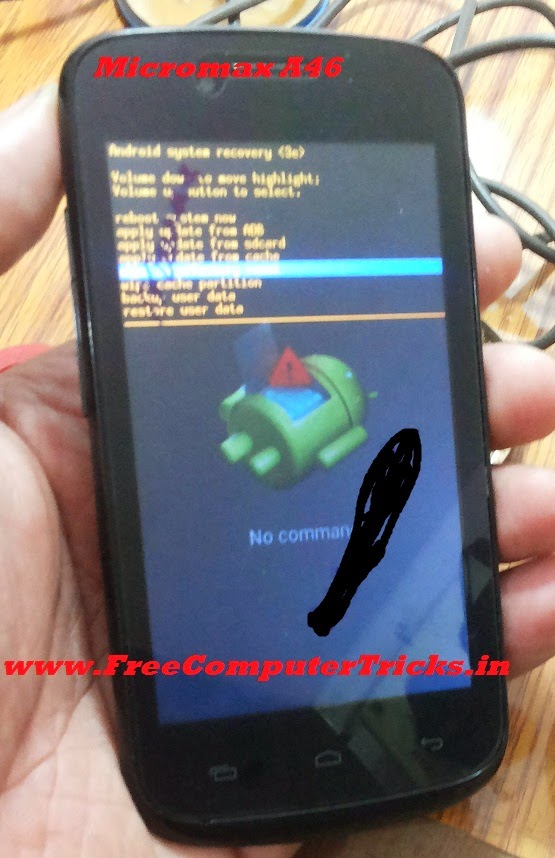
How to Hard Reset Micromax A46 - Micromax A46 Android V.4.2.2 Wipe Data Done With Keys


Here is the procedure to hard reset/factory reset of Micromax A46 which runs on Android Version 4.2.2, this can be done with keys, just go to the Android system recovery menu and wipe data/factory reset. The below is the steps to hard reset Micromax A46 Android 4.2.2 Smartphone.


Micromax A46 Hard Reset Done

  • Press Volume Up + Power Key Until you see Android System Recovery
  • Press Volume Down and Come to Wipe Data/Factory Reset
  • Press Volume Up to Select/Enter (Volume Up Key is for Enter or to complete the action)


Micromax A46 hard reset and pattern unlock done with keys

After wiping data reboot the device, that's all now you have successfully done the hard reset or factory reset of Micromax A46.

Friday, August 1, 2014

Micromax A87 Hard Reset and Pattern Unlock Solution


Micromax A87 hard reset and pattern unlock done with keys, the below is the process to hard reset wipe data/factory reset of Micromax A87 mobile phone. See the details below.

Micromax A87 Hard Reset

  • Press Volume Up + Power Button
  • When Android System Recovery Option Appear
  • Select Wipe Data/Factory Reset


Micromax A87 Hard Reset on Android System Recovery Option
 

  • Volume Up and Down to select
  • Press Power Button to Perform the Action

Tuesday, July 29, 2014

Micromax A62 Hard Reset and Pattern Unlock Done With Android Multi Tools


Micromax A62 unlock pattern and hard reset done with Android Mutitool, this phone is already enabled the USB Debugging mode, so when you insert the USB cable it will connect the ADB Interface or ADB Mode and with this mode you can Wipe Data using Android Multi Tool. The below is the process to hard reset or pattern unlock of Micromax A62 using Android Multi Tool.

Micromax A62 Hard Reset With Android Multi Tools


Micromax A62 Hard Reset

  • Switch On the Phone
  • Connect the USB Cable and Let the Driver Install
  • Now Open Android Multi Tools
  • Press 5 on Keyboard and Hit Enter Key (5=Wipe Data)


micromax a62 wipe data done android multi tool


That's all after Wipe Data the device will restart and the phone has been set to factory defaults of any custom setting of the phone will wipe out. It has been tested and work fine.

📚 You May Also Like to Read