Showing posts with label All Mobile Firmware. Show all posts

Thursday, February 23, 2023

Samsung Firmware Update


Samsung firmware

Samsung firmware refers to the software that runs on Samsung devices, including smartphones, tablets, and other electronic devices. The firmware includes the operating system, device drivers, and other essential software components that enable the device to function properly.

Samsung releases firmware updates periodically to improve the performance, security, and stability of their devices. Firmware updates can also introduce new features and functionality to the device. These updates are usually available through the device's Settings app, and users can manually check for updates and download them over Wi-Fi or mobile data.

It's important to keep your Samsung device's firmware up to date to ensure optimal performance and security. However, it's recommended to back up your important data before updating your device's firmware, as updates can sometimes cause data loss or other issues.
Samsung Firmware Update

Samsung Firmware Update

To update your Samsung firmware, follow these steps:


  1. Connect your Samsung device to a Wi-Fi network or mobile data network.
  2. Go to your device's Settings app.
  3. Scroll down and select "Software update" or "System updates."
  4. Tap "Download and install" or "Check for updates."
  5. If an update is available, tap "Download and install" to start the update process. Depending on the size of the update, it may take some time to complete.
  6. After the update is downloaded, your device will automatically restart and install the update.


Note: Make sure your device has sufficient battery life before starting the update process. If your device's battery is low, connect it to a charger before starting the update. Additionally, it's recommended to back up your important data before updating your device's firmware, as updates can sometimes cause data loss or other issues.

Thursday, November 15, 2018

Coolpad Mega 3 (3503i) All in One Software Solution Here - Flash File | Flash Tool | USB Driver and Flashing Procedure Etc....


Here you can download Coolpad Mega 3 (3503i) flash file or firmware along with that you can also download Coolpad MediaTek USB driver, Coolpad Flash Tool and Flashing Procedure. So if you need to flash the Coolpad phone then here is the complete solution for this, here you will get complete simple steps to flash the coolpad MTK Android phone using SP flash tool and if you need to install Coolpad USB driver to flash the phone, the here you can also get the Android flashing USB driver and if you want to watch the video tutorial about Android Mobile Flashing Using SP flash tool, please visit our YouTube channel Here.

Coolpad Mega 3 all in one software solutions, here you will get the firmware, driver and flash tool for the device and also know how to flash and unlock frp or Google account bypass procedure. So please  go through the topic to get all the software related issues and solutions.

Coolpad Mega 3 MediaTek SP Flash Tool Flash File Download:

Download MTK Coolpad Mega 3 SP flash tool firmware or flash file and Use Coolpad Mega 3 Android scatter file to flash the phone using Smart Phone Flash Tool. Download Coolpad Mega 3 MT6737M flash file and USB driver from the link given below.

File Name: Coolpad Mega 3 3503i SP Flash Tool ROM (www.freecomputertricks.in).rar
File Size: 1.2GB
Download Link: MediaFire
Coolpad Mega 3 Flash File Download Link: Click Here To Download

Coolpad Mega 3 FRP/Google Account Bypass - Miracle Box 2.27A

If you need to know how to unlock Coolpad Mega 3 MTK Android smartphone, then here is the free trick with free Coolpad MTK FRP unlock tool, just download the free frp unlock tool and use to reset or unlock Google Account of the MTK Android smartphone. Download Miracle Dongle/Box software working without Box and use it to reset FRP settings of the phone.

Download Free Miracle Box:
Miracle Box V2.58 With Loader Working Without Box and 100% Start Button Working - Visit Here to Download.


Coolpad Mega 3 3503i FRP OK MIRACLE
Coolpad FRP Steps:
  • Download and Unzip and Open Miracle Box Free Software (Link Above).
  • Now go to MTK Tab, then Unlock/Fix.
  • Select CLEAR SETTING/FRP
  • Click on Start Button 
  • Connect switched off phone to PC and install MediaTek USB driver.
  • After FRP Reset Done remove the phone and switch on it.
  • Sometimes you need to do WIPE DATA/FACTORY RESET using Android recovery option after frp reset.
Coolpad Mega 3 MTK Flash Tool and USB Driver:

Download Coolpad Mega 3 MediaTek Smartphone flash tool (SP Flash Tool) and USB Driver link given below.

Download Coolpad MTK USB Driver | Download Link
Download SP Flash Tool for Coolpad | Download Link

How to Flash Coolpad Mega 3 - SP Flash Tool:
  • Open Sp flash tool
  • Load Android scatter file MT6737M_Android_scatter.txt
  • Un-Select Preloader and Click on Download
  • Now connect switched off phone to PC
  • After flash complete or Download OK, remove the phone and switch on it.
Coolpad Mega 3 (3503i) Flash File Flash Tool USB Driver and Flashing Procedure
Note: Always flash MTK phones without PRELOADER to avoid dead risk of the phone.

So in this way you can solve any software issue on the Coolpad Mega 3 smartphone. If you need to flash or unlock frp of Coolpad Mega 3, then here is the complete solution for this, which includes Coolpad flash file, USB driver, FRP Unlock and USB driver. Thank your for visiting this website.

Sunday, November 4, 2018

All About MIUI 10 For Redmi Note 4 : Download ROM or Update Through Phone


Hi friends, hope all going well, here is the another interesting tutorial or information for Xiaomi Redmi Mi phones, that can be upgrade to MIUI 10. As you know Xiaomi has released MIUI version 10 for the Android smartphones and most of the Mi phone has got this update. So here is the tutorial about Redmi Note 4 MIUI 10 update or how you can flash the Redmi Note 4 by downloading the EDL/fastboot ROM. So friends here is all related information about Redmi Note 4 MIUI 10 update and if you have Redmi Note 4 then this topic will be very helpful for that.

All the recent releases of Mi phone already has the MIUI 10 update and most of the old Mi devices also get this update and you can get it through OTA update through the phone itself or by downloading MIUI 10 Android operating system and the phone can flash using Mi Flash Tool using the phone EDL mode. Here we will discuss all the process and how to update Redmi Note 4 to latest MIUI version 10, so let's begin. To know more about MIUI 10 features please visit the Official website https://en.miui.com/zt/miui10/index.html.

How to Flash/Update MIUI 10 on Redmi Note 4?

You can flash MIUI 10 on Redmi Note 4 using fastboot ROM or you can also use OTA update through the phone to update the phone. All the related download links are given below i.e. Download Redmi Note 4 MIUI 10 Flash File, Redmi Note 4 Flash Tool and Redmi Note 4 EDL Mode.

Requirements:
  • An Windows PC or Laptop.
  • Redmi Note 4 fastboot ROM.
  • Mi Flash Tool Latest version.
  • Redmi Note 4 EDL Mode Pinouts and an USB Cable.
  • To update using Phone, you do not need this just use connect the phone to the Internet using Wi-Fi or 4G Network and use the following steps.
Xiaomi Redmi Mi Note 4 MIUI 10 Download - How to Update Redmi Note 4 MIUI 10 - How to flash MIUI 10 on Redmi Note 4

Update Redmi Note 4 to MIUI 10 Using Phone:
  • Go to the phone SETTINGS and then go About phone.
  • Now use Update option to check the available updates (Use Wi-Fi or 4G Internet)
  • Now the phone will download latest MIUI 10 firmware update in the phone.
  • After download complete the phone will ask to reboot to install the firmware, reboot the phone.
  • Wait until the update process complete and you are done.

      How to Flash Redmi Note 4 Using MIUI 10 ROM?
      • Download Redmi Note 4 MIUI Fastboot ROM (Link given below)
      • Download Redmi Mi Flash Tool (Link given below)
      • Now put the phone to EDL Mode and connect to the Computer - EDL Mode.
      • Open Mi Flash tool and choose the MIUI 10 firmware folder.
      • Click on Start to update/flash the phone.
      • After flash complete switch on the phone and enjoy.
      • Flashing Mi phone using Flash tool may erase your personal data, so please backup the phone data first.

      Redmi Note 4 All Version MIUI 10 and Flash Tool Downloads:


      Download Mi Flash Tool Latest Version Here | Download Link Mirror Link

      Download Redmi Note 4 MIUI 10 Global Beta ROM Download:

      Redmi Note 4 MIUI 10 Recovery ROM Download
      miui_HMNote4Global_8.8.30_15f5b5f05e_6.0.zip

      Redmi Note 4 MIUI 10 Fastboot ROM Download 
      nikel_global_images_8.8.30_20180830.0000.00_6.0_global_ec1044fa14.tgz

      MIUI 10 Global Beta ROM 8.9.20 Released: Redmi Note 4 MIUI 10 ROM For MTK and Qualcomm Download Links.

      Redmi Note 4 MTK

      Recovery  ROM 
      miui_HMNote4Global_8.9.20_9ab754c0f0_6.0.zip

      Fastboot ROM
      nikel_global_images_8.9.20_20180920.0000.00_6.0_global_857e11e0c2.tgz


      Redmi Note 4 Qualcomm/Redmi Note 4X
       

      Recovery  ROM
      miui_HMNote4XGlobal_8.9.20_42393f3033_7.0.zip


      Fastboot   ROM
      mido_global_images_8.9.20_20180920.0000.00_7.0_global_7588b18bf6.tgz


      Friday, August 31, 2018

      J5 (SM-J500F) VoLte Indian Firmware Free Download - Android 6.0.1


      Samsung J5 SM-J500F VoLte Issue after flash and here is the final and tested solution to enable Volte after flashing with J5 Volte firmware Android 6.0.1. Here you can download J5 VoLte firmware which tested and 100% working and ODIN 3 flash tool to flash the phone. Download the Volte firmware free and direct link given below and extract the zip file and flash using Odin3 flasher. This is the 4 file firmware with pit file, just flash the AP, CP, BL and CSC using Odin 3, using the Samsung Download Mode (Volume Down + Home +Power Key).

      Download and Fix VoLte for J500F, J5 Stock ROM Android 6.0.1 with Volte supported. Firmware Volte for Sam Mobile J500F Marshmallow Update firmware, flash the Samsung Galaxy J5 with Volte firmware and solve after flash Volte problem on the phone. After flashing Samsung J5 No Volte and LTE signal only shows 4G while using Reliance Jio SIM, if you are facing this problem then here is the solution for you, please follow the process step by step and 100% you will solve the Volte issue on Samsung J5 Android smartphone.
      Samsung Galaxy J5 (SM-J500F) VoLte Indian Firmware Free Download - Android 6.0


      J500F Firmware Details:

      J500FXXU1BRC1_ODD1BQL1
      AP_J500FXXU1BRC1_CL10808387_QB17352744_REV00_user_low_ship_MULTI_CERT.tar.md5
      BL_J500FXXU1BRC1_CL10808387_QB17352744_REV00_user_low_ship_MULTI_CERT.tar.md5
      CP_J500FDDU1BQG1_REV00_CL2210784_QB6948156.tar.md5
      CSC_ODD_J500FODD1BQL1_CL10808387_QB16277894_REV00_user_low_ship_MULTI_CERT.tar.md5
      J5LTE_EUR_OPEN.pit

      Galaxy J5 Software Info:

      Android Version : 6.0.1
      Baseband Version : J500FDDU1BQG1
      Android Security Patch Level : 1 August 2017

      Downloads:

      Download J500F VoLte Flash File {Download Link}

      For Password watch the Complete Video on YouTube Here and you will find the password given in the video.

      Odin 3 Flash Tool Download 


      Odin3 Flash Tool V 3.12.5 | Download

      Micromax Canvas 2 Plus 2018 C2A+ Firmware Download Here


      Here is the download link for Micromax Canvas 2 plus 2018 firmware, which is C2A plus flash file to flash the MTK based Android smartphone. Here we provides direct download link for Micromax Canvas 2 plus flash file or Canvas 2 Plus firmware or Canvas 2 plus ROM, download the Micromax flash file and flash your Micromax Canvas 2 C2A+ smartphone.
      Micromax Canvas 2 Plus C2A+ Firmware Download Here

      Micromax Canvas 2 Plus C2A+ Flash File and Flash Tool Free Download Here.


      ! Before Flash !
      1} Please confirm the device firmware and hardware version before flashing the phone, if it's mismatch then the device might be dead or cause bootloop.
      2} Here is the Canvas C2A+ CPB firmware and you need to use YGDP Flash Tool to flash .cpb Mobile flash file, search this website to know the flashing steps correctly otherwise you may brick your phone and We are not responsible for any damage to your phone. 
      3} Mobile flashing will erase all your user data, so you need to backup the phone first.

      Micromax Canvas 2 Plus C2A+ Firmware Download Here

      File Name: Micromax_C2A_180106_7.0_CPB.zip
      File Size: 1.80 GB
      Full file Name: Micromax_MicromaxC2A_7.0.014.P1.1801060311.PD5706M.HEM_MMX_PD5706M_OE.NOEFUSE

      Download Here

      Download Micromax C2A Plus Official Firmware

      File Name: Micromax_C2A_Plus_MT6737T_08022018_7.0.zip
      File Size: 1010 MB

      Download Here


      Micromax Canvas 2 Plus C2A+ Flash Tool Download

      Download YGDP Flash Tool [ Visit Here]


      Download Canvas 2 Plus USB Driver 


      Micromax USB Driver Download Link

      Thursday, August 2, 2018

      Jio LYF F101K Tested Firmware | USB Driver | Flash Tool (Download Link Given)


      Here you will get all the necessary files and flash tool required for to flash Jio LYF F101K Keypad smartphone, such as LYF F101K tested firmware, LYF F101K USB driver and LYF F101K flash tool. You can get so many links to download LYF F101K firmware by searching it on the Internet, but you may not get the tested firmware link and for you only we have tested the firmware by flashing the phone using this flash file or firmware or ROM and posting it here to all of you who need the tested and working firmware for LYF F101K Android phone. So here not only you get the working firmware but also you can download USB driver and Flash tool for the phone.

      Jio LYF F101K Tested Firmware | F101K USB Driver | F101K Flash Tool Download
      Jio LYF F101K Tested Firmware - USB Driver - Flash Tool

      Download LYF F101K Firmware (All Version)

      LYF-F101K-000-01-26-181117.pac
      File Name: LYF_JIO_F101K_181117_SPD.zip
      File Size: 264 MB
      Download Link: Mediafire Link [Download]

      LYF F101K USB Driver Download Link

      SPRD NPI USBDriver 1.4
      File Name: SPRD_NPI_USBDriver_1.4.rar
      File Size: 9 MB
      Download Link: Google Drive Link [Download]

      LYF Flash Tool:

      Download LYF F101K Flash Tool (Direct Link) 

      UPGRADE DOWNLOAD TOOL R17.0.0001
      File Name: UPGRADEDOWNLOAD_R17.0.0001.rar
      File Size: 3 MB
      Download Link: Google Drive Link [Download]
      Password= fct@f101k

      Friday, June 22, 2018

      Lenovo A6000 Firmware All Versions Download Here (With Flashing Procedure)


      All versions of Lenovo A6000 Firmware/Flash File/ROM Download link available here and know how to flash Lenovo A6000. If you have owned Lenovo A6000 and want to flash or update your phone by downloading Lenovo A6000 all version firmware, then you are in the right place. Here you can download all version Lenovo A6000 Stock ROM (Firmware) to flash the phone and also get to know how to flash Lenovo A6000 using flash tool, Miracle Box and OTA Full Update using SD Card.

      As we know Lenovo A6000 comes with Android 4.4 and can be upgrade to 5.0 by flashing with latest Lenovo A6000 stock ROM. Download latest version of Lenovo Firmware and flash the phone using Lenovo flash tool or you can also use any other flashing box which supports Qualcomm flashing or you can also Lenovo QFIL flash tool to flash the stock ROM, For T-flash or SD Card update you need to download Memory card OTA update file and flash or update the phone using Recovery Mode.

      Lenovo A6000 Stock Firmware:

      Lenovo A6000 has various version of stock firmware such as Kraft-A6000_S032_150327_WCDB, Kraft-A6000_S040_150805_WCB1, Kraft-A6000_S042_151012_WC29 etc. and the Firmware or flash file used for flashing the phone, if you are facing any software issue on the Lenovo A6000 such as stuck on Logo or hang on logo or restart problem or apps are not working properly then you need to flash the phone suing Lenovo stock firmware which can be download here and links are provided below.

      Why and How To Download A6000 Firmware?

      As I said before if you have any software issue on your Lenovo A6000 phone, then you must need to flash the phone and here you download all version of firmware here for the Lenovo phone. Update or flash firmware on your phone is completely free and to get latest feature of Android operating system you must need to upgrade the phone's software using this method. So as software update is free for your phone then why not do it to get the latest security updates for your phone, just download the firmware and flash with flash tool.

      Requirements For Flashing:
      • Download Lenovo Firmware.
      • Download Lenovo Flash File.
      • An Windows PC or Laptop.
      • Internet connection to Download Stock ROM or you can download Firmware using Cyber Cafe of Internet Cafe.
      • Flashing procedure to Flash Lenovo A6000 Android smartphone. 
      • Install Qualcomm COM Port USB driver.
      Flashing Steps To Flash Lenovo A6000 Using Download Tool:
      • Download Lenovo Firmware and Extract it.
      • Open Lenovo Flash Tool and load the firmware.
      • Click on Start button and connect the phone with Download mode.
      • Lenovo A6000 Download Mode or Qualcomm EDL Mode (Hold Both Volume Keys and Insert USB Cable)
      • When the flash complete, remove the phone and manually switch on it.
      • After switch on follow the on screen setup process to complete and see the phone's desktop.
      • That's all now you are done and successfully flashed the Lenovo A6000 phone.
      Disclaimer: Take a backup your phone's data before installing stock ROM or flashing the phone, because flashing the phone will erase all your user data on the phone.

      Lenovo A6000 All Version Firmware Direct Download Link:

      Download official Lenovo A6000 Stock ROM all versions from the below links. Anyone can download Lenovo firmware or flash file and flash tool to flash the phone, the below are the download links and details of firmware version given below.

      Download Lenovo A6000 Stock ROM KitKat S013
      File name: Lenovo_A6000_S013_Q102113_20161230.zip
      File size: 1.1 GB
      Android version: 4.4.4

      Download: Click Here To Start Download

      Download Lenovo A6000 Stock ROM KitKat S034
      File name: Lenovo_A6000_S034_Q113507_20170301.zip
      File size: 1.2 GB
      Android version: 4.4.4

      Download: Click Here To Start Download

      Download Lenovo A6000 Stock ROM KitKat S032
      File name: Kraft-A6000_S032_150327_WCDB.zip
      File size: 1.03 GB
      Android version: 4.4.4

      Download: Click Here To Start Download

      Download Lenovo A6000 Stock ROM Lollipop S062
      File name: Lenovo_A6000_S062_Q102113_20161223.zip
      File size: 1.1 GB
      Android version: 5.0.2

      Download: Click Here To Start Download

      Download Lenovo A6000 Stock ROM KitKat S002
      File name: A6000_S002_150612_8G_BG.zip
      File size: 900 MB
      Android version: 4.4.2

      Download: Click Here To Start Download

      Download Lenovo A6000 Stock ROM KitKat S058
      File name: Lenovo_A6000_Kraft-A6000_S058_151030.zip
      File size: 1.13 GB
      Android version: 4.4.4

      Download: Click Here To Start Download

      Download Lenovo A6000 SE 16 GB Stock ROM Lollipop S010
      File name: A6000_S010_160420_16G_WC390C36C6.zip
      File size: 1.1 GB
      Android version: 5.0.2

      Download: Click Here To Start Download

      Download Lenovo PC Suite:

      You can download the Lenovo PC Suite which called Lenovo Moto Smart Assistant to update your phone using this Windows PC suite. If the phone is in working condition and you need to update the Android Operating system of the phone then use the official way to update the phone using Lenovo MOTO Smart Assistant or Lenovo Motorola PC Suite on your Computer. This software or Utility also helps you install all necessary USB driver for your Lenovo phone all models such as Qualcomm USB driver, ADB Driver and MTP USB Driver etc. So install the Lenovo PC Suite for Windows to get all in one Driver solution for Lenovo smartphones.

      Download Lenovo Moto PC Suite | Download Link

      Wednesday, May 30, 2018

      Samsung G570F Galaxy J5 Prime FRP Bypass Firmware


      Here is the topic/tutorial about how you can flash Samsung SM-G570F Galaxy J5 Prime using latest firmware, which helps you to unlock the phone. You can flash the phone having Android 7.0 and Android 8.0 experience version and won't get any binary errors while flashing the J5 prime phone. If you are facing Custom Binary Blocked By FRP while flashing Samsung phone, then this firmware will help you to recover your phone without any errors, this process is tested and 100% working.

      Galaxy J5 Prime SM-G570F Firmware:
      The firmware is one of the latest firmware for the phone, which have Android 7.0 version and Samsung experience version 8.0. You can flash the phone using this OTA firmware to upgrade or install a fresh Operating System on the J5 prime phone. If the phone J5 Prime hangs on Logo and restarts then flash with this firmware it will solve the issue. You can also download latest firmware for the model here and flash the phone using ODIN3 flash tool.
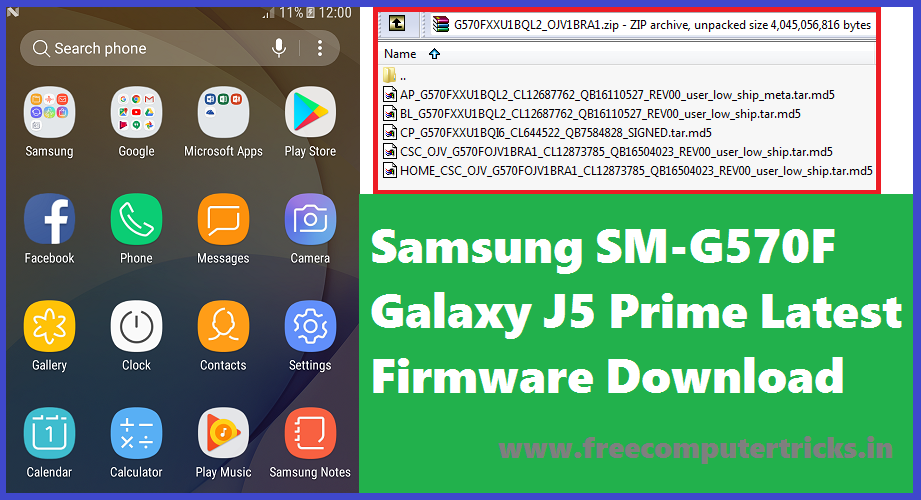
      Samsung SM-G570F Galaxy J5 Prime Latest Firmware Download

      Why It's Called FRP Bypass Firmware?

      As I said before about the firmware version of this file, which has Android 7.0 and experience version 8.0 and Android security patch level version 1 December 2017, so in this version the Calculator ADB enable method will work fine, and the firmware can flash on the J5 prime phone having Android 7.0 with security patch 1 May 2018. As you know after 1 May 2018 Android security path level the Calculator method to enable USB debugging not work. So here is the finally and tested solution to unlock frp on J5 Prime which have Android security patch level 1 May 2018, what you have to do is just download the firmware and Samsung ODIN flash tool and flash the phone, then use the USB ADB or Debugging method and then use any flashing box tool to unlock frp. You can get an another topic on this website to know how to unlock frp for free using free tool and also to know how to unlock frp on Samsung J5 Prime having security patch level 1 May 2018, Links available below.

      SM-J570F Firmware Download:

      File Name: G570FXXU1BQL2_OJV1BRA1 4Files Firmware
      OS Version: Android 7.0 Nougat
      PDA/AP Version: G570FXXU1BQL2
      MODEM/CP Version: G570FXXU1BQI6
      CSC Version: G570FOJV1BRA1

      Security Patch Level : 1 December 2017
      File Size: 2 GB

      Contents Of File:
       

      AP_G570FXXU1BQL2_CL12687762_QB16110527_REV00_user_low_ship_meta.tar.md5
      BL_G570FXXU1BQL2_CL12687762_QB16110527_REV00_user_low_ship.tar.md5
      CP_G570FXXU1BQI6_CL644522_QB7584828_SIGNED.tar.md5
      CSC_OJV_G570FOJV1BRA1_CL12873785_QB16504023_REV00_user_low_ship.tar.md5
      HOME_CSC_OJV_G570FOJV1BRA1_CL12873785_QB16504023_REV00_user_low_ship.tar.md5

      Downloads:

      SM-J570F Firmware | Download Here

      ODIN3 Downloader Odin3_v3.13.1.zip Samsung Flash Tool | Download Here

      Download latest firmware update for SM-G570F and flash the Samsung phone, using this firmware you flash the phone and update the phone to latest Android operating system. Download link is given above and visit the download firmware link and get your latest firmware for Samsung SM-G570F Galaxy J5 Prime Android 7.0.

      Wednesday, May 2, 2018

      Lephone W7 Firmware Download Here : All Version


      Download all version of Lephone W7 Spreadtrum Android 6.0 (Marshmallow) firmware here. Here you can download Lephone W7 Android 6.0 SC9832 Version 12, Version 15 and Version 16, if you are facing white LCD  after flash you can also download Lephone W7 Display Solution firmware. The below are the link to download Lephone firmware for the model Lephone W7.
      Lephone Firmware Download Lephone W7 Firmware All Version

      Download Lephone W7 Firmware:

      lephone_W7__INDIA_Android 6.0_SC9832_V12_20170623
      Download

      lephone_W7_INDIA_Android6.0_SC9832_V15_20170623
      Download

      UpdCPB_EFUSE_SW43HA_lephone_PW7T_Android6.0_SC9832 _V16_20170805
      Download

      Lephone W7 For Display Solution
      Download

      Sunday, April 8, 2018

      Download MIUI 8 and MIUI 9 Global Stable ROM For Redmi Note 4X


      Hi Welcome to Free Computer Tricks, today we will show you how to download Xiaomi Redmi Mi latest firmware ROM. As you know there are various ROM available for Mi phones such as Recovery ROM and Fastboot ROM, here you can get the both download link and also know how to flash the ROM. Xiaomi Recovery ROM and Fastboot ROM which come with .zip file and can be flash with Mi Flash Tool. Recovery ROM can flash using Recovery mode on the phone itself and Fastboot ROM can flash with Mi flash tool, to more about how to flash Recovery ROM and Fastboot ROM please go through the below steps in this tutorial. If you are searching for EDL mode ROM for your  Mi Note 4X mobile, then you are in right place here you can download EDL mode fastboot Stable ROM.

      MIUI Mi Recovery Update:

      You can update the Mi phone using Recovery option, to update to latest version of MIUI on your Mi phone you need to download latest stable Recovery ROM and flash it using the Recovery mode. Xiaomi update using recovery mode process is given below. To update your Xiaomi Redmi Mi phone using recovery mode you can follow the below steps.

      Xiaomi Redmi Recovery ROM or SD Update ROM Download and update to latest MIUI

      • Download Recovery Mode MIUI 8 and MIUI 9 Stable Recovery ROM Here.
      • Rename the downloaded ROM file to Update.zip on the Computer.
      • Copy the ROM into the Root directory of the Internal storage of the device.
      • Enter the recovery mode of the device (Volume Up + Power)
      • Then select install update.zip to system and click YES and wait until the update process complete.
      Download MIUI 8 and MIUI 9 Global Stable Recovery ROM For Redmi Note 4X.

      MIUI 9 Recovery ROM Download

      Redmi 4X Recovery ROM Download Link, see the above image to know and download the recovery ROM for your Redmi phone Redmi Note 4.

      -:You May Also Like To Read:-

      All Xiaomi Redmi EDL Mode Solution or EDL Test Points.

      Xiaomi Redmi FRP Unlock or Mi Account Bypass Solutions.

      Xiaomi Redmi EDL Mode and Fastboot Mode Flash Tool Download.

      Xiaomi Redmi EDL Mode and Recovery Mode Mi Account Unlock Tool Download.

      MiUI Mi Fastboot ROM:

      This type of ROM can flash using Mi Flash Tool, just download the MIUI fastboot ROM and extract it on your PC and use Mi flash tool to flash the phone. Xiaomi Mi Fastboot ROM can also flash with EDL mode on the Redmi Note 4x. In some Mi phone you can flash this ROM using Fastboot mode and in some other Mi phone you can flash this ROM using EDL Mode.

      Xiaomi Redmi Note 4X EDL Mode and Fastboot ROM Download

      • Download latest Mi Flash tool Here.
      • Download MIUI 8 and MIUI 9 Global Stable ROM for Redmi 4X Here.
      • Download MIUI 8 and MIUI 9 EDL Mode ROM for Redmi 4X Here.
      • Now boot the phone into Fastboot or EDL Mode.
      • Extract the downloaded ROM and Open Mi flash tool.
      • Now select the ROM folder and connect the with Fastboot or EDL mode.
      • Click on Refresh button on the Mi flash tool and then click on Start.
      • Wait until the flashing process is complete.
      Download MIUI 8 and MIUI 9 Global Stable Fastboot or EDL Mode ROM For Redmi Note 4X.

      Xiaomi Redmi Note 4X Fastboot and EDL Mode ROM Download

      Download MIUI 8 and MIUI 9 Fastboot or EDL Mode ROM. Please see the above image to know which one is fastboot or edl mode ROM for the Redmi Note 4X.

      Xiaomi Redmi Flashing Guide:

      Xiaomi Redmi MIUI System Update Guide.
      MIUI Xiaomi Redmi Recovery Update Guide.
      MIUI Xiaomi Redmi Fastboot or EDL Mode Update Guide.

      Tuesday, November 7, 2017

      VIvo V5s (1713) PD1612DF_EX_A_1.9.13-update-full


      Here you can download Vivo V5s 1713 full update firmware, and update it using Recovery mode on the Vivo smart phone.

      Vivo V5s Full Update Firmware Details:

      MTK_PLATFORM
            config_version: V1.1.2
            platform: MT6750
            project: bbk6750_66_m
            storage: EMMC
            boot_channel: MSDC_0
            block_size: 0x20000


      Download Vivo V5s Full Update Firmware (flash file)

      File Name: PD1612DF_EX_A_1.9.13-update-full.zip
      File Size: 1.49GB

      Vivo V5s 1713 Firmware Download

      You can download Vivo V5s (1713) firmware from the below link.

      Download Here


      Saturday, October 21, 2017

      ITel it5613 Read Flash Success and Flash File Download


      Here you can download Itel it5613 flash file and flash with any MTK MediaTek flash tool, the flash file is .bin format and can be flash with Miracle Box or Volcano Box or use any other flash box supports MTK platform.

      Itel it5613 MTK Flash file download.
      Itel it5613 MTK Read flash success with Miracle Box.

      ITel it5613 flash file download - Itel it5613 read flash done with miracle box
      ITel it5613 Flash File:

      Model: ITel it5613
      CPU: MTK
      File Size: 8MB
      File Details: UL243_IT5613_PCB01_GPRS_MT6260_S00.IT5613-UL243-ENHIBNTA-IN-20170410-SUPN

      Downloads:

      ITel it5613 Flash file download here.

      Saturday, September 16, 2017

      Samsung J7 (J700F) Android 6.0.1 Firmware Downlaod - J700FXXU4BQE3


      If you are searching for Samsung Galaxy J7 J700F/DD firmware, then you can download it here. Here is the download link of Samsung J7 J700F/DD firmware for the Android version 6.0.1, download the firmware and flash the faulty phones. This is the latest version of J7 firmware with Android version 6.0.1 download it from direct link below.

      Samsung J700F Firmware Details:

      J700FXXU4BQE3_J700FODD4BQE1
      J700FXXU4BQE3_J700FODD4BQE1_J700FXXU4BQF4_HOME.tar.md5

      Model: SM-J700F/DD
      File Name : J700FXXU4BQE3    J700FODD4BQE1   J700FXXU4BQF4
      Android Version: 6.0.1
      File Size:  2.2GB (after extract)
      Download Zip File Size: 1.18GB


      Samsung J700F Flash OK J700FXXU4BQE3_J700FODD4BQE1 Android Version 6.0.1

      Downloads:

      Download Samsung Galaxy J700F firmware from the below links.

      To download J700F firmware go here and then download it from the first link which is androidfilehost link.

      J700F/DD Official Firmware

      Download the above firmware for Samsung Galaxy J7 J700F and flash the J7 Android smart phone, this the official firmware and latest firmware which can be download here.

      I Kall K23 Flash File Download - I KALL K23 Read Flash and Find Password Success Volcano Box


      Here you can download "I Kall K23" flash file, download the flash file for IKALL K23 and flash the phone and also you can unlock password lock on the phone by using 'Volcano Utility' and the option find password. To use 'find password' option on Volcano box, first you need to read the full flash then use this option to unlock password lock on 'I Kall' phone. This phone has Coolsand RDA CPU CPU and below is the details of flash file and download link.

      I KALL K23 flash file download:

      CPU ID: 8809 4009
      Flash ID : 00C86016
      Flash Type: SF_GD25LQ32                
      Flash Len :0x400000(4M)


      I Kall K23 Read Flash Ok Coolsand RDA Volcano Box


      Downloads:

      Download 'I Kall K23' flash file here.

      I KALL K23 FLASH FILE

      Download the above flash file Google Drive link and flash 'I Kall k23' phone using any flashing box i.e. Volcano box, GPG box or Miracle Box.

      Log:

      Detection initiated, connect the phone and power on it...
        Vcc: null
        Gnd: 5
        RX: 4, TX: 2
        
        please press Power on/off button...
        CPU ID: 8809 4009
        Flash ID : 00C86016
        Flash Type: SF_GD25LQ32               
        Flash Len :0x400000(4M)
        Boot downloading complete!
        Reading completed.

      Friday, September 15, 2017

      Panasonic P55 Touch Not Working After Flash - Solved


      Panasonic P55 touch not working after flashing firmware and Panasonic flashing OK but touch screen not working after flash. Today we will discuss about a problem you may face while flashing Panasonic P55 Android smart phone using sp flash tool. The problem is after flashing Panasonic P55 EB-90S055P55 touch screen not work or the phone hangs on logo or hangs on start up screen. 

      Why After Flash Touch Screen Not Working?

      After flashing Panasonic P55 touch screen not working, this problem arises due to wrong version firmware download on the phone, and after flashing everything is working fine but the touch screen will not work. If you are facing this type problem then this topic will help you to recover your phone. After flashing with correct firmware of Panasonic P55 again touch will work fine and it's tested.

      Panasonic P55 (EB-90s055p55, EB-908055p55 vlot1, EB-908055p55 v1015, Touch Not Working After Flash

      Here is the model we are tested is as below:

      Panasonic P55
      Model No. EB-90S055P55

      H/w:EB - 908055P55 vlot1
      S/w:EB - 908055P55 v1015

      If you are facing "after flash touch not working" then download the below firmware and flash the phone using sp flash tool and your phone will work fine, while flashing please do no select preloader. This solution is only tested and work on the above mentioned model number of Panasonic phone.

      Note: While flashing please take full backup of the firmware then flash the phone using this firmware and flash the above firmware without selecting the preloader.

      Download Panasonic P55 Working Firmware form the below link.


      Panasonic P55 Firmware Download

      After following the above process, if the touch screen not working for you then you must have the hardware fault on the Panasonic P55 Android smart phone. This is only tested on the case of after flashing the phone touch screen not working but before flash touch was working fine.


      📚 You May Also Like to Read