Showing posts with label Mobile Dead After Flash. Show all posts

Tuesday, June 5, 2018

[Solved] Vivo Y55s Dead After Flash With QFIL - 100% Guaranteed Solution Here


After flash VIVO Y55s dead, After flashing Vivo Y55s with QFIL (Qualcomm Flash Image Loader) the handset goes dead, means after flash success the phone do not switch on and when connect the to Computer it shows only QDLoader Qualcomm Flashing Port. Here I will give 100% working solution to recover the dead Vivo phone using free flash tool, no need to use any flashing box and this tool is working fine without box or hardware. To recover or unbrick Vivo Y55s you need to follow the complete process or tutorial given in this article, first need to download Vivo Y55s working and tested firmware (Link given below), you can direct download the firmware no need to wait on any other pages such as showing skip button, so download Vivo firmware direct and high speed link for the model Vivo Y55s and this firmware includes QDLoader .mbn file and content .xml file with patch.xml file. 

To flash the phone you need to install Download Qualcomm HS-USB QDLoader 9008 USB Driver (Link given below) and QFIL flash tool download link also given below and Miracle Box latest version working without box can be download here. Vivo Y55s dead recover done using Miracle box, when I flash the Y55s phone using QFIL Tool, gets some flashing error message and after that the phone do not switch on, and again try to flash with other firmware version using the QFIL flash tool but not success, it shows Sahara Fail QFIL error, then finally I flash the phone using Miracle Box free tool and successfully recover the dead phone, to know how to recover Vivo Y55s dead phone after flash, please go through the complete tutorial here, every process is very important and requested to read the topic carefully and then apply it to recover the dead Android smartphone.
Vivo Y55s Dead After Flash With QFIL - 100% Guaranteed Solution Here - Dead Recover With Qualcomm Free Flash Tool

VIVO Y55S Technical Specifications:

Before we going to flash the phone and download firmware, let's know the technical specification of Vivo Y55s, which helps you to know the chipset details and other technical details such as Storage, RAM, Android version etc. The phone is released on 2017 February  and available in Indian market, the dual SIM smartphone has Android 6.0 Marshmallow Operating System with Funtouch OS 3.0. Qualcomm MSM8917 Snapdragon 425 is the chipset used in this phone, which helps to know the correct Loader .mbn file with need to select while flashing the phone. The phone comes with 16 GB internal storage (External storage can expandable up to 256 GB using microSD card) with 2 or 3 GB RAM, if you see the camera feature of this phone, then the phone also has 13 Mega Pixel main camera with 5 MP secondary or front camera, you can get the full phone specification on the official Vivo smartphone website.


~~~::: Downloads Required :::~~~~

1) Direct Download Link Of Vivo Y55s Tested Firmware  | Download Here
( Vivo Y55S_PD1613BF_EX_A_1.11.3_vivo_qcom_LA.UM.5.3-02910-89xx.0_msm8937_split.tar.gz)

2) Download Miracle Box (Working Without Box) Tested | Download Here
3) Download Latest version of Qualcomm HS-USB QDLoader 9008 Driver  | Download Link

Download Y55s Loader MBN and XML File Only (Used for hard reset and unlocking) | Link

How to Recover VIVO Y55s Dead After Flash:

First download Vivo Y55s firmware, flash tool and EDL Mode USB driver (Link given above), then follow the below process to unbrick the phone and know the complete process how to flash Vivo Y55s Android smartphone, using free Vivo flash tool. This solution is also very helpful, if you are facing flashing errors while flash the Vivo Y55s using QFIL Qualcomm flash tool.
How to Flash Vivo Y55s Using Miracle Box - Full Procedure Here
Steps:
  • Now open Free Miracle Box Tool
  • Go to Qualcomm Tab then Flashing
  • Choose Write Flash and Untick Auto File Hose (FileHose).
  • Now Select Programmer File, RawProgram File and Patch File
prog_emmc_firehose_8917_ddr.mbn
rawprogram_unsparse_PD1613BF_EX-IN
patch0

  • Now connect the phone with EDL Qualcomm QDLoader Mode (Hold Both Volume and connect USB)
  • Select Flashing method EDL Mode and click on start button.
  • Wait until the flashing complete then manually switch on the phone.
So in this way you can flash Vivo Y55s with Miracle box and also recover the dead Vivo Qualcomm phone. Please follow the tutorial carefully, then flash the phone, this is tested and working for us and sharing here to help others, if you need you can try this at your own risk.

Monday, May 28, 2018

[Solved] Micromax E485 After Flash Blank Display


Micromax E485 after flash blank lcd, and do not showing anything on screen but phone is switch on completely and sound also coming. If you have this problem after flashing your Micromax E485 then here is the complete and 100% working solution for it. After flash Micromax you face errors such as after flash E485 only sound comes but no display, after flash e485 blank display, after flash e485 black display/lcd, after flash e485 phone is complete switch on but nothing on screen but when connect to Computer it shows MTP port and everything is fine except no display, So to solve this problem on your Micromax E485 please follow the below steps.

As we all know the Micromax Canvas 6 (E485) phone has MediaTek MT6753 chip-set and runs on Android 5.1 Lollipop Operating system. As it has MediaTek chipset, then we can flash the phone using Smart Phone Tool or so called SP Flash Tool. Here in this topic you will get to know how to solve Blank Display after flashing Micromax Canvas 6 E485.
Micromax E485 After Flash Blank LCD Solution
Download Micromax Firmware:

Model: Micromax E485
Chipset: MediaTek MT6753
Software Version: V3_25.08.16
Android Version: 5.1 (Lollipop)
Download File Size: 1.28 GB
File Name: Micromax_E485_V3_25.08.16

Micromax E485 Firmware/Flash File Download | Here

How To Solve Micromax E485 Blank Screen After Flash? (Solved)

To solve this problem on your Micromax E485, download the above firmware and flash the phone using SP Flash tool, this process is tested and 100% working, the download link will download E485 firmware zip file which includes Micromax E485 firmware or flash file, MediaTek USB driver, IMEI Rebuild Tool and SP Flash Tool.

How To Flash Micromax E485 (MT6753)? (Answered)
  • Download the firmware zip file from the above link and extract it.
  • Now open SP Flash tool and select Android scatter file inside the Firmware folder.
  • Now un-select the Preloader (Do Not Select Preloader) (Important)
  • Click on Download and connect the switched off phone to Computer.
  • After Download OK, remove the phone from PC and switch on it Manually.
In this way you can flash your Micromax Android smartphone for free, using Micromax free flash too download and firmware download, if you have a PC with Internet connection, then you can flash your Micromax Android smart phone for free using this Android flashing tutorial and Official firmware ROM for Micromax E485 MediaTek phone.

Monday, May 21, 2018

How To Recover Coolpad 8297L-100 Dead Boot Using SD Card


Free Computer Ticks We are always Happy to Help You.
In this tutorial you will know how to recover the Coolpad Dazen 8297l-100 or 8297l-i00 using SD card. Make the mcroSD card bootable with recovery file and then you can flash the phone using YGDP flash tool. You can also recover the dead Coolpad Android smart phone using QFIL flash tool. If the Coolpad phone dead after flash or dead after format then this topic will help you to recover the dead Coolpad Dazen 1 Android version 4.4 KitKat smartphone. What you have to do is just download a small EMMC boot image file and make the SD card bootable then write the boot image file, then insert the SD card in the phone and hold the Volume Key then connect USB cable to Computer, now the phone will boot up with download mode.

To dead recover your phone you need to download Win32 Disk Imager and Coolpad Dazen 1 EMMC Unbrick .img file. If the phone is not switched on and it's completely bricked then this process with defiantly help your to get the phone back to normal condition. Download links for Bootable SD card maker tool and recovery boot disk image file is given below.

Coolpad 8297L-100 Dead Boot Recover Done Using SD Card
First you need to create a bootable SD card or Memory card using the recovery eMMC disk image to boot the phone into fastboot mode or download mode. So let's create a bootable SD card for your Coolpad Phone, please follow the below steps.

Unbrick Coolpad - Create Bootable SD Card/Memory Card
  • Download Win32 Disk Imager (Download Link Given Below on this page)
  • Download Coolpad Dazen 1 8297L-100 Unbrick eMMC .img file (Download Link below)
  • You need a SD Card at least 2 GB and Card Reader.
  • Insert the Memory Card in card reader and connect to Computer.
  • Now open Win32 Disk Imager and choose the eMMC .img file.
  • Select your SD card Drive letter (Important).
  • Now Click on Write and when you see "Write Successful" Click OK then Exit.
  • Now insert the SD card in phone and press Volume Up then connect USB cable.
  • Now the phone will boot into fastboot download mode now flash the phone using YGDP flash Tool.
Downloads:
Download Win32 Disk Imager Tool Latest Version | Download Link
Download Coolpad Dazen 1 eMMC SD Card Boot Disk Image File | Download Link

Now you have successfully created a bootable SD card which boot the dead Coolpad Dazen 1 phone into download mode. After creating this bootable memory card follow the below tutorials to flash and unbrick the Coolpad Android smartphone.

Saturday, May 19, 2018

Samsung B110E Dead After Format - Recovered With Z3x Pro


How to Flash Samsung B110E? Samsung B110E Dead After Format With Miracle Box, Samsung Guru Plus Dead After Flash, How to Flash Samsung B110E Using Samsung Tool Pro, Free Samsung Tool Pro Download Working Without Z3x Box, B110E Dead After Format With Volcano Box, Samsung Guru Plus B110E Tested and Working Flash File Download, Samsung B110E How To Repair/Restore IMEI, B110E After Format No IMEI, Where To Download All Flash Files and Mobile Flashing Tools 2018 - GET ALL SOLUTIONS HERE IN ONE PLACE FOR FREE

Samsung Guru Plus SM-B110E/D Dead After Flash:
After format the phone using Miracle Box flash tool or Volcano Box flash tool the phone has dead or not switched on or sometimes if you flash the phone it may dead. If the phone's NV data is corrupted during flashing then the phone will goes dead and if you try to flash the phone again using Miracle Box or any other box it will show flashing errors. Although we try to flash the dead boot Samsung Guru Plus phone using Spreadtrum Flash Tool (SPD Flash Tool) both Upgrade Download Tool and Research Download Tool R4.0.0001 but not success it shows flashing error Unable to Read NV data, but finally after flashing with Samsung Tool Pro Flash Tool the phone has recovered and working fine.
Samsung Guru Plus SM-B110E/D Dead After Format - Solved (Recovered With Z3x Pro)

Samsung SM-B3110E Dead After Format or Dead After Flash Solution:
  • Download Samsung SM-B3110E Working Firmware (Download Link Provided Below)
  • Download Samsung Tool Pro Free (Working Without Z3x Pro Box Activation) (Download Link Provided Below)
  • Open Samsung Tool Pro and select all files in the Flash file folder (FDL, NV, SSboot, PS and SCS File)
  • On the top right side You will see "Options" Select Write NV.
  • Now click on Flash and Hold the Center Button then connect the phone to Computer with USB cable.
  • When you see "Flashing Done" remove the phone from PC and switch on it.
Samsung SM-B110E After Flash or After Format No IMEI - How to Repair IMEI B110E : Solution
  • Open Z3x Samsung Too Pro V24.3 and go to the Repair Tab.
  • Now fill the IMEI 1 and IMEI 2.
  • Then Select Flash Mode Option and Click on Repair.
  • When you see IMEI Repair Done, remove the phone and switch on it.
How to Repair IMEI Of Samsung SM-B110E/D - Solved
In this way you can recover your Samsung B110E dead after flash or dead after format the phone. As the process says download B110E/D flash file and Z3x Samsung Too Pro V24.3 100% working with out box and flash the phone with the flash file.

Note: This topic is only for Tutorial Purpose and If you Misuse this it must be at your own risk.

DOWNLOADS:
Samsung SM-B110E/D Flash File | Download
Z3x Samsung Tool Pro V24.3 (Works Without Z3x Box) | Search in Google
Password To Extract Flash File = FCT

Friday, May 18, 2018

VIVO V5s (1713) After Flash Dead - Solved


Vivo V5s (Vivo 1713) Dead After Flash, Vivo V5s After Update Using SD Card Dead or Not Switched ON only shows Qualcomm QDloader Mode or EDL Mode COP port, Vivo V5s After flashing with OTA firmware non-official set goes off and unable to switch on it, How to Recover Vivo Dead after flash, Vivo V5s dead boot solution - Vivo All In One Dead Recover 100% Solution Here.
If your Vivo V5s dead after flash or you are searching any of these above problems or errors on the Vivo V5s (Vivo 1713) then you are in the right place to get the smartphone dead solutions here. Here we will provide Download link of Vivo V5s working firmware and Vivo Flash tool and described process of how can recover the dead boot Vivo V5s Android 7.0 Nougat smartphone.

Vivo V5s Technical Specifications:
The phone has released on May 2017 comes with Android 6.0 Marshmallow and can be upgrade to Android 7.0 Nougat. The phone has MediaTek MT6750 Chipset with Octa-core Central Processing Unit (CPU) 1.5 GHz Cortex-A53 and 1.0 GHz Cortex-A53 and Mali-T860MP2 Graphics Processing Unit (GPU). It also has 64 GB Internal Storage expandable up to 256 GB using microSD card and 4 GB RAM. If you look at the camera feature it has 13 MP main camera with 20MP front camera with 1080p@30fps Video recording. Please go through the entire article to know the process to recover you dead Vivo V5s and also know how to flash Vivo V5s?
Vivo V5s Dead After Flash 100% Working Solution Here
Vivo V5s After Flash Dead Solution:
  • Download Vivo V5s Working and Tested Firmware (Download Link Below)
  • Download Vivo Flash Tool (Download Link Below)
  • Open The Vivo Flash Tool and select the scatter file.
  • Now select Download and connect the switched off phone to Computer using USB cable.
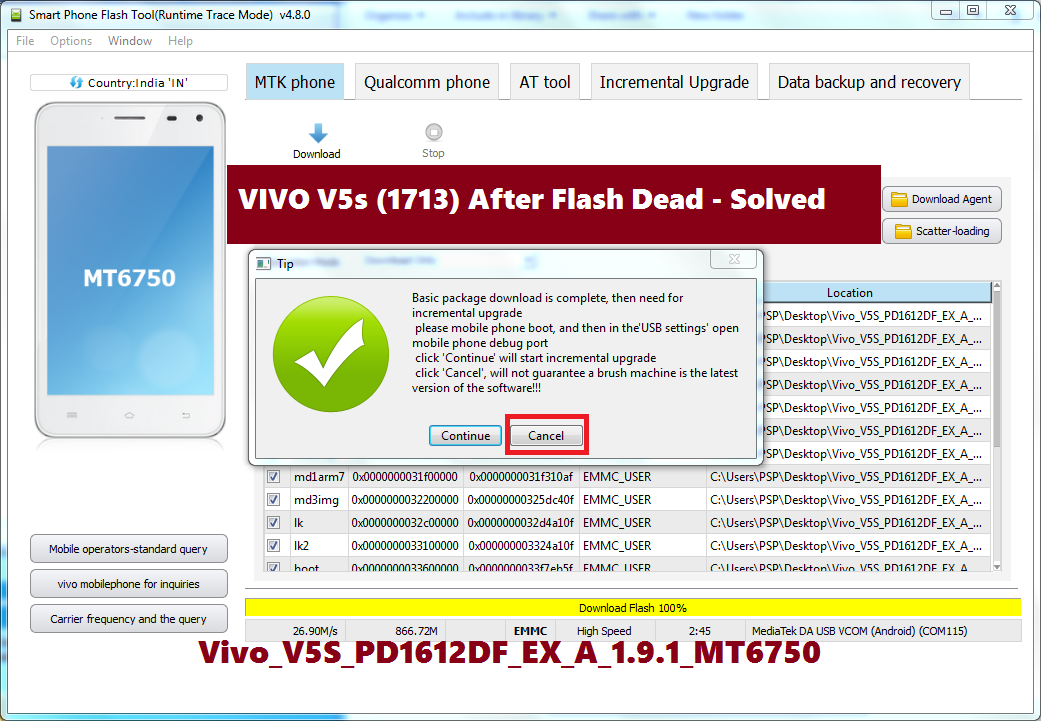
  • When you see "Basic package download is complete" (see the above image) then click Cancel.
  • To update or download the latest firmware you also click on Continue button.
  • Now switch on the phone and it will work fine.
Vivo V5s Unlock FRP For Free - Know the Process Here

Downloads:
Vivo V5s Firmware (Vivo V5s PD1612DF EX A 1.9.1 MT6750)| Download
Vivo Flash Tool (AFTool_4.9.4) |Download

In this way you can solve the dead boot problem on the Vivo V5s and also solve if the phone is not switched on. This process is and firmware version is tested and working fine.

Note: This article is only for Tutorial Purpose and please do not misuse it.

☛ Tips Of The Day  ☚
How to Remove Vivo Smartphone's Green Color Floating Icon? Which Shows Current Status of Antenna:Switch of Antenna:on.
  • Touch and Hold the Icon Until you See "Close Floating Window".
  • Closing Floating Window and adb debug port - Click On OK.
  • Now the Green color floating icon will removed permanently from your Vivo smartphone.

Wednesday, May 9, 2018

How to Recover Dead Coolpad 8297l-I00 Using QFIL Flash Tool


Hi friends here is the another Mobile repairing tutorial about how you can recover or unbrick dead boot Coolpad 8297l i00 or 8297l 100? As you sometimes after flashing the phone it will not boot up due to mismatch of firmware ROM and at that time you may looking for the solution to recover the Coolpad Dazen 1 and there are several procedure to recover the dead Qualcomm Coolpad phone and here we will discuss about one of the best solution to recover the phone.
How to Recover Dead Coolpad Dazen 1 8297l-100 Using QFIL

Qualcomm Coolpad dead boot repair and EDL mode firmware download link also available here. The Qualcomm Flash Image Loader (QFIL) is free software flash tool which can be used to flash Qualcomm firmware to the phone. When the Coolpad phone is dead it shows only the Qualcomm HS-USB QDLoader 9008 COM port for the model 8297l-100. Please see the below steps to recover your dead Coolpad phone.

Downloads Required:
Coolpad 8297l-100 QFIL ROM [Download Link]
Qualcomm Flash Image Loader (QFIL) Tool [Download Link]
(Qualcomm_Flash_Image_Loader_v2.0.0.5.zip)

Steps:
  • Download and extract the Coolpad QFIL ROM.
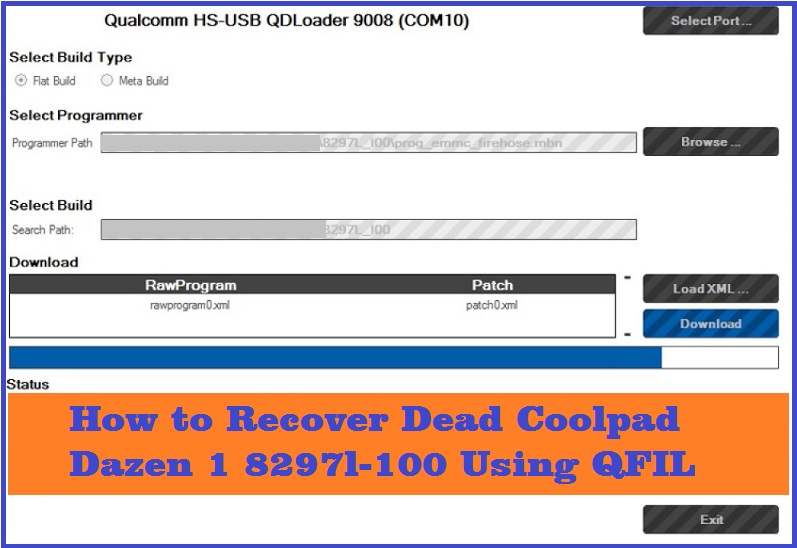
  • Open QFIL and select built type Flat Built.
  • Now browse prog_emmc_firehose.mbn
  • Then Load XML File rawprogram0.xml and patch0.xml
  • Now hold both volume keys and connect USB cable to the Computer.
  • Click on Download and wait until the process complete
If your Coolpad Dazen 1 8297l-100 dead and showing only Qualcomm HS-USB QDLoader 9008 COM port when you connect the phone to the Computer, then you can recover the phone using this method, so please follow the above process to unbrick dead boot Coolpad Dazen 1 smartphone.

Conclusion:
So in this way you can flash the dead Coolpad Dazen 1 8297l-100 using QFIL Flash Tool and QFIL firmware of this model. As I said before there are several process to unbrick or recover the dead Coolpad phone and here is the procedure by using the QFIL flash with QFIL Coolpad Qualcomm firmware. You can search this site for all possible solution for recovering the dead Coolpad smartphone.

Wednesday, May 2, 2018

Lephone W7 After Flash Dead Solution : Lephone Dead Recover Done


Lephone W7 Android 6.0 dead after flashing, how to solve or recover your dead Lephone W7? Here is the tutorial about how you can recover the Lephone W7 Android 6.0 Marshmallow by flashing with correct firmware. If flash the phone with wrong version of Lephone firmware then the phone will not switch on, which called a dead phone. So follow the below steps to recover your dead phone (Firmware).
Lephone W7 Dead Recover Done Android Version 6.0
Lephone W7 Firmware and Flash Tool Download Link:

Model Number: Lephone W7
Firmware Version: Lephone_W7_V16_Indian_volte
Android Version: 6.0 (Marshmallow)
File Size: 800 MB
Download Lephone W7 Firmware : [Download Link1]

We have successfully recover the Dead Lephone W7 With the below firmware version.

UpdCPB_EFUSE_SW43HA_lephone_PW7T_Android6.0_SC9832 _V16_20170805

How to Flash Lephone W7?
  • Download Lephone W7 Firmware from the above link.
  • Extract the Firmware and Open QGDP_DFSL_Assembly.exe.
  • Click on Start/Download Button, then it will unzip the Firmware (Wait until unzip complete).
  • Now hold the Volume Down Key and connect the phone to Computer.
  • After Download Complete (Show 100%) remove the phone and Switch ON it.
Lephone W7 Dead Recover - How to Flash Lephone W7 Android 6.0 Smart phone
So in this way you can flash Lephone W7 phone using QGDP Download Tool and recover/unbrick your Android smartphone Lephone W7 model. Lephone W7 Firmware and Download/Flash Tool download link is given in this article, both you can download in one link.

Friday, September 15, 2017

Panasonic P55 Touch Not Working After Flash - Solved


Panasonic P55 touch not working after flashing firmware and Panasonic flashing OK but touch screen not working after flash. Today we will discuss about a problem you may face while flashing Panasonic P55 Android smart phone using sp flash tool. The problem is after flashing Panasonic P55 EB-90S055P55 touch screen not work or the phone hangs on logo or hangs on start up screen. 

Why After Flash Touch Screen Not Working?

After flashing Panasonic P55 touch screen not working, this problem arises due to wrong version firmware download on the phone, and after flashing everything is working fine but the touch screen will not work. If you are facing this type problem then this topic will help you to recover your phone. After flashing with correct firmware of Panasonic P55 again touch will work fine and it's tested.

Panasonic P55 (EB-90s055p55, EB-908055p55 vlot1, EB-908055p55 v1015, Touch Not Working After Flash

Here is the model we are tested is as below:

Panasonic P55
Model No. EB-90S055P55

H/w:EB - 908055P55 vlot1
S/w:EB - 908055P55 v1015

If you are facing "after flash touch not working" then download the below firmware and flash the phone using sp flash tool and your phone will work fine, while flashing please do no select preloader. This solution is only tested and work on the above mentioned model number of Panasonic phone.

Note: While flashing please take full backup of the firmware then flash the phone using this firmware and flash the above firmware without selecting the preloader.

Download Panasonic P55 Working Firmware form the below link.


Panasonic P55 Firmware Download

After following the above process, if the touch screen not working for you then you must have the hardware fault on the Panasonic P55 Android smart phone. This is only tested on the case of after flashing the phone touch screen not working but before flash touch was working fine.


📚 You May Also Like to Read