Showing posts with label Firmware Update. Show all posts

Thursday, February 23, 2023

Samsung Firmware Update


Samsung firmware

Samsung firmware refers to the software that runs on Samsung devices, including smartphones, tablets, and other electronic devices. The firmware includes the operating system, device drivers, and other essential software components that enable the device to function properly.

Samsung releases firmware updates periodically to improve the performance, security, and stability of their devices. Firmware updates can also introduce new features and functionality to the device. These updates are usually available through the device's Settings app, and users can manually check for updates and download them over Wi-Fi or mobile data.

It's important to keep your Samsung device's firmware up to date to ensure optimal performance and security. However, it's recommended to back up your important data before updating your device's firmware, as updates can sometimes cause data loss or other issues.
Samsung Firmware Update

Samsung Firmware Update

To update your Samsung firmware, follow these steps:


  1. Connect your Samsung device to a Wi-Fi network or mobile data network.
  2. Go to your device's Settings app.
  3. Scroll down and select "Software update" or "System updates."
  4. Tap "Download and install" or "Check for updates."
  5. If an update is available, tap "Download and install" to start the update process. Depending on the size of the update, it may take some time to complete.
  6. After the update is downloaded, your device will automatically restart and install the update.


Note: Make sure your device has sufficient battery life before starting the update process. If your device's battery is low, connect it to a charger before starting the update. Additionally, it's recommended to back up your important data before updating your device's firmware, as updates can sometimes cause data loss or other issues.

Monday, July 9, 2018

Get Free Latest Features of Android Operating System On Your Phone


How to Get the Latest Features Of Android Phone?

If you are using any Android smartphone, it may be Samsung, Oppo, Vivo, Micromax, Xperia or any other brand, do you know you can use the latest version of Android operating system on the phone and it's completely free from the respective brand of the phone and you will get it through OTA Over The Air, that means you can get the updates online either using the phone itself or you can download the OTA Update Zip file and flash/Update the phone using Android Recovery Option. But you may ask how to get these updates? you are right you can get this free and it's available online, if the brand of the phone released any Android Operating System updated for your phone, you will get a notification that the phone can update to the latest version of Android OS.

If you need to use these free Android upgrade, then you must need to enable Auto Update in your phone's settings, in case you disabled it, you will no more get the update notification regarding latest Android version until you re-enable it, but there is one more way if you disabled Phone Auto Update then you can check for Android Update manually using Check Update Manually option in the Setting About Phone and then check for an update. In that case if the phone has compatible updates from the brand, then download it and install the updates on the phone.


If you need to Update your Android phone to Android versions 8.0 Oreo for Free, then this topic will help you more regarding that. Not only Android 8.0 Oreo, if your phone is eligible for any other upgrade version of the Android such as Android 7.0 or Android 6.0, also you can get these version for free and no need to go any where, just do it yourself.

How to Update My Phone To Android 8.0 Oreo?

If you have an active Internet connection on your phone then, the phone will automatically check for updates periodically, so you don't need to do anything just install after downloading updates or you can schedule it to install later, so you do not need any tips and tricks to get the latest updated of the Android OS, but to get the updates of Android latest version, your phone manufacturer must have released the update for the phone model you are using. 

Not all the Android phone can get the latest updates, only some of these models can get the latest Android update, which meet the minimum Hardware, Storage and Memory to have that latest Android Operating System. Because for latest Android OS there must be high configuration phone to run the system otherwise it will be hanged or not work, so the manufacturers releases Android updates for those phone which have the latest configuration or must have the minimum configuration required for the update, otherwise they won't provide any updates for the phone you have.

If you do not have Internet connection on your device, then you can use any Internet cafe or any other Internet source to download the update manually and flash/update/download the firmware by using phone flash tool, but for that you must have a Computer and Data Cable and some basic idea about how to flash Android smartphones using free flash tools. This process is not safe for every one as it required basic knowledge to flash a phone, so do not try this without having proper knowledge. Get the List of Android 8.0 Oreo Custom ROMs for Popular Devices.

Can I Install Custom Android 8.0 OS On My Phone?

Now a days you can get various custom Operating System ROMs or Firmware of latest Android version on the Internet. If you get the custom phone OS download link for your phone's model then you can flash the phone using Android flash tool. As it's custom OS not the official Android version after installing the OS you do not get any other official updates for your phone if releases later. 

Not all the custom Android OS are secure to have on your phone, because some OS are pre-rooted and do not have the latest security patch, and it's only have the custom OS which mixing of some features of latest Android version and themes which looks like latest Android version operating system. So we are not prefer to have Custom OS on your Android smartphone as it is less secure then the officially provides operating system, you can get more knowledge about custom OS by searching on the Internet with the help of Google.

Conclusion:

So here we know that, how to update your Android devices to have the latest feature of Android operating system with the latest Android security patch, which makes you device more secure and stable. Always use the official updates or Stock ROMs to flash/update you phone and do not use any custom OS if you are using your phone with various online activities.

Friday, May 18, 2018

VIVO V5s (1713) After Flash Dead - Solved


Vivo V5s (Vivo 1713) Dead After Flash, Vivo V5s After Update Using SD Card Dead or Not Switched ON only shows Qualcomm QDloader Mode or EDL Mode COP port, Vivo V5s After flashing with OTA firmware non-official set goes off and unable to switch on it, How to Recover Vivo Dead after flash, Vivo V5s dead boot solution - Vivo All In One Dead Recover 100% Solution Here.
If your Vivo V5s dead after flash or you are searching any of these above problems or errors on the Vivo V5s (Vivo 1713) then you are in the right place to get the smartphone dead solutions here. Here we will provide Download link of Vivo V5s working firmware and Vivo Flash tool and described process of how can recover the dead boot Vivo V5s Android 7.0 Nougat smartphone.

Vivo V5s Technical Specifications:
The phone has released on May 2017 comes with Android 6.0 Marshmallow and can be upgrade to Android 7.0 Nougat. The phone has MediaTek MT6750 Chipset with Octa-core Central Processing Unit (CPU) 1.5 GHz Cortex-A53 and 1.0 GHz Cortex-A53 and Mali-T860MP2 Graphics Processing Unit (GPU). It also has 64 GB Internal Storage expandable up to 256 GB using microSD card and 4 GB RAM. If you look at the camera feature it has 13 MP main camera with 20MP front camera with 1080p@30fps Video recording. Please go through the entire article to know the process to recover you dead Vivo V5s and also know how to flash Vivo V5s?
Vivo V5s Dead After Flash 100% Working Solution Here
Vivo V5s After Flash Dead Solution:
  • Download Vivo V5s Working and Tested Firmware (Download Link Below)
  • Download Vivo Flash Tool (Download Link Below)
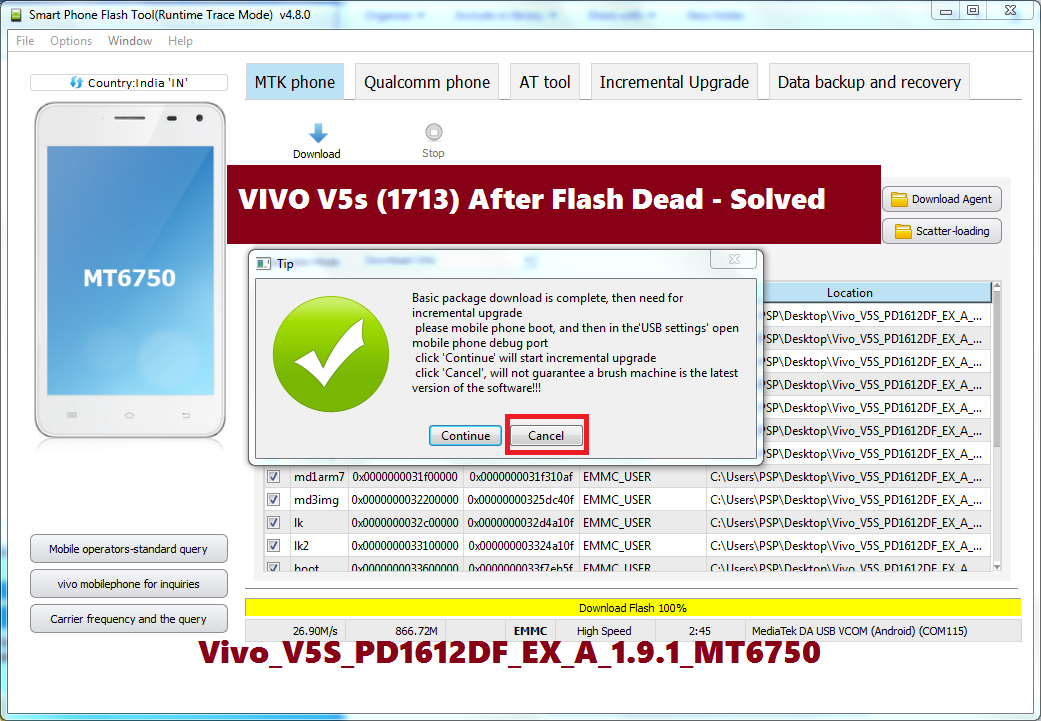
  • Open The Vivo Flash Tool and select the scatter file.
  • Now select Download and connect the switched off phone to Computer using USB cable.
  • When you see "Basic package download is complete" (see the above image) then click Cancel.
  • To update or download the latest firmware you also click on Continue button.
  • Now switch on the phone and it will work fine.
Vivo V5s Unlock FRP For Free - Know the Process Here

Downloads:
Vivo V5s Firmware (Vivo V5s PD1612DF EX A 1.9.1 MT6750)| Download
Vivo Flash Tool (AFTool_4.9.4) |Download

In this way you can solve the dead boot problem on the Vivo V5s and also solve if the phone is not switched on. This process is and firmware version is tested and working fine.

Note: This article is only for Tutorial Purpose and please do not misuse it.

☛ Tips Of The Day  ☚
How to Remove Vivo Smartphone's Green Color Floating Icon? Which Shows Current Status of Antenna:Switch of Antenna:on.
  • Touch and Hold the Icon Until you See "Close Floating Window".
  • Closing Floating Window and adb debug port - Click On OK.
  • Now the Green color floating icon will removed permanently from your Vivo smartphone.

📚 You May Also Like to Read