Showing posts with label VIVO FRP Unlock. Show all posts

Wednesday, July 23, 2025

Common Vivo Phone Update Errors and Solutions (2025 Guide) - Free Computer Tricks


 Fix All Vivo Software Update Issues with Official Tools & Links

Software updates are essential for your Vivo smartphone's performance, security, and features. However, many users face frustrating issues during or after system updates, especially in 2025 with newer Android versions rolling out. Whether you're facing "Update Failed", stuck at 0%, boot loops, or “System is up to date” but still missing updates — don’t worry. This comprehensive blog covers the most common Vivo phone update errors and their solutions, along with official tools, download links, and step-by-step guides.


Common Vivo Phone Update Errors and Solutions (2025 Guide) - Free Computer Tricks


🔧 Why Are Vivo Phones Failing to Update in 2025?

The most common reasons for update failures in Vivo smartphones include:

  • Insufficient internal storage

  • Poor or unstable internet connection

  • Rooted or modified system files

  • Outdated V-Appstore or system apps

  • Interrupted or failed downloads

  • Corrupt system cache

  • Vivo server issues

  • Incompatibility with custom ROMs


🧠 Top 10 Common Vivo Update Errors and How to Fix Them

⚠️ 1. “Update Failed” or “Installation Problem”

Problem: The update downloads but fails during installation.
Causes: Low storage, corrupted firmware, or non-official ROMs.

Solutions:

  • Free up at least 4-5GB of internal storage.

  • Go to Settings > System update > Check update again.

  • Try manual update via Vivo official website (see steps below).

  • Avoid force closing the update app during installation.

🔗 Official Vivo ROM Downloads:

👉 https://www.vivo.com/in/support/system-update


Common Vivo Phone Update Errors and Solutions (2025 Guide) - Free Computer Tricks


⚠️ 2. “System is Up to Date” but No New Update is Seen

Problem: You know there's a new Funtouch OS or Android version, but your phone says it's up to date.

Causes: Region-specific rollout, slow server sync, or outdated V-Appstore.

Solutions:

  • Clear cache:
    Settings > Apps > System Update > Storage > Clear cache.

  • Update the V-Appstore and try again.
    👉 Download latest V-Appstore

  • Use iManager > Phone Upgrade to recheck updates.

  • Wait for the phased OTA rollout.


⚠️ 3. Update Stuck at 0% or 99%

Problem: Update downloads never start or freeze at the end.
Causes: Weak internet, server overload, or cache issues.

Solutions:

  • Switch to a fast Wi-Fi or stable 4G/5G network.

  • Restart your phone and try again.

  • Go to:
    Settings > System update > Clear data and retry.

  • Use VPN to change region if update is geo-blocked.


Common Vivo Phone Update Errors and Solutions (2025 Guide) - Free Computer Tricks


⚠️ 4. Bootloop After Update

Problem: Vivo phone is stuck on the boot screen after a failed update.
Causes: Incompatible firmware or corrupted update files.

Solutions:

  • Force restart: Press and hold Power + Volume Up for 10-15 seconds.

  • Boot into recovery mode:

    • Power off the phone.

    • Hold Power + Volume Up.

    • Select “Clear data > Clear cache only”.

    • Reboot system.

  • If issue persists, flash firmware manually (guide below).


⚠️ 5. "Update Package Corrupt"

Problem: Manual update via SD card fails.
Cause: Incomplete or wrong firmware package.

Solutions:

  • Re-download from Vivo official firmware page.

  • Ensure firmware matches model number and region.

  • Rename downloaded file as "update.zip" and place it in root directory of SD card.


⚠️ 6. iManager or System App Not Working After Update

Problem: Built-in apps crash or freeze.
Cause: Compatibility issue post-update.

Solutions:

  • Update all apps via V-Appstore.

  • Clear data:
    Settings > Apps > [App] > Storage > Clear cache and data.

  • Reboot your phone.


⚠️ 7. "Cannot Connect to Server" Error

Problem: Update cannot be checked due to connection error.
Causes: Server downtime, firewall, or outdated services.

Solutions:

  • Connect to a different Wi-Fi or mobile network.

  • Turn on and off Airplane mode.

  • Update the Software Updater app.

  • Try later — Vivo servers might be under maintenance.


Common Vivo Phone Update Errors and Solutions (2025 Guide) - Free Computer Tricks


⚠️ 8. Vivo Recovery Mode Errors (e.g., “No Command”)

Problem: Cannot enter or use recovery mode to update.
Solution:

  • Boot into recovery correctly:

    • Power off phone.

    • Press and hold Volume Up + Power.

    • Release when you see Vivo or Android logo.

  • If “No command” shows, press Power + Volume Up quickly again to enter recovery.


⚠️ 9. Auto-Update Download Fails Every Time

Problem: Phone downloads updates automatically but fails at install.
Solution:

  • Disable auto-download:
    Settings > System update > Auto-download > Turn off.

  • Clear cached downloads.

  • Retry manual update.


⚠️ 10. Vivo Update App Missing or Deleted

Problem: Update tool not found.
Solution:

  • Download the latest System Update APK from official source or update via V-Appstore.


🛠️ How to Update Vivo Phones Manually (2025 Official Method)

Method 1: Using Local Update (Official SD Card/Storage Method)

  1. Download correct firmware for your Vivo model:
    👉https://www.vivo.com/in/support/system-update

  2. Rename file to: update.zip

  3. Move it to internal storage (not in folders).

  4. Go to Settings > System Update > Local Upgrade.

  5. Select update.zip and install.


Method 2: Using Vivo Assistant (For PC Users)

Vivo provides a desktop tool to manage backups and install updates safely.

🔗 Download Vivo Assistant:
👉 https://www.vivo.com/in/support


Steps:

  1. Install Vivo Assistant on your Windows PC.

  2. Connect phone with USB cable and enable USB Debugging.

  3. Click Update > Browse for firmware file.

  4. Start the update and wait for automatic reboot.


Method 3: OTA Update via Phone

  1. Go to Settings > System Update

  2. Tap on Check for updates

  3. Connect to Wi-Fi or mobile data.

  4. Tap Download and install

Recommended to keep battery above 50%.


🛡️ Tips to Prevent Vivo Update Failures

  • ✅ Always back up data before updates.

  • 🔋 Keep battery charged to at least 50%.

  • 📶 Use stable Wi-Fi when downloading updates.

  • 💾 Leave 5GB+ free storage space.

  • 🔄 Don’t interrupt the update process midway.

  • 🛑 Avoid rooting your phone.


📱 How to Check Your Current Software Version

  • Open Settings > About Phone

  • Check Build Number, Funtouch OS version, and Android version.


📤 Need More Help? Contact Vivo Support

If none of the above fixes work, contact official Vivo support:


📝 Conclusion

Vivo phone update errors can be frustrating, but they're almost always fixable with the right knowledge. In this 2025 guide, you’ve learned how to solve issues like stuck updates, missing packages, and corrupted installations. Whether you update via OTA, SD card, or PC tools, always ensure you follow official procedures and use verified firmware files.

If you found this guide helpful, don’t forget to share it with other Vivo users and subscribe to our updates for the latest Android tips and fixes.


👨‍💼 Author: PARTHASARATHI PANDA (M.Com)

A dedicated blogger, website designer, and tech influencer from India.


Friday, April 9, 2021

VIVO Y71 prog_emmc_firehose_8917_ddr_Vivo_y71 MBN File Download (VIVO Y71 Hard Reset and FRP Unlock File)


Hi friends, if you are searching for VIVO Y71 firehose file or mbn file then here the direct download link for the emmc firehose vivo y71 file. This file is required for Vivo Y41 Factory Reset or Hard Reset or for Pattern unlock or for password/pin lock and also this file can be use for Vivo y71 FRP unlock or Google account bypass. To use this file you need a Mobile flash tool like Miracle Box or Miracle Thunder or any other supporting software Box.


VIVO Y71 FRP Unlock and FRP Unlock File Download 


VIVO Y71 prog_emmc_firehose_8917_ddr_Vivo_y71 MBN File Download (VIVO Y71 Hard Reset and FRP Unlock File)


This file can downloaded from Mediafire and the direct link given below without any password you can unzip the file, Please visit the link below to download VIVO Y71 loader file from mediafire.com.


Download VIVO Y71 MBN File or Loader (Qualcomm) DOWNLOAD HERE


Sunday, September 16, 2018

How To Flash Vivo V5 1601? Vivo V5 FRP Unlock | Vivo V5 Flash Tool | Vivo V5 Flash File


Here is the download link of the Vivo V5 Flash file or Vivo V5 Firmware or Vivo V5 ROM and SP flash tool to flash the Vivo V5 1601 Android smartphone. The flash file comes with Zip file and includes flash tool and direct download link given below.

If you are searching for Vivo V5 flash and know how to flash the phone using Sp flash tool and recover your software brick phone easily. This is the all in one topic for Vivo V5 FRP, Vivo V5 Flash File, Vivo V5 Flash Tool and the Vivo V5 flashing procedure with video tutorial. Please visit the below link to download Vivo flash file and flash tool.
How To Flash Vivo V5 1601  Vivo V5 FRP Unlock  Vivo V5 Flash Tool  Vivo V5 Flash File


Vivo V5 Firmware File Details:

vivo_tools.zip
APDB_MT6755_S01_alps-mp-m0.mp7_W16.19
APDB_MT6755_S01_alps-mp-m0.mp7_W16.19_ENUM
apps.img
banban
boot-verified.img 
boot.img
cache.img
DbgInfo_LR11.W1603.MD.MP_BBK6750_66_M_MOLY_LR11_W1603_MD_MP_V17_P99_2017_01_12_11_25_1_ulwctg_n
fat.img
lk-verified.bin
lk.bin
logo-verified.bin
logo.bin
md1arm7-verified.img
md1arm7.img
md1dsp-verified.img
md1dsp.img
md1rom-verified.img
md1rom.img
md3rom-verified.img
md3rom.img
MDDB.META_MT6750_S00_MOLY_LR11_W1603_MD_MP_V17_P99_1_ulwctg_n.EDB
MDDB_InfoCustomAppSrcP_MT6750_S00_MOLY_LR11_W1603_MD_MP_V17_P99_1_ulwctg_n.EDB
MT6750_Android_scatter.txt
preloader_bbk6750_66_m.bin
recovery.img
userdata.img etc.

~~~~~~~~~~~~ DOWNLOADS ~~~~~~~~~~~~~~~

Download Vivo V5 Firmware or Flash File and Flash Tool Here

File Name: Vivo_V5_D1612F_MT6750_EX_A_2.7.25_ALPS.M0.MP7.V2.10.zip
File Size: 2.1 GB
Android Verison: 6.0.1


Vivo V5 (1601) Flash File With Flash Tool| Download Link

Monday, June 11, 2018

Vivo V9 FRP Unlock/Hard Reset/Passcode Reset Solution Here


How to Hard Reset Vivo V9? How to Unlock FRP Vivo V9? and How to Reset Passcode Vivo V9? if you need these solution then here is the answer and follow the below process for Vivo V9 frp, Hard reset and password reset. All Vivo unlock solution is available here, all Android smartphone unlock solution on one website. So here is the method to unlock Vivo V9 using free unlock tools, you can unlock Vivo V9 with UMT Box or MRT Dongle, but fro free solution, need to follow the below steps.

Vivo V9 released on April 2018 in India with Android 8.1 Oreo Operating System, this is the latest Android OS now a days. The phone has 6.3 inches full view display with a resolution of 1080 x 2280 pixels, the phone has Qualcomm MSM8953 Pro Snapdragon 626 Chipset, with Octa core 2.2 GHz Cortex A53 and Adreno 506 GPU. The smartphone comes with 64 GB internal storage, 4 GB RAM and you can expand external storage up to 256 GB using microSD card slot, for information about full phone specifications please visit Official VIVO website.

Vivo V9 All Software/Firmware and Unlock Solution Here

How To Hard Reset Vivo V9?

You can hard reset VIVO V9 using two methods, one is using the Phone Settings and another one is using keys or buttons. If the phone is working fine and you want to just do a factory reset to work the phone faster, then please Go to Settings of the phone, then More Settings and factory reset the phone. Factory reset will erase all your personal data stores in the phone and you may be asked for revivification/reactivation of Google account after hard reset.

Vivo V9 Hard Reset Using Keys:
  • First Switch Off the Phone.
  • Now Press and Hold Volume Up Key then Press Power Button.
  • Now the phone will boot into Recovery Mode.
  • Then select Wipe Data or Factory Reset and Press Power Key to Enter.
  • Then Reboot the phone and you are done.
How To Bypass FRP Vivo V9?

There are some methods you can use to bypass frp lock of the Vivo V9, such as by flashing the phone with Vivo V9 firmware using Vivo flash tool and you can also use Miracle Box free version working without box and also if you have UMT flashing and unlocking box or MRT flashing and Unlocking Dongle.

Vivo V9 FRP Bypass Using Flash Tool:
  • Download Flash Tool and Vivo V9 Firmware.
  • Open the Vivo Qualcomm Flash Tool and browse then select .mbn file.
  • Select Program .xml file and Patch0.xml file.
  • Now connect the phone with Download Mode (Hold Both Volume keys and Connect USB)
  • Now click on download and wait until the flashing process complete.
Vivo V9 FRP Unlock Using Free Miracle Box:
  • Download Free Miracle Box Software (100% working without box) Link given below.
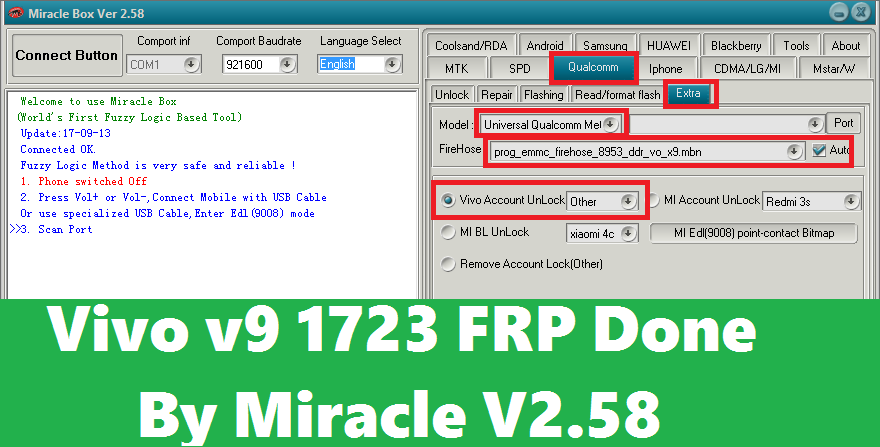
  • Open Miracle Box Tool and Go To Qualcomm Tab.
  • Now click on Extra Tab, then select Vivo Account Unlock Others.
  • Click on Start Button and connect the phone with EDL Mode.
  • Hold Both Volume Keys and insert USB Cable for EDL Mode.
  • Download Free Miracle Box Software Download Link
Vivo v9 1723 FRP Done By Miracle V2.58
How To Reset Passcode Vivo V9?

To reset passcode or password of Vivo V9, you can use any one of the above solution, you can either flash the phone with Vivo flash tool and firmware or use the Miracle Box procedure to unlock the phone. After unlock it will not ask for any frp lock or to enter the Gmail Id and password previously used on the phone.

Vivo V9 Stock Firmware Download Here

Vivo V9 Stock Firmware with Flash Tool
 

File Name: Vivo_V9_1.8.8_QFIL_28032018.zip
File Size: 3 GB
Vivo V9 Firmware Link: Click Here To Start Download


Vivo V9 PD1730F Firmware Download
 

File Name: Vivo_V9_PD1730F_MSM8953_EX_A_1.8.8_LA.UM.6.6.r1-03400-89XX.0_QFIL.zip
File Size: 3.5 GB
Vivo V9 PD1730F Firmware Link: Click Here To Download
 

Fastboot Firmware For Vivo V9 and V9 Youth

Fastboot Firmware Vivo V9 PD1730F


PD1730F_EX_A_1.8.8_vivo_qcom_LA.UM.6.6.r1-03400-89xx.0_msm8953.tar.gz
Type: ROM Size: 3.4GB
Firmware Link: Download Here


PD1730F_EX_A_1.7.10_vivo_qcom_LA.UM.6.6.r1-03400-89xx.0_msm8953.tar.gz
Type: ROM Size: 3.4GB
Firmware Link: Download Here


PD1730F_EX_A_1.7.6_vivo_qcom_LA.UM.6.6.r1-03400-89xx.0_msm8953.tar.gz
Type: ROM Size: 3.4GB
Firmware Link: Download Here


Fastboot Firmware Download For Vivo V9 Youth PD1730BF
 
PD1730BF_EX_A_1.3.12_vivo_qcom_LA.UM.6.6.r1-03400-89xx.0_msm8953.tar.gz
Type: ROM Size: 3.1GB 

Firmware Link: Download Here

QFIL Firmware Vivo V9 PD1730F and V9 Youth PD1730BF

QFIL Firmware Vivo V9 PD1730F

PD1730F_EX_A_1.8.8_vivo_qcom_LA.UM.6.6.r1-03400-89xx.0_msm8953_split.tar.gz
Type: ROM Size: 3.4GB

Firmware Link: Download Here

PD1730F_EX_A_1.7.10_vivo_qcom_LA.UM.6.6.r1-03400-89xx.0_msm8953_split.tar.gz
Type: ROM Size: 3.4GB
Firmware Link: Download Here


PD1730F_EX_A_1.7.6_vivo_qcom_LA.UM.6.6.r1-03400-89xx.0_msm8953_split.tar.gz
Type: ROM Size: 3.4GB
Firmware Link: Download Here


Fastboot Firmware Vivo V9 Youth PD1730BF

PD1730BF_EX_A_1.3.12_vivo_qcom_LA.UM.6.6.r1-03400-89xx.0_msm8953_split.tar.gz
Type: ROM Size: 3.2GB
Firmware Link: Download Here


Firmware Credit:- FIRMWARE27

Sunday, June 10, 2018

Vivo X21 Android 8.1 FRP Unlock and Hard Reset Solution


Here is another interesting tutorial about, how to reset frp lock of VIVO X21 Android 8.1 Smartphone. In this topic we will discuss all the possible ways to unlock, bypass or reset FRP (Factory Reset Protection) of Vivo X21 phone. The phone has Qualcomm chipset and you must follow the Qualcomm FRP Unlock process to reset frp.

Let's have a look at the Technical features of the Vivo X21 Phone, the phone has Qualcomm SDM660 Snapdragon Chipset and Octa-core CPU with Adreno 512 GPU. The Android 8.1 (Oreo) smartphone has Funtouch OS 4.0 with full view display size of 6.28 inches and with a resolution of 1080 x 2280 pixels. The phone's built in storage is 64/128 GB with 6 GB RAM, you can expand the external storage up to 256 GB using microSD card by using the SIM 2 slot. If look at the camera feature of the phone, the phone has Dual 12 MP primary camera with 12 MP secondary camera with a video resolution of 1080 pixel @ 30fps and the phone released in India on March 2018. Now let's know how to do Vivo X21 FRP Reset, Vivo x21 hard reset, Vivo X21 FRP Bypass, Vivo X21 FRP Unlock and solve Vivo X21 forgot password and Gmail Id.
How to Hard Reset Vivo X21 Android 8.1 Oreo and How to Unlock FRP of Vivo X21 Android 8.1

How to Hard Reset Vivo X21?
  • Switch off the phone
  • Hold Volume Up and Press Power Key.
  • Now Choose Recovery Mode and Power Key to Enter.
  • Then select Wipe Data and press power key to perform the action.
  • Then click on Power Down, it will switch off the phone.
  • Now switch on the phone manually and set up the new phone.
How To Bypass FRP VIVO X21?

To unlock or bypass frp lock on the Vivo X21 Android 8.1 smartphone you can use the following methods.
Vivo X21 USB Driver Download:

1) Vivo X21 Qualcomm Flashing QDLoader USB Driver | Download
2) Vivo X21 MTP USB Driver To Connect the Phone Storage with Computer | Download Link
3) Vivo X21 ADB Driver or Vivo X21 USB Debugging Driver | Download

Download Vivo X21 Stock Firmware:

File Name: Vivo_X21_PD1728F_EX_A_1.6.18_14042018_QFIL.zip
File Size: 3GB

Firmware Download Link: Click Here To Start Download

Tuesday, June 5, 2018

[Solved] Vivo Y55s Dead After Flash With QFIL - 100% Guaranteed Solution Here


After flash VIVO Y55s dead, After flashing Vivo Y55s with QFIL (Qualcomm Flash Image Loader) the handset goes dead, means after flash success the phone do not switch on and when connect the to Computer it shows only QDLoader Qualcomm Flashing Port. Here I will give 100% working solution to recover the dead Vivo phone using free flash tool, no need to use any flashing box and this tool is working fine without box or hardware. To recover or unbrick Vivo Y55s you need to follow the complete process or tutorial given in this article, first need to download Vivo Y55s working and tested firmware (Link given below), you can direct download the firmware no need to wait on any other pages such as showing skip button, so download Vivo firmware direct and high speed link for the model Vivo Y55s and this firmware includes QDLoader .mbn file and content .xml file with patch.xml file. 

To flash the phone you need to install Download Qualcomm HS-USB QDLoader 9008 USB Driver (Link given below) and QFIL flash tool download link also given below and Miracle Box latest version working without box can be download here. Vivo Y55s dead recover done using Miracle box, when I flash the Y55s phone using QFIL Tool, gets some flashing error message and after that the phone do not switch on, and again try to flash with other firmware version using the QFIL flash tool but not success, it shows Sahara Fail QFIL error, then finally I flash the phone using Miracle Box free tool and successfully recover the dead phone, to know how to recover Vivo Y55s dead phone after flash, please go through the complete tutorial here, every process is very important and requested to read the topic carefully and then apply it to recover the dead Android smartphone.
Vivo Y55s Dead After Flash With QFIL - 100% Guaranteed Solution Here - Dead Recover With Qualcomm Free Flash Tool

VIVO Y55S Technical Specifications:

Before we going to flash the phone and download firmware, let's know the technical specification of Vivo Y55s, which helps you to know the chipset details and other technical details such as Storage, RAM, Android version etc. The phone is released on 2017 February  and available in Indian market, the dual SIM smartphone has Android 6.0 Marshmallow Operating System with Funtouch OS 3.0. Qualcomm MSM8917 Snapdragon 425 is the chipset used in this phone, which helps to know the correct Loader .mbn file with need to select while flashing the phone. The phone comes with 16 GB internal storage (External storage can expandable up to 256 GB using microSD card) with 2 or 3 GB RAM, if you see the camera feature of this phone, then the phone also has 13 Mega Pixel main camera with 5 MP secondary or front camera, you can get the full phone specification on the official Vivo smartphone website.


~~~::: Downloads Required :::~~~~

1) Direct Download Link Of Vivo Y55s Tested Firmware  | Download Here
( Vivo Y55S_PD1613BF_EX_A_1.11.3_vivo_qcom_LA.UM.5.3-02910-89xx.0_msm8937_split.tar.gz)

2) Download Miracle Box (Working Without Box) Tested | Download Here
3) Download Latest version of Qualcomm HS-USB QDLoader 9008 Driver  | Download Link

Download Y55s Loader MBN and XML File Only (Used for hard reset and unlocking) | Link

How to Recover VIVO Y55s Dead After Flash:

First download Vivo Y55s firmware, flash tool and EDL Mode USB driver (Link given above), then follow the below process to unbrick the phone and know the complete process how to flash Vivo Y55s Android smartphone, using free Vivo flash tool. This solution is also very helpful, if you are facing flashing errors while flash the Vivo Y55s using QFIL Qualcomm flash tool.
How to Flash Vivo Y55s Using Miracle Box - Full Procedure Here
Steps:
  • Now open Free Miracle Box Tool
  • Go to Qualcomm Tab then Flashing
  • Choose Write Flash and Untick Auto File Hose (FileHose).
  • Now Select Programmer File, RawProgram File and Patch File
prog_emmc_firehose_8917_ddr.mbn
rawprogram_unsparse_PD1613BF_EX-IN
patch0

  • Now connect the phone with EDL Qualcomm QDLoader Mode (Hold Both Volume and connect USB)
  • Select Flashing method EDL Mode and click on start button.
  • Wait until the flashing complete then manually switch on the phone.
So in this way you can flash Vivo Y55s with Miracle box and also recover the dead Vivo Qualcomm phone. Please follow the tutorial carefully, then flash the phone, this is tested and working for us and sharing here to help others, if you need you can try this at your own risk.

Friday, May 18, 2018

VIVO V5s (1713) After Flash Dead - Solved


Vivo V5s (Vivo 1713) Dead After Flash, Vivo V5s After Update Using SD Card Dead or Not Switched ON only shows Qualcomm QDloader Mode or EDL Mode COP port, Vivo V5s After flashing with OTA firmware non-official set goes off and unable to switch on it, How to Recover Vivo Dead after flash, Vivo V5s dead boot solution - Vivo All In One Dead Recover 100% Solution Here.
If your Vivo V5s dead after flash or you are searching any of these above problems or errors on the Vivo V5s (Vivo 1713) then you are in the right place to get the smartphone dead solutions here. Here we will provide Download link of Vivo V5s working firmware and Vivo Flash tool and described process of how can recover the dead boot Vivo V5s Android 7.0 Nougat smartphone.

Vivo V5s Technical Specifications:
The phone has released on May 2017 comes with Android 6.0 Marshmallow and can be upgrade to Android 7.0 Nougat. The phone has MediaTek MT6750 Chipset with Octa-core Central Processing Unit (CPU) 1.5 GHz Cortex-A53 and 1.0 GHz Cortex-A53 and Mali-T860MP2 Graphics Processing Unit (GPU). It also has 64 GB Internal Storage expandable up to 256 GB using microSD card and 4 GB RAM. If you look at the camera feature it has 13 MP main camera with 20MP front camera with 1080p@30fps Video recording. Please go through the entire article to know the process to recover you dead Vivo V5s and also know how to flash Vivo V5s?
Vivo V5s Dead After Flash 100% Working Solution Here
Vivo V5s After Flash Dead Solution:
  • Download Vivo V5s Working and Tested Firmware (Download Link Below)
  • Download Vivo Flash Tool (Download Link Below)
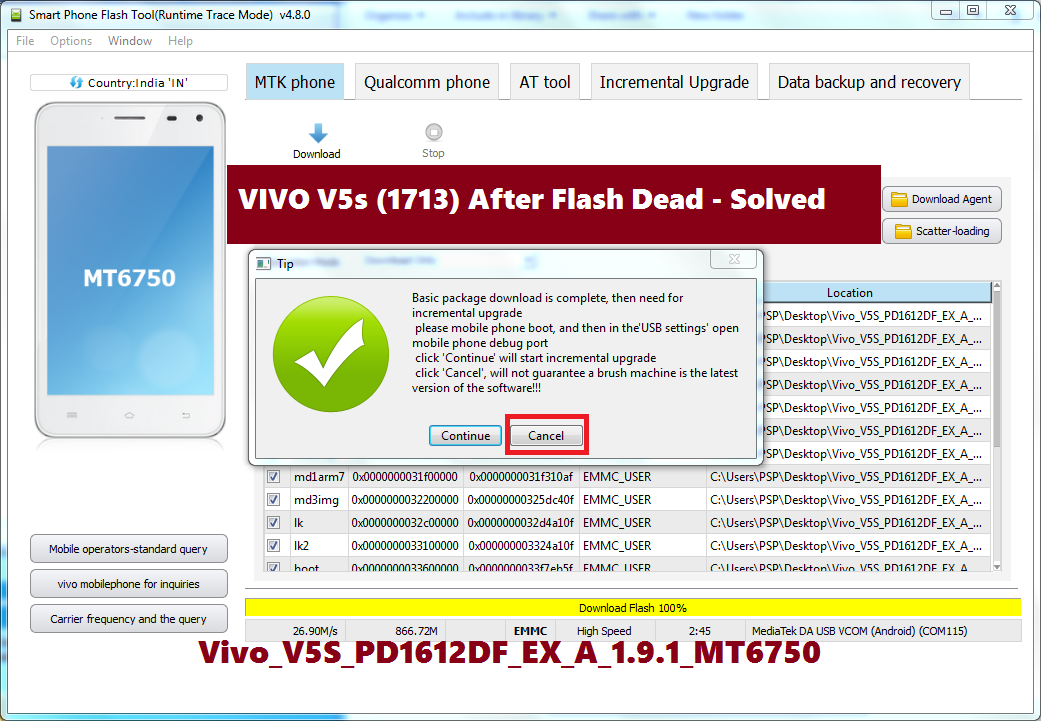
  • Open The Vivo Flash Tool and select the scatter file.
  • Now select Download and connect the switched off phone to Computer using USB cable.
  • When you see "Basic package download is complete" (see the above image) then click Cancel.
  • To update or download the latest firmware you also click on Continue button.
  • Now switch on the phone and it will work fine.
Vivo V5s Unlock FRP For Free - Know the Process Here

Downloads:
Vivo V5s Firmware (Vivo V5s PD1612DF EX A 1.9.1 MT6750)| Download
Vivo Flash Tool (AFTool_4.9.4) |Download

In this way you can solve the dead boot problem on the Vivo V5s and also solve if the phone is not switched on. This process is and firmware version is tested and working fine.

Note: This article is only for Tutorial Purpose and please do not misuse it.

☛ Tips Of The Day  ☚
How to Remove Vivo Smartphone's Green Color Floating Icon? Which Shows Current Status of Antenna:Switch of Antenna:on.
  • Touch and Hold the Icon Until you See "Close Floating Window".
  • Closing Floating Window and adb debug port - Click On OK.
  • Now the Green color floating icon will removed permanently from your Vivo smartphone.

How to Unlock FRP of VIVO V5s (1713) Free With Miracle Box


VIVO V5s 1713 FRP Bypass Solved With Miracle Box V2.54, Use Miracle Box Software no Box Needed and Unlock FRP lock or Bypass FRP Free Using This Tool, Vivo V5s FRP Unlock Bypass Reset Done With Miracle Box Free Version 2.54, Miracle Box V2.54 Free Download - Vivo V5s Android Version 7.0 All in One FRP Solution Here.

In this article you will know how to unlock/bypass/reset frp lock of the Vivo V5s Android 7.0 smartphone. You can do it by using Miracle Box V2.54 and which can be download here and working without box and dongle. Vivo V5s FRP unlock all required downloads given below and follow the below steps to unlock frp.
Vivo V5s 1713 FRP Reset Done with Miracle Box V2.54 Using ADB Mode or Fastboot
How to Bypass/Remove FRP On Vivo V5s?
Follow the below steps to know how to reset frp Vivo v5s which has updated to Android 7.0 and here you can unlock this with one click and absolutely using free frp unlock tool, which works without box. This tool also work to unlock frp or reset password of MediaTek (MTK), Qualcomm and Spreadtrum (SPD) Android smartphones.

Steps:
  • Download Miracle Box V2.54 (Download Link Below)
  • Open Miracle Box Tool.
  • Go to Android Tab - Home - ADB(extra).
  • Now Select Oppo FRP Reset and connect Vivo V5s with ADB Mode (See the below image to know how to boot Vivo with ADB Mode)
  • Now click on start button and it will start the below process
  Definition Applied
  Connecting to Phone,Wait..ok
  Checking phone info...
  Model : vivo 1713
  Android Version : 7.0
  Imei :
  Checking Root Status - Not Rooted.
  Removing Oppo Frp Lock..
  Frp Lock Removed ok..
>>All Done. Reboot..
  • Now the phone will reboot and you have successfully remove/reset FRP of Vivo V5s Android 7.0 Nougat.
You can also check the Video Tutorial on the YouTube Channel | Watch Video Tutorial Here.
    Miracle Box V2.54 100% Working Without Box | Download Link
      How to Enable ADB On Vivo V5s?
      You can boot the phone with adb enabled which is called "Reboot with adb" to do that boot the phone to "Recovery" mode and select "Advanced Options" and then select "Reboot with adb". Now the phone will reboot to normal mode with adb enabled and now connect USB cable to Computer and allow the Computer on your Vivo V5s screen.
      Vivo V5s How To Reboot With ADB - How to enable adb on Locked Vivo V5s
      Reboot With ADB Vivo V5s:
      • Switch off the phone first and then press Volume Up + Power Key.
      • Now you will see Vivo V5s Recovery Options.
      • Then go to Advanced Options (at the end of the recovery screen)
      • Now it will show Advanced Options such as Update with USB, Apply Update and Apps, Root Integrity Check, Reboot with adb, View recovery logs and Back.
      • Choose Reboot with adb (The phone will switch on with adb enabled)
      In this way you can remove frp lock on your Vivo V5s Android 7.0 Nougat. Vivo FRP unlock tool download link also given above, just download the tool and reset frp.

      ☛ Tips Of The Day  ☚
      If you See a Green Floating Icon On Your Vivo Phone, after flash or unlock and unable to remove that Green Color Icon something written on it (May be in Chinese Language) and want to remove this icon from your Vivo Home Screen then here is the solution for it. 
      • Touch and Hold the Icon Until you See "Close Floating Window".
      • Closing Floating Window and adb debug port - Click On OK.
      • Now the Green color floating icon will removed permanently from your Vivo smartphone.

      Sunday, April 22, 2018

      VIVO Y71 Hard Reset and FRP Unlock Solution : RBSoft Mobile Tool


      How to unlock frp and format or hard reset or factory reset VIVO Y71 Android smart phone? Here in this tutorial you will know the frp unlock and hard reset process of VIVO Y71 using free Qualcomm FRP unlock/bypass tool. Let's start please go through the below article to know how FRP unlock Qualcomm Android 8.1 Oreo phone. Before that let's have look to the key specification of VIVO Y71 and you will know some hardware details of the ViVo phone.

      The VIVO Y71 comes with Funtouch OS and Android 8.1 Oreo, Qualcomm MSM8917 Snapdragon 425 Chipset, Quad-core 1.4 GHz Cortex-A53 CPU and Adreno 308 GPU. If you see the Memory or Storage it has Micro SD card slot up to 256 GB and Internal 16/32 GB with 3 GB RAM. It also has very good quality Camera with 15.21cm Full View display as per the official VIVO Site.
      VIVO Y71 Hard Reset and FRP Unlock Solution

      VIVO Y71 Format User Data and Reset FRP With RBSoft Mobile Tool:-

      Here you know how to unlock VIVO frp lock and do hard reset using RBSoft Mobile Tool v1.6, you can also download free RBSoft Qualcomm EDL Mode FRP reset tool and it's working, see the below details and steps to format VIVO phone using this FRP unlock tool.


      • Download RBSoft Mobile Tool 100% Working.
      • Download ViVo Y71 FRP Unlock .mbn file [ViVo Y71 FRP Unlock File]
      • Now open RBSoft Mobile Tool and go to Qualcomm Tab. 
      • Then select Manual loader and browse the loader you have downloaded (inside the Vivo y71 frp unlock file and it's a .mbn file)
      • Choose the prog_emmc_firehose_8917_ddr_y71.mbn file.
      • Now connect the phone with EDL Mode (ViVo y71 EDL Mode = switch off the phone hold both volume keys and connect USB)
      • Now click on "Format Userdata" for hard reset and "Reset FRP" to unlock Factory Reset Protection on you Vivo Y71 Android 8.1 Oreo smart phone.
      • Wait until the process complete and the phone will automatically reboot and you are done.

      In this way you can unlock Qualcomm frp lock for free and also do hard reset or factory reset of the phone and the above is the example of Vivo y71 smart phone with MSM 8917 Qualcomm Snapdragon chip-set.

      Password for the VIVO y71 frp unlock file zip file is = freecomputertricks

      Note: This topic is only for tutorial purpose and we are not responsible for any damage happen to the phone and if you misuse this tutorial it completely belong you.

      Note: Hard Reset and FRP Unlock erase you personal data, it should be back up before doing the job. 

      #vivo y71 frp unlock tool download, how to format vivo phones, rbsoft tool full working download, free frp unlock tool for vivo y71, android 8.1 frp unlock tool, vivo qualcomm frp unlock tool, vivo frp unlock file free download, vivo frp unlock using free tool, Vivo Qualcomm snapdragon MSM 8917 frp unlock free, how to use RBSoft mobile tool free and 100% working, vivo frp unlock file to flash.

      Saturday, April 21, 2018

      VIVO V9 (Android 8.1 Oreo) All FRP Unlock Solution Methods


      One more smart phone is released by VIVO on April 2018 called VIVO V9, which has latest version of Android Operating system 8.1 Oreo. This phone has Qualcomm MSM8953-Pro Snapdragon 626 Chipset and Octa-Core 2.2 GHz Cortex-A53 CPU with Adreno 506 GPU and also has 64 GB Internal Storage and 4 GB RAM and you can expand up to 256 GB external Storage. The phone comes with 6.3 inches full view Display and runs on Funtouch OS 4.0.

      If you are facing frp lock on your Vivo V9 Android 8.1 Oreo and want to know how to unlock frp unlock or bypass frp lock on your Android 8.1 Oreo Vivo V9, then this topic will help you regarding that. Here you will get all frp unlock solutions of VIVO V9 such using Mobile flashing box and dongle and using free frp unlock tool, so to know how to unlock frp lock of Vivo V9 please go through the full article. Here you can know VIVO V9 hard reset, format, pattern unlock and frp unlock all possible solutions.

      How to Unlock/Bypass FRP in VIVO V9 Using UMT Dongle?
      ViVo V9 FRP Unlock Done with UMT Tool
      • Open Ultimate Multi Tool QcFire V1.2
      • Go To Read and Tool Tab.
      • Now put the VIVO V9 to EDL Mode (Switch off the phone hold both volume keys and insert USB cable).
      • Now click on "Read Pattern" to read the Pattern lock code.
      • Then click on "Reset FRP" to unlock FRP lock of Vivo Qualcomm phones.
      • Wait until you see "Resetting FRP lock....Done" then switch on the phone and you are done.
      How to Flash Vivo V9 and Remove Pattern/FRP/Password?
      How to Flash Vivo V9 and Remove Pattern/FRP/Password Using Free QFIL Flash Tool
      • Download VIVO V9 Firmware and QFIL Flash Tool (Available on Internet).
      • Open QFIL Flash Tool and load programmer file .mbn and patch0.xml file.
      • Connect the VIVO phone to Computer with EDL Mode (Switch off the phone and Hold Volume Up + Volume Down and Insert USB Cable for Qualcomm EDL Mode).
      • Now click on Download and wait until the flashing process is completed.
      VIVO V9 FRP Unlock Using RB Soft Mobile Tool:-
      • Search this site and Download free Qualcomm FRP Unlock Tool Called RBSoft Mobile Tool.
      • Download VIVO V9 firmware and extract it.
      • Open RBSoft Mobile Tool and go Qualcomm Tab.
      • Select Manual Loader then click on Browse and select the emmc firehose .mbn file. (You will get the file inside the Vivo V9 firmware folder)
      • Now click on "Format User Data" and then "Reset FRP" after complete the device will reboot and you are done.
      Note: This article is only for tutorial and information purpose, we are not responsible for any damage happens to the phone and misuse of this tutorial completely belongs to you.

      📚 You May Also Like to Read