Showing posts with label Unbrick Phone. Show all posts

Tuesday, June 19, 2018

Nokia 105 RM-908 Dead Solution 2018 - All Working Methods Here


Nokia Microsoft Mobile 105 RM-908 Dead, How to Recover the Nokia 105? Here you will get all the method to unbrick Microsoft Nokia 105 Mobile. The main cause for not switching on or dead Nokia 105 Mobile phone is, Due to Battery BSI Line connection missing, LCD tracks Missing and Software problem. If the phone is dead you can try these solutions to recover the phone, if still not success then the phone may have the motherboard issue or water damage, in that case you can wash the motherboard using IP and lightly hit the board then check.

Nokia Microsoft Mobile 105 RM-908 Complete Dead Solution and All methods to recover the phone. If the does not have any water damage or physical damage then you can try the below methods to recover dead phones and here is the complete process to recover your Microsoft Nokia 105 Mobile phone.
Microsoft Nokia 105 dead 100% Solution Here - Nokia 105 Not Switch On complete solution here

Nokia 105 Dead Problem Solved By Flashing The Phone With ATF:

If the phone is in dead condition, first try to recover the phone by flashing the phone using ATF (Advance Turbo Flasher) or you can also user UFS3 Turbo or you can user Nokia BEST Dongle or any other Nokia flashing tools. In most of the cases we solved the not switching on Nokia 105 problem and successfully recovered dead Microsoft Nokia 105 phone using this method. First try this method, if not success then try the second method to recover the dead phone.
Nokia 105 Dead Phone Recovered By Flashing The Phone With ATF


Nokia 105 Dead Solution: Method 2 (LCD Tracks):

If the software flashing method does not work, then try this method. Due LCD track missing the phone may not switching on, which called a dead phone, so check the all the 12 legs of the Nokia LCD connector, if the LCD ways are missing apply jumper according to the below image. As said before there are 12 LCD legs on the Nokia 105 PCB includes 4 ground points and 2 LCD light points and 6 color and figure points.
Nokia 105 Dead Solution: Method 2 (LCD Tracks)

Nokia 105 Dead Solution: Method 3 (Nokia 105 BSI Way):

Nokia 105 BSI Way, If you are still facing problem then try this method, check the battery connector BSI line or the battery temperature line. The center pin is the BSI line for Nokia phone, which has 3 pin battery connector. So check the Nokia 105 BSI way and apply jumper as shown in the below image.
Nokia 105 BSI Way - Nokia 105 RM-908 BSI Line


These methods are used for recovering the dead Microsoft Nokia 105 phone, as mentioned above try the first method, second method or 3rd method to recover dead phone. If you still not able to solve the issue then the phone must have Motherboard fault or the main IC on the PCB.

Monday, June 11, 2018

[Solved] Coolpad Dazen 1 8297L-100 Flashing Failed at 11%


As you know you can flash Coolpad Dazen phone using YGDP flash tool and the flashing process will complete without any errors, but some of the Coolpad Dazen 1 8297L-100 or 8297L-I00 phone failed at 11% with the same YGDP Tool. There are some working methods to recover or unbrick the Coolpad Dazen 1 phone and here we will describe all possible solutions to unbrick the Coolpad smartphone or to recover the Coolpad Android smartphones. Please follow the below Methods to solve the YGDP Flashing failed at 11%, while flashing Coolpad phones.

As you know Coolpad has Qualcomm CPU and can be flashed firmware using YGDP Tool and QFIL flash tool. Coolpad Dazen Firmware, Coolpad Dazen Flash Tool Download links also provided in this tutorial. To Solve flashing process failed at 11% please follow the below methods.
How To Solve Coolpad Dazen 1 8297L-100 Flashing Failed at 11%


Coolpad Dazen Flashing Failed at 11% Solution Using YGDP Qualcomm Flash Tool:
  • Download Coolpad Dazen latest Firmware and Flash Tool (Link Given Below)
  • Charge the Battery at-least to 50% or more.
  • Now Flash the phone using YGDP Flash Tool.
  • Hold Volume Up Key and insert USB cable to the phone.
  • For complete process to flash the phone using YGDP Tool and Download Firmware and Flash Tool, Please Visit Here.
Coolpad Dazen Flashing Failed at 11% Solution Using QFIL Flash Tool:
  • Download QFIL Qualcomm Flash Tool (Link Given Below)
  • Download .CPB Firmware and Extract it Using YGDP Flash Tool.
  • Open QFIL flash tool and flash the phone.
  • Connect the phone with EDL Mode (Hold both Volume Keys and Insert USB cable)
  • To Know more about flashing with QFIL Flash Tool Please Visit Here.
How To Flash .CPB File With QFIL Flash Tool?

As you know .CPB firmware file can only be flashed with using YGDP flash tool, but do you know you can also flash the .CPB stock ROM using QFIL flash tool, which required prog_emmc_firehose.mbn and XML File rawprogram0.xml and patch0.xml. Here we will show how you can extract the .CPB firmware and flash with QFIL Flash Tool.

Steps:
  • Open YGDP Flash tool and Load the .CPB firmware.
  • When firmware loading process complete, don't close the flash tool.
  • Now go to the YGDP tool folder and find extracted firmware folder.
  • The name of the extracted firmware will be 8297L-100 or you can check any other folder to find the extracted firmware.
  • Now copy the folder to your Desktop and close the YGDP flash tool.
  • Then open the QFIL flash tool and select .mbn file and .xml file.
  • Now flash the phone with EDL mode.
So in this way you can recover the Coolpad phone and solve the flashing process failed at 11%. If the phone is dead when flashing it using YGDP flash tool then you can recover the dead boot Coolpad phone using Memory Card Method [SD Card Method Here]. If you still facing problem to solve the flashing failed error at 11%, then the phone must have some hardware fault.

Note: Although this methods are tested and working fine, but we are not responsible for any damage happens to the phone. This topic is only for tutorial purpose.

Tuesday, June 5, 2018

[Solved] Vivo Y55s Dead After Flash With QFIL - 100% Guaranteed Solution Here


After flash VIVO Y55s dead, After flashing Vivo Y55s with QFIL (Qualcomm Flash Image Loader) the handset goes dead, means after flash success the phone do not switch on and when connect the to Computer it shows only QDLoader Qualcomm Flashing Port. Here I will give 100% working solution to recover the dead Vivo phone using free flash tool, no need to use any flashing box and this tool is working fine without box or hardware. To recover or unbrick Vivo Y55s you need to follow the complete process or tutorial given in this article, first need to download Vivo Y55s working and tested firmware (Link given below), you can direct download the firmware no need to wait on any other pages such as showing skip button, so download Vivo firmware direct and high speed link for the model Vivo Y55s and this firmware includes QDLoader .mbn file and content .xml file with patch.xml file. 

To flash the phone you need to install Download Qualcomm HS-USB QDLoader 9008 USB Driver (Link given below) and QFIL flash tool download link also given below and Miracle Box latest version working without box can be download here. Vivo Y55s dead recover done using Miracle box, when I flash the Y55s phone using QFIL Tool, gets some flashing error message and after that the phone do not switch on, and again try to flash with other firmware version using the QFIL flash tool but not success, it shows Sahara Fail QFIL error, then finally I flash the phone using Miracle Box free tool and successfully recover the dead phone, to know how to recover Vivo Y55s dead phone after flash, please go through the complete tutorial here, every process is very important and requested to read the topic carefully and then apply it to recover the dead Android smartphone.
Vivo Y55s Dead After Flash With QFIL - 100% Guaranteed Solution Here - Dead Recover With Qualcomm Free Flash Tool

VIVO Y55S Technical Specifications:

Before we going to flash the phone and download firmware, let's know the technical specification of Vivo Y55s, which helps you to know the chipset details and other technical details such as Storage, RAM, Android version etc. The phone is released on 2017 February  and available in Indian market, the dual SIM smartphone has Android 6.0 Marshmallow Operating System with Funtouch OS 3.0. Qualcomm MSM8917 Snapdragon 425 is the chipset used in this phone, which helps to know the correct Loader .mbn file with need to select while flashing the phone. The phone comes with 16 GB internal storage (External storage can expandable up to 256 GB using microSD card) with 2 or 3 GB RAM, if you see the camera feature of this phone, then the phone also has 13 Mega Pixel main camera with 5 MP secondary or front camera, you can get the full phone specification on the official Vivo smartphone website.


~~~::: Downloads Required :::~~~~

1) Direct Download Link Of Vivo Y55s Tested Firmware  | Download Here
( Vivo Y55S_PD1613BF_EX_A_1.11.3_vivo_qcom_LA.UM.5.3-02910-89xx.0_msm8937_split.tar.gz)

2) Download Miracle Box (Working Without Box) Tested | Download Here
3) Download Latest version of Qualcomm HS-USB QDLoader 9008 Driver  | Download Link

Download Y55s Loader MBN and XML File Only (Used for hard reset and unlocking) | Link

How to Recover VIVO Y55s Dead After Flash:

First download Vivo Y55s firmware, flash tool and EDL Mode USB driver (Link given above), then follow the below process to unbrick the phone and know the complete process how to flash Vivo Y55s Android smartphone, using free Vivo flash tool. This solution is also very helpful, if you are facing flashing errors while flash the Vivo Y55s using QFIL Qualcomm flash tool.
How to Flash Vivo Y55s Using Miracle Box - Full Procedure Here
Steps:
  • Now open Free Miracle Box Tool
  • Go to Qualcomm Tab then Flashing
  • Choose Write Flash and Untick Auto File Hose (FileHose).
  • Now Select Programmer File, RawProgram File and Patch File
prog_emmc_firehose_8917_ddr.mbn
rawprogram_unsparse_PD1613BF_EX-IN
patch0

  • Now connect the phone with EDL Qualcomm QDLoader Mode (Hold Both Volume and connect USB)
  • Select Flashing method EDL Mode and click on start button.
  • Wait until the flashing complete then manually switch on the phone.
So in this way you can flash Vivo Y55s with Miracle box and also recover the dead Vivo Qualcomm phone. Please follow the tutorial carefully, then flash the phone, this is tested and working for us and sharing here to help others, if you need you can try this at your own risk.

Monday, May 21, 2018

How To Recover Coolpad 8297L-100 Dead Boot Using SD Card


Free Computer Ticks We are always Happy to Help You.
In this tutorial you will know how to recover the Coolpad Dazen 8297l-100 or 8297l-i00 using SD card. Make the mcroSD card bootable with recovery file and then you can flash the phone using YGDP flash tool. You can also recover the dead Coolpad Android smart phone using QFIL flash tool. If the Coolpad phone dead after flash or dead after format then this topic will help you to recover the dead Coolpad Dazen 1 Android version 4.4 KitKat smartphone. What you have to do is just download a small EMMC boot image file and make the SD card bootable then write the boot image file, then insert the SD card in the phone and hold the Volume Key then connect USB cable to Computer, now the phone will boot up with download mode.

To dead recover your phone you need to download Win32 Disk Imager and Coolpad Dazen 1 EMMC Unbrick .img file. If the phone is not switched on and it's completely bricked then this process with defiantly help your to get the phone back to normal condition. Download links for Bootable SD card maker tool and recovery boot disk image file is given below.

Coolpad 8297L-100 Dead Boot Recover Done Using SD Card
First you need to create a bootable SD card or Memory card using the recovery eMMC disk image to boot the phone into fastboot mode or download mode. So let's create a bootable SD card for your Coolpad Phone, please follow the below steps.

Unbrick Coolpad - Create Bootable SD Card/Memory Card
  • Download Win32 Disk Imager (Download Link Given Below on this page)
  • Download Coolpad Dazen 1 8297L-100 Unbrick eMMC .img file (Download Link below)
  • You need a SD Card at least 2 GB and Card Reader.
  • Insert the Memory Card in card reader and connect to Computer.
  • Now open Win32 Disk Imager and choose the eMMC .img file.
  • Select your SD card Drive letter (Important).
  • Now Click on Write and when you see "Write Successful" Click OK then Exit.
  • Now insert the SD card in phone and press Volume Up then connect USB cable.
  • Now the phone will boot into fastboot download mode now flash the phone using YGDP flash Tool.
Downloads:
Download Win32 Disk Imager Tool Latest Version | Download Link
Download Coolpad Dazen 1 eMMC SD Card Boot Disk Image File | Download Link

Now you have successfully created a bootable SD card which boot the dead Coolpad Dazen 1 phone into download mode. After creating this bootable memory card follow the below tutorials to flash and unbrick the Coolpad Android smartphone.

Wednesday, May 9, 2018

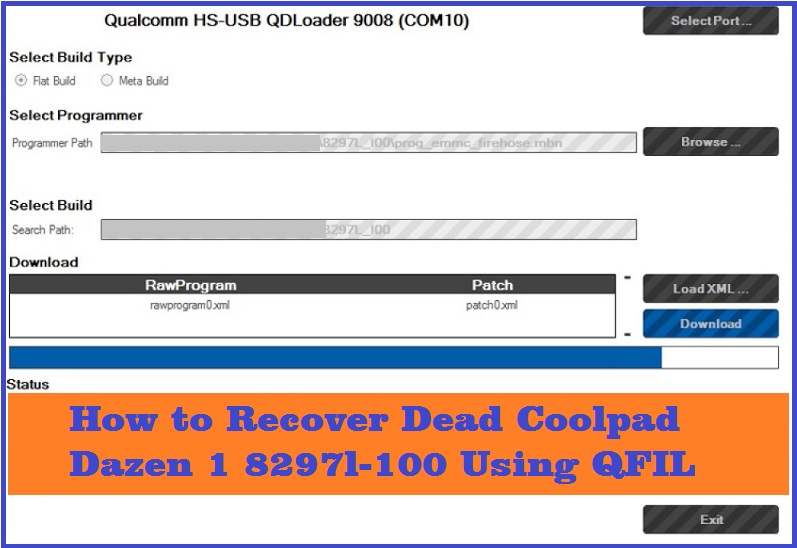
How to Recover Dead Coolpad 8297l-I00 Using QFIL Flash Tool


Hi friends here is the another Mobile repairing tutorial about how you can recover or unbrick dead boot Coolpad 8297l i00 or 8297l 100? As you sometimes after flashing the phone it will not boot up due to mismatch of firmware ROM and at that time you may looking for the solution to recover the Coolpad Dazen 1 and there are several procedure to recover the dead Qualcomm Coolpad phone and here we will discuss about one of the best solution to recover the phone.
How to Recover Dead Coolpad Dazen 1 8297l-100 Using QFIL

Qualcomm Coolpad dead boot repair and EDL mode firmware download link also available here. The Qualcomm Flash Image Loader (QFIL) is free software flash tool which can be used to flash Qualcomm firmware to the phone. When the Coolpad phone is dead it shows only the Qualcomm HS-USB QDLoader 9008 COM port for the model 8297l-100. Please see the below steps to recover your dead Coolpad phone.

Downloads Required:
Coolpad 8297l-100 QFIL ROM [Download Link]
Qualcomm Flash Image Loader (QFIL) Tool [Download Link]
(Qualcomm_Flash_Image_Loader_v2.0.0.5.zip)

Steps:
  • Download and extract the Coolpad QFIL ROM.
  • Open QFIL and select built type Flat Built.
  • Now browse prog_emmc_firehose.mbn
  • Then Load XML File rawprogram0.xml and patch0.xml
  • Now hold both volume keys and connect USB cable to the Computer.
  • Click on Download and wait until the process complete
If your Coolpad Dazen 1 8297l-100 dead and showing only Qualcomm HS-USB QDLoader 9008 COM port when you connect the phone to the Computer, then you can recover the phone using this method, so please follow the above process to unbrick dead boot Coolpad Dazen 1 smartphone.

Conclusion:
So in this way you can flash the dead Coolpad Dazen 1 8297l-100 using QFIL Flash Tool and QFIL firmware of this model. As I said before there are several process to unbrick or recover the dead Coolpad phone and here is the procedure by using the QFIL flash with QFIL Coolpad Qualcomm firmware. You can search this site for all possible solution for recovering the dead Coolpad smartphone.

📚 You May Also Like to Read