Showing posts with label Qualcomm Flashing. Show all posts

Sunday, December 30, 2018

Qualcomm USB Driver Setup File Download


Hi friends, here is the direct link to download Qualcomm USB driver for all Android Qualcomm smartphones, if you need to flash the Qualcomm phones using flash tool, then you need to install all flashing drivers required to operate the flashing procedure on the Windows computer and then only you can flash or install Android operating system on the phone. So here is the all in one solution for Qualcomm mobile USB drivers, just download and install it on your PC and it helps to flash the phone.
Qualcomm USB Driver Download Free Direct link

This Qualcomm USB driver is very helpful for all Android smartphones having Qualcomm chipset. If you need Oppo, Vivo, Micromax, Xiaomi, Xolo, Lava, Intex, Realme, Redmi, Mi, Itel and HTC Qualcomm flashing USB driver or EDL mode USB driver, then here is the only right place to download flashing USB driver for Android phones, which helps to flash the phone.
Qualcomm USB Driver Setup File Download

QUALCOMM USB DRIVERS DOWNLOAD LINK:-

All in one Qualcomm USB driver solution here, download the Qualcomm Android mobile USB driver to solve the flashing driver issues of the smartphones to flash the phone. 

DOWNLOADS:

Qualcomm USB driver Setup file (.exe file) | Download Link
Qualcomm USB driver Update Zip file download | Download Link
Qualcomm USB Driver Auto Installer RAR File (Oppo and Vivo) | Download Link
Thursday, November 29, 2018

Micromax E455 Qualcomm MSM8929 How to Flash and FRP Unlock/Google Account Reset


How to flash Micromax E455 MSM8929 Smartphone? Here is the process to flash the phone. If you need to know how to flash the Qualcomm Micromax E455 phone, then please go through the topic and watch the video on YouTube to know complete procedure to flash the phone using fastboot Mode. Download the Micromax E455 firmware and follow the tutorial.
 
Micromax E455 Qualcomm MSM8929 How to Flash and FRP Unlock Google Account Reset


How to remove Factory Reset Protection Lock of Micromax E455? As you know the Micromax E455 has Qualcomm chip-set MSM8929 and runs on Android version 5.0.2. So if you need to unlock the Micromax phone using free tool then here is the complete and 100% working solution for this. Just download the Qualcomm Free FRP Reset/Unlock tool from the link given below and follow the tutorial to know the procedure to unlock the phone.
 
Micromax E455 Qualcomm MSM8929 Flashing and Unlock


Micromax E455 forgot Gmail id and password, how to recover the phone? If you are facing this problem, that you have forgotten the Google account id and password used in that phone, then in that case you need to unlock FRP or reset the Google account, so that you can use another Gmail account on the same Android smartphone. So to unlock the phone this topic is most useful for the users, please watch the video on YouTube and follow the tutorial to know the Free FRP Unlock Way of Qualcomm Micromax E455 Android smartphone.

Micromax E455 FRP/Google Account Unlock Free Tool.
E455 Google verification unlock using Miracle Box 2.58.
Micromax E455 After Hard reset stuck on Wi-Fi screen.
Micromax E455 after hard reset asking to Enter Gmail id and password solution.
E455 Android 5.0.2 account unlock Miracle box 2.58.
E455 Qualcomm MSM8929 Free FRP Reset Tool 2019.


Micromax E455 Firmware Download Links:

Micromax E455 Flash File
H/W VER.:LLDMO18
S/W VER.:MMX_E455_SW_V16_HW_V1.0_25082015
Download Here
 

Micromax E455 Factory Firmware Download Link:

Micromax E455 MicromaxInfo Firmware Download | Download Link

How to Flash Micromax E455?

  • Download the E455 Firmware as per the phone S/W version.
  • Extract or Unzip the flash file.
  • Now connect the phone with Fastboot Mode.
  • Go to the Firmware folder and Double Click on fastboot_all_images.bat file.
  • Now the flashing process starts and wait until the process complete.
  • After flash complete Switch on the phone.
You can watch the Video Tutorial Here

Micromax E455 Fastboot Mode:

==> First Switch off the phone.
==> Hold Volume down and Connect USB cable.

Now you will see the Micromax Logo and Check the PC Device Manager.

Micromax E455 FRP Unlock:

Micromax E455 FRP or Google account unlock can be done in the same way, just flash the phone with the given firmware using fastboot mode and the Micromax E455 is permanently unlocked and you can use any other Google account on that phone after flashing.

Monday, June 11, 2018

[Solved] Coolpad Dazen 1 8297L-100 Flashing Failed at 11%


As you know you can flash Coolpad Dazen phone using YGDP flash tool and the flashing process will complete without any errors, but some of the Coolpad Dazen 1 8297L-100 or 8297L-I00 phone failed at 11% with the same YGDP Tool. There are some working methods to recover or unbrick the Coolpad Dazen 1 phone and here we will describe all possible solutions to unbrick the Coolpad smartphone or to recover the Coolpad Android smartphones. Please follow the below Methods to solve the YGDP Flashing failed at 11%, while flashing Coolpad phones.

As you know Coolpad has Qualcomm CPU and can be flashed firmware using YGDP Tool and QFIL flash tool. Coolpad Dazen Firmware, Coolpad Dazen Flash Tool Download links also provided in this tutorial. To Solve flashing process failed at 11% please follow the below methods.
How To Solve Coolpad Dazen 1 8297L-100 Flashing Failed at 11%


Coolpad Dazen Flashing Failed at 11% Solution Using YGDP Qualcomm Flash Tool:
  • Download Coolpad Dazen latest Firmware and Flash Tool (Link Given Below)
  • Charge the Battery at-least to 50% or more.
  • Now Flash the phone using YGDP Flash Tool.
  • Hold Volume Up Key and insert USB cable to the phone.
  • For complete process to flash the phone using YGDP Tool and Download Firmware and Flash Tool, Please Visit Here.
Coolpad Dazen Flashing Failed at 11% Solution Using QFIL Flash Tool:
  • Download QFIL Qualcomm Flash Tool (Link Given Below)
  • Download .CPB Firmware and Extract it Using YGDP Flash Tool.
  • Open QFIL flash tool and flash the phone.
  • Connect the phone with EDL Mode (Hold both Volume Keys and Insert USB cable)
  • To Know more about flashing with QFIL Flash Tool Please Visit Here.
How To Flash .CPB File With QFIL Flash Tool?

As you know .CPB firmware file can only be flashed with using YGDP flash tool, but do you know you can also flash the .CPB stock ROM using QFIL flash tool, which required prog_emmc_firehose.mbn and XML File rawprogram0.xml and patch0.xml. Here we will show how you can extract the .CPB firmware and flash with QFIL Flash Tool.

Steps:
  • Open YGDP Flash tool and Load the .CPB firmware.
  • When firmware loading process complete, don't close the flash tool.
  • Now go to the YGDP tool folder and find extracted firmware folder.
  • The name of the extracted firmware will be 8297L-100 or you can check any other folder to find the extracted firmware.
  • Now copy the folder to your Desktop and close the YGDP flash tool.
  • Then open the QFIL flash tool and select .mbn file and .xml file.
  • Now flash the phone with EDL mode.
So in this way you can recover the Coolpad phone and solve the flashing process failed at 11%. If the phone is dead when flashing it using YGDP flash tool then you can recover the dead boot Coolpad phone using Memory Card Method [SD Card Method Here]. If you still facing problem to solve the flashing failed error at 11%, then the phone must have some hardware fault.

Note: Although this methods are tested and working fine, but we are not responsible for any damage happens to the phone. This topic is only for tutorial purpose.

Monday, May 21, 2018

How To Recover Coolpad 8297L-100 Dead Boot Using SD Card


Free Computer Ticks We are always Happy to Help You.
In this tutorial you will know how to recover the Coolpad Dazen 8297l-100 or 8297l-i00 using SD card. Make the mcroSD card bootable with recovery file and then you can flash the phone using YGDP flash tool. You can also recover the dead Coolpad Android smart phone using QFIL flash tool. If the Coolpad phone dead after flash or dead after format then this topic will help you to recover the dead Coolpad Dazen 1 Android version 4.4 KitKat smartphone. What you have to do is just download a small EMMC boot image file and make the SD card bootable then write the boot image file, then insert the SD card in the phone and hold the Volume Key then connect USB cable to Computer, now the phone will boot up with download mode.

To dead recover your phone you need to download Win32 Disk Imager and Coolpad Dazen 1 EMMC Unbrick .img file. If the phone is not switched on and it's completely bricked then this process with defiantly help your to get the phone back to normal condition. Download links for Bootable SD card maker tool and recovery boot disk image file is given below.

Coolpad 8297L-100 Dead Boot Recover Done Using SD Card
First you need to create a bootable SD card or Memory card using the recovery eMMC disk image to boot the phone into fastboot mode or download mode. So let's create a bootable SD card for your Coolpad Phone, please follow the below steps.

Unbrick Coolpad - Create Bootable SD Card/Memory Card
  • Download Win32 Disk Imager (Download Link Given Below on this page)
  • Download Coolpad Dazen 1 8297L-100 Unbrick eMMC .img file (Download Link below)
  • You need a SD Card at least 2 GB and Card Reader.
  • Insert the Memory Card in card reader and connect to Computer.
  • Now open Win32 Disk Imager and choose the eMMC .img file.
  • Select your SD card Drive letter (Important).
  • Now Click on Write and when you see "Write Successful" Click OK then Exit.
  • Now insert the SD card in phone and press Volume Up then connect USB cable.
  • Now the phone will boot into fastboot download mode now flash the phone using YGDP flash Tool.
Downloads:
Download Win32 Disk Imager Tool Latest Version | Download Link
Download Coolpad Dazen 1 eMMC SD Card Boot Disk Image File | Download Link

Now you have successfully created a bootable SD card which boot the dead Coolpad Dazen 1 phone into download mode. After creating this bootable memory card follow the below tutorials to flash and unbrick the Coolpad Android smartphone.

Wednesday, May 16, 2018

How to Flash Coolpad Dazen 1 8297L-100 With YGDP Tool


Coolpad Dazen 1 8297L-i00 or 8297L-100 is an Android smartphone with low budget and it has the Android Operating System and runs on Qualcomm chip-set with various facility. The manufacturer Coolpad has designed with various features smart phone called Dazen 1and it's available in India with a approx current market price of Rs. 6999/-*. Coolpad Dazen 1 is an Android base smartphone powered by Android version 4.4 KitKat with 8 Mega Pixel auto focus main camera and 5 Mega Pixel front face camera, this device also supports 4G LTE. If you looking at the other configuration it has a 1.2 GHz Qualcomm Snapdragon 410 Quad Core Processor with 2 GB RAM and supports Dual SIM with Bluetooth connectivity. It has Li-Po 2500 MAh battery with good backup times and FM Radio with a screen size of 5 inch HD IPS Touchscreen Display. If you look at the Network feature it has  GSM 850/900/1800/1900 MHz frequency band with LTE 2300 MHz frequency band. We are not promoting any Mobile manufacturer or brand as it is Tutorial portal we provide some basic information about the phone before going to repair the phone specially for the Mobile Technician.


Download Qualcomm Unlock Tool RBSoft Mobile Tool v1.6 Full 100% Working : Link

What Is YGDP TOOL?
The YGDP Tool is a tool or utility used for flashing firmware to the Android smartphones. This too can be flash or download firmware to the phone having Spreadtrum (SPD), MediaTek (MTK) and Qualcomm chip-set smartphones. To flash your Mobile device with this tool, you need to put the device into Fastboot Mode or Download Mode. In this article you will get to know how to flash Coolpad Dazen Qualcomm Android phone using YGDP Tool. Download Latest version of YGDP tool and flash Android smartphones and it's supports .CPB firmware files.

How to Flash Coolpad Dazen 1 Using YGDP Tool?
  • Open YGDP Tool (YGDP_Setup_V5.00) and click Login.
  • Now click on Config and select Coolpad Dazen 8297l-100 CPB File.
  • Then click on Apply, now it will extract the firmware and it takes some time.
  • Then click on Start and connect the Coolpad phone with Fastboot Download Mode.
  • Wait until the flashing process complete, then remove the phone and switch ON it.
How to Flash Coolpad Dazen 1 8297L-100 With YGDP Tool

How to Boot Coolpad into Fastboot Download Mode?
  • First Switch off the phone.
  • Then hold Volume Up Key and Connect the phone to Computer using USB Cable.
  • Then again press Volume Up Key to Confirm.
Downloads:
YGDP Tool V5.0 | Download 
Coolpad Dazen 1 Firmware | Download

So in this way you can flash your Coolpad Dazen 1 8297l-i00 or 8297l-100 Android smartphone. Follow the above steps and download Coolpad firmware and YGDP Tool, then flash the phone.

-:Tips Of The Day:-
You can use Miracle Box V2.54 Setup Without Using Miracle Box and Dongle - Download Here

Wednesday, May 9, 2018

How to Flash Firmware Using YGDP Tool - Yulong General Download Platform


In this article you will know how to flash stock firmware on your smartphone and you can also know how to downgrade and upgrade phone firmware. This guide is very helpful to Mobile Technicians and also other people who are looking for flashing firmware on Qualcomm chip-set smartphones and Tablets. You can also know how to recover/fix/unbrick the smartphone if it's having Software problem.

What is YGDP?
The Yulong General Download Platform (YGDP) is small Windows software which helps to flash stock firmware on the smartphones. This tool supports to flash firmware ROM on your smartphone and commonly used for Qualcomm Chipset based smartphone, but you can also this tool to flash MediaTek Chipset and Spreadtrum Chipset based smartphones. The YGDP flash tool is supports all the firmware having .CPB file extension to download firmware on your phone.
How to Flash Firmware Using YGDP Tool - Yulong General Download Platform
How to Flash Firmware Using YGDP Tool?
As I said before this tool is for flashing stock firmware on your smartphone and to use it you need to download the smartphone Firmware and YGDP Tool [Download Link] and extract the firmware and select CPB file in YGDP tool then flash the phone.

Requirements:
Download YGDP Flash Tool [Link]
You Need Smartphone CPB Firmware.
Download YGDP USB Driver Here [Link]

Steps to Flash CPB Firmware Using YGDP Tool?
  • Download Smartphone Firmware.
  • Then download YGDP Tool from the above link and extract it.
  • Now open YGDP Tool select User: Assembly Click on Login.
YGDP Tool Login - How to flash firmware uisng YGDP Tool
  • Now click on Config it will open a new Window where you can select the CPB File.
  • Now browse and select CPB file and click on Apply.
  • Then click on Start button and connect the phone to the Computer.
  • Wait until the flashing process complete (100%).

How to Recover Dead Coolpad 8297l-I00 Using QFIL Flash Tool


Hi friends here is the another Mobile repairing tutorial about how you can recover or unbrick dead boot Coolpad 8297l i00 or 8297l 100? As you sometimes after flashing the phone it will not boot up due to mismatch of firmware ROM and at that time you may looking for the solution to recover the Coolpad Dazen 1 and there are several procedure to recover the dead Qualcomm Coolpad phone and here we will discuss about one of the best solution to recover the phone.
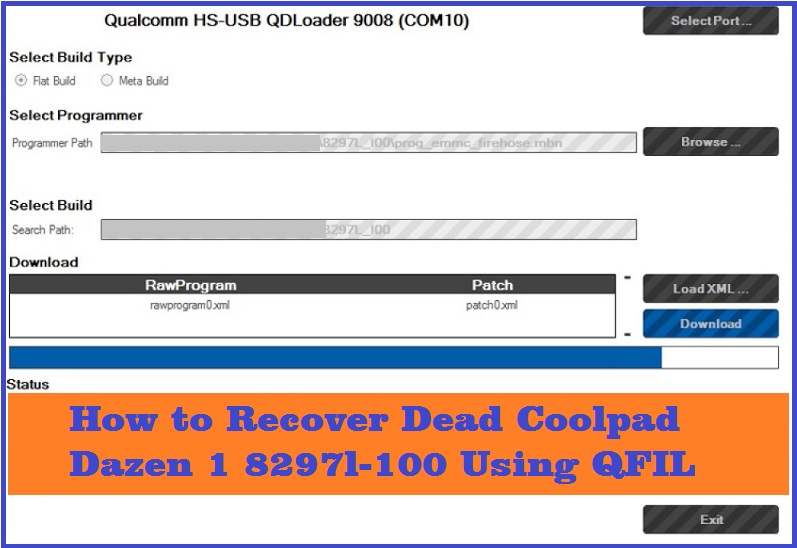
How to Recover Dead Coolpad Dazen 1 8297l-100 Using QFIL

Qualcomm Coolpad dead boot repair and EDL mode firmware download link also available here. The Qualcomm Flash Image Loader (QFIL) is free software flash tool which can be used to flash Qualcomm firmware to the phone. When the Coolpad phone is dead it shows only the Qualcomm HS-USB QDLoader 9008 COM port for the model 8297l-100. Please see the below steps to recover your dead Coolpad phone.

Downloads Required:
Coolpad 8297l-100 QFIL ROM [Download Link]
Qualcomm Flash Image Loader (QFIL) Tool [Download Link]
(Qualcomm_Flash_Image_Loader_v2.0.0.5.zip)

Steps:
  • Download and extract the Coolpad QFIL ROM.
  • Open QFIL and select built type Flat Built.
  • Now browse prog_emmc_firehose.mbn
  • Then Load XML File rawprogram0.xml and patch0.xml
  • Now hold both volume keys and connect USB cable to the Computer.
  • Click on Download and wait until the process complete
If your Coolpad Dazen 1 8297l-100 dead and showing only Qualcomm HS-USB QDLoader 9008 COM port when you connect the phone to the Computer, then you can recover the phone using this method, so please follow the above process to unbrick dead boot Coolpad Dazen 1 smartphone.

Conclusion:
So in this way you can flash the dead Coolpad Dazen 1 8297l-100 using QFIL Flash Tool and QFIL firmware of this model. As I said before there are several process to unbrick or recover the dead Coolpad phone and here is the procedure by using the QFIL flash with QFIL Coolpad Qualcomm firmware. You can search this site for all possible solution for recovering the dead Coolpad smartphone.

📚 You May Also Like to Read