Showing posts with label Samsung Flash Z3X. Show all posts

Monday, November 5, 2018

Download Samsung Z3X Pro Latest Version Working Without Box - Z3X 29.5 With LOADER


Hi friends, here is the anther tutorial from Free Computer Tricks, in this topic you will get the download link of Samsung z3x pro version working without box with loader. As you all know the z3x box or z3x pro box is one of the most popular software repair box for all Samsung basic and smartphones. So if you need to repair Samsung Android IMEI, Unlock Samsung phone, Samsung FRP Unlock and along with that you can fix many more software issues of the phone. Here is the free z3x pro software which works without box and 100% working loader with test report.
Samsung Z3X Pro New Working Without Box - Download Free

Here you can download Z3x pro tool free and 100% working, download z3x 29.5 with loader, as you know z3x pro v29.5 has most advance feature which helps to unlock/repair imei/FRP unlock/read write flash file etc. of all most all Samsung Android phone. To download z3x pro 29.5 with crack loader please visit the below link and to know about the supported device and feature please go through the topic.

FLASH INSTRUCTIONS:

1. Choose correct flash file(s).
2. If you have PIT file chosen, then you must check "Repartition" option.
3. Check flashing options if needed (Repartition, EFS clear, Boot update).
4. Power on the phone in download mode (turn off phone, hold Volume Down + Home + Power).
5. Connect the phone to PC with USB cable, install drivers if needed.
6. Press "Flash" button.

BACKUP INSTRUCTIONS:

Phone must be rooted!
If the software can't root the phone automatically, 
then you must root your device manually.

1. Power on the phone.
2. Tap 7 times on "Build number" in "Settings"-"About phone" to enable "Developer options", go to "Settings"-"Developer options" and enable "USB debugging".
3. Connect the phone to PC with USB cable, install drivers if needed.
4. Select device in ADB settings.
5. Press "Read EFS" button to read backup or "Write EFS" to restore or press "Write CERT" to restore certificates.

To backup/restore QCN, phone diagnostic port must be enabled.

  1. Power on the phone.
  2. Type *#0808# and select "DM+MODEM+ADB".
  3. Type *#9090# and select "DM/DUN over HSIC".
  4. Connect the phone to PC with USB cable, install drivers if needed.
  5. Select diagnostic port in port settings.
  6. Press "Read QCN" button to read NV backup or "Write QCN" to restore.

 
Samsung Z3X Pro -  Z3X 29.5 With LOADER

UNLOCK INSTRUCTIONS:

Micro-USB cable:

  1. Phone must be powered on.
  2. Type *#0808# and select "DM+MODEM+ADB".
  3. Type *#9090# and choose USB (or "DM/DUN over HSIC").
  4. Reboot phone.
  5. Connect USB cable, install drivers if needed.
  6. Select Samsung diagnostic port in port settings.
  7. Press "Unlock" button for direct unlock. 


REPAIR INSTRUCTIONS:

Repair IMEI/Serial/BT/WiFi/Product Code:

  1. Power on the phone.
  2. Type *#0808# and select "DM+MODEM+ADB".
  3. Reboot phone.
  4. Connect USB cable, install drivers if needed.
  5. Select Samsung diagnostic port in port settings.
  6. Press "Reset MSL" button to deactivate security.
  7. Wait till phone reboot.
  8. Tap 7 times on "Build number" in "Settings"-"About phone" to enable "Developer options", go to "Settings"-"Developer options" and enable "USB debugging".
  9. Select device in ADB settings.
  10. Fill values what you need to repair.
  11. Press "Repair" button.


Reset EFS, Disable Factory Mode:

Phone must be rooted!
If the software can't root the phone automatically, 
then you must root your device manually.

1. Power on the phone.
2. Tap 7 times on "Build number" in "Settings"-"About phone" to enable "Developer options", go to "Settings"-"Developer options" and enable "USB debugging".
3. Connect the phone to PC with USB cable, install drivers if needed.
4. Select device in ADB settings.
5. Press "Reset EFS" if you need to reset it.

Be carefully, do not perform this without necessity. Backup will be created automatically.

6. If you have yellow table on your device screen, then press "Disable Factory Mode" button.

Wipe EFS/NVM:

If you have "IMEI null/null" or "Phone baseband unknown" errors,
Then you can try to repair this errors with this function.  

1. Power on the phone in download mode (turn off phone, hold Volume Down + Home + Power).
2. Connect USB cable, install drivers if needed.
3. Press "Wipe EFS/NVM" button to deactivate security.
4. Wait till phone reboot.
 

Download Samsung Z3X Pro Latest Version Working Without Box  -  Z3X 29.5 With LOADER

Download Samsung Tool PRO 29.5 + Loader | Download Link
Password for the zip file is = fct@samtool

How to Use the Tool?
  • Download Z3x pro latest tool and loader from the above link.
  • Extract the zip file using the password given above.
  • Now double click on the Z3X 29.5 LOADER.exe to open.
  • Then click on TRY to open the tool
Watch the YouTube Video Here - Testing Report of Z3x Pro V29.5

Saturday, May 19, 2018

Samsung B110E Dead After Format - Recovered With Z3x Pro


How to Flash Samsung B110E? Samsung B110E Dead After Format With Miracle Box, Samsung Guru Plus Dead After Flash, How to Flash Samsung B110E Using Samsung Tool Pro, Free Samsung Tool Pro Download Working Without Z3x Box, B110E Dead After Format With Volcano Box, Samsung Guru Plus B110E Tested and Working Flash File Download, Samsung B110E How To Repair/Restore IMEI, B110E After Format No IMEI, Where To Download All Flash Files and Mobile Flashing Tools 2018 - GET ALL SOLUTIONS HERE IN ONE PLACE FOR FREE

Samsung Guru Plus SM-B110E/D Dead After Flash:
After format the phone using Miracle Box flash tool or Volcano Box flash tool the phone has dead or not switched on or sometimes if you flash the phone it may dead. If the phone's NV data is corrupted during flashing then the phone will goes dead and if you try to flash the phone again using Miracle Box or any other box it will show flashing errors. Although we try to flash the dead boot Samsung Guru Plus phone using Spreadtrum Flash Tool (SPD Flash Tool) both Upgrade Download Tool and Research Download Tool R4.0.0001 but not success it shows flashing error Unable to Read NV data, but finally after flashing with Samsung Tool Pro Flash Tool the phone has recovered and working fine.
Samsung Guru Plus SM-B110E/D Dead After Format - Solved (Recovered With Z3x Pro)

Samsung SM-B3110E Dead After Format or Dead After Flash Solution:
  • Download Samsung SM-B3110E Working Firmware (Download Link Provided Below)
  • Download Samsung Tool Pro Free (Working Without Z3x Pro Box Activation) (Download Link Provided Below)
  • Open Samsung Tool Pro and select all files in the Flash file folder (FDL, NV, SSboot, PS and SCS File)
  • On the top right side You will see "Options" Select Write NV.
  • Now click on Flash and Hold the Center Button then connect the phone to Computer with USB cable.
  • When you see "Flashing Done" remove the phone from PC and switch on it.
Samsung SM-B110E After Flash or After Format No IMEI - How to Repair IMEI B110E : Solution
  • Open Z3x Samsung Too Pro V24.3 and go to the Repair Tab.
  • Now fill the IMEI 1 and IMEI 2.
  • Then Select Flash Mode Option and Click on Repair.
  • When you see IMEI Repair Done, remove the phone and switch on it.
How to Repair IMEI Of Samsung SM-B110E/D - Solved
In this way you can recover your Samsung B110E dead after flash or dead after format the phone. As the process says download B110E/D flash file and Z3x Samsung Too Pro V24.3 100% working with out box and flash the phone with the flash file.

Note: This topic is only for Tutorial Purpose and If you Misuse this it must be at your own risk.

DOWNLOADS:
Samsung SM-B110E/D Flash File | Download
Z3x Samsung Tool Pro V24.3 (Works Without Z3x Box) | Search in Google
Password To Extract Flash File = FCT

Sunday, August 27, 2017

How to Read Password Lock Samsung C3010S Read Info Codes Success


Here is the tutorial about how you can read info codes, password lock, SIM lock and user lock codes on Samsung C3010S using Samsung Z3x Box and a USB cable. The below is the step by step process to unlock Samsung C3010S.

How to Password Unlock Samsung C3010S?

Here you will find the solution, how to unlock user lock code on Samsung phones for the model Samsung C3010S. To unlock user codes on Samsung feature phones you need flashing box i.e. Z3X Box and S20 USB or E210 Cable and Computer with Samsung Driver and Samsung Tools installed.

Samsung C3010S Read Info Codes Success

Steps:

1- Connect the Z3x Box to PC and Open Samsung 2G Tool then select the Model C3010S.
2- Now Connect the USB cable to Phone and Switch on the phone.
3- Let the Samsung C3010S USB driver install.
4- Now choose the Samsung Model COM Port on Samsung 2G Tool.
5- Then click on Read Info Codes and wait for sometime the tool will show all the user codes.


Then use the Phone Password to unlock the phone and you will find all other important codes on Samsung mobile phone C3010S.

Friday, April 1, 2016

Samsung Galaxy Note 3 SM-N750 Flashing Success With Z3x - Samsung Tool v19.0


The Samsung Galaxy Note 3 Neo SM-N750 hangs on logo, restart or reboot and hanging problem solve by flashing the phone with latest firmware, and here is the process to flash the phone with Z3x Samsung Tool V19.0. The phone runs on Android Lollipop 5.1, so download the latest version firmware of N750 and flash with Z3x. The firmware of the phone can be download using z3x shell or search Google for "Galaxy Note 3 Neo Firmware Indian Version", download the firmware is about 1.3GB and follow the instruction to flash the phone with Z3x box.

SM-N750 Firmware Download shell Z3x
Galaxy Note 3 Neo Flash Done With Z3x box:

Open z3x Samsung tool v19.0
Choose model SM-N750
Choose the flash file you have downloaded 
Now put the phone into Download mode (Volume Up+Home+Power Key)
Connect the phone using USB cable
Now click on Flash button


N750 Flash done With Z3x

That's all just wait until it finished the flashing process, now your Galaxy Note 3 Neo is flashed successfully.

Tuesday, March 17, 2015

How To Flash Samsung S5282 With Z3X Using Single tar File ( Home.tar file)


Here is the details about the flashing of Samsung S5282 with z3x using the single .tar file, that means as you know some Samsung firmware are coming with single .tar flash file, so this topic is about how to flash using this single home.tar file for Samsung Mobile.

So here is the example of Samsung S5282 how to flash with single flash file, download flash file S5282XXANA2_S5282ODDANA1_S5282DDAMH1_HOME.tar and use z3x to flash the firmware to the phone.

S5282 Flash With Z3x Using Single Flash File
  • Open z3x Samsung Tool
  • Select the Model
  • Choose the .pit file
  • Now Click on PDA and Select the Home.tar file
  • Put the phone to Download Mode
  • Connect to the PC
  • Now Click on Flash


S5282 How to flash with Home tar File using z3x
S5282 z3x Samsung Tool Log:


Selected model: S5282
Selected port: COM97 USB Serial Port
Selected port speed: 115200
File analysis... OK
Total file size: 0x3A75772C
Searching USB Flash Interface... detected COM17
Setup connection... OK
Reading PIT from phone... OK
Saved to C:\Program Files\Z3X\Samsung\SamsungTool

\Pit\S5282_10-2-2015_17-52-33.pit
Sending SPRDDSP.img... OK
Sending boot.img... OK
Sending recovery.img... OK
Sending SPRDCP.img... OK
Sending cache.img... OK
Sending system.img... OK
Sending hidden.img... OK
Sending param.lfs... OK
Flashing done  (time - 00:02:43)
Done with Samsung Tool v.18.8

Wednesday, December 31, 2014

Samsung E1207Y Flash Done With Z3x - Z3x Samsung Tool


How to flash Samsung E1207Y using Samsung Tool? Samsung E1207y flashing procedure with z3x given below, flash the phone using the following process with Samsung tool.

E1207Y flash success with Z3X
  • Open Samsung Tool V18.4
  • Select model E1207y and COM port
  • Select the E1207Y flash file
  • Click on Flash
  • Now connect the phone to PC by holding the Center/Music Key


E1207Y flash done z3x
Samsung E1207Y Z3x Log:


Selected model: E1207Y
Selected port: COM97 USB Serial Port
Selected port speed: 921600
Waiting phone... detected COM84
Sending FDL... OK
Reconnecting phone... OK
Reading NV... OK
Saved to C:\Program Files\Z3X\Samsung\SamsungTool\Backup\nvitem_E1207Y_29-12-2014_14-10-52.bin
Sending SSBOOT... OK
Sending PS... OK
Sending CSC... OK
Erasing FLASH... OK
Flashing done  (time - 00:01:22)
Done with Samsung Tool v.18.4

Wednesday, December 17, 2014

Samsung E1232B Unlock or Factory Reset Done With Z3x


How to unlock or factory reset Samsung E1232B? See the below details to reset the phone using Samsung 2G tool z3x. 


Samsung E1232B User Code Reset
  • Open Samsung 2G Tool
  • Select Model E1232 and z3x COM Port
  • Click on Direct Unlock
  • Connect the phone using J750 Cable


E1232B Unlock done with z3x


Thursday, December 11, 2014

Samsung E1200Y Read Codes Success With Z3X


How to  read codes of Samsung E1200Y using z3x Samsung Tool? the below is the process to read codes with flash mode for the E1200Y mobile phone.

Samsung E1200Y Read Codes
  • Open Samsung tool V18.3
  • Choose the Mode E1200Y
  • Select Flash Mode
  • Click on Read Codes option
  • Now Hold the OK button and Connect the phone with USB Cable 


E1200Y how to flash and read codes z3x
Samsung E1200Y z3x Log


Selected model: E1200Y
Selected port: COM97 USB Serial Port
Selected port speed: 921600
Waiting phone... detected COM84
Sending FDL... OK
Reconnecting phone... OK
Reading NV... OK
Checking NV... OK
IMEI Master: .........
Phone HW: MP 0.300
Product code:
Please wait, calculating codes... OK (time - 00:00:06)
Freeze code:  17368172
NET lock:  00000000
Sub lock:  00000000
SP lock:  00000000
CP lock:  00000000
SIM lock:  00000000
For check lock status: *#7465625#
Done with Samsung Tool v.18.3

Done with Samsung Tool v.18.3

Monday, December 8, 2014

How to Flash Samsung C3322i With Z3X ?


The below is the process to flash Samsung C3322i with z3x, see the step by step procedure and flash the phone with z3x Samsung Tool.

Samsung C3322i flash with Samsung Tool z3x
  • Open Samsung Tool
  • Choose mode C3322i and z3x COM port
  • Now load the flash files of C3322i
  • Click on Flash
  • Now press and hold 9 Key and connect USB cable to PC


C3322i flash done with Z3X


Samsung C3322i boot key = 9

Wednesday, December 3, 2014

Samsung C3222 Flash Success With Z3x Samsung 2G Tool


Here is the complete procedure to flash Samsung GT-C3222 with z3x, in this process you can easily flash Samsung C3222 with Samsung 2G Tool Z3x. The complete process is given below.

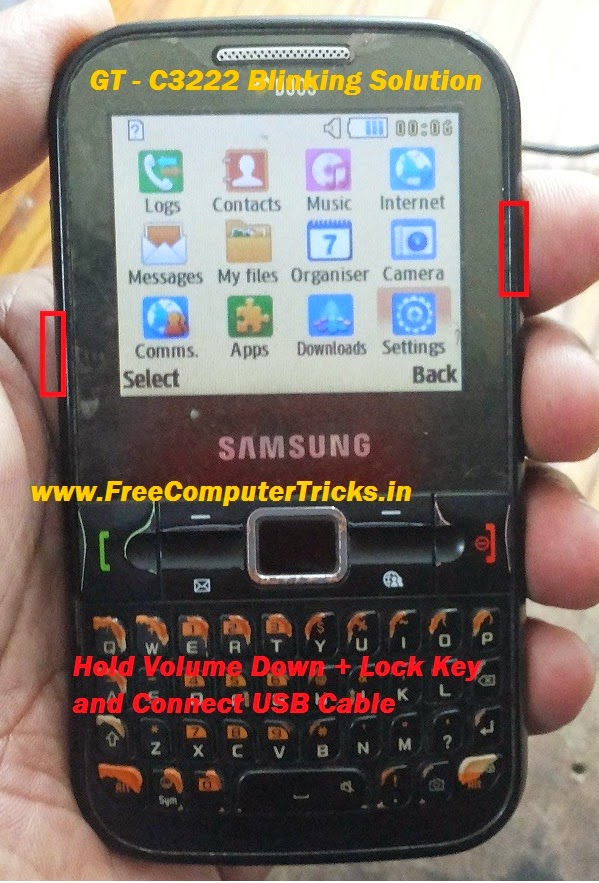
Samsung C3222 Blinking Solution, this can be done with the same way, just flash the phone with z3x and you phone will be work fine and the c3222 blinking problem will solve.


Samsung C3222 blinking solution here

Samsung C3222 Flash down with z2x and Blinking Solution, check the below details to flash the phone.

Samsung C3222 Flash With Z3x
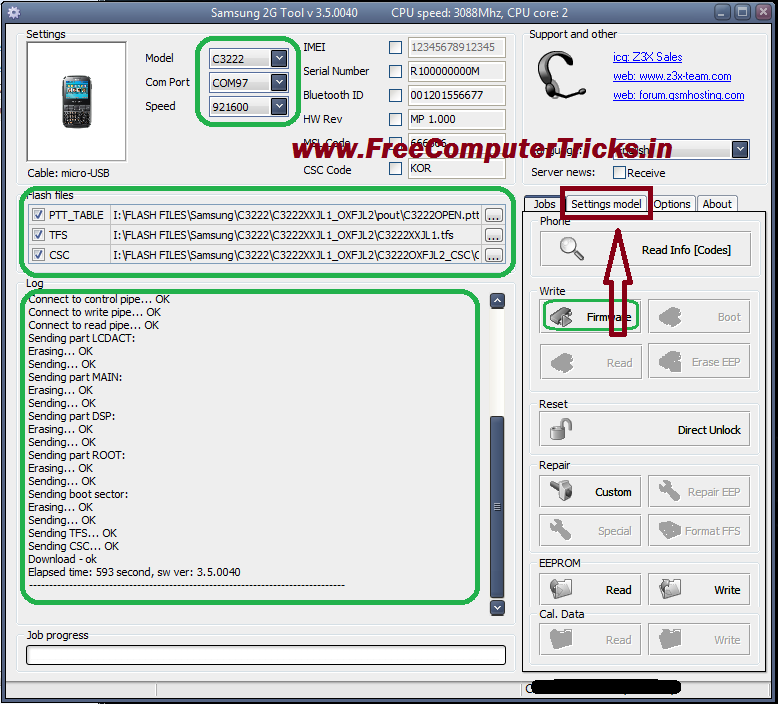
  • Open Samsung 2G Tool
  • Select Model C3222 and Choose the Flash files
  • Now Go to Setting Model and Tick on USB Mode
  • Click on Firmware
  • Press Volume Down + Lock Key and connect USB Cable


Samsung GT-C3222 Blinking Problem Solved by flashing with z3x
C3222 Z3X Log


Selected model: C3222
Selected com port: COM97
Selected speed port: 921600
Press "volume down" + "lock" and connect USB cable to phone
Connect to control pipe... OK
Processor ID -> 0A33
Sending loader... OK
Connect to control pipe... OK
Connect to write pipe... OK
Connect to read pipe... OK
Sending part LCDACT:
Erasing... OK
Sending... OK
Sending part MAIN:
Erasing... OK
Sending... OK
Sending part DSP:
Erasing... OK
Sending... OK
Sending part ROOT:
Erasing... OK
Sending... OK
Sending boot sector:
Erasing... OK
Sending... OK
Sending TFS... OK
Sending CSC... OK
Download - ok
Elapsed time: 593 second, sw ver: 3.5.0040

------------------------------------------------------

Friday, September 12, 2014

Samsung GT-C3530 Restart Problem Solved 100% - www.FreeComputerTricks.in


Samsung GT-C3530 restart on logo and blinking problem solved, here is the details and step by step process how to solve restart problem on Samsung GT-C3530 and how to flash C3530 with Flash Tool E2_ROU.

Samsung C3530 Restart Problem Solved 10000%
Samsung C3530 flash success with z3x, but the restart problem is remain same, then when the phone is flashed using Flash tool it's success and now the phone is working fine. Samsung C3530 restart and blinking problem solution is here and it's 100% working and tested by Me.


If you have facing the restart problem on Samsung C3530 then flash the phone using OG flasher (Flash Tool E2_ROU) and the hangs on logo, restart or blinking C3530 will be solved

How to Flash Samsung C3530 With Flash Tool E2_ROU?

Download FlashTool_E2_ROU.rar and C3530XXKG2_PRTKG1 Samsung Firmware
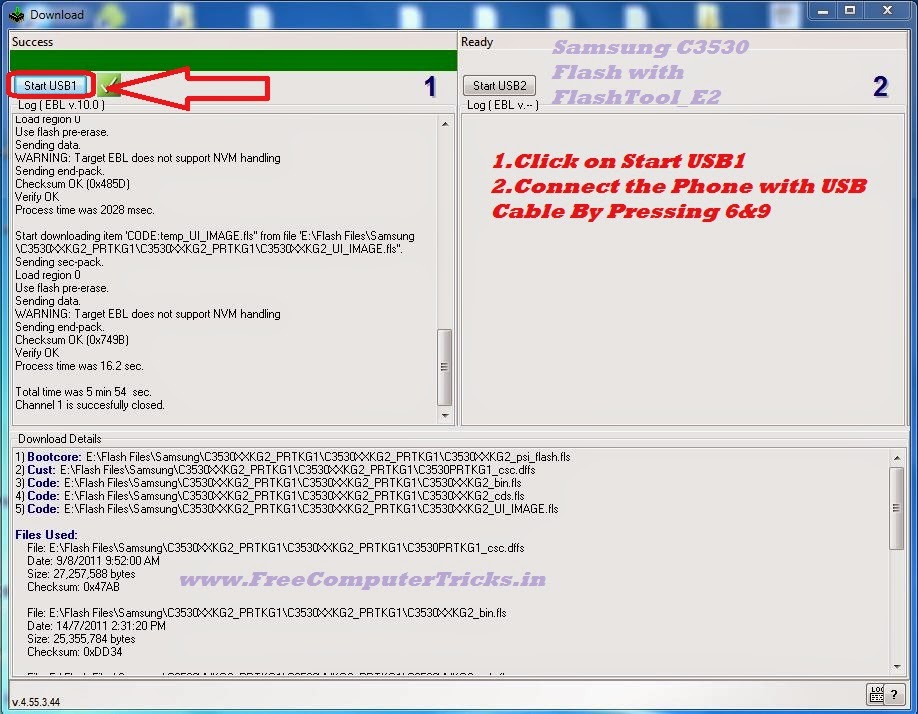
  • Open FlashTool_E2
  • Add the Firmware files (See the below Image)
How to flash Samsung C3530 with FlashTool_E2 OG Flash Tool For GT-C3530
  • Click on Next
  • Now Click On Start USB1


samsung c3530 restart problem solved - how to flash samsung c3530 with flash tool
  • Connect the phone with USB Cable by pressing 6+9
  • Now the Download process will start

Wait until the download process complete, then remove the phone and switch on the phone now the restart problem of Samsung C3530 is solved.

Friday, August 1, 2014

How to Flash Samsung S5292 With HWK UFS3 - Samsung S5292 Flash Done


Samsung GT-S5292 successfully flashed with hwk ufs3, the below is the complete and step by step procedure to flash S5292 with ufs. If you are unable to flash Samsung S5292 with hwk ufs, then this will help you to flash the mobile. 

How to flash Samsung S5292

Download
  • S5292XXMB2_OXEMB3.zip from Internet


Flash Samsung S5292 with UFS3

  • Open Samsung Tools HWK SAMs.exe
  • Click on Sky/Inf Tab
  • Select Model S5292
  • Select S5292 Flash Files
S5292OXEMB3_CSC.dffs
S5292XXMB2_BSY.fls
S5292XXMB2_CDS.fls
  • Click on Write Flash
  • Connect C3303K cable to phone with battery

Samsung S5292 Flash success with ufs3
Samsung S5292 UFS3 Log


MSL Patched OK: 00:00
If used non Auto-Ignition cable, press Power-On button
IF_SBL: XGOLD230, Ok
IF_EBL: CATFISH2230_PCM_1.9400_M1S1 1.9400, Mode: BB
BAUD_R: 921600
FL_ID : FF000000, Unknown 1024+32Mb
S5292XXMB2_BSY.fls FLASH BUNDLE:
Flash File: CATFISH.fls
Erase Area: 0x40000000 - 0x4001FFFE, Erased: 00:00
Write Area: 0x40000000 - 0x4001FFFE, Written: 00:02
Flash File: CATFISH.fls
Erase Area: 0x40020000 - 0x42EFFFFE, Erased: 00:20
Write Area: 0x40020000 - 0x42A03212...Writing
IFXFR_ERR_BAD_CMD
WR_ERR_DATA: ,at: 41526800
ShutDown Done 


MSL Patched OK: 00:00
If used non Auto-Ignition cable, press Power-On button
IF_SBL: XGOLD230, Ok
IF_EBL: CATFISH2230_PCM_1.9400_M1S1 1.9400, Mode: BB
BAUD_R: 921600
FL_ID : FF000000, Unknown 1024+32Mb
S5292XXMB2_BSY.fls FLASH BUNDLE:
Flash File: CATFISH.fls
Erase Area: 0x40000000 - 0x4001FFFE, Erased: 00:00
Write Area: 0x40000000 - 0x4001FFFE, Written: 00:02
Flash File: CATFISH.fls
Erase Area: 0x40020000 - 0x42EFFFFE, Erased: 00:11
Write Area: 0x40020000 - 0x42A03212, Written: 15:03
S5292XXMB2_CDS.fls FLASH BUNDLE:
Flash File: CATFISH.fls
Erase Area: 0x42F00000 - 0x42FFFFFE, Erased: 00:00
Write Area: 0x42F00000 - 0x42F6B64E, Written: 00:09
S5292OXEMB3_CSC.dffs FLASH BUNDLE:
Flash File: temp_GT-S5292_OXE.dffs
Erase Area: 0x43000000 - 0x47E7FFFE, Erased: 00:20
Write Area: 0x43000000 - 0x45CFB2EA, Written: 18:04
ShutDown Done
All Done, Time: 34:38
Make [Reset MMI] or Use *2767*3855# at First Start !


Thursday, July 10, 2014

Samsung C3322i Read User Code Done With Z3x Samsung Tool V17.7


Samsung C3322i read user code, unlock and reset done with Samsung Tool V17.7. The below is the process to flash the c3322i for unlock and read user code.
C3322I Read User Code Z3x
  • Open Samsung Tool V17.7
  • Select Model C3322i
  • Select Z3x Com Port
  • Click on Read
  • Switch ON the phone and Connect c3303k RJ45 to Micro USB Cable

how to read user code of Samsung C3322i with z3x Samsung tool v17.7
After read complete you will see the phone lock in the log panel, use that code to unlock the phone.


Sunday, July 6, 2014

Samsung E1282T Unlock and Read Codes Done By Z3x Samsung Tool V17.6


The Samsung E1282T read user codes and unlock successfully done with Samsung Tool V17.6 Z3x, see the below topic to unlock E1282T with Z3x. How to flash Samsung E1282T with Z3x.

Samsung E1282T SPD 6530A CPU successfully unlock with z3x Samsung Tool V17.6.


How to Unlock E1282T With Z3x

  • Open Samsung Tool
  • Select Model E1282T
  • Select Z3x COM Port
  • Click on Unlock  (For Factory Reset)
  • Then Connect USB Cable to Phone by Pressing the Center Button (Music Key)


E1282T Samsung Unlock and Read Codes Done With Z3x


If you want read codes then Click on Read Codes and connect the USB Cable to Samsung E1282T by pressing Center Key.


E1282T Unlock Z3x Log:

Selected model: E1282T
Selected port: COM97 USB Serial Port
Selected port speed: 921600
Waiting phone... detected COM60
Sending FDL... OK
Reconnecting phone... OK
Reading NV... OK
Checking NV... OK
IMEI Master: xxxxx
Phone HW: MP 0.500
Product code: GT-E1282RWTINS
Sending NV... OK
Unlock done
Done with Samsung Tool v.17.6

E1282T Read Codes z3x Log:

Selected model: E1282T
Selected port: COM97 USB Serial Port
Selected port speed: 921600
Waiting phone... detected COM60
Sending FDL... OK
Reconnecting phone... OK
Reading NV... OK
Checking NV... OK
IMEI Master: xxxxxxx
Phone HW: MP 0.500
Product code: GT-E1282RWTINS
Please wait, calculating codes... OK (time - 00:00:33)
Freeze code:  91583026
NET lock:  00000000
Sub lock:  00000000
SP lock:  00000000
CP lock:  00000000
SIM lock:  00000000
For check lock status: *#7465625#
Done with Samsung Tool v.17.6

Monday, June 30, 2014

Samsung S3850 Flash Done With Multi Loader V5.65


Samsung S3850 Restart problem solved by flashing with Multiloader, the below is the procedure to flash Samsung S3850 with Multi Loader.


Samsung S3850 Download Mode

  • Volume Down + Call Key + Power Key (For Download Mode)


Samsung S3850 Download Mode


How to Flash Samsung S3850 With Multi Loader V5.65


  • Put the phone into Download Mode
  • Connect the phone to PC using Micro USB Cable
  • Open Multiloader
  • Click on BRCM2133
  • Tick on Full Download
  • Then Choose the S3850 Flash Files (i.e. Boot, Amss, Apps, Rsrc1, Rsrc2, Factory FS, CSC and SHP APP)
  • Then Click on Download


Samsung S3850 Flash Done with multi loader - how to flash Samsung S3850 with Multiloader

Wait until all files download complete, then the device will restart, that's all now the Samsung S3850 Flash done using multi loader. So in this way you can flash Samsung S3850 without box.

Sunday, June 29, 2014

How to Flash Samsung E3213 With Z3x - www.FreeComputerTricks.in


Unable flash Samsung E3213K with z3x, I tried to flash in two ways but not success but Samsung E3213K flash done with HWK UFS3. Just see the below details.


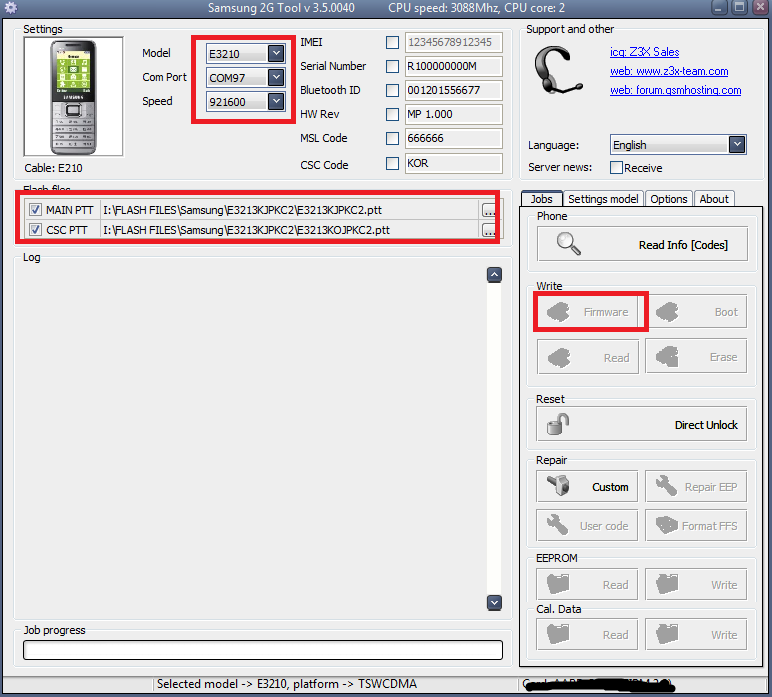
Samsung E3213K Flash With Z3X Samsung 2G Tool


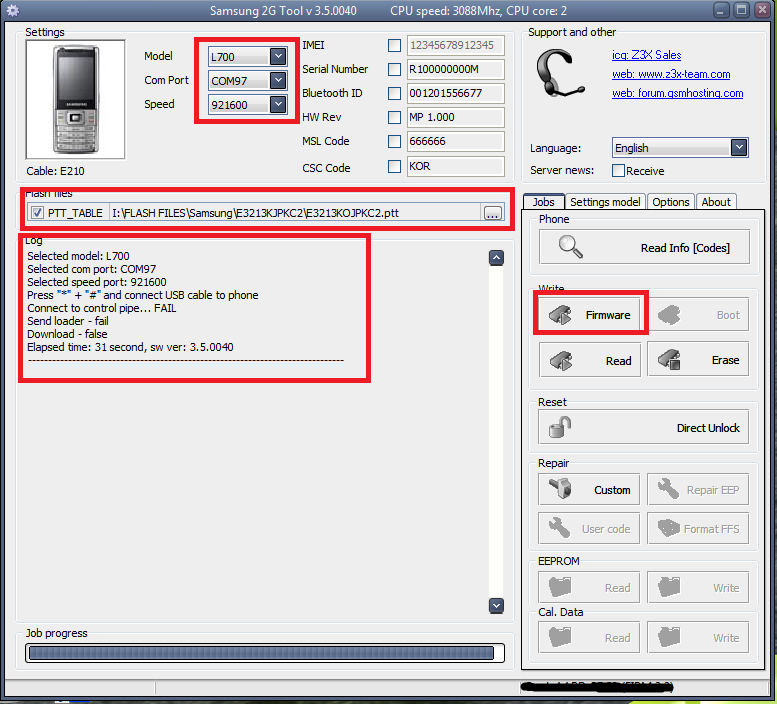
As you noticed that in Samsung 2G tool there is no such Model but you can choose E3210 only for Reset/Unlock the E3213K, the Firmware option is not enabled. See the below scree shot.


Samsung E3213 Unable to Flash with Z3x Samsung 2G tool

But Some one told me that you can flash Samsung E3213K with Z3x by selecting the model L700, and tried it but it's not detected the phone. Just See the below screen shot.


Samsung L700 to Flash E3213K with Samsung 2G Tool Z3x


If any body knows the complete procedure using z3x, can post through comments.


E3213K Flashed With UFS 


But good news for HWK UFS users, the Samsung E3213K successfully flashed with Ufs3 to know the step by step process to flash E3213K with HWK please vising the below link of my website, which is very useful.


Thursday, June 26, 2014

How to Flash Samsung S5222 With Z3x - www.FreeComputerTricks.in


To flash Samsung S5222 with Z3x use Samsung 2G Tool. The below is the procedure to flash Samsung S5222 with Z3x. Samsung S5222 Restart problem solved by flashing with z3x.


How to flash S5222 With Samsung 2G Tool


  • Open Samsung 2G Tool
  • Select Model S5222
  • Select Z3x COM Port
  • Choose the Flash Files
  • Now click on Firmware
  • Then Connect the Micro USB Cable to Switched Off Phone


Samsung S5222 Flash Done With Samsung 2G Tool Z3x


To do a Factory Reset of S5222

  • Switch ON the Phone
  • Connect the USB Cable
  • Then Click on Direct Unlock

Sunday, June 22, 2014

How to Flash Samsung GT-S5222R With Z3X - www.FreeComputerTricks.in


In this tutorial you will know how to flash Samsung GT-S5222R with Z3X Box, the below is the procedure to flash the phone using z3x box Samsung 2G Tool.

Samsung GT-S5222R Flash Done With Samsung 2G Tool
 

How to Flash Samsung S5222R

  • Open Samsung 2G Tool
  • Select Model S5222
  • Select Z3X COM Port
  • Select the S5222R Flash Files
  • Click on Firmware


Then Connect the phone using USB Cable or Press Volume Up & Down then connect the USB Cable or Press Home Button then connect the USB Cable.


📚 You May Also Like to Read