Showing posts with label Samsung Z3X. Show all posts

Monday, July 8, 2019

Z3X Samsung Tool Pro v36.8 Features and Download Setup (June, 2019)


Hi friends, if you are using z3x box pro then here is the latest new update released on June, 2019, so download here and update your Samsung tool pro to get more features and new supported devices. The below is the features added to the new version of Samsung Tool Pro and download link available.


How to Download Samsung Tool Pro - Z3X Samsung Tool Pro v36.8 Features and Download Setup

Samsung Tool PRO 36.8 Update setup download, Lot of news inside.

Samsung Tool Pro 36.8 New Features Added:


  • support SM-T720 (Flashing, Read/Write EFS, reboot download/recovery)
  • support SM-T725 (Flashing, Read/Write EFS, Read/Write QCN, Direct READ codes via server, reboot download/recovery)
  • support SM-T725N (Flashing, Read/Write EFS, Read/Write QCN, Direct READ codes via server, reboot download/recovery)
  • support SM-T510 (Flashing, Read/Write EFS, reboot download/recovery)
  • support SM-T515 (Flashing, Read/Write EFS, Direct READ codes via server, reboot download/recovery)
  • support SM-T517 (Flashing, Read/Write EFS, Direct READ codes via server, reboot download/recovery)
  • support SM-T387VK (Flashing, Read/Write EFS, Read/Write QCN, Direct READ codes via server, reboot download/recovery)
  • support SM-J260A (Flashing, Read/Write EFS, Direct UNLOCK via server, reboot download/recovery)

Z3x shell Support Files - Samsung tool PRO

  • support SM-T927A (Flashing, Read/Write EFS, Direct READ codes via server, reboot download/recovery)
  • support SM-A202F (Flashing, Read/Write EFS, Direct READ codes via server, reboot download/recovery)
  • support SM-A3050 (Flashing, Read/Write EFS, Direct READ codes via server, reboot download/recovery)
  • support SM-A3058 (Flashing, Read/Write EFS, Direct READ codes via server, reboot download/recovery)
  • support SM-A305N (Flashing, Read/Write EFS, Direct READ codes via server, reboot download/recovery)
  • support SM-A305YN (Flashing, Read/Write EFS, Direct READ codes via server, reboot download/recovery)
  • support SM-T727 (Flashing, Read/Write EFS, Read/Write QCN, Direct READ codes via server, reboot download/recovery)
  • support SM-A105FN (Flashing, Read/Write EFS, Direct READ codes via server, reboot download/recovery)
  • support SM-A606Y (Flashing, Read/Write EFS, Read/Write QCN, Direct READ codes via server, reboot download/recovery)
  • support SM-A705F (Flashing, Read/Write EFS, Read/Write QCN, Direct READ codes via server, reboot download/recovery)
  • support SM-A705FN (Flashing, Read/Write EFS, Read/Write QCN, Direct READ codes via server, reboot download/recovery)
  • support SM-A705GM (Flashing, Read/Write EFS, Read/Write QCN, Direct READ codes via server, reboot download/recovery)
  • support SM-A705MN (Flashing, Read/Write EFS, Read/Write QCN, Direct READ codes via server, reboot download/recovery)
  • support SM-A705W (Flashing, Read/Write EFS, Read/Write QCN, Direct READ codes via server, reboot download/recovery)
  • support SM-A705YN (Flashing, Read/Write EFS, Read/Write QCN, Direct READ codes via server, reboot download/recovery)
  • support SM-A805F (Flashing, Read/Write EFS, Read/Write QCN, Direct READ codes via server, reboot download/recovery)
  • support SM-F900F (Flashing, Read/Write EFS, Read/Write QCN, Direct READ codes via server, reboot download/recovery)
  • support SM-F900U (Flashing, Read/Write EFS, Read/Write QCN, Direct READ codes via server, reboot download/recovery)
  • support SM-G970U (Flashing, Read/Write EFS, Read/Write QCN, Direct READ codes via server, reboot download/recovery)
  • support SM-G970U1 (Flashing, Read/Write EFS, Read/Write QCN, Direct READ codes via server, reboot download/recovery)
  • support SM-G970W (Flashing, Read/Write EFS, Read/Write QCN, Direct READ codes via server, reboot download/recovery)
  • support SM-G973U (Flashing, Read/Write EFS, Read/Write QCN, Direct READ codes via server, reboot download/recovery)
  • support SM-G973U1 (Flashing, Read/Write EFS, Read/Write QCN, Direct READ codes via server, reboot download/recovery)
  • support SM-G973W (Flashing, Read/Write EFS, Read/Write QCN, Direct READ codes via server, reboot download/recovery)
  • support SM-G975U (Flashing, Read/Write EFS, Read/Write QCN, Direct READ codes via server, reboot download/recovery)
  • support SM-G975U1 (Flashing, Read/Write EFS, Read/Write QCN, Direct READ codes via server, reboot download/recovery)
  • support SM-G975W (Flashing, Read/Write EFS, Read/Write QCN, Direct READ codes via server, reboot download/recovery)
  • support SM-G977U (Flashing, Read/Write EFS, Read/Write QCN, Direct READ codes via server, reboot download/recovery)
  • support SM-T387AA (Flashing, Read/Write EFS, Read/Write QCN, Direct READ codes via server, reboot download/recovery)
  • support SM-T387W (Flashing, Read/Write EFS, Read/Write QCN, Direct READ codes via server, reboot download/recovery)
  • support SM-T837A (Flashing, Read/Write EFS, Read/Write QCN, Direct READ codes via server, reboot download/recovery)
  • support SM-A105N (Flashing, Read/Write EFS, Direct READ codes via server, reboot download/recovery)
  • support SM-A205S (Flashing, Read/Write EFS, Direct READ codes via server, reboot download/recovery)
  • support SM-A205W (Flashing, Read/Write EFS, Direct READ codes via server, reboot download/recovery)
  • support SM-A205YN (Flashing, Read/Write EFS, Direct READ codes via server, reboot download/recovery)
  • support SM-A505U (Flashing, Read/Write EFS, Direct READ codes via server, reboot download/recovery)
  • support SM-A505W (Flashing, Read/Write EFS, Direct READ codes via server, reboot download/recovery)
  • support SM-T515N (Flashing, Read/Write EFS, Direct READ codes via server, reboot download/recovery)
  • support SM-T725C (Flashing, Read/Write EFS, Read/Write QCN, Direct READ codes via server, reboot download/recovery)

How to Download Z3x Samsung Tool Pro ?

You can download Samsung tool pro using z3x shell, first download z3x shell and install it then connect the z3x box and open the shell and download zex Samsung tool pro or you can also download it from the below link. In the z3x shell software or tool you will find the below software.

2G_tools_3.5.0040.Exe   
54.08 Mb

SamsungEditor 3.2.Exe    34.19 Mb

SamsungRecoveryPack_1.9.Exe     92.65 Mb

SamsungRootPack_1.1.Exe    219.74 Mb

SamsungToolPRO_36.8.Exe   2 Weeks Ago    58.20 Mb Download Below


Download Samsung Tool Pro 36.8 | Download Link

Sunday, October 8, 2017

Z3X Box Samsung Tool 20.5 Download


Download Z3x box Samsung tool setup latest version 20.5, this is the Samsung Tool version and it does not need any special activation to use the software or tool on your Z3X Box, if you need to use Samsung Tool Pro then you need to buy activation credit to use this Samsung Pro tool on your Z3x Box. So here is the download link for Z3X box Samsung tool v20.5, please visit the below link to download Z3x box setup/installer file.

Download Z3x Samsung Tool 20.5 Mediafire Link - Samsung Tool Latest Update Download Here

What's New?
Samsung Tool 20.5 Update. *New phones + bug fix

Fixed:
 
• SM-G850W write cert
• SM-T805W write cert
• SM-N910T write cert*
• SW crashed
• black skin fix on some PC

Added:
 
• support SM-G850A (Direct unlock, Reset MSL, Flashing, Write cert, Wipe EFS with auto-backup)

Downloads:

You can download Z3x Samsung Tool 20.5 by visiting the below site or if you need to download Z3x Samsung Tool 20.5 direct link then please visit the link download Samsung Tool 20.5 Mediafire.


Samsung Tool 20.5 Mediafire

Sunday, August 27, 2017

How to Read Password Lock Samsung C3010S Read Info Codes Success


Here is the tutorial about how you can read info codes, password lock, SIM lock and user lock codes on Samsung C3010S using Samsung Z3x Box and a USB cable. The below is the step by step process to unlock Samsung C3010S.

How to Password Unlock Samsung C3010S?

Here you will find the solution, how to unlock user lock code on Samsung phones for the model Samsung C3010S. To unlock user codes on Samsung feature phones you need flashing box i.e. Z3X Box and S20 USB or E210 Cable and Computer with Samsung Driver and Samsung Tools installed.

Samsung C3010S Read Info Codes Success

Steps:

1- Connect the Z3x Box to PC and Open Samsung 2G Tool then select the Model C3010S.
2- Now Connect the USB cable to Phone and Switch on the phone.
3- Let the Samsung C3010S USB driver install.
4- Now choose the Samsung Model COM Port on Samsung 2G Tool.
5- Then click on Read Info Codes and wait for sometime the tool will show all the user codes.


Then use the Phone Password to unlock the phone and you will find all other important codes on Samsung mobile phone C3010S.

Wednesday, December 17, 2014

Samsung E1232B Unlock or Factory Reset Done With Z3x


How to unlock or factory reset Samsung E1232B? See the below details to reset the phone using Samsung 2G tool z3x. 


Samsung E1232B User Code Reset
  • Open Samsung 2G Tool
  • Select Model E1232 and z3x COM Port
  • Click on Direct Unlock
  • Connect the phone using J750 Cable


E1232B Unlock done with z3x


Thursday, December 11, 2014

Samsung E1200Y Read Codes Success With Z3X


How to  read codes of Samsung E1200Y using z3x Samsung Tool? the below is the process to read codes with flash mode for the E1200Y mobile phone.

Samsung E1200Y Read Codes
  • Open Samsung tool V18.3
  • Choose the Mode E1200Y
  • Select Flash Mode
  • Click on Read Codes option
  • Now Hold the OK button and Connect the phone with USB Cable 


E1200Y how to flash and read codes z3x
Samsung E1200Y z3x Log


Selected model: E1200Y
Selected port: COM97 USB Serial Port
Selected port speed: 921600
Waiting phone... detected COM84
Sending FDL... OK
Reconnecting phone... OK
Reading NV... OK
Checking NV... OK
IMEI Master: .........
Phone HW: MP 0.300
Product code:
Please wait, calculating codes... OK (time - 00:00:06)
Freeze code:  17368172
NET lock:  00000000
Sub lock:  00000000
SP lock:  00000000
CP lock:  00000000
SIM lock:  00000000
For check lock status: *#7465625#
Done with Samsung Tool v.18.3

Done with Samsung Tool v.18.3

Monday, December 8, 2014

How to Flash Samsung C3322i With Z3X ?


The below is the process to flash Samsung C3322i with z3x, see the step by step procedure and flash the phone with z3x Samsung Tool.

Samsung C3322i flash with Samsung Tool z3x
  • Open Samsung Tool
  • Choose mode C3322i and z3x COM port
  • Now load the flash files of C3322i
  • Click on Flash
  • Now press and hold 9 Key and connect USB cable to PC


C3322i flash done with Z3X


Samsung C3322i boot key = 9

Thursday, July 10, 2014

Samsung C3322i Read User Code Done With Z3x Samsung Tool V17.7


Samsung C3322i read user code, unlock and reset done with Samsung Tool V17.7. The below is the process to flash the c3322i for unlock and read user code.
C3322I Read User Code Z3x
  • Open Samsung Tool V17.7
  • Select Model C3322i
  • Select Z3x Com Port
  • Click on Read
  • Switch ON the phone and Connect c3303k RJ45 to Micro USB Cable

how to read user code of Samsung C3322i with z3x Samsung tool v17.7
After read complete you will see the phone lock in the log panel, use that code to unlock the phone.


Sunday, July 6, 2014

Samsung E1282T Unlock and Read Codes Done By Z3x Samsung Tool V17.6


The Samsung E1282T read user codes and unlock successfully done with Samsung Tool V17.6 Z3x, see the below topic to unlock E1282T with Z3x. How to flash Samsung E1282T with Z3x.

Samsung E1282T SPD 6530A CPU successfully unlock with z3x Samsung Tool V17.6.


How to Unlock E1282T With Z3x

  • Open Samsung Tool
  • Select Model E1282T
  • Select Z3x COM Port
  • Click on Unlock  (For Factory Reset)
  • Then Connect USB Cable to Phone by Pressing the Center Button (Music Key)


E1282T Samsung Unlock and Read Codes Done With Z3x


If you want read codes then Click on Read Codes and connect the USB Cable to Samsung E1282T by pressing Center Key.


E1282T Unlock Z3x Log:

Selected model: E1282T
Selected port: COM97 USB Serial Port
Selected port speed: 921600
Waiting phone... detected COM60
Sending FDL... OK
Reconnecting phone... OK
Reading NV... OK
Checking NV... OK
IMEI Master: xxxxx
Phone HW: MP 0.500
Product code: GT-E1282RWTINS
Sending NV... OK
Unlock done
Done with Samsung Tool v.17.6

E1282T Read Codes z3x Log:

Selected model: E1282T
Selected port: COM97 USB Serial Port
Selected port speed: 921600
Waiting phone... detected COM60
Sending FDL... OK
Reconnecting phone... OK
Reading NV... OK
Checking NV... OK
IMEI Master: xxxxxxx
Phone HW: MP 0.500
Product code: GT-E1282RWTINS
Please wait, calculating codes... OK (time - 00:00:33)
Freeze code:  91583026
NET lock:  00000000
Sub lock:  00000000
SP lock:  00000000
CP lock:  00000000
SIM lock:  00000000
For check lock status: *#7465625#
Done with Samsung Tool v.17.6

Thursday, June 26, 2014

How to Flash Samsung S5222 With Z3x - www.FreeComputerTricks.in


To flash Samsung S5222 with Z3x use Samsung 2G Tool. The below is the procedure to flash Samsung S5222 with Z3x. Samsung S5222 Restart problem solved by flashing with z3x.


How to flash S5222 With Samsung 2G Tool


  • Open Samsung 2G Tool
  • Select Model S5222
  • Select Z3x COM Port
  • Choose the Flash Files
  • Now click on Firmware
  • Then Connect the Micro USB Cable to Switched Off Phone


Samsung S5222 Flash Done With Samsung 2G Tool Z3x


To do a Factory Reset of S5222

  • Switch ON the Phone
  • Connect the USB Cable
  • Then Click on Direct Unlock

Friday, June 20, 2014

Samsung GT-S5292 Read Phone Lock Success With Z3X - www.FreeComputerTricks.in


How to read Samsung S5292 phone lock code or security code in Z3X, so below is the procedure to read user code for z3x users.


Steps:
  • Open Samsung Tool
  • Select Model S5222
  • Select Z3X COM Port
  • Switch ON the phone
  • Click Read (User Code) 
  • Connect UART Cable/C3300k Cable


Samsung S5292 Read User Code Done with Z3X

Thursday, May 8, 2014

How to Flash Samsung C3322 With Z3X - www.FreeComputerTricks.in


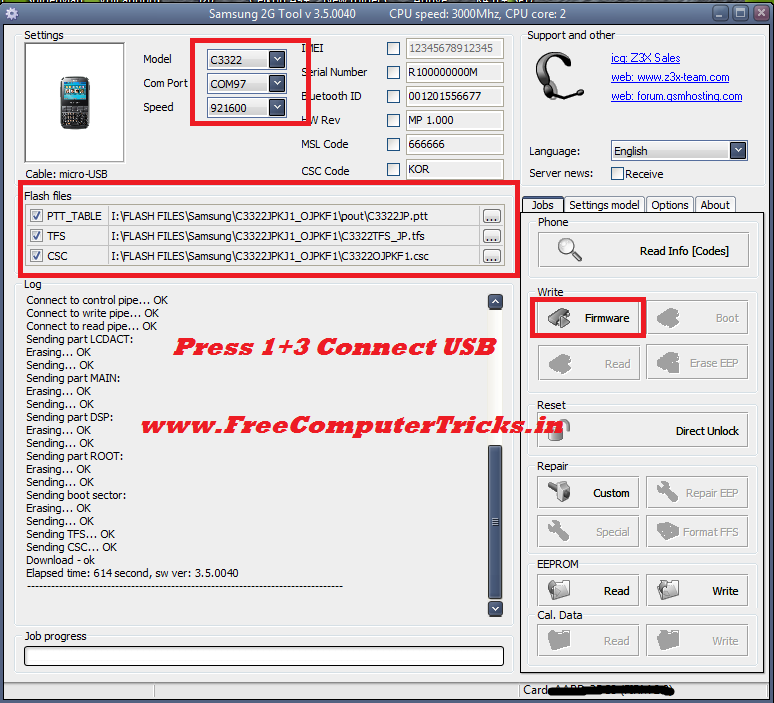
In this topic you will able to know how to flash Samsung C3322 with z3x. The below is the step by step procedure to flash Samsung C3322 with Z3X.


How to Flash Samsung C3322 Z3X


  • Open Samsung 2G Tool
  • Select Model C3322
  • Select COM Port
  • Choose Samsung C3322 Flash File i.e. .ptt, .tfs and .csc 
  • Then Click on Firmware
  • Connect USB Cable by pressing 1+3


how to flash c3322 Samsung with z3x

Sunday, May 4, 2014

How to Flash Samsung E1207T With Z3X - www.FreeComputerTricks.in


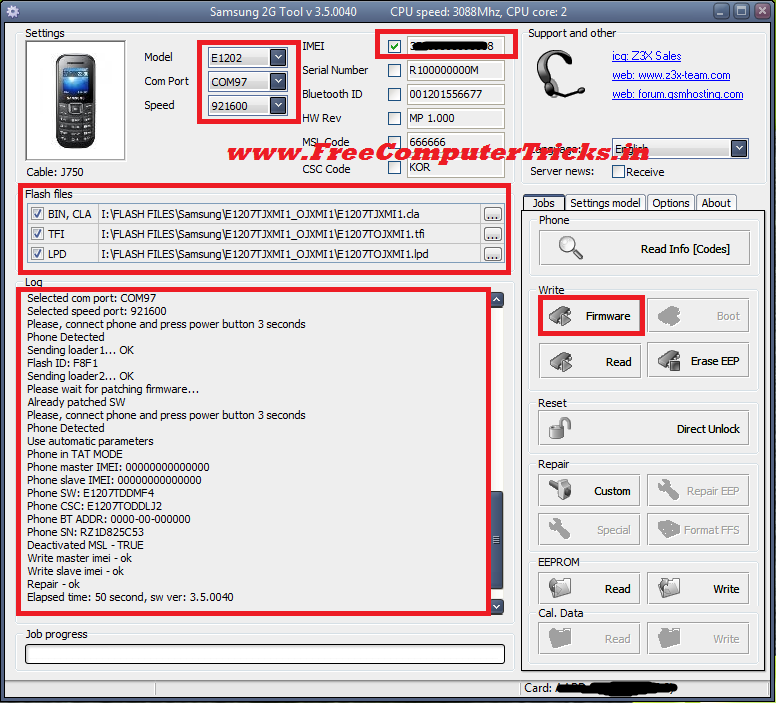
How to flash samsung e1207t with z3x? Z3X does not have this model, so to flash samsung e1207t with z3x follow the below steps.


Samsung E1207T Flashing Process With Z3X

 
  • Open Samsung 2G Tool
  • Select Model E1202
  • Select Z3X COM Port
  • Select Flash Files
  • Click on Firmware


How to flash Samsung E1207T with Z3X

Samsung E1207T Flash Z3X Log:

Selected model: E1202
Selected com port: COM97
Selected speed port: 921600
Please, connect phone and press power button 3 seconds
Phone Detected
Sending loader1... OK
Flash ID: 0004
Set speed - Fail
Send loaders - fail
Patch MSL - FAIL

Elapsed time: 9 second, sw ver: 3.5.0040

If you got this error "Set speed - Fail" while flashing e1207t with z3x Press the power button 3 to 4 seconds after connect the USB Cable to the phone.

------------------------------------------------------------------
Selected model: E1202
Selected com port: COM97
Selected speed port: 921600
Please, connect phone and press power button 3 seconds
Phone Detected
Sending loader1... OK
Flash ID: F8F1
Sending loader2... OK
Please wait for patching firmware...
Already patched SW
Please, connect phone and press power button 3 seconds
Phone Detected
Use automatic parameters
Phone in TAT MODE
Phone master IMEI: 00000000000000
Phone slave IMEI: 00000000000000
Phone SW: E1207TDDMF4
Phone CSC: E1207TODDLJ2
Phone BT ADDR: 0000-00-000000
Phone SN: RZ1D825C53
Deactivated MSL - TRUE
[FREZEE]: 73246500
[NET Lock]: 00000000
[Subset Lock]: 00000000
[SP Lock]: 00000000
[CP Lock]: 00000000
[Sim Lock]: 00000000
[Phone Lock]: 84867195
Read info - ok
Elapsed time: 52 second, sw ver: 3.5.0040
------------------------------------------------------------------

Sunday, April 27, 2014

How to Flash Samsung C6712 With Z3X - Samsung GT-C6712 Flash Done With Z3X


In this tutorial I will show you how to Flash Samsung C6712 with z3x and download mode of c6712.


Download Mode Samsung C6712


Press and Hold 'Volume Down' and 'SIM Swap' key and press Power Button

or

Press and Hold both 'Volume UP & Down key' and 'SIM Swap' key and press Power Button (This Download Mode is For Z3x)


Samsung C6712 Flash Done With Z3X


  • Select Model C6712
  • Select Z3X COM Port
  • Open the Flash file (APPS, RSRC1, RSRC2, FFS, CSC and APP_B)
  • Put the Samsung C6712 to Download Mode and Connect Micro USB 
  • Then Click on Firmware


how to flash samsung gt-c6712 with z3x

By flashing the samsung c6712 you can solve the Restart problem of Samsung on Logo.


Search Tags: how to flash samsung c6712 z3x, samsung c6712 hangs on logo, c6712 restart on samsung logo, flashing help z3x samsung tool, samsung c6712 restart on logo solved with z3x, how to flash samsung mobiles with z3x, samsung mobile restart solutions, samsung 6712 firmware flashing with z3x, samsung hangs and restart solution, samsung unlock with z3x, samsung firmware upgrade with z3x, all samsung flashing solution here with z3x, samsung c6712 not detected with z3x, samsung c6712 download mode, samsung c6712 flash modem not found, samsung c6712 no flash modem solved, www.freecomputertricks.in, Free Computer Tricks, samsung flash modem not found, samsung flash modem not detected with z3x solved.

Thursday, March 6, 2014

Samsung C3752 Flash Done With Z3X - How To Flash C3752 With Z3X, Samsung 2G Tool


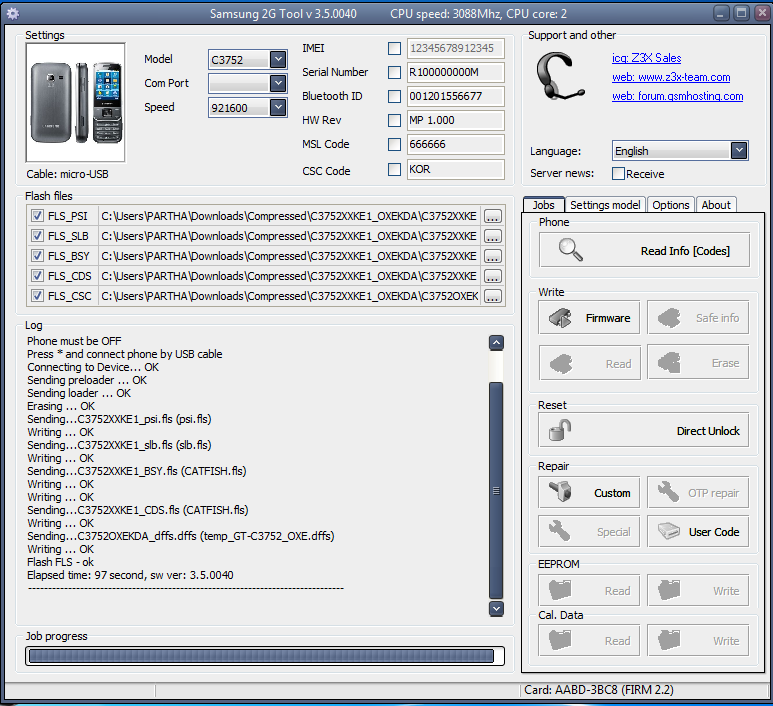
Samsung c3752 flash done with z3x box, Samsung 2G Tool. Here is the process how to flash c3752 with z3x box.

  • Open Samsung 2G Tool
  • Select the Model C3752
  • Select the Flash Files i.e. PSI, SLB, BSY,CDS and CSC
  • Then Just connect the Micro USB Cable to Samsung C3752


Samsung C3752 Flashing with Z3X Box using Samsung 2G Tool v3.5.0040

That's wait for sometime to finish the flash process and you have successfully flash the Samsung C3752 phone with Z2X.

📚 You May Also Like to Read