Showing posts with label Samsung Firmware Flash. Show all posts

Friday, August 31, 2018

J5 (SM-J500F) VoLte Indian Firmware Free Download - Android 6.0.1


Samsung J5 SM-J500F VoLte Issue after flash and here is the final and tested solution to enable Volte after flashing with J5 Volte firmware Android 6.0.1. Here you can download J5 VoLte firmware which tested and 100% working and ODIN 3 flash tool to flash the phone. Download the Volte firmware free and direct link given below and extract the zip file and flash using Odin3 flasher. This is the 4 file firmware with pit file, just flash the AP, CP, BL and CSC using Odin 3, using the Samsung Download Mode (Volume Down + Home +Power Key).

Download and Fix VoLte for J500F, J5 Stock ROM Android 6.0.1 with Volte supported. Firmware Volte for Sam Mobile J500F Marshmallow Update firmware, flash the Samsung Galaxy J5 with Volte firmware and solve after flash Volte problem on the phone. After flashing Samsung J5 No Volte and LTE signal only shows 4G while using Reliance Jio SIM, if you are facing this problem then here is the solution for you, please follow the process step by step and 100% you will solve the Volte issue on Samsung J5 Android smartphone.
Samsung Galaxy J5 (SM-J500F) VoLte Indian Firmware Free Download - Android 6.0


J500F Firmware Details:

J500FXXU1BRC1_ODD1BQL1
AP_J500FXXU1BRC1_CL10808387_QB17352744_REV00_user_low_ship_MULTI_CERT.tar.md5
BL_J500FXXU1BRC1_CL10808387_QB17352744_REV00_user_low_ship_MULTI_CERT.tar.md5
CP_J500FDDU1BQG1_REV00_CL2210784_QB6948156.tar.md5
CSC_ODD_J500FODD1BQL1_CL10808387_QB16277894_REV00_user_low_ship_MULTI_CERT.tar.md5
J5LTE_EUR_OPEN.pit

Galaxy J5 Software Info:

Android Version : 6.0.1
Baseband Version : J500FDDU1BQG1
Android Security Patch Level : 1 August 2017

Downloads:

Download J500F VoLte Flash File {Download Link}

For Password watch the Complete Video on YouTube Here and you will find the password given in the video.

Odin 3 Flash Tool Download 


Odin3 Flash Tool V 3.12.5 | Download

Monday, June 4, 2018

[Solved] After Flash J5 Prime SM-G570F No VoLTE Solution


Hi friends, to day I faced a problem on the Samsung J5 Prime (SM-G570), that when flash firmware or download/upgrade firmware to the phone using ODIN3 downloader tool, it is not showing VoLTE (Voice Over Long-Term Evolution), only shows 4G, the phone was  in hanged  on logo condition and before flash VoLte was working. I download the latest Android 7.0  Nougat and flash the phone using Odin flash tool, but there had no VoLTE with Reliance JIO 4G VoLte SIM card, After trying all possible process to overcome this error on the Samsung J5 Prime, not able solve this problem, the phone also has been checked with different VoLTE SIM card but result is same, only shows 4G no VoLTE, but after a long research of 4 hours, I finally got the solution and solve the VoLTE issue on the phone after flashing firmware on it. Here in this tutorial I will show you how you can solve this problem, before that let's know why this VoLTE issue arises on the Android smartphone'

The main cause for not available VoLte or not showing Volte on Samsung Android Nougat Smartphone is Downgrading the firmware or Flashing other country firmware on the phone, but the cause is not limit to this it may also happen due to, flashing Samsung Combination File, Flash with FRP unlock file, Downgrading the Security Patch Level, Country has not been selected on the phone, Flashing with Custom ROMs and Hard Reset or Factory Reset not performed after flashing the phone.
Samsung J5 Prime SM-G570F No Volte Solved - Visit The topic of  this Website To Know Full Procedure to Enable VoLTE

Firmware Required:
SM-G570F_1_20180525174027 (You can use any latest version of J5 Prime firmware Android 7.0 and here is the example of Samsung Galaxy J5 Prime INS or IN Indian firmware, here you can download Samsung Indian Firmware version, INS Samsung Firmware download)

Firmware Contains:
AP_G570FXXU1BRE3_CL13447025_QB18278502_REV00_user_low_ship_meta.tar.md5
BL_G570FXXU1BRE3_CL13447025_QB18278502_REV00_user_low_ship.tar.md5
CP_G570FXXU1BRD1_CL644522_QB9510658_SIGNED.tar.md5
CSC_ODD_G570FODD1BRD2_CL13447025_QB17843420_REV00_user_low_ship.tar.md5
HOME_CSC_ODD_G570FODD1BRD2_CL13447025_QB17843420_REV00_user_low_ship.tar.md5
J5 Prime SM-G570F Flash OK - G570FXXU1BRD1 - G570FODD1BRD2 - G570FXXU1BRE3
What is Voice over Long Term Evolution (VoLTE)?

As in this topic we are discussing about VoLTE or Voice Over LTE, then why not have a basic idea about VoLTE used in Mobile communication, let's have as small description about Voice Over Long-Term Evolution (VoLTE). In short VoLTE is a technology used in high speed wireless communication for Mobile Phones and also includes wearable. It is based on the IP Multimedia Subsystem (IMS) network to control and media planes of the voice service on LTE. Normally with this technology the voice service is being transmitted through LTE data bearer and no need to maintain the legacy circuit switched voice network, The VoLTE has up to three times more voice and data capacity than 3G UMTS and up to six times more than 2G GSM, the VoLTE used small packets for voice transmission over LTE so it's do not consume high bandwidth, for more details you can visit the Wikipedia page.

How to Solve VoLTE Issue on Galaxy J5 Prime:
  • Download the firmware and Odin Flash tool (Link given below)
  • Flash the phone with Odin3 using this firmware.
  • After flash do factory reset or hard reset the phone (Important) (using settings of the phone or you can use the key combinations to hard reset the phone)
  • Now VoLTE will work on the Samsung J5 Prime, it's tested and 100% working.


~~~::: Downloads :::~~~

1) Download Samsung Flash Tool (Download ODIN3) | Download Link
2) Download Samsung J5 Prime INS/IN Android 7.0 VoLTE Firmware | Download Link

In this way you can solve the VoLTE issue on the Samsung J5 Prime SM-G570F. Samsung firmware download and Samsung flash too download direct and high speed link given in this tutorial and important thing is after flash the phone with this firmware please do factory reset or hard reset the phone otherwise you may not get the VoLTE signal on your device.

Note: Flashing Firmware will erase all your data and sometimes flashing may kill the phone, so applying this tutorial must be completely at you own risk and we are not responsible for any damage happens to the phone.

Saturday, September 16, 2017

J700F sw rev check fail device 4 binary 3 - 100% Tested Soluiton Here


When you flash the Samsung J7 (J700F/DD) you may get this error called 'sw rev check fail device 4 binary 3' or something similar to this with the changing of numbers i.e. 'sw rev check fail device 2 binary 1' and 'sw rev check fail device 3 binary 2' etc. So here we will discuss about these errors on Samsung J700F while flashing firmware and give the 100% working solution here. 

The Error "SW REV. Check Fail" On J7 I Faced Today:

Today when I flash the Samsung J7 using 'Odin3 flash tool' it shows the error "sw rev check fail device 4 binary 3" on download mode screen on the smart phone and on Odin3 it shows fail, and when I try to switch ON the device, it won't switched ON, only shows an error message like "An error has occurred while updating  the device software. Use the Emergency recovery function in the Smart Switch PC Software". Then I try to use the "Smart Switch" PC software to recover the phone but when put Model No. and S.N. Number on "Smart Switch" it shows not found any firmware for this Model please type the correct Model No. and Serial No. although I provided correctly according to the IMEI sticker on the phone. I also try to solve this problem using 'Kies' but it shows same error and then I try to search on "Internet" but did not get the exact solution for this, but after a long time finally, I solved this error and here share the process to help others.


Samsung J7, J700f sw rev check fail device 4 binary 3 100% Solution Here

Why This Error Comes?

This error comes due to downgrade the phone software, that means if the phone has updated to latest Android version 6.0.1 on J7 and you try to flash with 5.0 Android version. After upgrade to Android version 6.0.1 the Boot Loader of the phone also updated so it does not allow Downgrade the Boot Loader.

Solution For SW REV Check Fail on Samsung J7:

This step by step procedure is tested on Samsung J7 (J700F/DD) model and 100% working for me. Please follow the below process to recover Samsung J7.

Steps:

1- Download J700F Latest Firmware (Android Version 6.0.1) Here
2- Download Odin3 (v3.12.7) Here
3- Now extract the firmware and you will get
J700FXXU4BQE3_J700FODD4BQE1_J700FXXU4BQF4_HOME.tar.md5
4- Now extract odin3_v3.12.7.zip and Open "Odin3 v3.12.7.exe"
5- Now click on "AP" and select the "HOME.tar" File
6- Now put the Samsung J7 into Download Mode (Volume Down+Home+Power Key and Then Press Volume UP to confirm)
7- Now click on Start button on Odin3 and wait until the flashing process complete.

That's all now you have successfully recovered the Samsung J700F using Odin3 and latest Android 6.0.1 firmware. If still you are facing any problem with J700F while flashing firmware, please ask through comments.

This topic is 100% Solution For These Below Errors on J700F/DD Firmware Flashing:

j700f sw rev check fail device 4 binary 3
sw rev. check fail device 2 binary 1 j700f
Sw Rev. Check Fail Device Solution
How to fix sw rev check fail device 3, binary 2 SM-j700F
sw rev check fail device 3 binary 2 j700f
How to fix sw rev check fail device 3, binary 1
Samsung J700F sw rev check fail device 3 binary 2
sw rev. check fail device 2 binary 1 j700f
j700f sw rev check fail
samsung j7 sw rev check fail device binary 0 how To Fix
sw rev check fail device 2 binary 1 j700h
sw rev check fail device 3 binary 1 j700f
sw rev check fail device 3 binary 2 j700f Samsung Galaxy J7
Emergency firmware recovery J700F Kies and Smart Switch not success 

Samsung J7 (J700F) Android 6.0.1 Firmware Downlaod - J700FXXU4BQE3


If you are searching for Samsung Galaxy J7 J700F/DD firmware, then you can download it here. Here is the download link of Samsung J7 J700F/DD firmware for the Android version 6.0.1, download the firmware and flash the faulty phones. This is the latest version of J7 firmware with Android version 6.0.1 download it from direct link below.

Samsung J700F Firmware Details:

J700FXXU4BQE3_J700FODD4BQE1
J700FXXU4BQE3_J700FODD4BQE1_J700FXXU4BQF4_HOME.tar.md5

Model: SM-J700F/DD
File Name : J700FXXU4BQE3    J700FODD4BQE1   J700FXXU4BQF4
Android Version: 6.0.1
File Size:  2.2GB (after extract)
Download Zip File Size: 1.18GB


Samsung J700F Flash OK J700FXXU4BQE3_J700FODD4BQE1 Android Version 6.0.1

Downloads:

Download Samsung Galaxy J700F firmware from the below links.

To download J700F firmware go here and then download it from the first link which is androidfilehost link.

J700F/DD Official Firmware

Download the above firmware for Samsung Galaxy J7 J700F and flash the J7 Android smart phone, this the official firmware and latest firmware which can be download here.

Wednesday, November 16, 2016

How to Downgrade Samsung J7 From 6.0.1 to 5.1.1 : Samsung J7 (J700F) Only


As you know, when you try to flash or write firmware on Samsung J7 (J700F) using Odin3 or any other flash tool, you get an error message and the flashing process is failed. I tried several firmware to flash the J7 but not success and search the Internet for this and get a firmware that can flash the Samsung J7 and also downgrade the J700F from Android Version 6.0.1 to 5.1.1.

Samsung J7 (J700F) Flash Success Using ODIN 3
 So here is the details to get the firmware and download J700F firmware, flash it using Odin Flash Tool and  downgrade 6.0.1 to 5.1.1. After downgrade the Android version you can easily do a FRP reset of the phone.

Downloads J700F:

1) J700F_PC4_PC8_PG3_Build_Downgrade_By_CHAIN.tar download using Google Search.

2) Download Odin3 V3.12.3 

DOWNLOAD ODIN3 V3.12.3

Tuesday, March 17, 2015

How To Flash Samsung S5282 With Z3X Using Single tar File ( Home.tar file)


Here is the details about the flashing of Samsung S5282 with z3x using the single .tar file, that means as you know some Samsung firmware are coming with single .tar flash file, so this topic is about how to flash using this single home.tar file for Samsung Mobile.

So here is the example of Samsung S5282 how to flash with single flash file, download flash file S5282XXANA2_S5282ODDANA1_S5282DDAMH1_HOME.tar and use z3x to flash the firmware to the phone.

S5282 Flash With Z3x Using Single Flash File
  • Open z3x Samsung Tool
  • Select the Model
  • Choose the .pit file
  • Now Click on PDA and Select the Home.tar file
  • Put the phone to Download Mode
  • Connect to the PC
  • Now Click on Flash


S5282 How to flash with Home tar File using z3x
S5282 z3x Samsung Tool Log:


Selected model: S5282
Selected port: COM97 USB Serial Port
Selected port speed: 115200
File analysis... OK
Total file size: 0x3A75772C
Searching USB Flash Interface... detected COM17
Setup connection... OK
Reading PIT from phone... OK
Saved to C:\Program Files\Z3X\Samsung\SamsungTool

\Pit\S5282_10-2-2015_17-52-33.pit
Sending SPRDDSP.img... OK
Sending boot.img... OK
Sending recovery.img... OK
Sending SPRDCP.img... OK
Sending cache.img... OK
Sending system.img... OK
Sending hidden.img... OK
Sending param.lfs... OK
Flashing done  (time - 00:02:43)
Done with Samsung Tool v.18.8

Tuesday, August 26, 2014

How to Flash Samsung S8530 With Multiloader - A Complete Procedure


Samsung S8530 successfully flashed with Multiloader V5.67, the below is the complete and step by step procedure to flash Samsung S8530 with Multi Loader, where you can know which file to select and how to select the flash files of S8530 and which model to select on Multiloader to flash the phone.

Download
  • multiloader v5.67.zip and
  • Samsung S8530 Firmware


s8530 flash done with multi loader
Samsung S8530 Flash With Multiloader

  • Open MultiLoader V5.67
  • Select LSI and Tick on Full Download
  • Click on BOOT and give the the BOOTFILES Path Ex. S8530\BOOTFILES
  • Amss = amss.bin
  • Apps = apps_compressed.bin
  • Rsrc1 = Rsrc_S8530.rc1
  • Rsrc2 = Rsrc2_S8530(Low).rc2
  • Factory FS = FactoryFs_S8530_Common.ffs
  • SHP APP = ShpApp.app
  • CSC = CSC_S8530_Open_JPKA1.csc
  • Now Put the Samsung S8530 in to Download Mode (Press Both Volume Key + Camera + Power Key), Remember Samsung S8530 Download Mode Volume UP + Volume Down + Camera + Power Key.
  • Connect the Samsung S8530 with Micro USB Cable
  • Then Click on Download Button


That's all now wait till the flash process complete after that the phone will automatically restart and finally Samsung S8530 has been successfully flashed.


Sunday, July 13, 2014

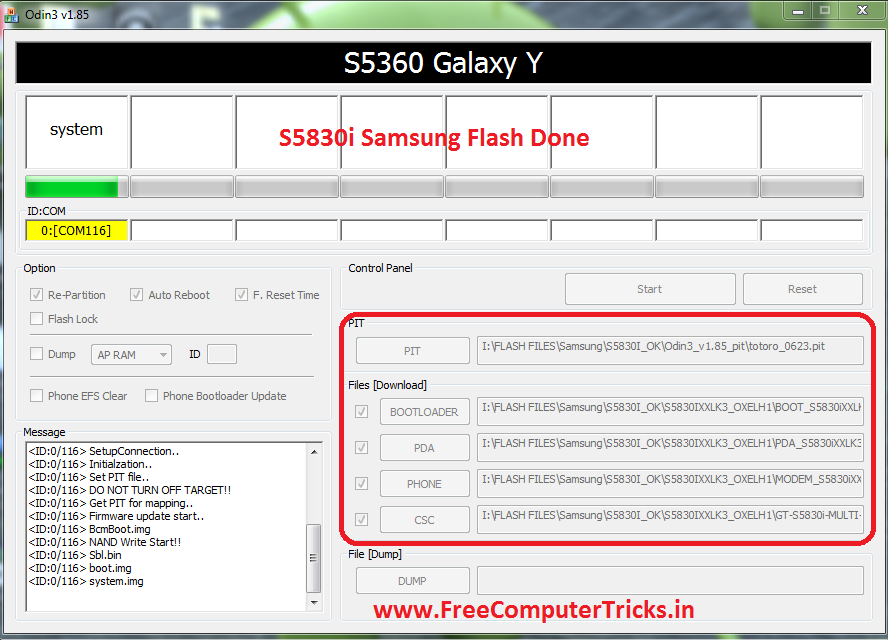
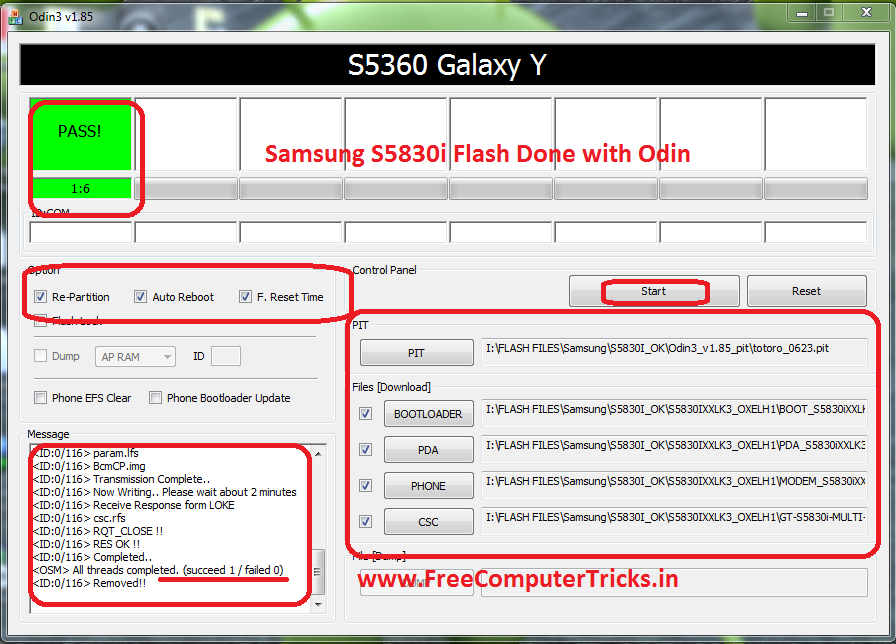
How to Flash Samsung S5830i With Odin - Samsung S5830i Flash Done With Odin3 V1.85


Here is the process to flash Samsung S5830i with Odin3, the below steps will guide you to flash the mobile phone using Odin. To flash with Odin you do not need any software box, to do that you should have a CA 101 Cable and a Computer.

Samsung S5830i Flash Done With Odin


Download


Odin3_v1.85_pit (totoro_0623.pit)
S5830IXXLK3_OXELH1 Samsung Firmware

These can be download from Internet.


Samsung S5830i Flash Odin3 Step By Step

  • Open Odin3 v1.85
  • Click on PIT Button and Select totoro_0623.pit
  • BOOT LOADER = BOOT_S5830iXXLK1_REV00.tar
  • PDA = PDA_S5830iXXLK3_REV00.tar
  • PHONE = MODEM_S5830iXXLK1_REV00.tar
  • CSC = GT-S5830i-MULTI-CSC-OXELH1_RST.tar
  • Put Samsung S5830i Download Mode/Odin Mode = Press Volume Down + Home + Power Button 
  • Now Click on Start


How to Flash S5830i Odin Help and Process
When you see PASS! that means the flashing process of Samsung S5830i is complete. In this process you can solve the restart problem of S5830i/blinking solution of S5830i.

Thursday, July 10, 2014

Samsung C3322i Read User Code Done With Z3x Samsung Tool V17.7


Samsung C3322i read user code, unlock and reset done with Samsung Tool V17.7. The below is the process to flash the c3322i for unlock and read user code.
C3322I Read User Code Z3x
  • Open Samsung Tool V17.7
  • Select Model C3322i
  • Select Z3x Com Port
  • Click on Read
  • Switch ON the phone and Connect c3303k RJ45 to Micro USB Cable

how to read user code of Samsung C3322i with z3x Samsung tool v17.7
After read complete you will see the phone lock in the log panel, use that code to unlock the phone.


Saturday, July 5, 2014

How to Flash Samsung C3303 With Flash Loader


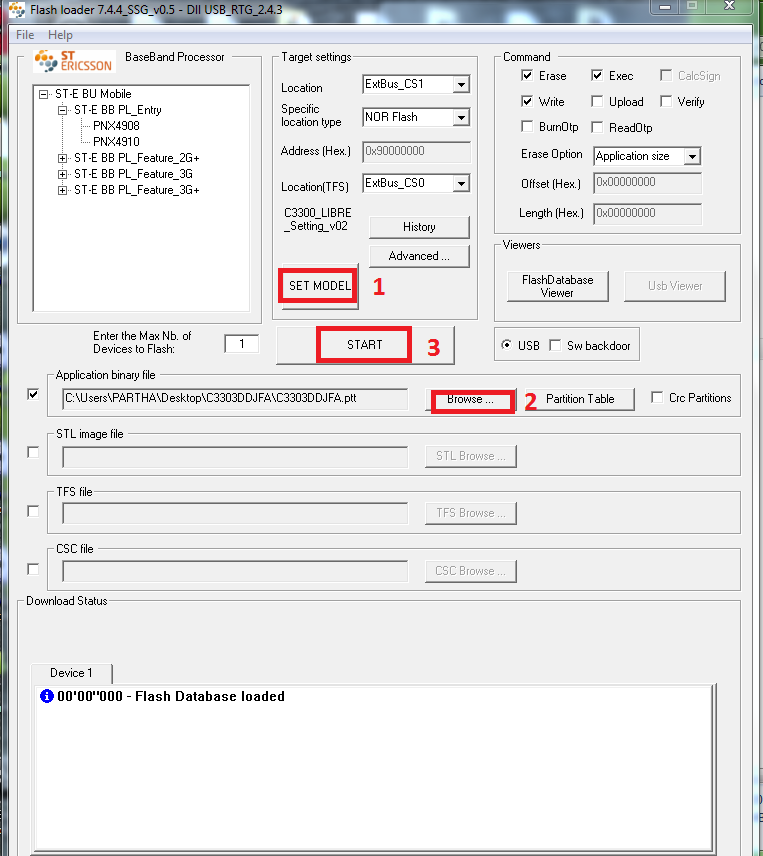
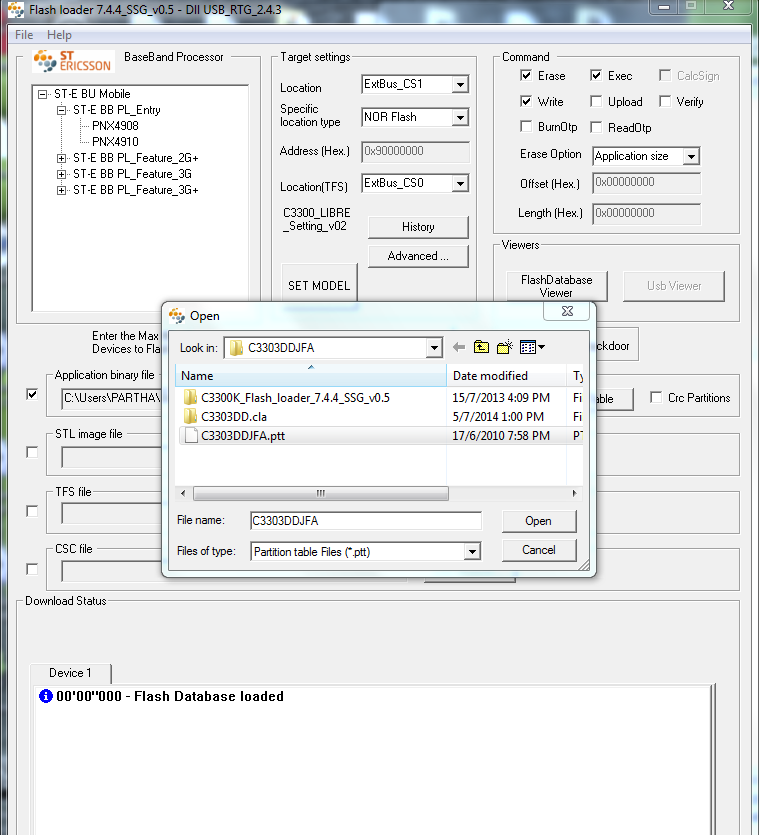
Here is the step by step tutorial to flash Samsung C3303 using Flash Loader (Flash_loader_7.4.4_SSG_v0.5). So in this topic you will know how to flash Samsung C3303 Champ without using any Box only use a USB Cable.

Samsung c3303 Flash with Flash Loader settings


Download

  • Samsung C3303 Firmware (C3303DDJFA)
  • Download C3300K_Flash_loader_7.4.4_SSG_v0.5
  • Download C3300_LIBRE_Setting_v02.mdl

Flash C3303 With Flash Loader (How to and Settings)


How to Flash C3303 With Flash Loader

  • Open Flash loader 7.4.4_SSG_v0.5
  • Click on SET MODEL and Select C3300_LIBRE_Setting_v02.mdl
  • Click on Browse and Open C3303DDJFA.ptt
  • Now Click on Start 
  • Then Press Volume Down + Lock key then connect USB Cable


Search Tags: flash c3303 flash loader, Flash Sam Champ C3303 by Flash Loader, Samsung c3303 i flashing, how to flash c3303 flash loader, how to flash Samsung champ c3303 using flash loader, c3303 flash without box.


Sunday, June 22, 2014

How to Flash Samsung GT-S5222R With Z3X - www.FreeComputerTricks.in


In this tutorial you will know how to flash Samsung GT-S5222R with Z3X Box, the below is the procedure to flash the phone using z3x box Samsung 2G Tool.

Samsung GT-S5222R Flash Done With Samsung 2G Tool
 

How to Flash Samsung S5222R

  • Open Samsung 2G Tool
  • Select Model S5222
  • Select Z3X COM Port
  • Select the S5222R Flash Files
  • Click on Firmware


Then Connect the phone using USB Cable or Press Volume Up & Down then connect the USB Cable or Press Home Button then connect the USB Cable.


Saturday, May 3, 2014

Samsung E2252 Restart Problem Solved - How to Flash Samsung E2252 With HWK UFS3


Samsung E2252 blinking problem solved by flashing with HWK UFS3, the below is the procedure how to flash samsung e2252 with hwk ufs3. The tutorial is simple step by step and easy to understand, if you are new in Mobile Technician field the this is very useful to you, follow the tutorial and enjoy 

Regards


How to flash Samsung E2252 with UFS3

  • Open Samsung Tool HWK By SarasSoft
  • Click on Connect
  • Go to Swift Tab
  • Select Model E2252
  • Select PTT File (i.e. E2252DD.ptt)
  • Click on Write Flash
  • Then Connect USB Cable to mobile by pressing 1+3 (E213 Cable)


how to flash samsung e2252 with hwk ufs3 sarasSoft


Samsung E2252 Full Reset/Hard Reset/E2P Reset Code

*2767*3855#

Samsung Info Code

*#8002*8376263#
or
*#1234#


Sunday, April 27, 2014

How to Flash Samsung C6712 With Z3X - Samsung GT-C6712 Flash Done With Z3X


In this tutorial I will show you how to Flash Samsung C6712 with z3x and download mode of c6712.


Download Mode Samsung C6712


Press and Hold 'Volume Down' and 'SIM Swap' key and press Power Button

or

Press and Hold both 'Volume UP & Down key' and 'SIM Swap' key and press Power Button (This Download Mode is For Z3x)


Samsung C6712 Flash Done With Z3X


  • Select Model C6712
  • Select Z3X COM Port
  • Open the Flash file (APPS, RSRC1, RSRC2, FFS, CSC and APP_B)
  • Put the Samsung C6712 to Download Mode and Connect Micro USB 
  • Then Click on Firmware


how to flash samsung gt-c6712 with z3x

By flashing the samsung c6712 you can solve the Restart problem of Samsung on Logo.


Search Tags: how to flash samsung c6712 z3x, samsung c6712 hangs on logo, c6712 restart on samsung logo, flashing help z3x samsung tool, samsung c6712 restart on logo solved with z3x, how to flash samsung mobiles with z3x, samsung mobile restart solutions, samsung 6712 firmware flashing with z3x, samsung hangs and restart solution, samsung unlock with z3x, samsung firmware upgrade with z3x, all samsung flashing solution here with z3x, samsung c6712 not detected with z3x, samsung c6712 download mode, samsung c6712 flash modem not found, samsung c6712 no flash modem solved, www.freecomputertricks.in, Free Computer Tricks, samsung flash modem not found, samsung flash modem not detected with z3x solved.

Friday, March 28, 2014

How to Flash Samsung E1220T With Z3x - www.FreeComputerTricks.in


To flash the Samsung E1220T using Z3x follow the process below.

Samsung E1220T Flash with Z3x

Steps:

  • Open Samsung 2G Tool
  • Select Model E1230
  • Select COM Port
  • Speed : 460800

  • Then Choose the Flash files
  • Click on Firmware
  • Now connect the J750 cable to phone and press Power on button


Samsung E1220T Flash success with Z3X

Wednesday, March 26, 2014

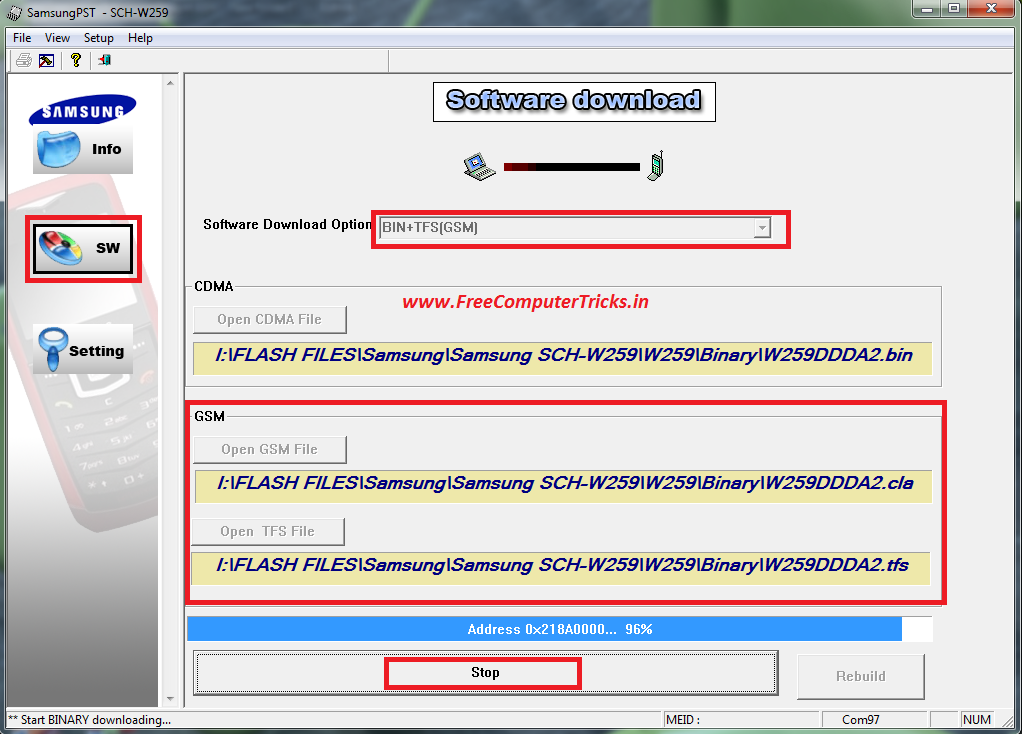
Samsung SCH-W259 Flash Done With Z3x and Samsung PST - www.FreeComputerTricks.in


Here is the way how you can flash Samsung SCH-W259 Duos CDMA + GSM using Z3X and Samsung Phone Service Tool (PST) and the below is the procedure to Flash the phone.


Samsung W259 Flashing Problem Solved !!!!


Tools and Firmwares to Download for Samsung SCH-W259


SamsungPST_W259 For India
SamsungPST Setup
Samsung Firmware Binary W259DDDA2


Steps:


Flashing the GSM Part on Samsung W259


  • Connect the Z3x box to the computer and see the COM port in Device Manager
  • First install SamsungPST setup and Samsung PST_W259 For India.msi
  • Then Run SamsungPST.exe (C:\Program Files\Samsung Electronics\SamsungPST)
  • Click on the Model SCH-W259
  • Go to SW Tab and choose software download option BIN+TFS(GSM)
  • Select the GSM Flash file and Click on Start Software Download
  • It will ask to select the COM Port Choose the Z3x COM Port and Click on OK
  • One pop up will open just click OK
  • Now connect the Phone to Z3x Box using RJ45 Cable an Press the Power Button (E210 Cable)
  • The download process will start and takes about 30 minutes to complete

Note: Don't click on Rebuild.


Samsung SCH-W259 Flash done with Samsung PST and Z3x


Flashing the CDMA Part Samsung W259

  • After complete the GSM Flash Close the Samsung PST and Open it again
  • Then Select EMERGENCY(CDMA)
  • Open the CDMA File W259DDDA2.bin 
  • COM port setting should be the Modem COM Port (Setup-->Port Setting)
  • Click on Start Software Download
  • Now connect the USB Cable to the phone by pressing 9


Note: 

Use E210 USB Cable to flash CDMA Part
Use E210 UART Cable to flash GSM Part

Thursday, January 16, 2014

Samsung M8800 Flash Done With MultiLoader_V5.56 - How to Flash Samsung M8800 With Downloader - www.FreeComputerTricks.in


Here is the process how you can flash the Samsung M8800 using Multi_Loader, the flashing process of Samsung M8800 is given below.


Samsung M8800 Flashing with MultiLoader

Steps:


  • Download MultiLoader_V5.56 (Search MultiLoader_V5.56.exe and Download)

  • Download Samsung Firmware (M8800DDIG1)

  • Open the Downloader V5.56

Choose Control MSM6275/MSM6280/MSM6290

Amss File : amss_compressed.bin

Rsrc1 : Rsrc_M8800_Open_Europe_Common.rc1

Rsrc2 : Rsrc2_M8800(Mid).rc2

Factory FS : FactoryFs_M8800_Open_Europe_Common.ffs


Samsung M8800 Flashing Done with Multi Loader V5.56


  • Press Volume Down + Camera then switch on the phone for Download Mode


  • Connect the Samsung M8800 to the Computer using USB Cable

  • Then Click on Download Button 

Samsung M8800 Download Mode (Volume- + Camera + Power Switch)


Wait for sometime to finish the process and now the Samsung M8800 has been successfully flashed, remove the USB Cable and Battery and put the battery back to the phone and switch on.

📚 You May Also Like to Read