Showing posts with label Samsung Flash with Flash Loader. Show all posts

Wednesday, December 31, 2014

Samsung E1207Y Flash Done With Z3x - Z3x Samsung Tool


How to flash Samsung E1207Y using Samsung Tool? Samsung E1207y flashing procedure with z3x given below, flash the phone using the following process with Samsung tool.

E1207Y flash success with Z3X
  • Open Samsung Tool V18.4
  • Select model E1207y and COM port
  • Select the E1207Y flash file
  • Click on Flash
  • Now connect the phone to PC by holding the Center/Music Key


E1207Y flash done z3x
Samsung E1207Y Z3x Log:


Selected model: E1207Y
Selected port: COM97 USB Serial Port
Selected port speed: 921600
Waiting phone... detected COM84
Sending FDL... OK
Reconnecting phone... OK
Reading NV... OK
Saved to C:\Program Files\Z3X\Samsung\SamsungTool\Backup\nvitem_E1207Y_29-12-2014_14-10-52.bin
Sending SSBOOT... OK
Sending PS... OK
Sending CSC... OK
Erasing FLASH... OK
Flashing done  (time - 00:01:22)
Done with Samsung Tool v.18.4

Friday, September 12, 2014

Samsung GT-C3530 Restart Problem Solved 100% - www.FreeComputerTricks.in


Samsung GT-C3530 restart on logo and blinking problem solved, here is the details and step by step process how to solve restart problem on Samsung GT-C3530 and how to flash C3530 with Flash Tool E2_ROU.

Samsung C3530 Restart Problem Solved 10000%
Samsung C3530 flash success with z3x, but the restart problem is remain same, then when the phone is flashed using Flash tool it's success and now the phone is working fine. Samsung C3530 restart and blinking problem solution is here and it's 100% working and tested by Me.


If you have facing the restart problem on Samsung C3530 then flash the phone using OG flasher (Flash Tool E2_ROU) and the hangs on logo, restart or blinking C3530 will be solved

How to Flash Samsung C3530 With Flash Tool E2_ROU?

Download FlashTool_E2_ROU.rar and C3530XXKG2_PRTKG1 Samsung Firmware
  • Open FlashTool_E2
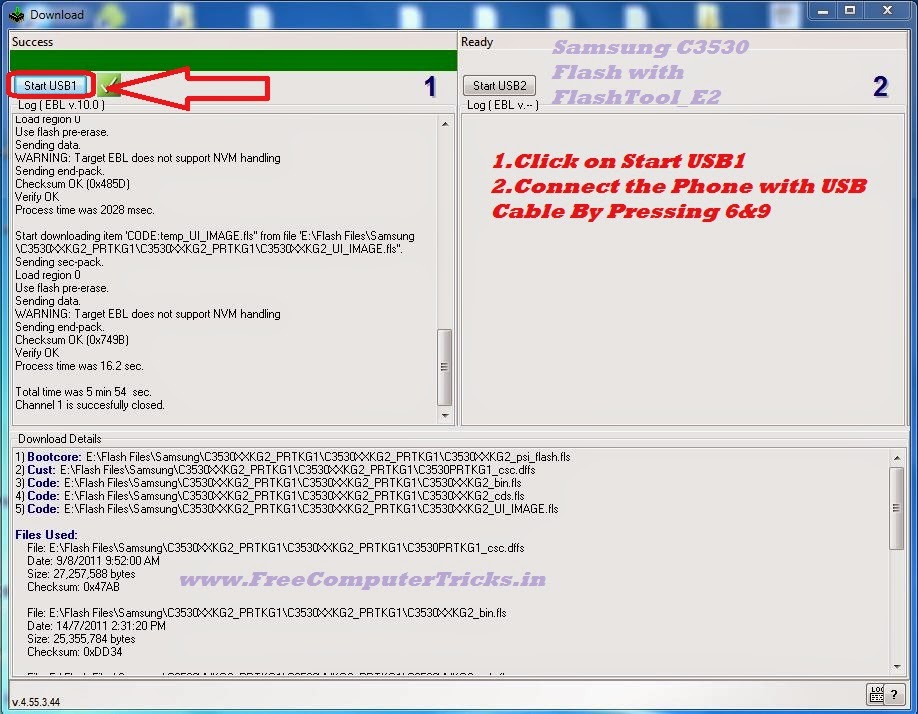
  • Add the Firmware files (See the below Image)
How to flash Samsung C3530 with FlashTool_E2 OG Flash Tool For GT-C3530
  • Click on Next
  • Now Click On Start USB1


samsung c3530 restart problem solved - how to flash samsung c3530 with flash tool
  • Connect the phone with USB Cable by pressing 6+9
  • Now the Download process will start

Wait until the download process complete, then remove the phone and switch on the phone now the restart problem of Samsung C3530 is solved.

Tuesday, August 26, 2014

How to Flash Samsung S8530 With Multiloader - A Complete Procedure


Samsung S8530 successfully flashed with Multiloader V5.67, the below is the complete and step by step procedure to flash Samsung S8530 with Multi Loader, where you can know which file to select and how to select the flash files of S8530 and which model to select on Multiloader to flash the phone.

Download
  • multiloader v5.67.zip and
  • Samsung S8530 Firmware


s8530 flash done with multi loader
Samsung S8530 Flash With Multiloader

  • Open MultiLoader V5.67
  • Select LSI and Tick on Full Download
  • Click on BOOT and give the the BOOTFILES Path Ex. S8530\BOOTFILES
  • Amss = amss.bin
  • Apps = apps_compressed.bin
  • Rsrc1 = Rsrc_S8530.rc1
  • Rsrc2 = Rsrc2_S8530(Low).rc2
  • Factory FS = FactoryFs_S8530_Common.ffs
  • SHP APP = ShpApp.app
  • CSC = CSC_S8530_Open_JPKA1.csc
  • Now Put the Samsung S8530 in to Download Mode (Press Both Volume Key + Camera + Power Key), Remember Samsung S8530 Download Mode Volume UP + Volume Down + Camera + Power Key.
  • Connect the Samsung S8530 with Micro USB Cable
  • Then Click on Download Button


That's all now wait till the flash process complete after that the phone will automatically restart and finally Samsung S8530 has been successfully flashed.


Wednesday, August 13, 2014

Samsung GT-S5560 Blinking Problem Solution - Flash With Multi Loader


Samsung GT-S5560 blinking problem or restart problem solved, to solve this problem flash Samsung S5560 with Multiloader. See the below steps to flash Samsung S5560 with Multiloader V5.65.

Downloads For Flashing Samsung S5560

Download Samsung S5560 Firmware (S5560DDIL3)
Download MultiLoader V5.56

Steps to Flash S5560 With Multi Loader

  • Open MultiLoader V5.65.exe
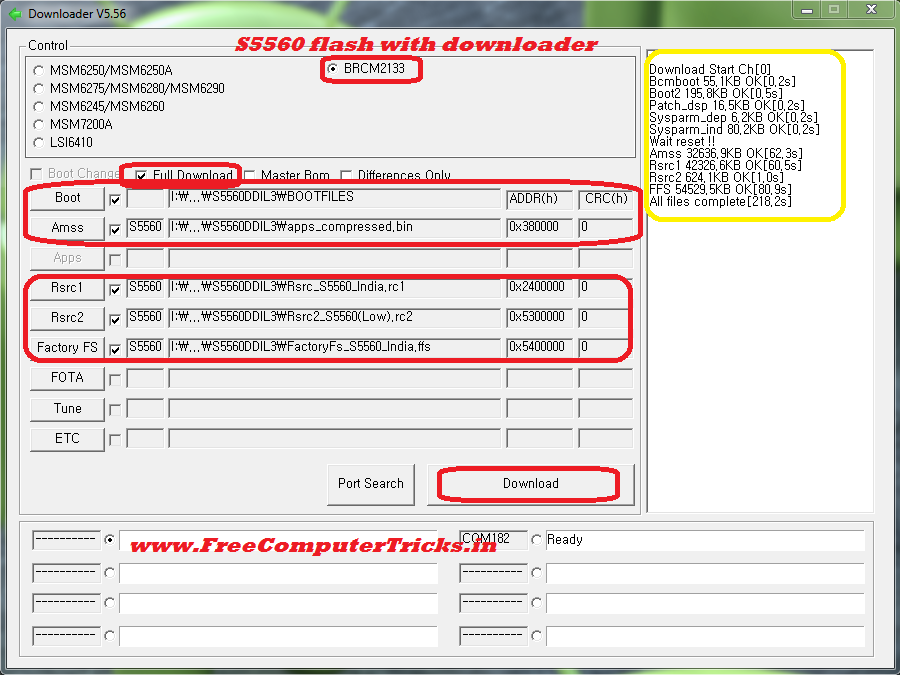
  • Select BRCM2133 and Tick on Full Download
  • Now Select the S5560 Flash Files


Samsung S5560 flash done with Multi Loader


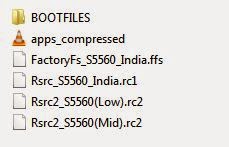
  • Boot = BOOTFILES path .....\S5560DDIL3\BOOTFILES
  • Amms = apps_compressed.bin
  • Rsrc1 = Rsrc_S5560.rc1
  • Rsrc2 = Rsrc2_S5560(Low).rc2
  • Factory FS = FactoryFs_S5560.ffs
  •  
     
  • Now put the S5560 into Download Mode ( Volume Down + Home + Power Key)
  • Connect the phone to PC using USB Cable
  • Click on Download


That's all, wait until the flash process complete after that the phone will restart automatically and you have done. The Samsung S5560 has been successfully flashed with MultiLoader or Downloader.

S5560 Multi Loader Flash Log:

Download Start Ch[0]
Bcmboot 55.1KB OK[0.2s]
Boot2 195.8KB OK[0.5s]
Patch_dsp 16.5KB OK[0.2s]
Sysparm_dep 6.2KB OK[0.2s]
Sysparm_ind 80.2KB OK[0.2s]
Wait reset !!
Amss 32636.9KB OK[62.3s]
Rsrc1 42326.6KB OK[60.5s]
Rsrc2 624.1KB OK[1.0s]
FFS 54529.5KB OK[80.9s]
All files complete[218.2s]

Friday, July 18, 2014

How to Flash Samsung S5253 With Multi Loader - Samsung S5253 Flash Done With USB Cable


Here you can get the step by step procedure to flash the Samsung S5253 with multiloader v5.56, in this process you can flash the S5253 using the normal USB cable and with the help of Multi Loader. So see the below steps to know how to flash S5253 with Multiloader with a easiest way.

Samsung S5253 Flash With Multiloader Using USB Cable

If you are getting the below error while flashing Samsung S5253
ERR : NAK_BAD_SEC_CODE 0
ERR : Rsrc1 Erase
Then this process will help you to overcome this error and flash the Samsung S5253 successfully with Multiloader.


S5253 Flash With Multiloader Step by Step Procedure

Download Mode Samsung S5253 = Volume Down + Camera + Call and Power on

Download


multiloader v.5.65 
Samsung S5253 Firmware

Samsung Wave535 S5253 Flash Done With Multiloader

  • Open Multiloader v5.65
  • Select BRCM2133
  • Tick on Full Download
Select the Flash Files
  • Boot = BOOTFILES PATH
  • Apps = apps_compressed.bin
  • Rsrc1 = Rsrc_S5253_Open_Common.rc1
  • Rsrc2 = Rsrc2_S5253_Open(Low).rc2
  • Factory FS = FactoryFs_S5253_Open_Common.ffs
  • CSC = CSC_S5253_Open_Common_OJP.csc
  • SHP APP = ShpApp.app
(File names may be different)
  • Put the S5253 into Download Mode
  • Then Click on Download


Samsung S5253 Flash Done With Downloader V5.65

S5253 Multiloader Flash Log:

Download Start Ch[0]
Bcmboot 131.2KB OK[0.3s]
Boot2 591.2KB OK[1.1s]
Patch_dsp 49.4KB OK[0.2s]
Sysparm_dep 6.2KB OK[0.1s]
Sysparm_ind 80.3KB OK[0.2s]
Wait reset !!
Apps 50069.5KB OK[131.4s]
Rsrc1 46399.5KB OK[78.0s]
Rsrc2 614.8KB OK[1.2s]
FFS 65445.9KB OK[112.7s]
CSC 12640.3KB OK[41.1s]
SHPAPP 65437.7KB OK[87.1s]
All files complete[471.1s]

Saturday, July 5, 2014

How to Flash Samsung C3303 With Flash Loader


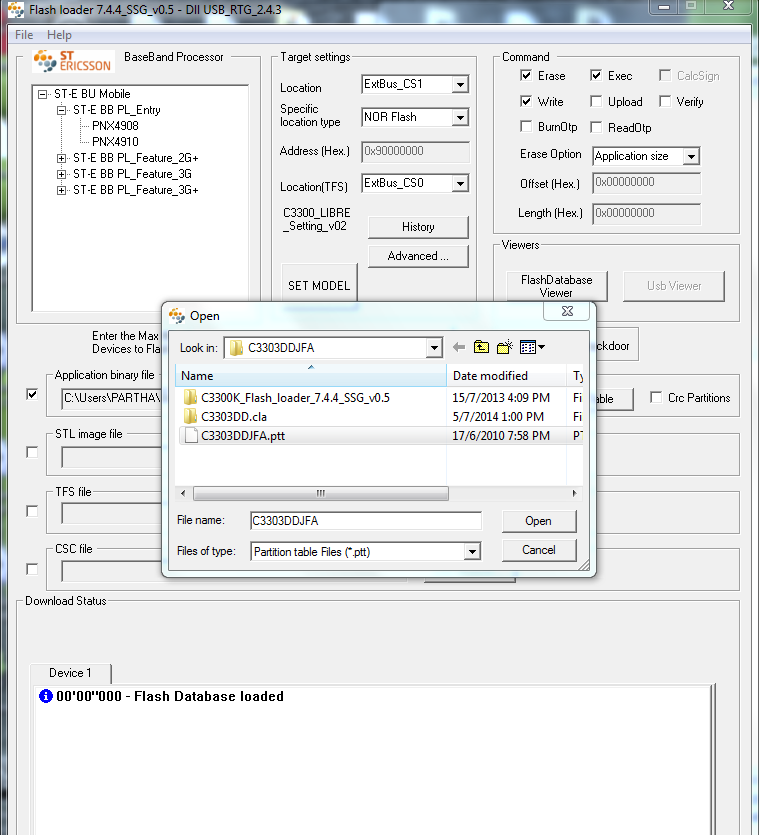
Here is the step by step tutorial to flash Samsung C3303 using Flash Loader (Flash_loader_7.4.4_SSG_v0.5). So in this topic you will know how to flash Samsung C3303 Champ without using any Box only use a USB Cable.

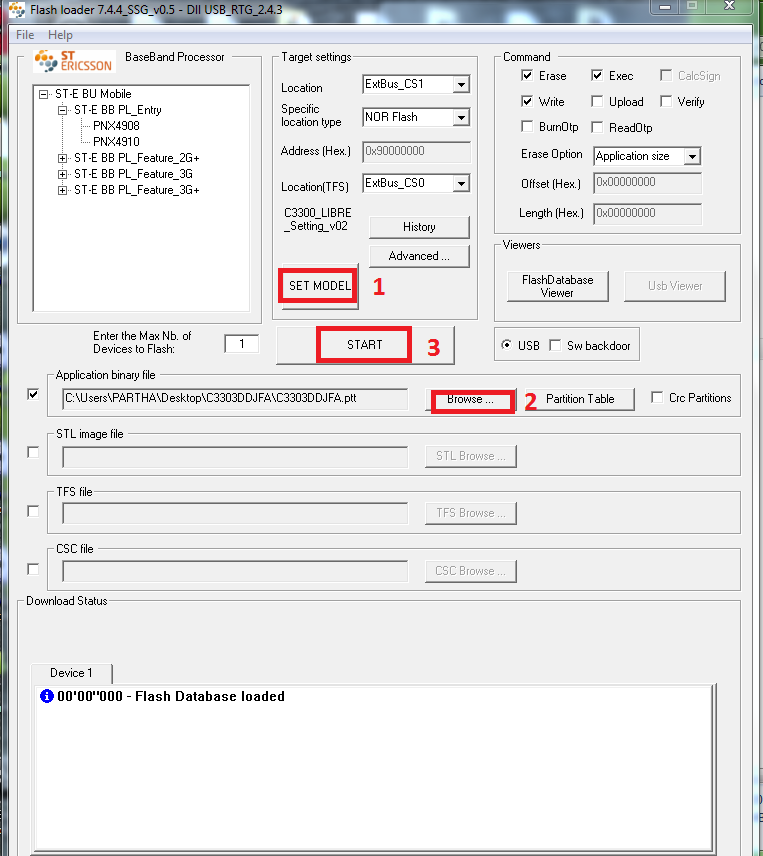
Samsung c3303 Flash with Flash Loader settings


Download

  • Samsung C3303 Firmware (C3303DDJFA)
  • Download C3300K_Flash_loader_7.4.4_SSG_v0.5
  • Download C3300_LIBRE_Setting_v02.mdl

Flash C3303 With Flash Loader (How to and Settings)


How to Flash C3303 With Flash Loader

  • Open Flash loader 7.4.4_SSG_v0.5
  • Click on SET MODEL and Select C3300_LIBRE_Setting_v02.mdl
  • Click on Browse and Open C3303DDJFA.ptt
  • Now Click on Start 
  • Then Press Volume Down + Lock key then connect USB Cable


Search Tags: flash c3303 flash loader, Flash Sam Champ C3303 by Flash Loader, Samsung c3303 i flashing, how to flash c3303 flash loader, how to flash Samsung champ c3303 using flash loader, c3303 flash without box.


Monday, June 30, 2014

Samsung S3850 Flash Done With Multi Loader V5.65


Samsung S3850 Restart problem solved by flashing with Multiloader, the below is the procedure to flash Samsung S3850 with Multi Loader.


Samsung S3850 Download Mode

  • Volume Down + Call Key + Power Key (For Download Mode)


Samsung S3850 Download Mode


How to Flash Samsung S3850 With Multi Loader V5.65


  • Put the phone into Download Mode
  • Connect the phone to PC using Micro USB Cable
  • Open Multiloader
  • Click on BRCM2133
  • Tick on Full Download
  • Then Choose the S3850 Flash Files (i.e. Boot, Amss, Apps, Rsrc1, Rsrc2, Factory FS, CSC and SHP APP)
  • Then Click on Download


Samsung S3850 Flash Done with multi loader - how to flash Samsung S3850 with Multiloader

Wait until all files download complete, then the device will restart, that's all now the Samsung S3850 Flash done using multi loader. So in this way you can flash Samsung S3850 without box.

Tuesday, April 1, 2014

How To Flash Samsung S5380K With Multiloader_V5_67 - www.FreeComputerTricks.in


This topic is about how you can flash Samsung S5380K using Multiloader_V5_67. When I flash the Samsung S5380 with Z3X it gives some error and stuck on Samsung Logo, then again flash with Multi Loader and now it's working fine. The below is the procedure to flash the Samsung S5380K.

Samsung S5380K with flashing with Multiloader_V5_67 is solved the restart problem.


Download Multiloader_V5_67
Download Samsung S5380 Firmware (S5380KDDLC4)


How to flash S5380K with Multiloader_V5_67


  • Open The Multiloader_V5_67
  • Select the BRCM2153 (Click on Radio Button to select)
  • Tick the Full Download
Boot = Give the Bootfiles path (Bootfiles folder)
Amss = amss.bin
Apps = apps_compressed.bin
Rsrc1 = Rsrc_S5380K_India_ODD.rc1
Rsrc2 = Rsrc2_S5380K(Mid).rc2
Factory FS = FacrotyFs_S5380K_India_ODD.ffs
SHP APP = ShpApp.app
CSC = CSC_S5380K_India_ODD.csc
FOTA = bplib_S5380KOpIndiaCommon.fota

  • Put the Samsung S5380K in to Download Mode (Vol - + Home + Power Button)
  • Click on Port Search
  • Now Click on Download


Samsung Flash with Multiloader_V5_67 S5380K


Search Tags: how to flash samsung mobiles, samsung mobile flashing problem, how to flash samsung s5380k with multi loader, samsung flashing help, how to flash samsung with multiloader, how to flash mobile without using any box, samsung flashing without box, samsung flashing software and how to use it, All mobile flashing solution using z3x, hwk/ufs3 and volcano box, z3x samsung flashing help and tutorials, samsung s5380k flashing help.


Thursday, January 16, 2014

Samsung M8800 Flash Done With MultiLoader_V5.56 - How to Flash Samsung M8800 With Downloader - www.FreeComputerTricks.in


Here is the process how you can flash the Samsung M8800 using Multi_Loader, the flashing process of Samsung M8800 is given below.


Samsung M8800 Flashing with MultiLoader

Steps:


  • Download MultiLoader_V5.56 (Search MultiLoader_V5.56.exe and Download)

  • Download Samsung Firmware (M8800DDIG1)

  • Open the Downloader V5.56

Choose Control MSM6275/MSM6280/MSM6290

Amss File : amss_compressed.bin

Rsrc1 : Rsrc_M8800_Open_Europe_Common.rc1

Rsrc2 : Rsrc2_M8800(Mid).rc2

Factory FS : FactoryFs_M8800_Open_Europe_Common.ffs


Samsung M8800 Flashing Done with Multi Loader V5.56


  • Press Volume Down + Camera then switch on the phone for Download Mode


  • Connect the Samsung M8800 to the Computer using USB Cable

  • Then Click on Download Button 

Samsung M8800 Download Mode (Volume- + Camera + Power Switch)


Wait for sometime to finish the process and now the Samsung M8800 has been successfully flashed, remove the USB Cable and Battery and put the battery back to the phone and switch on.

Wednesday, December 25, 2013

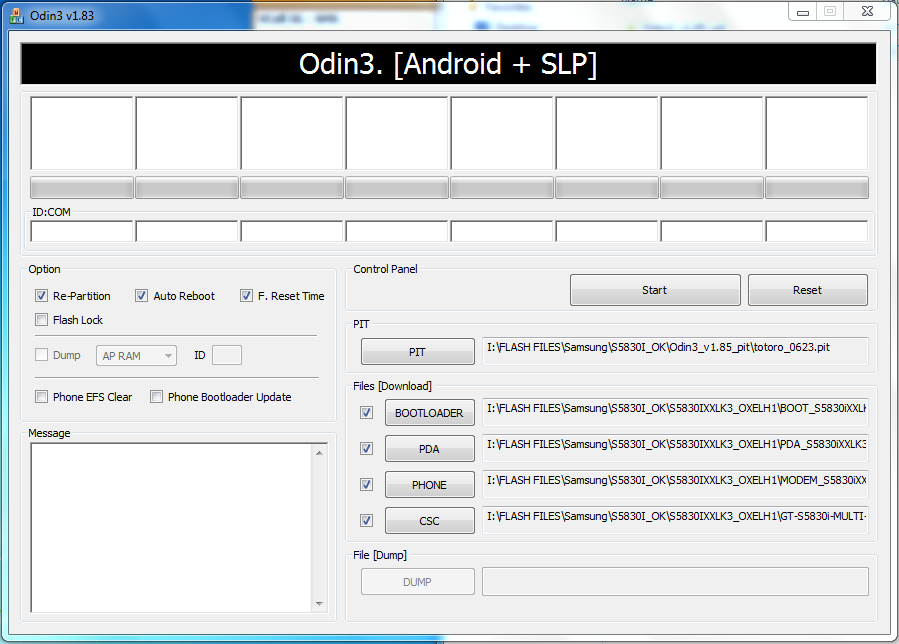
Samsung S5830i Flash Done With Odin3 V1.85 - How To Flash Samsung S5830i


How to flash Samsung S5830i using ODIN3?

Follow the below steps to flash your Samsung s5830i with Odin3

File Needed

Samsung Firmware i.e. S5830IXXLK3_OXELH1 which can be download from support area or using Google Search

Odin3_v1.85 with Pit (Odin3 v1.85 and totoro_0623.pit)


Flash Samsung S5830i with Odin 3


Steps:


  • Open Odin 3

  • Click on PIT Tab and Select totoro_0623.pit file

  • Click on BOOTLOADER and Select BOOT_S5830iXXLK1_REV00.tar

  • Click on PDA and Select PDA_S5830iXXLK3_REV00.tar

  • Click on PHONE and Select MODEM_S5830iXXLK1_REV00.tar

  • Click on CSC and Select GT-S5830i-MULTI-CSC-OXELH1_RST.tar

  • Put the Samsung S5830i to Download Mode ( Volume Down + Volume Up + Power Key, then Volume UP)

  • Connect the Phone to your computer with USB Cable

  • Then Click on Start wait until complete


That's all Now you have flashed your Samsung S5830i mobile phone


Note: You may need Samsung Mobile USB Drivers, so for that it's better to install Samsung Kies on the Computer.


Monday, December 23, 2013

How to Flash Samsung C3262 - Samsung C3262 Restart When Insert SIM Solved.....


If the C3262 restarts after inserting the SIM Card then you need to flash the mobile with following procedure. In this procedure your mobile flash will be OK but you may lost the Samsung Mobile C3262 IMIE No but which can rebuild using ufs.


How to Flash Samsung C3262

  • First Download Samsung Firmware C3262DDLI8_BIN and C3262OWNLI2_CSC

  • Download Flash Loader 7.5.16_CSC_v0.1_LITE 


Steps:


  • Now open the bfloader (Flash Loader 7.5.16_CSC_v0.1_LITE )

  • Click on Main Partition and Select C3262DD.ptt which can be found in C3262DDLI8_BIN Folder ( Select ALL Partitions)

  • Click on CSC and select C3262WN.ptt From C3262OWNLI2_CSC folder ( Select All Partitions)

  • Then Click on Start

  • Press Volume Down + Power Button and Connect the Samsung C3262 with USB Cable

Samsung C3262 Flash Done With Flash Loader

  • After Complete the flash the phone will be reboot to normal mode


Now you can check the Samsung C3262 by inserting SIM Card, it won't restart but you can See the Phone IMEI No is 000000, so don't worry about that you can Rebuild the IMEI using UFS.


Saturday, December 21, 2013

Samsung 5610k Blinking Problem Solved - Freecomputertricks.in


If the Samsung 5610k blinks then you have flash the mobile using flash loader, to solve the Samsung 5610k blink solution. In this process you will loose the IMEI of the phone and can be write the IMEI using HWK (SAMs).


File Needed

S5610K_Flash Loader 7.5.3 V0.6 Lite

S5610KJPKI2_OJPKI1 (Flash File Can be download from support site)


Samsung 5610K Flash with Flash Loader

How to Flash Samsung 5610K with Flash Loader?

Open Flash Loader 7.5.3

Click on "SET Model" and Choose S5610_Utopia_Setting_v00.mdl

Main Partion Table - S5610KJPKI2.ptt

CSC Partition Table - S5610KOJPKI1.ptt

 (Tick All Partition For Main and csc)

Then Click on "START" and press 3+6


After Finish the mobile will not blink like before bu the IMEI No. will be 00000 so to Rebuilt the IMEI use the HWK UFSx  and use the C3303K Cable.


📚 You May Also Like to Read