Showing posts with label Samsung Flash with Odin. Show all posts

Thursday, August 23, 2018

SM-J210F Touch Not Working After Upgrade|Hard Reset|Copy Combo LCD [Solved]


Galaxy J2 (2016) SM-J210F Touch Not Working Solution Here, SM-J210F Touch Not Working Solved Without Data Loss, Samsung J2 2016 Touch not working after Hard reset Solution here, J2 6 touch not working after update solution here, Samsung J2 2016 touch do not work done with a small file, download the file from the below link and flash using Odin 3 Samsung flash tool, flash the file using Odin3 and then check the Galaxy touch will work fine, it's tested and 100% working, so we share this with you. In this way no need flash the phone with full firmware which causes personal data loss, just use the small file and there is no risk of losing your user data on the smartphone.or in case you are using copy J2 2016 combo and touch not working then follow this tutorial you will solve the issue. j2 2016 compatible LCD with touch not working and the final solution here.

SM-J210F after flash or after hard reset or after upgrade touch not working issue is solved here, if you are using copy LCD (combo) then this problem comes, so below is the download link for touch working flash file which is 10 MB in size, just download that and flash with odin3.
Galaxy J2 (2016) SM-J210F Touch Not Working Solution Here
 Download the file given below and follow the Video tutorial, Samsung J2 2016 touch not working solved using a small flash file which can be flash using Odin 3 Samsung flash tool and no need to flash full firmware, just flash this small file and after that touch will work fine, it has been tested and working fine for us. Flashing with this file there is no risk of data loss, so follow the procedure and recover the Samsung J2 2016 which has touch working issues.


Downloads

J210F Touch Not Working Flash File [Download Link]
Password = fctj210f

Download Odin3 Samsung Flash Tool Free [Download Link]

Sunday, May 13, 2018

Samsung J7 SM-J700F Android 6.0 FRP Unlock Done With ODIN


How to Unlock FRP Lock Of Samsung J7 SM-J700F Android 6.0 Using ODIN? Samsung J7 FRP Unlock File Download and ODIN3 Samsung Flasher or Downloader Tool Download Here.

Samsung J7 has got the Android 6.0.1 update and the Android security patch level updated as of 1st August 2017 with security software version ASKS v1.2 Release 161011 SMR Aug-2017 Release MS. The device also gets the Knox version KNOX 2.6, Standard SDK 5.6.0, Premium SDK 2.6.0, Customization SDK 2.6.0, Container 2.6.0, CEP 2.0.1, Enterprise Billing 1.2.0, OTP 2.6.0, SE for Android 2.4.0, SSO 2.5.0, Shared Devices 2.6.0, TIMA 3.2.007 and VPN 2.2.5. These are the technical information of Android update that the Samsung J7 J700F has now a days as of 13 May 2018.

Here in this article you will come to know, how to do frp bypass on your Samsung J7 having Android 6.0 Operating System. If you forgot the Email id and password of the phone previously used in that phone then if you Factory Reset the phone it will ask the Email id and password to move forward or to get into the phone. If you remember the Gmail id and Password it helps you to restore your contacts and all other data it backed up. If you do not know the email and password then this tutorial will help your to bypass or unlock or reset frp lock of Samsung J7, please go through the below steps.

Happy Mother's Day - A Mother can take the place of all others but whose place no one else can take - Love Your Mother and Be Kind Of Her (Sunday, 13 May - Mother's Day 2018 in India)

Samsung J7 FRP Bypass Android 6.0
You can bypass frp lock of Samsung J7 using Odin3 Downloader or so called Odin flash tool or some other call the tool as ODIN. To bypass frp please download the below "FRP Unlock J7 File" and download Odin3, then flash the phone.
https://www.freecomputertricks.in - How to Bypass FRP Unlock of Samsung J7 Android 6.0 Using Odin3

Steps:
  • Download Odin3 from the below link.
  • Download J7 FRP unlock file.
  • Now open Odin3 and click on AP Tab and select Exynos.tar file.
  • Then put the phone into Download Mode (Volume Up + Power Key, then press Volume up)
  • Connect the phone to the Computer using USB cable.
  • Now click on Start button on Odin Flash Tool and wait until you see PASS.
  • That's all now your phone will reboot and go to the settings, then enable Developer Mode and then OEM unlock, then finally do a Factory Reset.

There are two files in the zip file use Exynos CPU file on Samsung J7 to bypass frp lock.

Exynos_cpu FRP unlock File
Qualcomm_cpu FRP Unlock File
Samsung J7 Android 6.0 FRP Lock - How to Flash With Odin
Downloads:
J7 FRP Bypass File | Download
Odin3 Downloader V 3.12.5 | Download

Some Expected Questions or Problems May Arise After Flashing Samsung J7 With FRP Unlock. Frequently Asked Questions and Answers:

Question: After flash with FRP unlock file my phone is showing Unfortunately Stop for all apps.
Ans: After switch on please go to the settings and do a Factory Reset, do not forgot to enable Developer Mode and OEM Unlock.

Question: After flashing with J7 frp file using Odin, unable to bypass frp.
Ans: Please follow the above process carefully, if still you are facing problem to bypass frp then do hard reset with enabling OEM unlock or after flashing with this frp unlock file you can use Miracle Box 2.54 use the Samsung Tab and do Reset FRP.

Question: Where to download Miracle Box Software v2.54, working without box?
Ans: Search this site using the Google Search Box (On the Left Side Bar) for "Miracle Box V2.54" and Download it.

Question: How to Bypass FRP Lock of Samsung J7 using Miracle Box?
Ans: First flash with the frp unlock file with Odin3, after flashing it will automatically enable the USB debugging, then switch on the phone and connect to the Computer, Now open Miracle Box 2.54 and go to the ADB Tab and use FRP unlock option or put the phone into Download mode after flash and then go to Samsung Tab then select Reset FRP.

This Tutorial Is Very Helpful For The Following Questions:
How Bypass FRP Google Account Samsung Odin Method?
Samsung J7 SM-J700F FRP Unlock Google Account With One Click.
What is the easy way for Samsung 7.0 FRP Lock Remove With Odin Tool?
How to unlock FRP Google Account Unlock J7 J710FN Using Odin?
How to Reset Samsung FRP Google Account By Odin3?
Bypass Google Account Samsung J7 SM J700F Using Odin3 Downloader 2018.
Samsung J7 FRP Remove and FRP File Download.
How to Bypass FRP of Samsung J7 Android 6.0?

Wednesday, November 16, 2016

How to Downgrade Samsung J7 From 6.0.1 to 5.1.1 : Samsung J7 (J700F) Only


As you know, when you try to flash or write firmware on Samsung J7 (J700F) using Odin3 or any other flash tool, you get an error message and the flashing process is failed. I tried several firmware to flash the J7 but not success and search the Internet for this and get a firmware that can flash the Samsung J7 and also downgrade the J700F from Android Version 6.0.1 to 5.1.1.

Samsung J7 (J700F) Flash Success Using ODIN 3
 So here is the details to get the firmware and download J700F firmware, flash it using Odin Flash Tool and  downgrade 6.0.1 to 5.1.1. After downgrade the Android version you can easily do a FRP reset of the phone.

Downloads J700F:

1) J700F_PC4_PC8_PG3_Build_Downgrade_By_CHAIN.tar download using Google Search.

2) Download Odin3 V3.12.3 

DOWNLOAD ODIN3 V3.12.3

Friday, July 18, 2014

How to Flash Samsung S5253 With Multi Loader - Samsung S5253 Flash Done With USB Cable


Here you can get the step by step procedure to flash the Samsung S5253 with multiloader v5.56, in this process you can flash the S5253 using the normal USB cable and with the help of Multi Loader. So see the below steps to know how to flash S5253 with Multiloader with a easiest way.

Samsung S5253 Flash With Multiloader Using USB Cable

If you are getting the below error while flashing Samsung S5253
ERR : NAK_BAD_SEC_CODE 0
ERR : Rsrc1 Erase
Then this process will help you to overcome this error and flash the Samsung S5253 successfully with Multiloader.


S5253 Flash With Multiloader Step by Step Procedure

Download Mode Samsung S5253 = Volume Down + Camera + Call and Power on

Download


multiloader v.5.65 
Samsung S5253 Firmware

Samsung Wave535 S5253 Flash Done With Multiloader

  • Open Multiloader v5.65
  • Select BRCM2133
  • Tick on Full Download
Select the Flash Files
  • Boot = BOOTFILES PATH
  • Apps = apps_compressed.bin
  • Rsrc1 = Rsrc_S5253_Open_Common.rc1
  • Rsrc2 = Rsrc2_S5253_Open(Low).rc2
  • Factory FS = FactoryFs_S5253_Open_Common.ffs
  • CSC = CSC_S5253_Open_Common_OJP.csc
  • SHP APP = ShpApp.app
(File names may be different)
  • Put the S5253 into Download Mode
  • Then Click on Download


Samsung S5253 Flash Done With Downloader V5.65

S5253 Multiloader Flash Log:

Download Start Ch[0]
Bcmboot 131.2KB OK[0.3s]
Boot2 591.2KB OK[1.1s]
Patch_dsp 49.4KB OK[0.2s]
Sysparm_dep 6.2KB OK[0.1s]
Sysparm_ind 80.3KB OK[0.2s]
Wait reset !!
Apps 50069.5KB OK[131.4s]
Rsrc1 46399.5KB OK[78.0s]
Rsrc2 614.8KB OK[1.2s]
FFS 65445.9KB OK[112.7s]
CSC 12640.3KB OK[41.1s]
SHPAPP 65437.7KB OK[87.1s]
All files complete[471.1s]

Thursday, July 17, 2014

How to Flash Samsung S7562 With Odin - A Complete Procedure


Here is the topic how to flash Samsung s7562 with Odin, to flash Samsung s7562 with Odin follow the below steps.


How to flash Samsung S7562 with Odin3

Samsung S7562 Flash Odin


  • Open Odin3 v3.7
  • Select PIT file signed_kyle_v2_0604.pit
  • Boot Loader BOOTLOADER_S7562XXALK1_1102401_REV02_user_low_ship.tar
  • PDA CODE_S7562XXALK1_1102401_REV02_user_low_ship.tar
  • PHONE MODEM_S7562XXALJ3_1102401_REV02_user_low_ship.tar
  • CSC CSC_OXE_S7562OXEALL1_20121207.144751_REV02_user_low_noship.tar


Samsung S7562 Flash Done with Odin 3 v3.07

  • Then put the Samsung S7562 into Download Mode (Volume Down + Home +Power Key)
  • Then Connect the USB Cable to Computer and Click Start.
 

Sunday, July 13, 2014

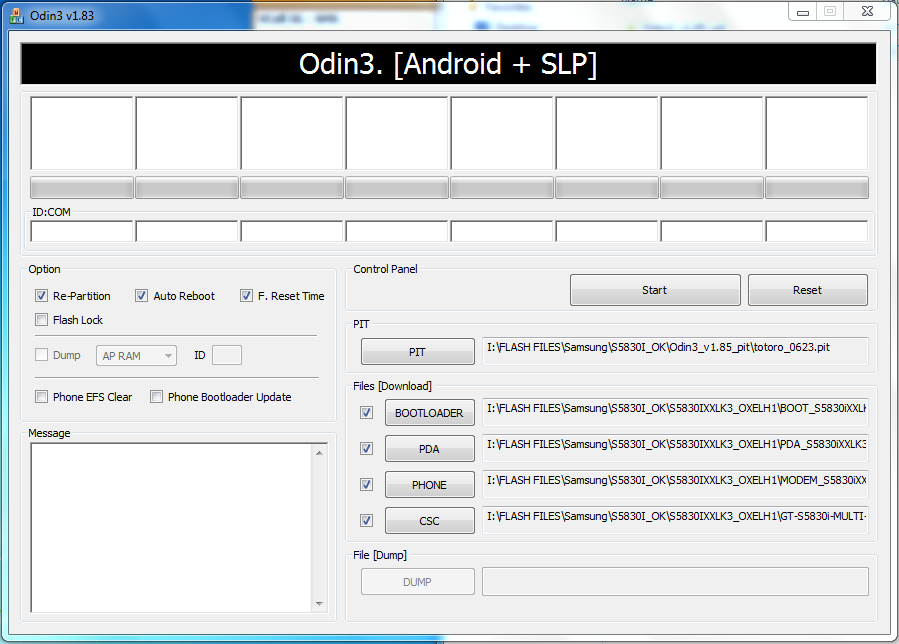
How to Flash Samsung S5830i With Odin - Samsung S5830i Flash Done With Odin3 V1.85


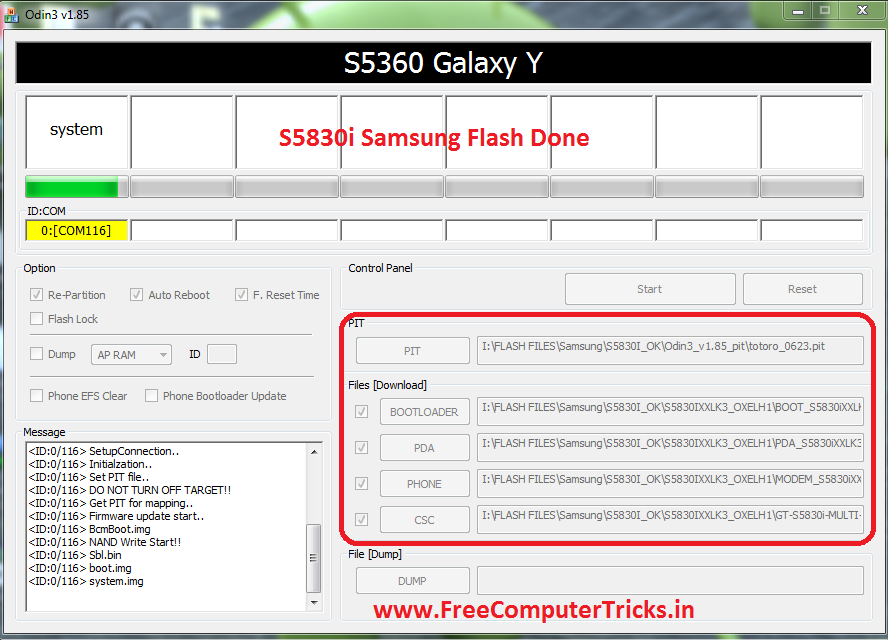
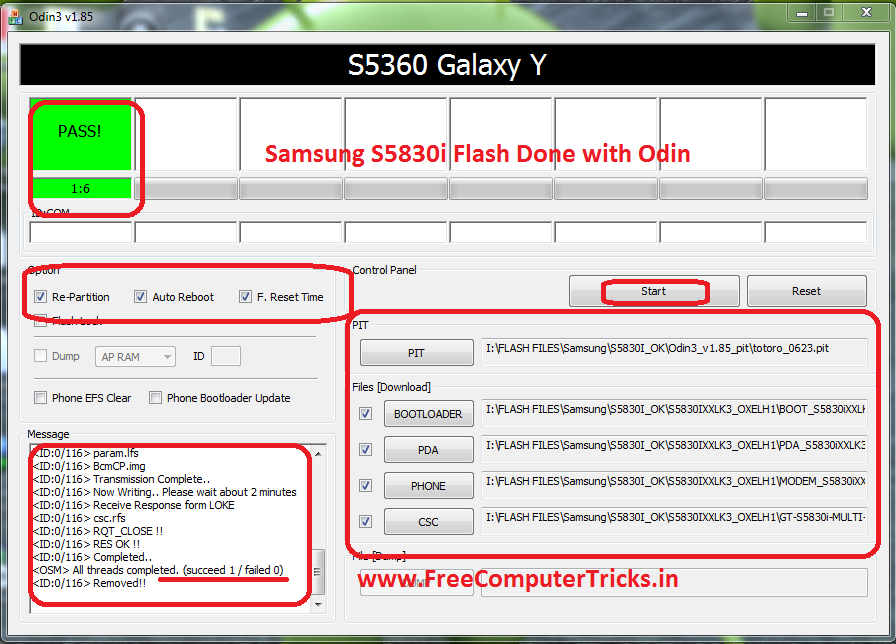
Here is the process to flash Samsung S5830i with Odin3, the below steps will guide you to flash the mobile phone using Odin. To flash with Odin you do not need any software box, to do that you should have a CA 101 Cable and a Computer.

Samsung S5830i Flash Done With Odin


Download


Odin3_v1.85_pit (totoro_0623.pit)
S5830IXXLK3_OXELH1 Samsung Firmware

These can be download from Internet.


Samsung S5830i Flash Odin3 Step By Step

  • Open Odin3 v1.85
  • Click on PIT Button and Select totoro_0623.pit
  • BOOT LOADER = BOOT_S5830iXXLK1_REV00.tar
  • PDA = PDA_S5830iXXLK3_REV00.tar
  • PHONE = MODEM_S5830iXXLK1_REV00.tar
  • CSC = GT-S5830i-MULTI-CSC-OXELH1_RST.tar
  • Put Samsung S5830i Download Mode/Odin Mode = Press Volume Down + Home + Power Button 
  • Now Click on Start


How to Flash S5830i Odin Help and Process
When you see PASS! that means the flashing process of Samsung S5830i is complete. In this process you can solve the restart problem of S5830i/blinking solution of S5830i.

Saturday, July 5, 2014

How to Flash Samsung C3303 With Flash Loader


Here is the step by step tutorial to flash Samsung C3303 using Flash Loader (Flash_loader_7.4.4_SSG_v0.5). So in this topic you will know how to flash Samsung C3303 Champ without using any Box only use a USB Cable.

Samsung c3303 Flash with Flash Loader settings


Download

  • Samsung C3303 Firmware (C3303DDJFA)
  • Download C3300K_Flash_loader_7.4.4_SSG_v0.5
  • Download C3300_LIBRE_Setting_v02.mdl

Flash C3303 With Flash Loader (How to and Settings)


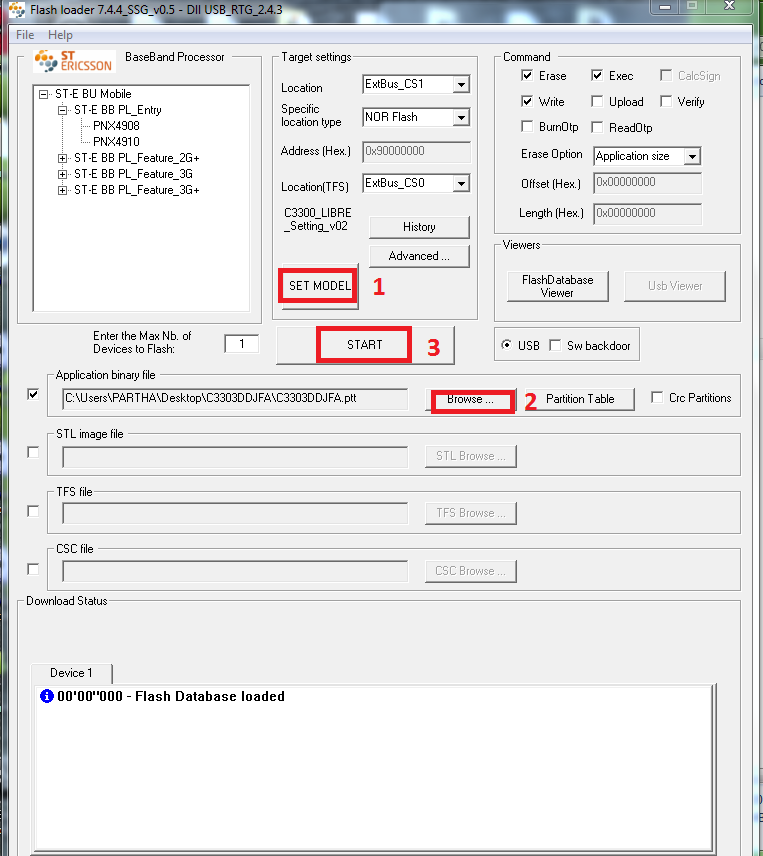
How to Flash C3303 With Flash Loader

  • Open Flash loader 7.4.4_SSG_v0.5
  • Click on SET MODEL and Select C3300_LIBRE_Setting_v02.mdl
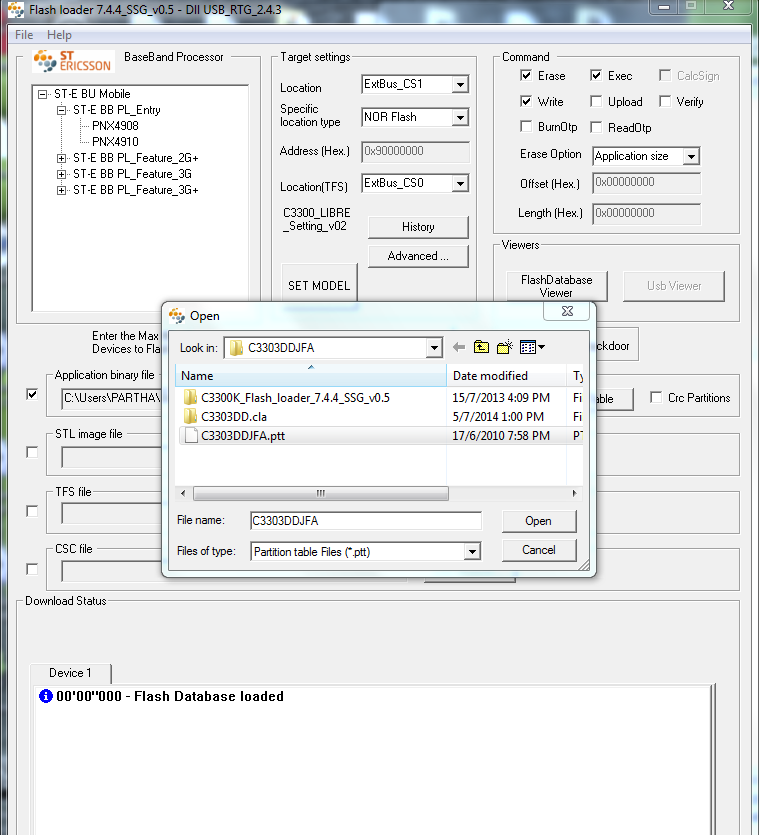
  • Click on Browse and Open C3303DDJFA.ptt
  • Now Click on Start 
  • Then Press Volume Down + Lock key then connect USB Cable


Search Tags: flash c3303 flash loader, Flash Sam Champ C3303 by Flash Loader, Samsung c3303 i flashing, how to flash c3303 flash loader, how to flash Samsung champ c3303 using flash loader, c3303 flash without box.


Friday, July 4, 2014

How to Flash Samsung S5360 With Odin - www.FreeComputerTricks.in


Here is the complete process or step by step process to flash Samsung S5360 with Odin. Samsung S5360 Restart problem solved by flashing with Odin3. Download the Samsung Firmware for S5360 and Odin3 V1.84 with totoro_0623.pit file and flash with Odin, the below is the process to flash S5360 with Odin.


Required Files To Flash S5360

  • Samsung S5360 Flash File
  • Odin 3 with Pit File
  • A micro USB Cable


Samsung S5360 Flash with Odin


How to Flash S5360 With Odin


  • Open Odin3_v1.84
  • Click on PIT Tab and Select totoro_0623.pit
  • BOOTLOADER = DefaultCalDataWithBoot_S5360XXKK5_REV05.tar
  • PDA = PDA_S5360XXKK6_REV05.tar
  • PHONE = MODEM_S5360XXKK5_REV05.tar
  • CSC = GT-S5360-MULTI-CSC-OXEKK1.tar
  • Put the S5360 into Download Mode and connect with USB Cable (Download Mode S5360 = Volume Down + Home + Power then Volume Up)
  • Now Click on Start


How to flash S5360 with Odin (Odin Flashing Process S5360)

Let the Flash finished, when you see All threads completed and PASS! that means you have completed the flashing of S5360.

Wednesday, December 25, 2013

Samsung S5830i Flash Done With Odin3 V1.85 - How To Flash Samsung S5830i


How to flash Samsung S5830i using ODIN3?

Follow the below steps to flash your Samsung s5830i with Odin3

File Needed

Samsung Firmware i.e. S5830IXXLK3_OXELH1 which can be download from support area or using Google Search

Odin3_v1.85 with Pit (Odin3 v1.85 and totoro_0623.pit)


Flash Samsung S5830i with Odin 3


Steps:


  • Open Odin 3

  • Click on PIT Tab and Select totoro_0623.pit file

  • Click on BOOTLOADER and Select BOOT_S5830iXXLK1_REV00.tar

  • Click on PDA and Select PDA_S5830iXXLK3_REV00.tar

  • Click on PHONE and Select MODEM_S5830iXXLK1_REV00.tar

  • Click on CSC and Select GT-S5830i-MULTI-CSC-OXELH1_RST.tar

  • Put the Samsung S5830i to Download Mode ( Volume Down + Volume Up + Power Key, then Volume UP)

  • Connect the Phone to your computer with USB Cable

  • Then Click on Start wait until complete


That's all Now you have flashed your Samsung S5830i mobile phone


Note: You may need Samsung Mobile USB Drivers, so for that it's better to install Samsung Kies on the Computer.


📚 You May Also Like to Read