Showing posts with label Micromax Flash Volcano Tool. Show all posts

Friday, October 23, 2015

Micromax A065 Read Pattern Lock Done With Volcano Tool V3.0.7


How to read the pattern lock of Micromax A065 using Volcano Tool? here is the way through which you can read the pattern using Volcano tool/utility. If the phone has MTK CPU then Volcano tool can read the pattern style of the phone. To using this service the phone should be in pattern lock condition, that means on pattern lock screen not on the forgot pattern screen asking Email id and password.


Micromax A065 Read Pattern Lock
Open Volcano tool
Go to Android Tab
Select Read Info
Click Start
Connect the switched off phone with battery to PC using USB Cable
Wait till the process finish 
At last you will get the pattern lock style in visual and in Numeric.

Micromax a065 Read Pattern lock Done With Volcano TOol
Micromax A065 Read Pattern Log Volcano Tool:
Analysis of USB port,Please insert phone USB cable.
  Connecting...
  CPU TYPE:MT6571
  Hardware version:CA00
  Software version:0000
  SecCfgVal :0x00000000
  BromVersion :0xFF
  BLVersion :0x01
  Boot downloading complete!
  EMMC_ID:0x7001004D4D43303447583F289969B111
  EMMC_PRODUCT_NAME: SAMSUNG :0x4D4D43303447
  EMMC_BOOT1_SIZE: 0x00200000
  EMMC_BOOT2_SIZE: 0x00200000
  EMMC_PRMB_SIZE: 0x00020000
  EMMC_GP1_SIZE: 0x00000000
  EMMC_GP2_SIZE: 0x00000000
  EMMC_GP3_SIZE: 0x00000000
  EMMC_GP4_SIZE: 0x00000000
  EMMC_USER_SIZE: 0x0E6800000(3.60 G)

  
  Analysis of system files...
  PRELOADER:  addr:0x000000 --length:0x1400000
  MBR:  addr:0x1400000 --length:0x080000
  EBR1:  addr:0x1480000 --length:0x080000
  PRO_INFO:  addr:0x1500000 --length:0x300000
  NVRAM:  addr:0x1800000 --length:0x500000
  PROTECT_F:  addr:0x1D00000 --length:0xA00000
  PROTECT_S:  addr:0x2700000 --length:0xA00000
  SECCFG:  addr:0x3100000 --length:0x020000
  UBOOT:  addr:0x3120000 --length:0x080000
  BOOTIMG:  addr:0x31A0000 --length:0x600000
  RECOVERY:  addr:0x37A0000 --length:0x600000
  SEC_RO:  addr:0x3DA0000 --length:0x040000
  MISC:  addr:0x3DE0000 --length:0x080000
  LOGO:  addr:0x3E60000 --length:0x300000
  EXPDB:  addr:0x4160000 --length:0xA00000
  ANDROID:  addr:0x4B60000 --length:0x32000000
  CACHE:  addr:0x36B60000 --length:0x8000000
  USRDATA:  addr:0x3EB60000 --length:0xA6BC0000
  BMTPOOL:  addr:0xFFFF00A8 --length:0x1500000

Format addr:0x3EB60000 --Format length:0xA6BC0000
  Read phone information success.
>>Pattern lock is : 6301258

Friday, August 28, 2015

Micromax D320 Hard Reset and Forgot Password Done With Volcano Utility V3.0.5


How to hard reset Micromax D320? If you forgot the password and pattern lock for the Micromax D320 then you can solve the problem using Volcano Utility, the below is the process to flash or format or hard reset Micromax D320. This process will also helps you to remove Privacy protection password of Micromax D320. Follow the below steps to hard reset Micromax D320.

Micromax D320 Hard Reset
  • Open volcano utility
  • Select Android Tab -> USB Mode
  • Select Unlock Theft
  • Click on Start
  • Now connect switched off mobile to Computer Using USB Cable

Unlock Privacy Protection Password D320 Volcano tool

Micromax D320 Volcano Tool Log:
Analysis of USB port,Please insert phone USB cable.
  Connecting...
  CPU TYPE:MT6572
  Hardware version:CA01
  Software version:0000
  SecCfgVal :0x00000000
  BromVersion :0xFF
  BLVersion :0x01
  Boot downloading complete!
  EMMC_ID:0x90014A483447316404050AA2A7F01247
  EMMC_PRODUCT_NAME: SAMSUNG :0x483447316404
  EMMC_BOOT1_SIZE: 0x00400000
  EMMC_BOOT2_SIZE: 0x00400000
  EMMC_PRMB_SIZE: 0x00400000
  EMMC_GP1_SIZE: 0x00000000
  EMMC_GP2_SIZE: 0x00000000
  EMMC_GP3_SIZE: 0x00000000
  EMMC_GP4_SIZE: 0x00000000
  EMMC_USER_SIZE: 0x0E9000000(3.64 G)


  Analysis of system files...
  PRELOADER:  addr:0x000000 --length:0xC00000
  MBR:  addr:0xC00000 --length:0x080000
  EBR1:  addr:0xC80000 --length:0x080000
  PRO_INFO:  addr:0xD00000 --length:0x300000
  NVRAM:  addr:0x1000000 --length:0x500000
  PROTECT_F:  addr:0x1500000 --length:0xA00000
  PROTECT_S:  addr:0x1F00000 --length:0xA00000
  SECCFG:  addr:0x2900000 --length:0x020000
  UBOOT:  addr:0x2920000 --length:0x060000
  BOOTIMG:  addr:0x2980000 --length:0x600000
  RECOVERY:  addr:0x2F80000 --length:0x600000
  SEC_RO:  addr:0x3580000 --length:0x040000
  MISC:  addr:0x35C0000 --length:0x080000
  LOGO:  addr:0x3640000 --length:0x300000
  EBR2:  addr:0x3940000 --length:0x080000
  EXPDB:  addr:0x39C0000 --length:0xA00000
  ANDROID:  addr:0x43C0000 --length:0x3E800000
  CACHE:  addr:0x42BC0000 --length:0xE200000
  USRDATA:  addr:0x50DC0000 --length:0x52C00000
  BYTCFG:  addr:0xA39C0000 --length:0x600000
  FAT:  addr:0xA3FC0000 --length:0x44740000
  BMTPOOL:  addr:0xFFFF00A8 --length:0x000000
  
  
    Format addr:0x50DC0000 --Format length:0x52C00000
  Read phone information success.

  Successfully reset anti-theft lock

Saturday, July 11, 2015

How to Flash Micromax X254 With Volcano Tool


Micromax X254 which has a MTK 6260 CPU and can be flash using Volcano tool. Micromax X254 flash done using USB cable with Volcano Box. The below is the details about the complete flashing procedure of Micromax X254 with Volcano tool.


Micromax X254 CPU Details:
CPU TYPE:6260
Internal version:8000
Boot downloading complete!
Flash ID: 00EF004000160000
Flash Type: SF_W25Q32BV                
Chip Capacity: 0x300000(3MB)

Micromax X254 Flash Done With Volcano Tool
Micromax X254 Read Flash Done With Volcano Tool:


Open volcano tool
Go to MTK tab
Select Built in boot_11
Select Read flash
Select USB Mode
Click on Start

Saturday, June 20, 2015

Micromax X252 Flash Done With Volcano Tool - MTK 6260


How to flash Micromax X252 using volcano tool? the below is the process to flash Micromax X252 with volcano tool. The phone has a MTK cpu MT6260 and can be flash with volcano box.

Micromax X252 CPU Details:
Hardware version:CB00
Software version:0000
CPU TYPE:6260
Internal version:8000
Boot downloading complete!
Flash ID: 00EF004000160000
Flash Type: SF_W25Q32BV                
Chip Capacity: 0x400000(4MB)


How to Flash Micromax X252 Volcano Tool
Open volcano tool
Go to MTK tab
Select boot_11
Tick on USB Mode
Select Read flash
Click on Start


X252 Flash Done With Volcano Tool V3.0.0
Micromax X252 Volcano Log:
Analysis of USB port,Please insert phone USB cable.
  Connecting...
  Hardware version:CB00
  Software version:0000
  CPU TYPE:6260
  Internal version:8000
  Boot downloading complete!
  Flash ID: 00EF004000160000
  Flash Type: SF_W25Q32BV               
  Chip Capacity: 0x400000(4MB)
  Baud adjust...complete.
  Flash reading complete!
  privacy:7868
  privacy:0000

Micromax A73 Hard Reset and Flashing With SP Flash Tool


How to flash Micromax A73 using Smartphone flash tool? here is the step by step process to flash Micromax A73 using SP Flash tool, see the below details to flash the Micromax phone.

Requirements/Download
Micromax A73 Firmware (Micromax_A73_LVBEB01.3.9.1.4T18M0306_MD01)
Smartphone Flash tool
Modified USB Cable


Micromax A73 Flash Done With SP Flash Tool


Micromax A73 flash done with SP flash tool, to flash this phone using SP tool use Modified USB cable, Search this website how to create Modified USB cable? you can get the details how to modify the USB cable to flash the Micromax A73.

Sunday, February 1, 2015

Micromax X282 MTK 6260 Read Flash Done With Volcano Tool


Micromax X282 which has a MTK CPU MT6260, read flash, write flash and format done with volcano tool using USB Mode/USB Cable. The below is the complete process of how to read flash Micromax X282 with Volcano Utility/Tool.


Micromax X282 Read Flash Volcano Tool
  • Open volcano tool
  • Go to mtk tab
  • Select Boot -11
  • Tick on USB Mode
  • Click Start
  • Connect the phone using USB Cable


How to Read Flash of Micromax X282 With Volcano Tool
To download the flash file Visit the below link

Password For the Zip File is - X282fctMicromax

Tuesday, January 27, 2015

Micromax X501 SPD SC6531 Read Flash and Format Success With Volcano Tool


Now you can format and read flash of Micromax X501, which has SPD SC6531 CPU using Volcano Tool, the below is the process to format the phone using Volcano Utility. 

While flashing SPD SC6531 Chip set, use latest version of Volcano Tool/Utility and Do back up the phone firmware/flash file, then select the flash file when format the phone.

Micromax X501 SC6531 Format Success With Volcano Tool
  • Go to SPD tab
  • Select Format
  • Select built in boot 15
  • Choose the X501 Flash File
  • Tick Auto Detect Pinouts
  • Click on Start


Micromax X501 Format Done with Volcano Tool SC6531
X501 Micromax Volcano Box Log:
Detection initiated...
  Vcc: null
  Gnd: 5
  Analyzing D+ and D-...
  D+ = 3, D- = 2
  Detection D+/D- with 1.34 seconds.
  Continue to detect BOOT pin...
  Found [SPD] USB device: SCI USB2Serial,(VID_1782&PID_4D00)
  BOOT(Pull Down) = 4
  Setting...
  Find USB device:SCI USB2Serial (COM12), (VID_1782&PID_4D00)
  Pinouts setting complete!


  Internal version: SPRD3
  Boot downloaded.
  Start boot please wait a moment....
  Spreadtrum Boot Block version 1.2
  CPU TYPE:SC6531 [65310000]
  FLASH ID: 00C8006000170000
  Flash Type:[GD]  25LG64bWL
  Size:0x800000(8MB)
  Set to Factory successfully.

Download X501 Flash File
Password For the Zip File = X501fct2015


Saturday, January 24, 2015

Micromax X444 Read Flash Done with Volcano Tool


How to read flash of Micromax X444 with volcano tool? You can read flash of Micromax X444 using any china box and here is the example how to read flash with volcano utility/tool. See the below detail procedure to read flash of Micromax X444 with volcano box.


Micromax X444 Read Flash With Volcano Tool
  • Go to Mstar Tab
  • Select Read Flash
  • Click Start
  • Connect the Volcano JIG Cable 


Micromax X444 Read Flash OK with Volcano Tool
Micromax X444 CPU Details
Flash Type: SPANSION_S71VS128R
CPU: MSTAR 8533d/8532_series
Flash Size: 8MB


Wednesday, December 31, 2014

Micromax X337 Successfully Flashed With Volcano Tool V2.9.1


How to flash Micromax X337 using volcano box? the below is the step by step procedure to flash Micromax phone using volcano utility v2.9.1. Micromax X337 which has a MTK 625A CPU and can be flash with USB Cable, no need to use Volcano Jigs or cable.

Micromax X337 blinking solution and restart or hang on logo solutions here, just flash the phone using the following method with volcano tool and you can solve the above problems on X337 mobile phone.


Micromax X337 Flash With Volcano Tool
  • Open volcano tool
  • Go to MTK tab
  • Select Boot 11 v5.1232 & Tick on USB Mode
  • Select Write Flash and choose the X337 flash file
  • Click on Run and Connect USB cable to switch off phone


Micromax X337 Flash done with Volcano tool
Micromax X337 blinking problem solved

Wednesday, September 10, 2014

Micromax X279 Write Flash Success With Volcano Tool


Micromax X279 how to flash with volcano tool, the below is the process to write flash of Micromax X279 with volcano tool using USB Cable.


Micromax X279 Write Flash Volcano Tool

  • Open Volcano Tool
  • Go to MSTAR_W Tab
  • Click on Write Flash
  • Choose Built in boot default
  • Choose Micromax X279 flash file
  • Do not select Auto Detect Pinouts
  • Connect the phone using USB Cable
  • Click on Run


Micromax X279 write flash done with volcano tool

How to Hard Reset Micromax A65 With Android System Recovery


Micromax A65 hard reset done with keys and format done with Volcano Tool, the below is the process to hard reset the Micromax A65 with buttons and how to format Micromax A65 with Volcano Tool.

Hi all, here is the process to hard reset or factory reset of Micromax A65. The hard reset of Micromax A65 can be done with keys and in this process you can unlock patter lock, solve the hang problem of Micromax A65 or hangs on logo or restart problem of the mobile. So see the below details to hard reset Micromax A65 wit buttons.


Micromax A65 Hard Reset
  • Press and Hold Volume Up + Power Until Android Logo appear(10-20seconds)
  • Now Press Volume Up Android System Recovery Options
  • Volume Down and Select wipe data/factory reset
  • Press Power button to OK
Micromax A65 hard reset done
That's all now on Android system recovery utility select reboot now and press power button to OK, now the device will restart and you have successfully hard reset the Micromax A65 or done the factory reset or format the data of that device.


Micromax A65 Format Done With Volcano Tool

Micromax A65 hard reset format with volcano tool

Saturday, September 6, 2014

How to Flash Micromax A34 With Upgrade Download Tool


Micromax A34 flash success with SW Upgrade Download Tool, Micromax A34 which has a Spreadtrum CPU and this can be flash with Spreadtrum Software Upgrade Download Tool. See the below software download guide to flash Micromax A34 with Upgrade Download Tool.

Downloads
  • SW flash TOOL.rar
  • Micromax A34 Firmware (PZ238DM_KMOEB_DM407_Micromax_A34_FOREIGN_V1.0.9.rar) and these can be download from the official firmware site or use Google Search.


Micromax A34 Flash Guide

  • Open UpgradeDownload.exe
  • Click on Load Packet and choose the Micromax A34 .pac flash file (PZ238DM_KMOEB_DM407_Micromax_A34_FOREIGN_V1.0.9_usr_r19487.tar.gz.pac)
  • HW Info Image Click on OK and go to HW_info folder then choose the HW Info Image file 
Micromax A34 flash done with Upgrade Download tool
  • Now click on Download Button to Flash the firmware of the phone
  • Connect the Modified USB Cable to Micromax A34
  • or You can set pinouts with Volcano Tool ( See the below image)


Micromax A34 Pinouts Setting with Volcano Tool
Micromax A34 Format Done With Volcano Tool

how to format Micromax A34 with Volcano Tool

Thursday, September 4, 2014

Micromax X287 Read Flash Done With Volcano Tool V2.8.0


How to flash Micromax X287 with Volcano tool Utility version V2.8.0? the below is the process to read flash of Micromax X287 with Volcano Tool using USB Mode and in that way you can format, write flash, read info of Micromax X287.

Micromax X287 Read Flash Volcano Tool V2.8.0

  • Open volcano tool/utility
  • Go to MTK Tab
  • Select Read Flash
  • Select Boot 11_v5
  • Tick on USB Mode
  • Click on Start and Connect the Mobile with Micro USB Cable to PC


x287 micromax read flash with volcano tool
Micromax x287 Read Flash Volcano Tool Log:


Analysis of USB port,Please insert phone USB cable.
  Connecting...
  Hardware version:CA01
  Software version:0001
  CPU TYPE:625A
  Internal version:8000
  Boot downloading complete!
  Flash ID: 00C2002500360000
  Flash Type: SF_MX25U3235E             
  Chip Capacity: 0x400000(4MB)
  Baud adjust...complete.
  Flash reading complete!
  privacy:12895
  privacy:12345
  privacy:55555
  usercode:12345
  usercode:55555
>>The data has been saved in C:\Users\----\Desktop\X287\ZS626AA060_PCB01_gprs_MT6250_S00.ZS626AA_060A_V8_0_6.bin, size: 4 M.

Friday, July 4, 2014

How to Flash Micromax X263 With Volcano Tool V2.7.3 Using USB Mode


Here is the topic about, how you can flash Micromax x263 with Volcano Tool using USB Mode, when you insert USB cable to the X263 it will not show any COM port in the Device Manager, so to detect the phone with USB cable you have to the charging connector pin (see the below image No.2). After short this just insert the USB cable to the x263 it will show the COM port, then you can easily flash, read flash, write flash and format the Micromax x263 with Volcano Tool. To do that see the details below.


Micromax X263 CPU Type = MTK 6252
Micromax X263 Flash File Size = 8MB


How to Flash X263 Volcano Tool V2.7.3

  • Open Volcano Tool
  • Go to MTK Tab
  • Click Read Flash or any other option you want
  • Tick on USB Mode
  • Then Click on Start
  • Connect the USB Cable to Phone


Micromax X263 USB Flash done with Volcano Tool V2.7.3

X263 Charging Connector Pin Short to Detect with USB Cable

See the below screenshot to know which pin to short. If the x263 is not detected with USB Cable then this process will help to detect the phone using USB Cable.


Micromax x263 flash with USB Cable process to short to detect in USB Cable (Image No.2)

Note : Remove the short after Flash Complete otherwise the phone will not switch ON.


Micromax X263 USB Mode Volcano Tool Read Flash Log:


Analysis of USB port,Please insert phone USB cable.
  Connecting...
  Hardware version:CB02
  Software version:0101
  CPU TYPE:6252
  Internal version:8B00
  Boot downloading complete!
  Flash ID: 00C2002500370000
  Flash Type: SF_MX25U6435E             
  Chip Capacity: 0x800000(8MB)
  Flash reading complete!
  privacy:8637
  usercode:8637
>>The data has been saved in C:\Users\XXXXXX\Desktop\x263\WBG1511A_0101_PCB01_GPRS_MT6252_S01.1511A_0101_V0914.BIN, size: 8 M.

Monday, June 30, 2014

Micromax A27 Hard Reset/Pattern Unlock Done With Android Multi Tool


How to hard reset Micromax A27 with fastboot mode, the below is the procedure to hard reset or pattern unlock of Micromax A27 using Android Multi Tool.


Micromax A27 Fastboot Mode

  • Press and hold volume Down + Power Key Until you see Fastboot Mode on Screen (It takes 10 to 20 seconds to go fastboot mode)


Micromax A27 Fastboot Mode

Micromax A27 Hard Reset


  • Put the phone on fastboot mode
  • Open Android Multi Tool
  • Connect Micro USB Cable and let the driver install
  • Then Press 8 for Wipe data/cache on Fastboot Mode
  • Then Hit Enter Key


Micromax A27 Hard Reset Android Multi tool


The device will restart and you have successfully hard reset the Micromax A27.

Sunday, June 22, 2014

Micromax X273 Read Password Done With Volcano Tool V2.5.0


Micromax X273 SPD SC6531 CPU Read IMEI and Read Password done with Volcano tool v2.5.0. The below is the procedure to read password/phone lock code with Volcano Tool V2.5.0.

Micromax X273 Read Password Done With Volcano Tool
Micromax X273 Read Phone Password

  • Open Volcano Tool V2.5.0
  • Go to SPD Tab
  • Select Boot 15 SC6531
  • Tick on Read IMEI & Read Password
  • Tick on Auto Detect Pinouts
  • Click on Run
  • Connect the phone with JIG Cable
 

No need to press any boot key for micromax X273.


Micromax X273 CPU Type SC6531 Read Password Log:

Detection initiated...
  Vcc: null
  Gnd: 5
  Analyzing D+ and D-...
  D+ = 3, D- = 2
  Analyzing USB device, please wait...
  Find USB device:SCI USB2Serial (COM12), (VID_1782&PID_4D00)


  Internal version: SPRD3
  Boot downloaded.
  Start boot please wait a moment....
  Spreadtrum Boot Block version 1.2
  CPU TYPE:SC6531 [65310000]
  FLASH ID: 00C2002500370000
  Flash Type:[MACRONIX] MX25U6435E
  Size:0x800000(8MB)
  [phone lock]  0000
  [phone lock]  1022
  
  One privacy lock: 1-9 or #.
  Reading IMEI password completed.


Thursday, June 19, 2014

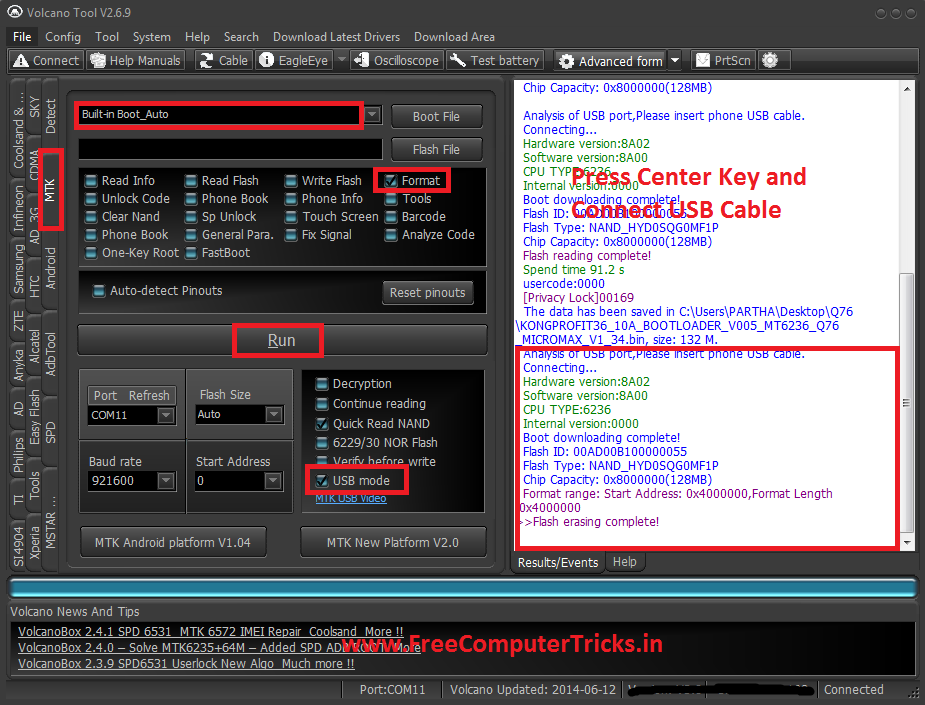
Micromax Q76 Flash Done With Volcano Tool V2.6.9 ( Read, Write Flash and Format )


Here you can find the process to format, flash and read flash of Micromax Q76 MTK 6236 Mobile phone using Volcano Tool V2.6.9.

Micromax Q76 Restart Problem Solved

Micromax Q76 Restart Problem solved by format the phone with Volcano Box

The below is the procedure to format Micromax Q76 using Volcano Tool and with the USB Cable.


Micromax Q76 Format Success With Volcano Tool


Micromax Q76 restart problem solved with volcano tool (Format Done)


Micromax Q76 Read Flash Volcano Tool


Micromax Q76 Read Flash with Volcano Box

Micromax Q76 Volcano Tool Log:

Analysis of USB port,Please insert phone USB cable.
  Connecting...
  Hardware version:8A02
  Software version:8A00
  CPU TYPE:6236
  Internal version:0000
  Boot downloading complete!
  Flash ID: 00AD00B100000055
  Flash Type: NAND_HYD0SQG0MF1P         
  Chip Capacity: 0x8000000(128MB)
 
  Analysis of USB port,Please insert phone USB cable.
  Connecting...
  Hardware version:8A02
  Software version:8A00
  CPU TYPE:6236
  Internal version:0000
  Boot downloading complete!
  Flash ID: 00AD00B100000055
  Flash Type: NAND_HYD0SQG0MF1P         
  Chip Capacity: 0x8000000(128MB)
  Flash reading complete!
  Spend time 91.2 s
  usercode:0000
  [Privacy Lock]00169
>>The data has been saved in C:\Users\XXXX\Desktop\Q76\KONGPROFIT36_10A_BOOTLOADER_V005_MT6236_Q76_MICROMAX_V1_34.bin, size: 132 M.

Sunday, May 4, 2014

Micromax A26 Pattern Unlock and Hard Reset Done With Volcano Tool V2.6.3


Micromax A26 Android Release: 2.3.5 hard reset and pattern unlock successfully solved with Volcano Tool V2.6.3. To remove pattern lock and do a hard reset of Micromax A26, first you have to Root the Device and Wipe All using Volcano Box. Below is the process to unlock pattern and hard reset of Micromax A26 using ADB Root of Volcano Tool.


Micromax A26 Pattern Unlock USB Debug Mode/ Adb Root Volcano Tool


Remove pattern lock and hard reset using Adb Root is always safe than Format a Handset, because some time when you format the phone the phone may be dead. So if the phone is USB Debug Enabled then you can easily Root and Wipe all user data using Volcano Tool, some mobile phones have USB Debug Enabled by default.


How to Know USB Debug is Enabled ?

When you insert USB cable to the phone, you get a message USB connected Debug mode or check the computer device manager if the Android ADB Interface is there, that means the phone has already enabled the USB Debug Mode.


How to Pattern Unlock/Hard Reset Micromax A26 with Volcano Tool


  • Open Volcano Tool
  • Go to MTK Tab
  • Tick on One Key Root
  • Select USB Mode
  • Root: ADB_Root (To Root the Device)
  • Connect the phone to Computer with USB Cable
  • Click on Run

Micromax A26 Pattern Unlock with Volcano Tool by ADB Root

After Getting the device details the phone will restart

After Root Success the device will restart again

  • After switched ON the phone
  • Select Root : Wipe All
  • Then Click Run

After Reset the device will restart

  • Then Select Root: adb_unroot ( To Unroot the device) 
  • Click on Run

UnRoot OK.


Micromax A26 Hard Reset Volcano Tool Log:

-----------------------------------------------------------------------------------------------
Connecting device...
  Device connection is successful.


  Root process may restart the device several times, keep your device and data lines connected correctly.
  Getting Root privileges, please wait...
  Device Model: Micromax A26
  Android Release: 2.3.5  

Device is restarting, please keep your device and data lines connected correctly.
  
Forced to disconnect from the phone by other similar software, turn off them, and re-start root.
  
Root Success,the device is restarting.
 
  Being cleared, please wait...
  Clear OK, device is restarting.
 
>>UnRoot OK.

------------------------------------------------------------------

📚 You May Also Like to Read