Showing posts with label Pattern Lock Solution Volcano Tool. Show all posts

Monday, September 1, 2014

Micromax A51 Hard Reset and Pattern Unlock Solved


Micromax A51 hard reset and pattern lock solution, here is the topic about hard reset of Micromax A51 with buttons, see the below details.

Micromax A51 hard reset with keys


Micromax A51 Hard Reset
  • Switch off the phone
  • Press and hold Volume Up + Power till Android Logo appear
  • Now press Home Soft Key to see Android Recovery Options
  • Now hold the mobile and move up down you can see the blue mark will move up down, hold it carefully and balance it then Press Right Soft Key to OK
  • Remember Right Soft Key is OK


Micromax A51 hard reset done with buttons
We can go to Android system recovery easily, but can not select the options, because Volume Up/Down key will not work at that time. So try the above process 3-4 times you must success.

Spice Mi-349 Format Done With Volcano Tool - Spice Mi349 Hard Reset


Spice Mi-349 hard reset done with Volcano Tool for pattern unlock, Spice Mi-349 format success with volcano tool, see the below details how to hard reset Spice Mi-349 SPD CPU with Volcano Box.

Spice Mi 349 format done with Volcano Tool hard reset
Spice Mi-349 Format With Volcano Tool

  • Open volcano tool
  • Go to SPD Tab
  • Select Boot - 14 (6820/8810)
  • Tick on Format and Auto detect pinouts
  • Connect Spice Mi-349 to Volcano Box
  • Then Click on RUN


SPice Mi-349 format volcano tool v 2-5-8

Volcano Tool Log Spice Mi 349:


Analysis flash internal data successfully.
  Detection initiated...
  Vcc: null
  Gnd: 5
  Analyzing D+ and D-...
  D+ = 3, D- = 2
  Analyzing USB device, please wait...
  Find USB device:SCI USB2Serial (COM12), (VID_1782&PID_4D00)
   
  Internal version: SPRD3
  Boot downloaded.
  Start boot please wait a moment....
  Spreadtrum Boot Block version 1.1
  Boot downloaded.
mtdparts=sprd-nand:256k(spl),512k(2ndbl),256k(params),
512k(vmjaluna),10m(modem),3840k(fixnv),3840k(backupfixnv),5120k(dsp),3840k(runtimenv),10m(boot),10m(recovery),230m(system),150m(userdata),60m(cache),256k(misc),1m(boot_logo),1m(fastboot_logo),3840k(productinfo),512k(kpanic),512k(simlock),10m(intmemory)
  Analysis flash internal data successfully.
>>Set to Factory successfully.

Sunday, May 4, 2014

Micromax A26 Pattern Unlock and Hard Reset Done With Volcano Tool V2.6.3


Micromax A26 Android Release: 2.3.5 hard reset and pattern unlock successfully solved with Volcano Tool V2.6.3. To remove pattern lock and do a hard reset of Micromax A26, first you have to Root the Device and Wipe All using Volcano Box. Below is the process to unlock pattern and hard reset of Micromax A26 using ADB Root of Volcano Tool.


Micromax A26 Pattern Unlock USB Debug Mode/ Adb Root Volcano Tool


Remove pattern lock and hard reset using Adb Root is always safe than Format a Handset, because some time when you format the phone the phone may be dead. So if the phone is USB Debug Enabled then you can easily Root and Wipe all user data using Volcano Tool, some mobile phones have USB Debug Enabled by default.


How to Know USB Debug is Enabled ?

When you insert USB cable to the phone, you get a message USB connected Debug mode or check the computer device manager if the Android ADB Interface is there, that means the phone has already enabled the USB Debug Mode.


How to Pattern Unlock/Hard Reset Micromax A26 with Volcano Tool


  • Open Volcano Tool
  • Go to MTK Tab
  • Tick on One Key Root
  • Select USB Mode
  • Root: ADB_Root (To Root the Device)
  • Connect the phone to Computer with USB Cable
  • Click on Run

Micromax A26 Pattern Unlock with Volcano Tool by ADB Root

After Getting the device details the phone will restart

After Root Success the device will restart again

  • After switched ON the phone
  • Select Root : Wipe All
  • Then Click Run

After Reset the device will restart

  • Then Select Root: adb_unroot ( To Unroot the device) 
  • Click on Run

UnRoot OK.


Micromax A26 Hard Reset Volcano Tool Log:

-----------------------------------------------------------------------------------------------
Connecting device...
  Device connection is successful.


  Root process may restart the device several times, keep your device and data lines connected correctly.
  Getting Root privileges, please wait...
  Device Model: Micromax A26
  Android Release: 2.3.5  

Device is restarting, please keep your device and data lines connected correctly.
  
Forced to disconnect from the phone by other similar software, turn off them, and re-start root.
  
Root Success,the device is restarting.
 
  Being cleared, please wait...
  Clear OK, device is restarting.
 
>>UnRoot OK.

------------------------------------------------------------------

Saturday, April 26, 2014

Karbonn A6+ Hard Reset and Pattern Unlock Done With Volcano Tool - www.FreeComputerTricks.in


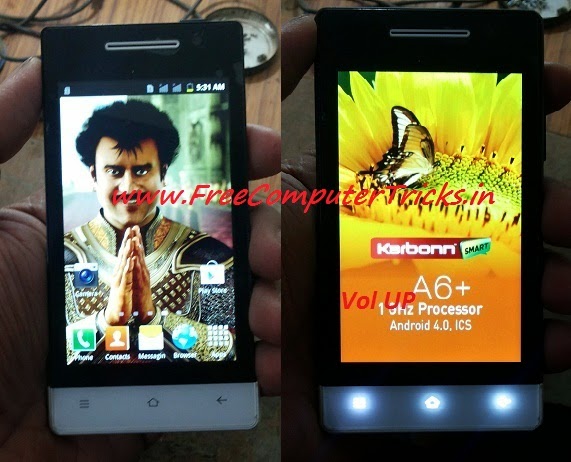
Karbonn A6+ SPD 6820/8810 CPU pattern lock remove with volcano tool. Karbonn A6+ Hard reset done with Volcano Tool by Format the Phone. See the below procedure to hard reset or remove pattern lock of Karbonn A6+ with Volcano Tool.


Karbonn A6+ Hard Reset Volcano Tool SPD CPU


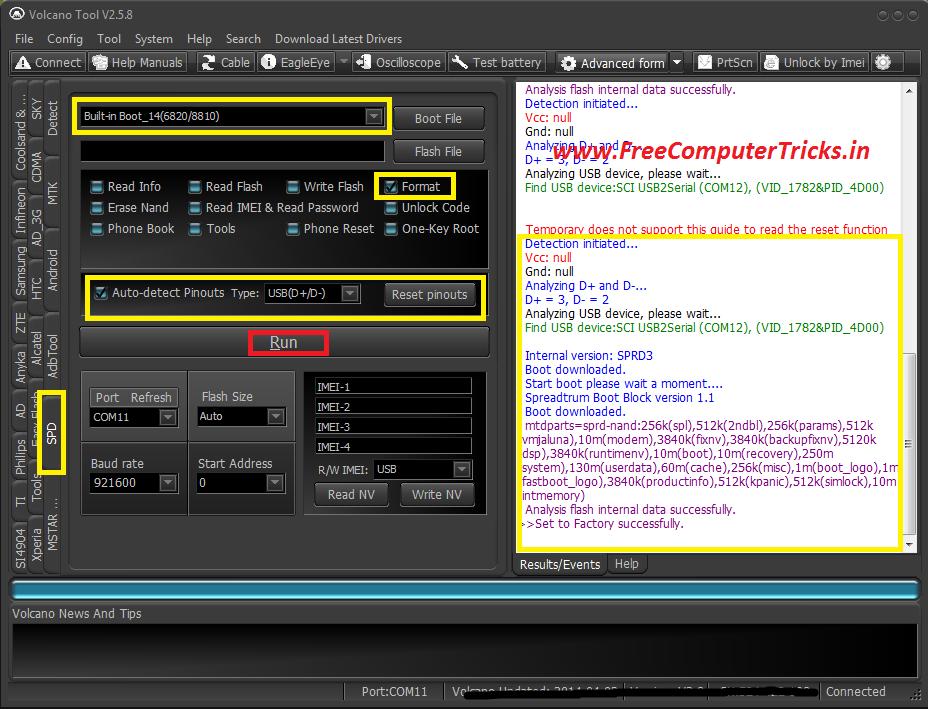
How to remove Karbonn A6+ Pattern Lock Volcano Tool?


  • Open Volcano Tool
  • Go to SPD Tab
  • Select Built-in Boot_14
  • Tick on Format
  • Tick Auto Detect Pinouts
  • Click on Run


Karbonn A6+ pattern unlock with volcano tool


Connect the jig cable and box power to the Karbonn A6+ and Press Volume UP

Karbonn A6+ Volcano Tool Boot Key = Volume Up

Friday, April 11, 2014

Sansui SA32 Pattern Unlock With Volcano Tool V2.5.9 - Sansui SA32 Hard Reset Volcano Tool


SANSUI SA32 how to remove pattern lock volcano tool, This topic is about how you can use Volcano tool to remove pattern lock or hard reset Sansui Sa32 mobile phone.


Steps:

  • Open Volcano Tool
  • Go to SPD Tab
  • Select Built-In Boot_14(6820/8810)
  • Select Format
  • Click on Run


Sansui SA32 Pattern Lock Solution Volcano Tool


📚 You May Also Like to Read