Showing posts with label Karbonn Mobile Flashing. Show all posts

Thursday, May 17, 2018

How To Flash Karbonn K9 Smart Yuva Hang On Logo - Solved


How To Flash Karbonn K9 Smart Yuva Hang On Logo, Karbonn K9 Smart Yuva Stuck On "System.img" When Flashing, Karbonn K9 Smart Yuva Flashing Failed With FactoryDownload Tool, Karbonn K9 Smart Yuva Flashing Error, Karbonn K9 Smart Yuva Flash File Download - Get All Solutions Here.

Here you will get solutions, if you face the above errors on the Karbonn K9 Smart Yuva Smartphone and While flashing the phone. You can also download Karbonn K9 Smart Yuva firmware and K9 smart yuva flash tool here, please go through this article.
How To Flash Karbonn K9 Smart Yuva Hang On Logo - Solved
Watch "How To Flash Karbonn K9 Smart Yuva Hang On Logo" Video Tutorial | YouTube Link

How To Flash Karbonn K9 Smart Yuva Without Errors?
  • Download Karbonn K9 Smart Yuva Firmware and Flash Tool (Link Given Below)
  • Open SPD_Upgrade_Tool_R4.0.0001 and Load Karbonn_K9_Smart_Yuva_V18_2017_10_19.pac
  • Now Click Start Download Button and Connect the Switched Off Phone With Flash Mode.
  • Karbonn K9 Smart Yuva Flash Mode = Press Volume Down Key and Insert USB Cable
  • Wait until you see Passed on the Progress Bar.
Karbonn K9 Smart Yuva V18 Flash OK - Hang On Logo - Solved
Now disconnect the phone from Computer and switch on it. Switch on the Karbonn phone after flash and you need to setup the phone as it is restored to factory defaults. Now you have successfully flashed the faulty Karbonn K9 smart Yuva.

Note: This topic is only for Tutorial purpose, although this process is tested and 100% working but we are not responsible for any damage happens to the phone.

Karbonn K9 Smart Yuva Not Connected With Flash Tool:
If you are not able to connect the phone or the Spreadtrum flash tool not detects the phone or if the Karbonn K9 not showing COM port, then please try the followings.
  • Switch off the phone then Hold Volume Down and Connect USB Cable.
  • Remove Battery and then Hold Volume Down and Connect USB Cable
  • Check Karbonn K9 Smart USB Driver is Installed Properly.
  • If still not success then check the Phone Charging Connector.
Downloads:
Karbonn K9 Smart Yuva V18 | Download
Karbonn K9 Smart Yuva V19 | Download
File Credit: GsmDevelopers

Password: GD_Mekail92@Gsm Developers

K9 Smart Phone Info:
Brand: Karbonn
Model: K9 Smart Yuva
H/W Version: S505_1_10
S/W Version: Karbonn_K9_Smart_Yuva_V18

SPD FLASH TOOL R4.0.0001 | DOWNLOAD

So in this way you can flash Karbonn K9 Smart Yuva Without facing any flashing errors. If the phone is hangs in logo or facing flash tool errors or failed to flash the phone or dead after flash then this topic will be very helpful to you.

Friday, September 4, 2015

Karbonn K62+ SPD SC6531 Read Flash and Format Success With Volcano Tool


How to flash Karbonn K62+? Karbonn K62+ has Spreadtrum CPU SC6531 and flash with Volcano Tool latest version, first full back up the flash file and select the flash file and format the phone, then the phone will work fine. Karbonn K62+ SC6531 dead solution and CPU Details here. The below is the process to flash Karbonn K62+ Mobile Phone.

Karbonn K62+ CPU Details:
  • Spreadtrum Boot Block version 1.2
  • CPU TYPE:SC6531 [65310000]
  • FLASH ID: 00C8006000180000
  • Flash Type:[GD]  25LQ128YIG
  • Size:0x1000000(16MB)


Karbonn K62+ SPD SC6531 Read Flash Done With Volcano Tool


Karbonn K62+ SPD SC6531 Format Success With Volcano Tool
Karbonn K62+ Volcano Tool Log:
Detection initiated...
  Vcc: null
  Gnd: 5
  Analyzing D+ and D-...
  D+ = 3, D- = 2
  Detection D+/D- with 1.06 seconds.
  Continue to detect BOOT pin...
  Found [SPD] USB device: SCI USB2Serial,(VID_1782&PID_4D00)
  BOOT(Pull Down) = 4
  Setting...
  Find USB device:SCI USB2Serial (COM34), (VID_1782&PID_4D00)
  Pinouts setting complete!
   
  Internal version: SPRD3
  Boot downloaded.
  Start boot please wait a moment....
  Spreadtrum Boot Block version 1.2
  CPU TYPE:SC6531 [65310000]
  FLASH ID: 00C8006000180000
  Flash Type:[GD]  25LQ128YIG
  Size:0x1000000(16MB)
>>Set to Factory successfully.


Friday, August 21, 2015

K Phone 3 SPD SC6531 Read Flash and Format Done With Volcano Tool


How to flash K phone 3 with Volcano Tool? the below is the way and complete process to flash Kphone3 using Volcano Tool. The phone has Spreadtrum SPD SC6531 CPU and can be flash with Volcano box. Before flash/format the phone take full flash file backup then select the flash file and format the phone, any software issue of the phone will be solved and work fine. To format and read flash of Karbonn Kphone3 see the below details.

Karbonn Kphone3 CPU Details:
  • CPU TYPE:SC6531 [65310001]
  • FLASH ID: 00C8006000160000
  • Flash Type: SF_GD25LQ32                
  • Size:0x400000(4MB)

K Phone 3 SPD SC6531 Format Success With Volcano Tool

KPhone 3 SPD SC6531 Read Flash Done With Volcano Tool
Karbonn Kphone3 Format Log:
Detection initiated...
  Vcc: null
  Gnd: 5
  Analyzing D+ and D-...
  D+ = 3, D- = 2
  Detection D+/D- with 1.11 seconds.
  Continue to detect BOOT pin...
  Found [SPD] USB device: SCI USB2Serial,(VID_1782&PID_4D00)
  BOOT(Pull Down) = 4
  Setting...
  Find USB device:SCI USB2Serial (COM34), (VID_1782&PID_4D00)
  Pinouts setting complete!
    

  Internal version: SPRD3
  Boot downloaded.
  Start boot please wait a moment....
  Spreadtrum Boot Block version 1.2
  CPU TYPE:SC6531 [65310001]
  FLASH ID: 00C8006000160000
  Flash Type: SF_GD25LQ32               
  Size:0x400000(4MB)
>>Set to Factory successfully.

Wednesday, August 19, 2015

How to Flash Karbonn E5 MTK 6261 CPU With Volcano Tool


How to flash Karbonn E5? which has a MTK 6261 CPU. The below is the complete process to flash the Karbonn E5 with Volcano tool V3.0.5. The phone has MediaTek MT6261 CPU and can be flash or format using any china flash tool, here is the example of Volcano Box and how to flash this model. The flash file size read with Volcano Tool is 4MB.


Karbonn E5 MTK 6261 CPU Details:
Hardware version:CB01
Software version:0001
CPU TYPE:6261
Internal version:8000
Flash ID: 0040000000C80060
Chip Capacity: 0x400000(4MB)
Mobile phone software version for:Karbonn-E5-MT61D-ANX-QVGA-EN-HI-V1003-20150417

Karbonn E5 Format Done With Volcano Tool V3.0.5
Karbonn E5 Volcano Tool Format Log:

  Analysis of USB port,Please insert phone USB cable.
  Connecting...
  Hardware version:CB01
  Software version:0001
  CPU TYPE:6261
  Internal version:8000
 

  Boot downloading complete!
  Flash ID: 0040000000C80060
  Chip Capacity: 0x400000(4MB)
  Mobile phone software version for:Karbonn-E5-MT61D-ANX-QVGA-EN-HI-V1003-20150417
  Baud adjust...complete.
  Format range: Start Address: 0x39D000,Format Length :0x063000
  Flash erasing complete!

Tuesday, June 30, 2015

Karbonn K22 Plus SPD SC6531 Format Done With Volcano Tool V3.0.0


How to flash Karbonn K22+ using Volcano Tool? the below is the process to flash Karbonn K22+ with Volcano Tool V3.0.0. The karbonn K22+ has SPD SC6531 CPU, to flash the phone first read flash or download flash file then select the flash and format or do the wright flash option.


Karbonn K22+ CPU Info:
CPU TYPE:SC6531 [65310001]
FLASH ID: 00C8006000160000
Flash Type: SF_GD25LQ32                
Size:0x400000(4MB)

Karbonn K22 Plus SC6531 Format With Volcano Tool
Open volcano tool
Go to SPD tab
Select boot 15 (SC6531)
Click on Start
Connect the phone using volcano JIG Cable


Karbonn K22+ SPD SC6531 Format Done With Volcano Tool V3.0.0
Note: As the karbonn K22+ has SC6531 CPU, before do anything first Read flash of the phone, then you can format the phone, just select the flash file and format then click on start.

Karbonn K22+ Format Log Volcano Tool:
Detection initiated...
  Vcc: null
  Gnd: 5
  Analyzing D+ and D-...
  D+ = 3, D- = 2
  Detection D+/D- with 1.08 seconds.
  Continue to detect BOOT pin...
  Found [SPD] USB device: SCI USB2Serial,(VID_1782&PID_4D00)
  BOOT(Pull Down) = 4
  Setting...
  Find USB device:SCI USB2Serial (COM34), (VID_1782&PID_4D00)
  Pinouts setting complete!
   
  Internal version: SPRD3
  Boot downloaded.
  Start boot please wait a moment....
  Spreadtrum Boot Block version 1.2
  CPU TYPE:SC6531 [65310001]
  FLASH ID: 00C8006000160000
  Flash Type: SF_GD25LQ32               
  Size:0x400000(4MB)
  Set to Factory successfully.

Friday, June 19, 2015

How to Flash Karbonn K39 SPD SC6531 CPU With Volcano Tool V3.0.0


Here is the way and complete process to flash Karbonn K39 with Volcano Tool V3.0.0. Using this tool you can Read flash, Write flash and format Karbonn K39 phone. The below is the process how to flash Karbonn K39 with Volcano box.


How to flash Karbonn K39 with Volcano Tool
Open volcano tool
Go to SPD tab
Choose boot 15 SC6531
Tick Read Flash
Click on Start


Karbonn K39 Read Flash Done With Volcano Tool V3.0.0

Karbonn K39 has SPD SC6531 CPU, so if you want to format the phone, then first Read flash and then select the flash file then format the phone.


Wednesday, May 20, 2015

Karbonn K77 SPD SC6531 Flash Successfully Done With Research Download Tool


How to flash Karbonn K77 SPD SC6531 CPU? Here is the way to flash the phone using Research Download tool. As you know the phone has SPD SC6531 CPU and can be flash with Flash tool. The below is the process to flash the phone, download firmware and download flash tool for the Karbonn K77.

Karbonn k77 Flash Successfully done with download tool

Downloads:
S126_TJZ_0G1_V05_0711.pac
Research Download Tool


Note: Flash the phone at your own risk, we will not responsible for any damage to the phone.

Karbonn K77 SPD SC6531 Flash With OG Tool
  • Open the Research Download Tool
  • Load the packet 
  • Click on Start
  • Connect the phone using USB Cable to the PC


Karbonn K77 Flash Done With OG flash tool
This flashing procedure is tested and working fine for us but try this at your own risk.


Karbonn K53 SC6531 CPU Format Done With Volcano Tool V3.0.2


How to flash the firmware of Karbonn K53? which has SPD SC6531 CPU. Now you can flash Karbonn K53 SPD SC6531 using Volcano tool. Karbonn K53 Read flash and format done with volcano tool v3.0.2. The below is the process to flash the Karbonn K53 SC6531 with Volcano Utility.


Karbonn K53 Format Done With Volcano Tool
  • Open volcano tool V3.0.2
  • Go to SPD tab and choose SC6531 boot
  • First Read flash and then Format
  • Choose Format and Select the Flash File
  • Click on Start
  • Hold the left menu key


Karbonn K53 Boot Key = Left Menu Key

Karbonn K53 SC6531 CPU Format Done With Volcano Tool V3.0.2
Karbonn K53 Volcano Tool Log:
 Detection initiated...
  Vcc: null
  Gnd: 5
  Analyzing D+ and D-...
  D+ = 3, D- = 2
  Detection D+/D- with 3.96 seconds.
  Continue to detect BOOT pin...
  Found [SPD] USB device: SCI USB2Serial,(VID_1782&PID_4D00)
  UsbVcc(VCC) = 1 10, BOOT(Pull Down) = 4
  Setting...
  Find USB device:SCI USB2Serial (COM189), (VID_1782&PID_4D00)
  Pinouts setting complete!
   
  Internal version: SPRD3
  Boot downloaded.
  Start boot please wait a moment....
  Spreadtrum Boot Block version 1.2
  CPU TYPE:SC6531 [65310001]
  FLASH ID: 00C8006000160000
  Flash Type: SF_GD25LQ32               
  Size:0x400000(4MB)
  Set to Factory successfully.

Friday, May 1, 2015

How to Flash Karbonn A1 + Duple With Smartphone Flash Tool


The below is the procedure to flash Karbonn A1+ Duple with Sp flash tool. To flash the phone you need Karbonn A1 Plus Duple firmware according to the model and Smartphone SP Flash Tool v5.1352.01. 


Downloads:
Karbonn A1+ Duple Firmware
Karbonn_A1+_duple_R03_2014041
or
Karbonn_UTL_A1+_duple_R02_20140711
or
z85b-hl-lca-gsm-hvga_Karbonn_A1+_duple_R06_release
SP Flash Tool v5.1352.01


Karbonn A1+ Duple Flashing
  • Open SP Flash tool
  • Load MT6572_Android_scatter.txt
  • Click on Download
  • Connect USB cable to Switched off phone

Karbonn A1 + Duple Flash Done with SP Flash Tool

Wednesday, July 23, 2014

How to Flash Karbonn K9 8533BX Mstar CPU With Volcano Tool


Karbonn K9, how to flash with volcano tool, as you know karbonn k9 comes with various CPUs one of it's is Mstar 8532B/8533BX which comes with the Karbonn K9 New Model. So here is the process how to flash Karbonn K9 Mstar CPU with Volcano Tool.

Karbonn K9 Chip-set Details

  • Flash Type: GIGA_GD25LQ64
  • Flash ID:   00C8601700000000
  • Flash Size: 00800000h
  • Read Size: 00800000h(8M)
  • CPU : 8532B/8533BX


Karbonn K9 Mstar 8533BX CPU 8MB Flash Done With Volcano Tool V2.4.7

Karbonn K9 8533BX 8MB Flash Done With Volcano Tool

  • Open Volcano Tool
  • Select MSTAT_W Tab
  • Select Write Flash
  • Choose the Karbonn K9 8MB Flash File
  • Select Default Boot
  • Tick on Auto Detect Pinouts
  • Connect the Volcano Box Jig Cable and Power Connector
  • Click on Start


 Search Tags: Karbonn K9 8533BX 8MB Flash File, how to flash karbonn k9 with volcano tool, karbonn flashing tutorials, karbonn k9 mstar flash file and flash tool, karbonn k9 volcano tool flashing, karbonn k9 new flash done with volcano tool, karbonn k9 new mstar 8MB flash file download and flashing tutorials.

Karbonn K9 Mstar 8532B/8533BX CPU Read Flash Done With Volcano Tool V2.7.4


How to flash Karbonn K9 which has a Mstar 8532B/8533BX CPU with Volcano Tool, the below is the process to read flash of K9 with Volcano Tool using USB Cable. The flash file size of K9 Mstar 8533BX is 8MB and can be read with USB Mode with the help of Volcano Tool.

Karbonn K9 Mstar 8533BX Read Flash

  • Open Volcano Tool 
  • Click on MSTAR Tab
  • Click on Read Flash
  • Select Default Boot
  • Un-tick Auto Detect Pinouts
  • Hold the Star Button (*) and Connect USB Cable
  • When You See USB in COM Port Click Start


Karbonn K9 Mstar 8533BX CPU 8MB Flash File Read Success with Volcano Tool
Karbonn K9 Mstar 8532B/8533BX Log:


Current Port:COM11
  Available Ports:COM1 COM11
  Current Port:COM11
  Connecting to phone...
  Connection success!
  Boot downloading...
  CPU ID:00608002
  Boot downloading finished.
  Flash Type: GIGA_GD25LQ64
  Flash ID:   00C8601700000000
  Flash Size: 00800000h
  Read Size: 00800000h(8M)
  CPU : 8532B/8533BX
  Flash Reading finished


Friday, May 16, 2014

Karbonn K46+ Read Flash & Write Flash Done With Volcano Tool V2.6.4


Karbonn K46+ Read and Write Flash done with Volcano Tool v2.6.4 using USB Mode, below is the procedure to flash karbonn K46+ with Volcano Tool using USB Cable.


Karbonn K46+ Read Flash Volcano Tool


  • Open Volcano Tool
  • Go to MTK Tab
  • Select Boot 11
  • Tick on Read Flash
  • Uncheck Auto Detect Pinouts
  • Tick on USB Mode
  • Click on Run
Then Connect USB Cable to Karbonn K46+ in Switched Off Condition


karbonn k46+ read flash volcano tool mtk 625A cpu

Karbonn K46+ Write Flash Volcano Tool


  • Open Volcano Tool
  • Go to MTK Tab
  • Select Boot 11
  • Select Karbonn K46+ .bin Flash file
  • Tick on Write Flash
  • Uncheck Auto Detect Pinouts
  • Tick on USB Mode
  • Click on Run
Then Connect USB Cable to Karbonn K46+ in Switched Off Condition


karbonn k46+ write flash volcano tool

Tuesday, April 29, 2014

Karbonn K52+ Format Done With Volcano Tool Via USB Cable


Karbonn K52+ which has a MTK 625A Chipset Format success with Volcano Tool using Micro USB Cable. The below is the way through which you can format Karbonn K52+ with Volcano Tool Via USB Cable. Flash Karbonn K52+ via USB Cable using Popular China Mobile Flash tool Volcano Tool.


Karbonn K52+ Format With Volcano Tool Using USB Cable


How to Flash/Format Karbonn K52+ Volcano Tool?


  • Open Volcano Tool
  • Go to MTK Tab
  • Choose Built-in Boot_11
  • Tick on Format or Write Flash or Read Info or Read Flash
  • Do not tick Auto Detect Pinouts
  • Tick on USB Mode
  • Click on Run
Now Connect The Karbonn K52+ with USB cable (Switched Off Phone with Battery)


Search Tags: Karbonn K52+ USB Flash, how to flash karbonn mobiles, karbonn mobiles flash with volcano tool help, mobile flashing tutorials, karbonn mobile flash tutorial with volcano tool, Free mobile flash and software or firmware tutorial Free Computer Tricks, Volcano tool flash mobile help, volcano tool flash files karbonn, how to format karbonn mobile with volcano, volcano tool the best tool for china mobiles.


Saturday, April 26, 2014

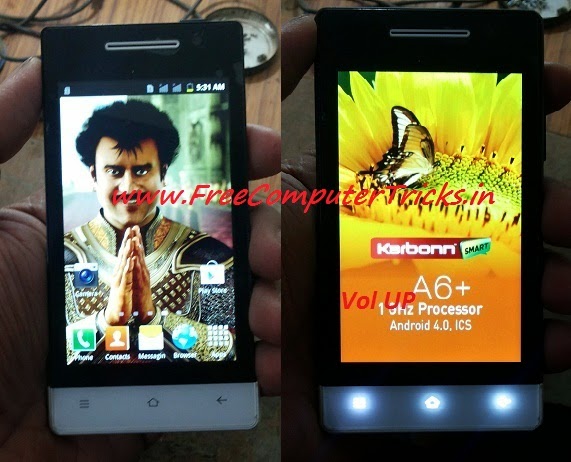
Karbonn A6+ Hard Reset and Pattern Unlock Done With Volcano Tool - www.FreeComputerTricks.in


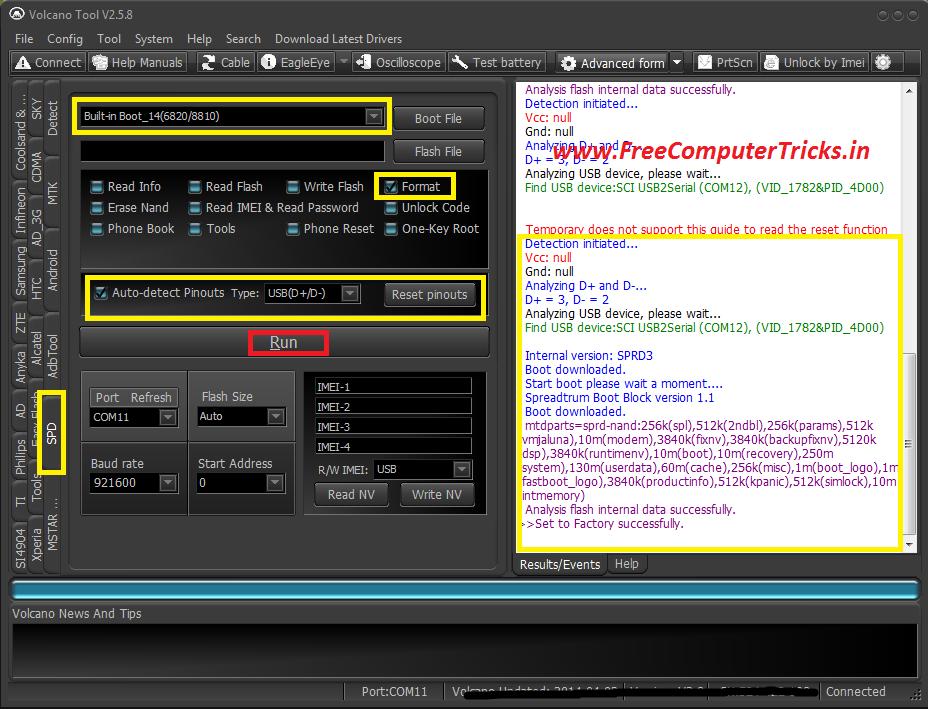
Karbonn A6+ SPD 6820/8810 CPU pattern lock remove with volcano tool. Karbonn A6+ Hard reset done with Volcano Tool by Format the Phone. See the below procedure to hard reset or remove pattern lock of Karbonn A6+ with Volcano Tool.


Karbonn A6+ Hard Reset Volcano Tool SPD CPU


How to remove Karbonn A6+ Pattern Lock Volcano Tool?


  • Open Volcano Tool
  • Go to SPD Tab
  • Select Built-in Boot_14
  • Tick on Format
  • Tick Auto Detect Pinouts
  • Click on Run


Karbonn A6+ pattern unlock with volcano tool


Connect the jig cable and box power to the Karbonn A6+ and Press Volume UP

Karbonn A6+ Volcano Tool Boot Key = Volume Up

Friday, April 25, 2014

Karbonn KT61 Read Flash, Write Flash and IMEI Repair Done With Volcano Tool


Karbonn KT61 MTK 6252 successfully flashed with Volcano Tool, Read flash and IMEI also done with Volcano Tool. The below is the procedure to operate Karbonn KT61 with Volcano Tool using USB cable.


Karbonn KT61 MTK 6252 USB Flash With Volcano Tool


  • To write, Read Flash & Read info & Format put the USB Cable to switched Off phone by pressing the home Button.

  • For IMEI put the USB Cable to Switched ON Phone and Select COM port on the Mobile.

 
Karbonn KT61 Read Flash Volcano Tool Log:

Analysis of USB port,Please insert phone USB cable.
  Connecting...
  Hardware version:CA05
  Software version:0101
  CPU TYPE:6252
  Internal version:8B00
  Boot downloading complete!
  Flash ID: 00C2002500370000
  Flash Type: SF_MX25U6435E             
  Chip Capacity: 0x800000(8MB)
  Flash reading complete!
  privacy:1122
  usercode:1122
>>The data has been saved in C:\Users\PARTHA\Desktop\KT61\KARBONN_52_6432_10A_PCB01_GPRS_MT6252_S01.KARBONN_KT61_T322_M00_S06_120217.BIN, size: 8 M


Karbonn KT61 Format Done With Volcano Tool


Karbonn KT61 Format Volcano Tool


 Karbonn KT61 Read Flash Volcano Tool


Karbonn KT61 MTK Read Flash Volcano Tool


Karbonn KT61 IMEI Volcano Tool


Karbonn KT61 IMEI Android Tool Volcano

Thursday, April 24, 2014

Karbonn K76 USB Flash Done With Volcano Tool - Karbonn K76 MTK 6260 Write Flash Volcano Tool Through USB Cable


In this tutorial I will show you, how you can flash Karbonn K76 with USB cable using Volcano Tool. The below is the process to write flash Karbonn K76 MTK 6260 CPU Mobile phone.


Steps to Write Flash on Karbonn K76 Volcano Tool


  • Open Volcano Tool
  • Go to MTK Tab
  • Select Built-in_Boot-11
  • Tick on Write Flash
  • Do not select Auto Detect Pinouts
  • Tick on USB Mode
  • Click on Run
  • Now Insert USB Cable to switched off phone by pressing volume Down


Karbonn K76 MTK 6260 USB Flash Done With Volcano Tool


Search Tags: how to flash karbonn k76, how to flash karbonn k76 with volcano tool, karbonn k76 flash tool, karbonn k76 USB flash with volcano tool, karbonn k76 MTK 6260 flash process with volcano tool, volcano tool how to flash karbonn mobiles, volcano tool MTK CPU USB Flashing, karbonn K76 hard reset volcano tool, how to flash karbonn k76 volcano tool, karbonn USB flash.

Friday, April 11, 2014

Karbonn A36 SPD 6282 Hard Reset With Volcano Tool and ADB Root - www.FreeComputerTricks.in


How to hard reset/Restore to factory settings of Karbonn A36 which has SPD 6282 CPU. The below process is to hard reset Karbonn A36 with Volcano tool and with the help of ADB Root, with this ADB Root process you no need to format the Karbonn A36. So to hard reset Karbonn A36 just Root the device and Wipe All using the Volcano Tool.


How to Hard Rest Karbonn A36/ Set to Factory Settings

  • Open Volcano Tool
  • Then Open Android Tool
  • Select CPU Type to Spd6820
  • Click on ADB Root
  • Connect the Karbonn A36 with USB Data Cable
  • Click Start


After Root Success the device will restart

  • Then Click on Wipe All
  • Click on Start
Now it will clear user data and Restart the device

So now the Karbonn A36 is successfully set to factory defaults and the pattern lock has been removed.


Karbonn A36 Hard Reset Volcano Tool


After that just Unroot the device


  • Click on ADB Unroot
  • Click on Start
  • You will get a message Unroot OK 

Monday, March 31, 2014

Karbonn K9 New MTK CPU 6260 Flash Done With Volcano Tool V2.5.6


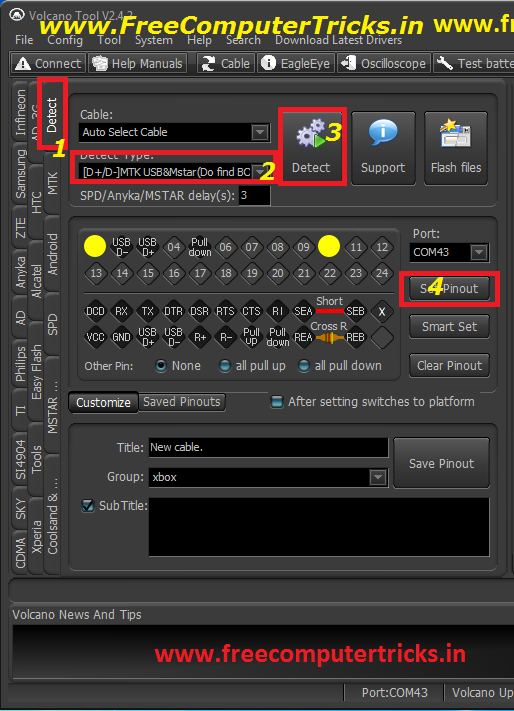
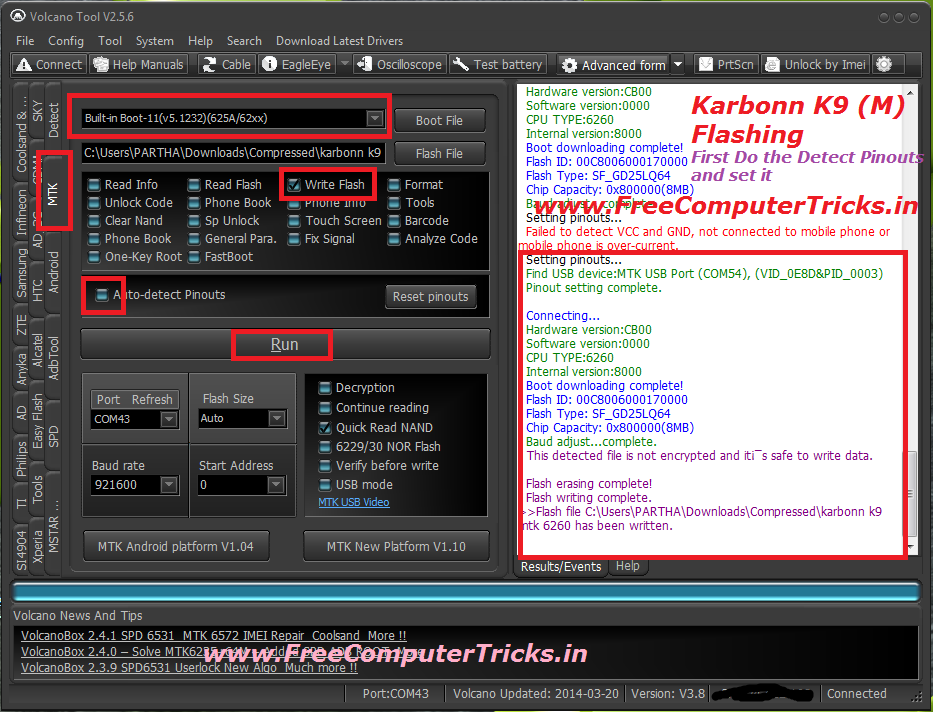
Karbonn K9 (M) MTK CPU 6260 Flash success with Volcano Tool, To flash the Karbonn K9 MTK you have to do the Pinout setting manually in Volcano Tool not only this all MTK 6260 CPU may need to set the pinout manually. So it's not so difficult to set the pinout in Volcano Tool, this tutorial is about how you can set the pinout manually in volcano tool and how the flash the Karbonn K9 mobile which has MTK 6260 CPU.

Not all Karbonn K9 Mobile has the MTK CPU some are also have Mstar CPU. So this topic is about How you can flash the Karbonn K9 (M) MTK 6260 CPU.


The Karbonn K9 is not switched on even when I try to format the phone using volcano tool it's not format also, then I download the Karbonn K9 MTK 6260 Flash file and finally flash the phone using Volcano Tool and it's done now the phone is working fine.

How to know the Phone has Software problem?

1) The phone may be dead means not switched on
2) The phone is restarting
3) The phone is hanged
4) The phone is switched off when make and receive calls
5) The phone's IMEI is missing
6) The phone is switched off when insert SIM Card
7) Some options are not working well


How to  Set Pinout Karbonn K9 MTK 6260 ?

See the below Image

Karbonn K9 MTK Set Pinout

After Pinout Setting Complete go back to MTK Tab and see the below Image to flash the phone.


How to Flash Karbonn K9 MTK 6260 CPU with Volcano Tool ?


Karbonn K9 MTK 6260 Flash done with Volcano Box

Note: Use Volcano Box Power and P-05B Jig


Search Tags: how to flash karbonn k9 phone, karbonn k9 m how to flash with volcano tool, karbonn phone flashing, karbonn flash files download, karbonn k9 new mtk cpu how to flash, volcano tool successfully flashed phones, karbonn k9 mtk 6260 flash file, karbonn k9 phone flashing, how to flash a phone, how to know the phone has software problem, mobile free flashing tutorials by Free Computer Tricks, All mobile flashing tutorials online for free, karbonn mobile flashing procedure with volcano tool, how to use volcano tool, Volcano Tool latest setup, All about Volcano tool the flashing tool for mobile phones, Karbonn K9 dead solution, how to repair karbonn k9 new mtk 6260 cpu not booting.


📚 You May Also Like to Read