Showing posts with label Volcano Tool. Show all posts

Tuesday, March 7, 2017

Volcano Box - Cannot Connect To Server Problem 100% Solved


If you are using Volcano Box, then you must know about the error message "Cannot Connect to server, check whether the network is available, or use a proxy server", while you install Volcano box on a new PC or when you format your Computer system and install volcano box/volcano utility. So here is the new and 100% working solution for those who face like this problem on Volcano Box.
Volcano Tool/Volcano Box Cannot Connect to server, check whether the network is available, or use a proxy server
To day I faced  this problem on the Volcano Tool, when install volcano tool on a new PC, I got this "Cannot Connect to server, check whether the network is available, or use a proxy server" error message, and follow some techniques or ways following the Internet but not success. Then I try to find out a new solution for this and success, the below is the best and working solution for "Cannot Connect to server, check whether the network is available, or use a proxy server", if you are facing same problem with your Volcano Box then try the following trick or process to solve Volcano Box Error message.

Cannot Connect To Server Problem on Volcano Box Solution:

Solution 1:

1) First Install the latest version of Volcano Utility and Volcano Yellowstone.
2) Latest version of volcano box is VolcanoUtility_v2.8.3_Volcano Yellowstone and VolcanoUtility_v3.0.9_Volcano Module.
3) Now connect the volcano box and install driver and open the Volcano Utility.

If the above solution is not working, then use the following solution which is 100 percent working.

Solution 2:

1) Download and extract Merapi Tool_1.4.7_20160313.rar or you can download the latest version Merapi Tool.
2) Now open the MerapiTool.exe and wait until it ask to log in
3) Now click on Cancel to close the Merapi Tool.
4) Then open Volcano Tool/Volcano Utility it will not show the error message again.
Volcano Tool - Cannot connect to the server Solved using Merapi Tool

That's all now you can use the Volcano Tool and you will not get any error message like "Cannot connect to the server".

Sunday, September 14, 2014

Kechaoda K9 Read Info and Read Flash Done With Volcano Tool


How to flash Kechaoda K9 with volcano tool, here is the process to read flash and read info of Kechaoda K9 with Volcano Tool. The below is the process to read flash with Volcano box.

Kechaoda K9 Read Flash With Volcano Tool

  • Open volcano too
  • Go to MTK Tab
  • Select Read Flash
  • Select Boot-11_V5
  • Tick on USB Mode
  • Click on Start
  • Connect USB Cable to switched off Phone with Battery


Kechaoda K9 Read Flash With Volcano Tool
Kechaoda Read Flash Volcano Log:


Analysis of USB port,Please insert phone USB cable.
  Connecting...
  Hardware version:CB00
  Software version:0000
  CPU TYPE:6260
  Internal version:8000
  Boot downloading complete!
  Flash ID: 00EF004000160000
  Flash Type: SF_W25Q32BV               
  Chip Capacity: 0x300000(3MB)
  Baud adjust...complete.
  Flash reading complete!
  privacy:2030

Tuesday, September 9, 2014

Opal Mini One SPD SC6531 Read Flash and Format Done With Volcano Tool V2.7.7


As you know now with the latest update from volcano tool you can operate SPD 6531 CPU, not all the 6531 CPU but many of them can be done with Volcano Tool. So here is one SPD 6531 CPU mobile called Opal Mini One, SSN Mini One GSMH, which read flash and format success with Volcano tool.


Opal Mini One SPD SC6531 Read Flash and Format Success with Volcano Tool 2.7.7
Opal Mini One Format Success with Volcano Tool V2.7.7
  • Open volcano tool
  • Go to SPD Tab
  • Select Format
  • Select Boot_15 (SC6531)
  • Tick on Auto Detect Pinouts
  • Click on Start


Opal Mini One SPD 6531 CPU Format Success with Volcano Tool

Opal Mini One Read Flash With Volcano Tool

Opal Mini One Read Flash done with Volcano Tool V2.7.7

Monday, September 1, 2014

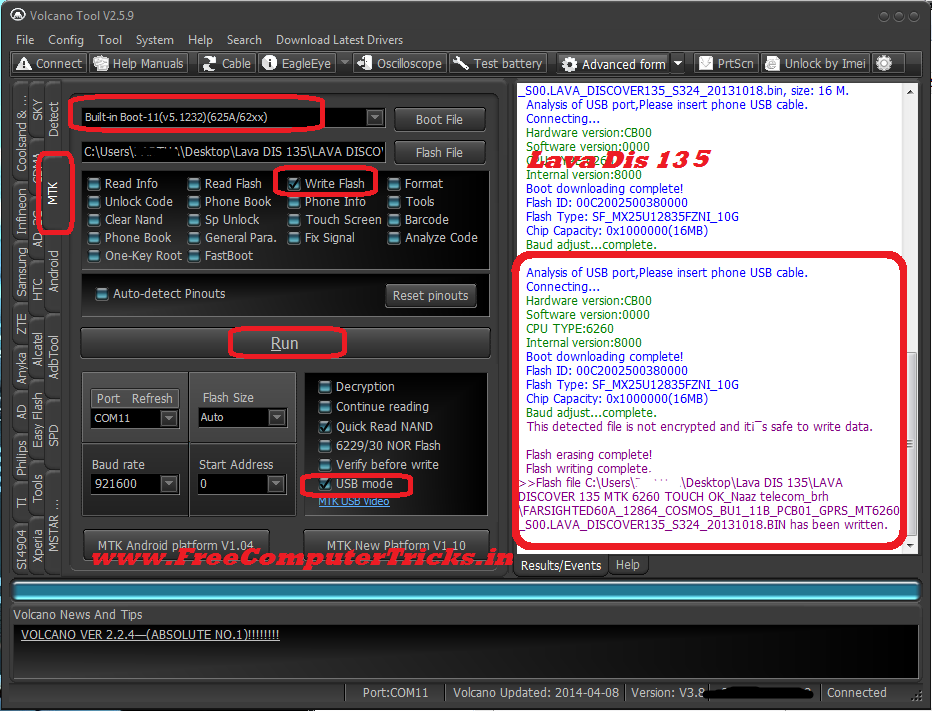
Lava Discover 135 Write Flash Done With Volcano Tool


Lava Discover 135 flash success with Volcano Tool, the below is the procedure to write flash with volcano tool. Lava Discover 135 which has a MTK 6260 CPU and flash file size is 16MB. Lava DIS 135 flash done with USB Cable using Volcano Box.

Lava Dis 135 CPU Details
  • Hardware version:CB00
  • Software version:0000
  • CPU TYPE:6260
  • Internal version:8000
  • Boot downloading complete!
  • Flash ID: 00C2002500380000
  • Flash Type: SF_MX25U12835FZNI_10G      
  • Chip Capacity: 0x1000000(16MB)


How to flash Lava Dis 135 with Volcano Tool
Lava Dis 135 Write Flash With Volcano Tool USB Mode


  • Open volcano tool
  • Go to MTK Tab
  • Tick on Write Flash
  • Select the Flash File for Lava Dis 135
  • Select Boot -11 v5
  • Un-tick Auto Detect Pinouts
  • Tick on USB Mode
  • Click on Run
  • Now connect Lava Dis 135 to PC using Micro USB Cable

No need to press any key, just connect the phone to PC using USB Cable, Lava Dis 135 no need to press any boot key.

Monday, August 18, 2014

Spice M-6464 MTK 6235 CPU Format Done With Volcano Tool V2.7.7


How to flash or format Spice M6464 MTK 6235 with Volcano tool, see the below steps to format, write flash and read flash Spice M6464 MTK6235 CPU.


spice m 6464 format done with volcano tool v2.7.7

Spice M-6464 Format With Volcano Tool


  • Open Volcano Tool V2.7.7
  • Go to MTK Tab
  • Select Format
  • Tick on Auto Detect Pinouts
  • Select Built-in Auto Boot
  • Click on Start
  • Press the Power Button on Spice M-6464


Spice M-6464 Format Volcano Tool Log:

Detection initiated, connect the phone and power on it...
  Vcc: 9
  Gnd: 2
  Waiting for phone's response,please press Power on/off button. 
  Connecting...
  Hardware version:8A04
  Software version:8A01
  CPU TYPE:6235

  Connecting, please hold on the power key...
  Formatting completed


Spice M-6464 Read Info Volcano Tool Log:

Detection initiated, connect the phone and power on it...
  Vcc: 9
  Gnd: 2
  RX: 7, TX: 5
 
  Connecting...
  Hardware version:8A04
  Software version:8A01
  CPU TYPE:6235
  Internal version:0000
  Boot downloading complete!
  Flash ID: 009800F100900095
  Flash Type: NAND_TC58NVG0S3AFT        
  Chip Capacity: 0x8000000(128MB)

  Mobile phone software version for:1.16
  Baud adjust...complete.
  Read phone information success.

Wednesday, August 13, 2014

Volcano Tool/Utility 2014 Latest Update Download On 10th August, 2014


Great news for Volcano Box users, Volcano Team has released a new and latest version of Volcano Box named Volcano Utility V2.7.7, which has more improved features and many more small updates for the tool. The below is the details about the new version of Volcano Box Volcano Utility V2.7.7.


Download Volcano Tool V2.7.7

Volcano Tool or Volcano Utility V2.7.7 Latest Setup Download Here. Volcano Utility V2.7.7 Adjust write flash SPD 6820/8810, Added New models fro MTK 6572/6582, Adb Root for new phones and many more...


What's New ?

  • Adjust to write flash for SPD 6820/8810 phones
  • Support new flashes for MTK 6572/6582 android phones
  • Support new phones for Adb Root
  • Support new flashes for SPD 6820/8810 android phones


VolcanoUtility_v2.7.7.rar Download Here


Tuesday, July 29, 2014

Kechaoda K22 MTK 625A CPU Read Flash Done With Volcano Tool Using USB Cable


Kechaoda K22 Chinese phone CPU MTK 625A read flash done with Volcano Tool V 2.7.4 using USB Cable, Kechaoda mobile phone read flash with USB Cable. See the below steps to read flash of Chinese Phone Kechaoda K22 with Volcano Tool.


KECHAODA K22 Read Flash Volcano Tool

  • Open Volcano Tool
  • Go to MTK Tab
  • Click on Read Flash
  • Select Boot 11(v5.1232)
  • Select USB Mode
  • Do not Select Auto Detect Pinouts
  • Click on Start Button
  • Now connect the Kechaoda K22 with Micro USB (CA-100 Cable)


Kechaoda K22 MTK625A Read Flash Volcano Tool

Kechaoda K22 Volcano Box Log:

Analysis of USB port,Please insert phone USB cable.
  Connecting...
  Hardware version:CA01
  Software version:0001
  CPU TYPE:625A
  Internal version:8000
  Boot downloading complete!
  Flash ID: 00EF004000160000
  Flash Type: SF_W25Q32BV               
  Chip Capacity: 0x300000(3MB)
  Baud adjust...complete.
  Flash reading complete!
  privacy:5050

Saturday, July 26, 2014

Volcano Utility 2.7.5 BETA Released - Download Volcano Tool Latest Setup July 2014


Volcano box has released the new volcano tool/utility 2.7.5 beta on 22 July,2014. Volcano Tool which is the best tool for chinese phones and with the new update you can do more with the new method. This is a beta version of volcano tool/utility so try at your own risk. The below is some details about the new volcano tool v2.7.5 beta.

What's New?

SPD Android READ New Method Beta
SPD Android WRITE New Method Beta


Download Volcano Tool V2.7.5

How to Work with SPD CPU Volcano Tool V2.5.7

For SPD Android you have to use Android Tool and select SPD and do your job read or write, remember do not use normal SPD Tab for better result always use Android Tool. In this process you do not need to read info and analyze data just click on read or write and do the work, old read files are not supported for this. You have to read again from working phone and test on faulty phone using Android Tool, still it may not support some phones but many phones will support in this.


Note:

  • As this is beta so try at your own risk !!
  • This update will not work on any system which installed any Spy Tool or Port Monitoring tool. So if you have installed any please remove it completely and restart system
  • Read & Write Speed is slow for now and it will increase soon

Thursday, July 24, 2014

VOX V3100 Coolsand_RDA CPU Read Info and Read Unlock Code Done With Volcano Tool


Vox V3100 coolsand_RDA CPU read info and read unlock code successfully done with volcano tool v2.4.7. The below is the procedure to flash VOX V3100 mobile with Volcano Tool, and read unlock code. Vox V3100 has a Coolsand_RDA CPU and which can be flash with Volcano Tool the best tool for chines phones.

Vox V3100 Mobile CPU Details

CPU ID: 8809 4007
Flash ID : 00C86016
Flash Type: SF_GD25LQ32                
Flash Len :0x400000(4M)
Flash File Size : 4MB


Vox V3100 Read Info Volcano Tool

  • Open Volcano Tool
  • Go to Coolsand_RDA Tab
  • Click on Read Info
  • Select Built in Boot B
  • Tick on Auto Detect Pinouts
  • Connect Volcano Box Jig Cable and Power Clip
  • Click on Start and Press Power Button


vox v3100 read info done with volcano tool Coolsand RDA Chip set

Vox V3100 Read Unlock Code Volcano Tool


vox v3100 unlock code read done with volcano tool Coolsand RDA Chip set

Wednesday, July 2, 2014

Volcano Tool V2.7.3 - With New Easy Volcano Tool GUI and Allwinner IMIE & New BroadCom IMEI


As you know Volcano Tool has changed it's user interface for a easy use to the volcano users. and here is an another release of new Volcano Box with latest updates. Volcano Tool V2.7.3 is the latest setup of volcano box, here you can download the volcano tool and enjoy the new release from Volcano Team. You can also change the Skin of the Volcano Tool Utility Version V2.7.3.


Download Volcano Tool V2.7.3 - Volcano Box Latest Setup Download Vista Skin Volcano Utility


What's New Volcano Tool V2.7.3


AllWinner IMEI Repair
New BroadCom Based IMEI Repair
Remove Some Old & Useless Things


Volcano Tool Updates Download Volcano Box Utility V2.7.3

To Download Volcano Tool Utility V2.7.3 Visit the below links


Friday, June 20, 2014

How to Create a Modified USB Cable For Volcano Box


Here you will find how to create a Modified USB Cable to flash mobile phones with Volcano Tool using the modified USB Cable. When you flash mobile phones with Volcano Toll normally you use the JIG Cable to flash the phone but this Modified USB Cable helps you flash the phone using the USB Cable.


Note: Not all the modes will work with this USB Cable but in many cases it's very useful


This cable will work for MTK, SPD, MSTAR and RDA CPU


How to Create Modified USB Cable?

Take a Nokia CA-101 USB Cable
Pin - 1= VCC
Pin -2= D-
Pin -3 = D+
Pin -4 = Empty
Pin -5 = GND

Just Joint the Pin 4 and 5 to Create the Android Modified Cable

(Sold one wire with Black color wire PIN-5 and another wire to the empty PIN then short the both wire)


Modified USB Cable to Flash Mobile Phones Volcano Tool

Friday, May 16, 2014

Karbonn K46+ Read Flash & Write Flash Done With Volcano Tool V2.6.4


Karbonn K46+ Read and Write Flash done with Volcano Tool v2.6.4 using USB Mode, below is the procedure to flash karbonn K46+ with Volcano Tool using USB Cable.


Karbonn K46+ Read Flash Volcano Tool


  • Open Volcano Tool
  • Go to MTK Tab
  • Select Boot 11
  • Tick on Read Flash
  • Uncheck Auto Detect Pinouts
  • Tick on USB Mode
  • Click on Run
Then Connect USB Cable to Karbonn K46+ in Switched Off Condition


karbonn k46+ read flash volcano tool mtk 625A cpu

Karbonn K46+ Write Flash Volcano Tool


  • Open Volcano Tool
  • Go to MTK Tab
  • Select Boot 11
  • Select Karbonn K46+ .bin Flash file
  • Tick on Write Flash
  • Uncheck Auto Detect Pinouts
  • Tick on USB Mode
  • Click on Run
Then Connect USB Cable to Karbonn K46+ in Switched Off Condition


karbonn k46+ write flash volcano tool

Saturday, May 10, 2014

MAXX MX317 Read Flash and Read Info Done With Volcano Tool


The below is the procedure to read flash and info for the Maxx MX317 with volcano tool. MAXX MX317 which has a MTK 6225 CPU and 16MB flash file, can be flash with Volcano tool.


How to Read Flash MAXX MX317 Volcano Tool

  • Open Volcano Tool
  • Go to MTK Tab
  • Select Boot_5
  • Tick on Read Flash
  • Click on Run
  • Connect Maxx Mobile with Jig Cable and Use Volcano Box Power
  • MAXX MX317 Volcano Tool Boot Key = Power Button


Maxx MX317 MTK 6225 Read flash with Volcano Tool

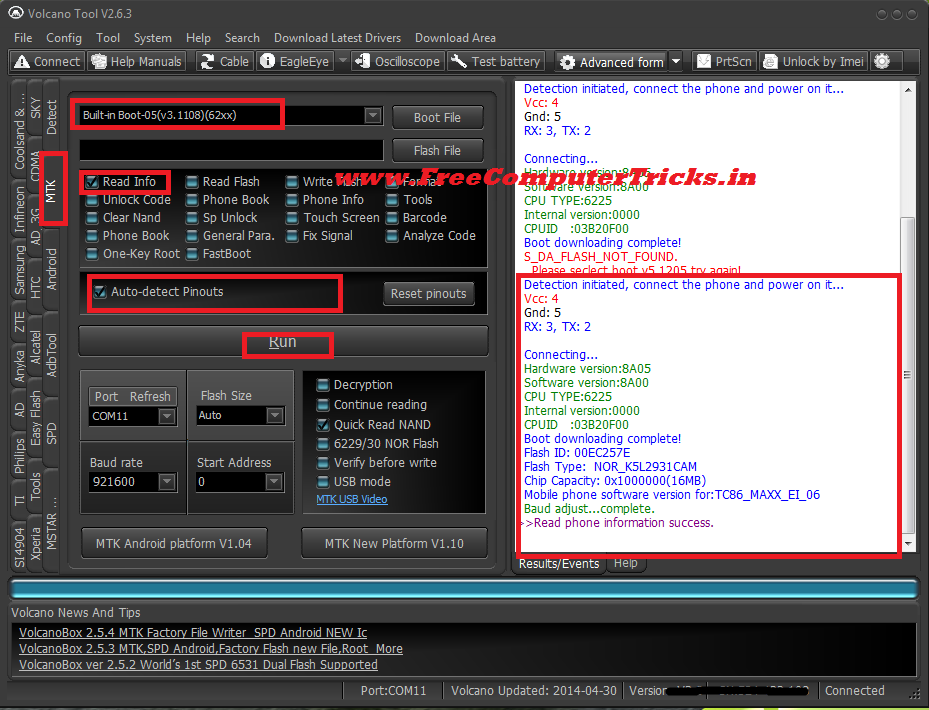
MAXX MX 317 Read Info Volcano Tool


MAXX MX317 Read Info Volcano Tool Built-in Boot_5


Volcano Tool MAXX MX317 Log:

Detection initiated, connect the phone and power on it...
  Vcc: 4
  Gnd: 5
  RX: 3, TX: 2
 
  Connecting...
  Hardware version:8A05
  Software version:8A00
  CPU TYPE:6225
  Internal version:0000
  CPUID   :03B20F00
  Boot downloading complete!
  Flash ID: 00EC257E
  Flash Type:  NOR_K5L2931CAM          
  Chip Capacity: 0x1000000(16MB)
  Mobile phone software version for:TC86_MAXX_EI_06
  Baud adjust...complete.
  Flash reading complete!
  usercode:7861
  usercode:1234
>>The data has been saved in C:\Users\XXXXX\Desktop\MX317\MT25_TC86_PCB01_GPRS_MT6225_S00.TC86_MAXX_EI_06.BIN, size: 16 M.


Saturday, May 3, 2014

LG A120 Volcano Tool (Read Flash, Read Info and IMEI Done)


LG A120 Read Flash, Read Info and IMEI Repair done with Volcano Tool, the below is the procedure to flash LG A120 with Volcano Box.


How to Read Flash LG A120 With Volcano Tool?


  • Open Volcano Tool
  • Go to MTK Tab
  • Tick on Read Flash
  • Tick on Auto Detect Pinouts
  • Click on Run
  • Connect P05B JIG to LG A120 and Box Power Cable
  • Then Press Power Button


LG A120 Volcano Tool Boot Key = Power Button


LG A120 Read Flash Success With Volcano Tool


LG A120 Read Info Success With Volcano Tool


LG A120 Read Info Volcano Tool MTK 6223 CPU


LG A120 IMEI Repair Volcano Tool


LG A120 IMEI Repair Volcano Tool


LG A120 Read Flash Volcano Tool Log:

Detection initiated, connect the phone and power on it...
  Vcc: null
  Gnd: 5
  RX: 3, TX: 2 
  Connecting...
  Hardware version:8A05
  Software version:8A00
  CPU TYPE:6223
  Internal version:0000
  CPUID   :575C0C00
  Boot downloading complete!
  Flash ID: 00EC225700000000
  Flash Type:  NOR_K5L6433ABM          
  Chip Capacity: 0x800000(8MB)
  Mobile phone software version for:A120-00-V10a-404-XX-JUL-19-2010
  Baud adjust...complete.
  Flash reading complete!
  usercode:0000
>>The data has been saved in C:\Users\PARTHA\Desktop\LG A120\A7265_PCB01_GSM_MT6223_S00.A120-00-V10A-404-XX-JUL-19-2010.BIN, size: 8 M.


Saturday, April 26, 2014

Spice M 5115 MTK 6252 Format, Read Flash and Write Flash Done With Volcano Tool


How to flash spice M5115 mobile with Volcano Tool? below is the process to write flash, read flash and format spice m5115 mtk phone with volcano tool.


Spice M-5115 MTK 6252 Format Done With Volcano Tool


  • Open Volcano Tool
  • Go to MTK Tab
  • Select Built-in Boot_11
  • Tick on Format
  • Tick on Auto Detect Pinouts
  • Click on Run


Spice M5115 format with volcano tool


Connect Spice M5115 phone with Volcano JIG cable and use Volcano Box power cable and Press Switch on Button


Spice M5115 Boot Key is Power On Button


Spice M-5115 Write Flash With Volcano Tool


Spice M5115 MTK 6252 CPU Write Flash with Volcano Tool


Karbonn A6+ Hard Reset and Pattern Unlock Done With Volcano Tool - www.FreeComputerTricks.in


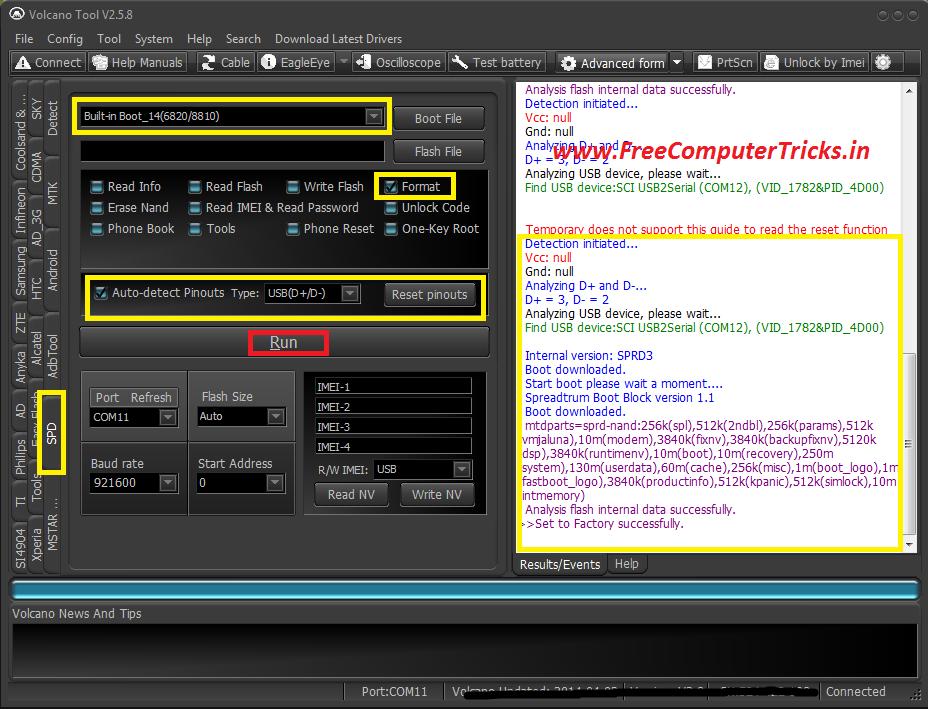
Karbonn A6+ SPD 6820/8810 CPU pattern lock remove with volcano tool. Karbonn A6+ Hard reset done with Volcano Tool by Format the Phone. See the below procedure to hard reset or remove pattern lock of Karbonn A6+ with Volcano Tool.


Karbonn A6+ Hard Reset Volcano Tool SPD CPU


How to remove Karbonn A6+ Pattern Lock Volcano Tool?


  • Open Volcano Tool
  • Go to SPD Tab
  • Select Built-in Boot_14
  • Tick on Format
  • Tick Auto Detect Pinouts
  • Click on Run


Karbonn A6+ pattern unlock with volcano tool


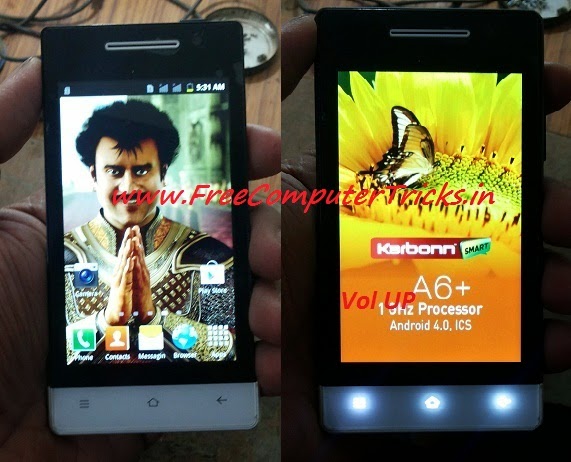
Connect the jig cable and box power to the Karbonn A6+ and Press Volume UP

Karbonn A6+ Volcano Tool Boot Key = Volume Up

Sony Xperia ST21i2 Hard Reset and Pattern Lock Solution Volcano Tool - www.FreeComputerTricks.in


Sony Xperia ST21i2 MTK Android, how to remove pattern lock with Volcano Tool and hard reset. This can be done with Volcano Tool's Android Tool V2.2. The below is the procedure for pattern unlock Sony Xperia st21i2 Android Release 4.0.4 by rooting the device and wipe the data/factory reset.


Steps:

  • Open Volcano Tool
  • Click on Android to Open Android Tool
  • Click on ADB MODE
  • Select ADB Root (To Root the Device)
  • Then Click on Start

After Root Success The Device Will Restart


Sony Xperia ST21i2 pattern lock successfully removed with Volcano Tool


  • Then Click on Wipe All
  • and Click on Start

After that device will restart again and now you have successfully hard reset the Sony Xperia ST21i2 with Volcano Tool.

📚 You May Also Like to Read