Showing posts with label Volcano Box. Show all posts

Thursday, September 28, 2017

Volcano Utility V3.1.0 Volcano Module - Volcano Box Latest Setup Download


Volcano Box is used for flashing firmware and unlock and repair IMEI on phones, it also support some Android smart phones to read pattern and unlock. Volcano tool or utility is the interface of the Volcano box and here you can download the latest version of Volcano box setup V3.1.0 and install on your Computer. This tool is helpful and easy to flash all most all feature phones as well as some Android phones, it support Spreadtrum (SPD), MediaTek (MTK), Coolsand_RDA, MSTAR, Anyka, Infineon and other platforms. It also includes ADB Tool and Fastboot Tool, which helps to hard reset some Android smart phones. Here you can download the latest version of Volcano Box software "Volcano Utility V3.1.0 Volcano Module" download and enjoy the updates with your Volcano Box.

Volcano Tool Utility Version 3.1.0 Download Free

Volcano Utility V3.1.0 What's New?

Whats New?
 
FIXED "Cannot Connect to server, Check whether the network is available, or use proxy" Error.

Downloads:

Download Volcano Box Setup Latest Version 2017:


or

You can download Volcano Utility V3.1.0 directly from Here

Tuesday, March 7, 2017

Volcano Box Download All Updates 2017


If you are searching to download volcano box or volcano tool or volcano utility latest 2017 version then this topic will help you to find out the volcano box all update at one place. You can download volcano box Volcano Utility_v2.8.3_Volcano Yellowstone and Volcano Tool regular module updates. See the below download links to download the volcano box setup files.


Volcano Tool, Volcano Utility All Updates Download Here

Download Volcano Box All Updates:

Download Volcano Utility_v2.8.3_Volcano_Yellowstone

Download Volcano Module Regular Updates

Volcano Module Regular Updates

How to Copy Module Files into YellowStone Folder

Volcano Tool How To Use Updates

Volcano Box - Cannot Connect To Server Problem 100% Solved


If you are using Volcano Box, then you must know about the error message "Cannot Connect to server, check whether the network is available, or use a proxy server", while you install Volcano box on a new PC or when you format your Computer system and install volcano box/volcano utility. So here is the new and 100% working solution for those who face like this problem on Volcano Box.
Volcano Tool/Volcano Box Cannot Connect to server, check whether the network is available, or use a proxy server
To day I faced  this problem on the Volcano Tool, when install volcano tool on a new PC, I got this "Cannot Connect to server, check whether the network is available, or use a proxy server" error message, and follow some techniques or ways following the Internet but not success. Then I try to find out a new solution for this and success, the below is the best and working solution for "Cannot Connect to server, check whether the network is available, or use a proxy server", if you are facing same problem with your Volcano Box then try the following trick or process to solve Volcano Box Error message.

Cannot Connect To Server Problem on Volcano Box Solution:

Solution 1:

1) First Install the latest version of Volcano Utility and Volcano Yellowstone.
2) Latest version of volcano box is VolcanoUtility_v2.8.3_Volcano Yellowstone and VolcanoUtility_v3.0.9_Volcano Module.
3) Now connect the volcano box and install driver and open the Volcano Utility.

If the above solution is not working, then use the following solution which is 100 percent working.

Solution 2:

1) Download and extract Merapi Tool_1.4.7_20160313.rar or you can download the latest version Merapi Tool.
2) Now open the MerapiTool.exe and wait until it ask to log in
3) Now click on Cancel to close the Merapi Tool.
4) Then open Volcano Tool/Volcano Utility it will not show the error message again.
Volcano Tool - Cannot connect to the server Solved using Merapi Tool

That's all now you can use the Volcano Tool and you will not get any error message like "Cannot connect to the server".

Thursday, August 28, 2014

VolcanoBox 2.7.9 SPD Android/SPD 6531 & MTK Android Improved features & Much more


Volcano box latest updates released, download Volcano Tool/Utility latest Updated version 2.7.9. The below is the download link to download Volcano Tool V2.7.9.

Volcano Tool V2.7.9 Download Volcano Box Update 2014


What's new ?

  • Support new flashes for SPD 6820/8810 phones.
  • Adjust to read flashes for SC6531 phones.
  • Add new file structure for "Backup Flash" in Adb Mode of Android Tools .
  • Support new flashes for MTK 6572 Phones.
  • CDMA Bugs Fixed & Tested


Download Volcano Tool/Volcano Utility V2.7.9


Volcano Box All Updates 

Friday, June 20, 2014

How to Create a Modified USB Cable For Volcano Box


Here you will find how to create a Modified USB Cable to flash mobile phones with Volcano Tool using the modified USB Cable. When you flash mobile phones with Volcano Toll normally you use the JIG Cable to flash the phone but this Modified USB Cable helps you flash the phone using the USB Cable.


Note: Not all the modes will work with this USB Cable but in many cases it's very useful


This cable will work for MTK, SPD, MSTAR and RDA CPU


How to Create Modified USB Cable?

Take a Nokia CA-101 USB Cable
Pin - 1= VCC
Pin -2= D-
Pin -3 = D+
Pin -4 = Empty
Pin -5 = GND

Just Joint the Pin 4 and 5 to Create the Android Modified Cable

(Sold one wire with Black color wire PIN-5 and another wire to the empty PIN then short the both wire)


Modified USB Cable to Flash Mobile Phones Volcano Tool

Thursday, June 19, 2014

Volcano Box Latest Setup Download 14-June-2014 VolcanoTool_v2.6.9


Volcano Tool latest setup is ready to download, release date 14th June, 2014 and below is the link to download Volcano Tool V2.6.9


Volcano Tool Latest Setup V2.6.9


What's New

Added new Flash ic for Coolsand

World's 1st Added NOR_EN29PL032

Added new function to ADB Tool

Add new function "Root" and "UnRoot" for your phone

Add new function "AnalyzeSystemData" to analyze the system data in your phone & Much more..... 


To know more visit Gpgindustries Forum (forum.gpgindustries)

To Download Go to Volcano Box Update Download


Saturday, May 3, 2014

Volcano Tool V2.6.3 SPD 6531 Dead Problem Solved and Added CDMA Tool 1.0


Volcano Box Latest Update has been released, Volcano Tool V2.6.3 the latest Tool version of Volcano Box which has many more new things in it. Download Volcano Tool v2.6.3 Latest Setup 2 May, 2014.


Volcano Tool V2.6.3 What's new ?


  • Solved SPD 6531 Read Flash Makes Phone Dead
  • Solved SPD 6531 Format Makes Phone Dead
  • Solved SPD 6531 Read/Write
  • Added Coolsand RDA8851E 27LQ128 Support
  • Added New Flash IC For SPD Android 6820/8810
  • MTK Android Added New CPU MT6592 Read/Write
  • MTK Android Added New CPU MT6592 IMEI Repair


Volcano Tool V2.6.3 SPD 6531 Dead Solution and CDMA Tool v1.0


Volcano Tool Added CDMA Tool 1.0


CDMA Phones Supported List


Huawei
C2829, C2830, C2831, C2835, C2839M, C2856, C2930T

Alcatel
C131, OT-255c

Haier
C2030, C380, C5000, C5100, CG220, OL2110

Huawei Modem
EC122, EC150, EC156, EC1260, EC1261

Karbonn
B121

Lava
L661

LG
LG6210, RD3500, RD3510, RD3530, RD3540, RD3550, RD3600, RD3610, RD3630, RD3640, RD6100, TS3520

Micromax
3xx Modems, C100, C111

Samsung
B119, B139, B159, DE26, B159, DE28, B189, B199, B209, B219, B229, B229,
FD09, B259, B269, B279, B309, B319, B339FM, B619, F219, S189, S259, W169

ZTE
C132, C332, F285, M131, N600+, N788, S100, S130, S160, S1602, S165,
S170, S183, S185, V9A, V9C

ZTE Modem
MF190


Download Volcano Tool Latest Setup v.2.6.3 from the below link


Monday, March 31, 2014

Karbonn K9 New MTK CPU 6260 Flash Done With Volcano Tool V2.5.6


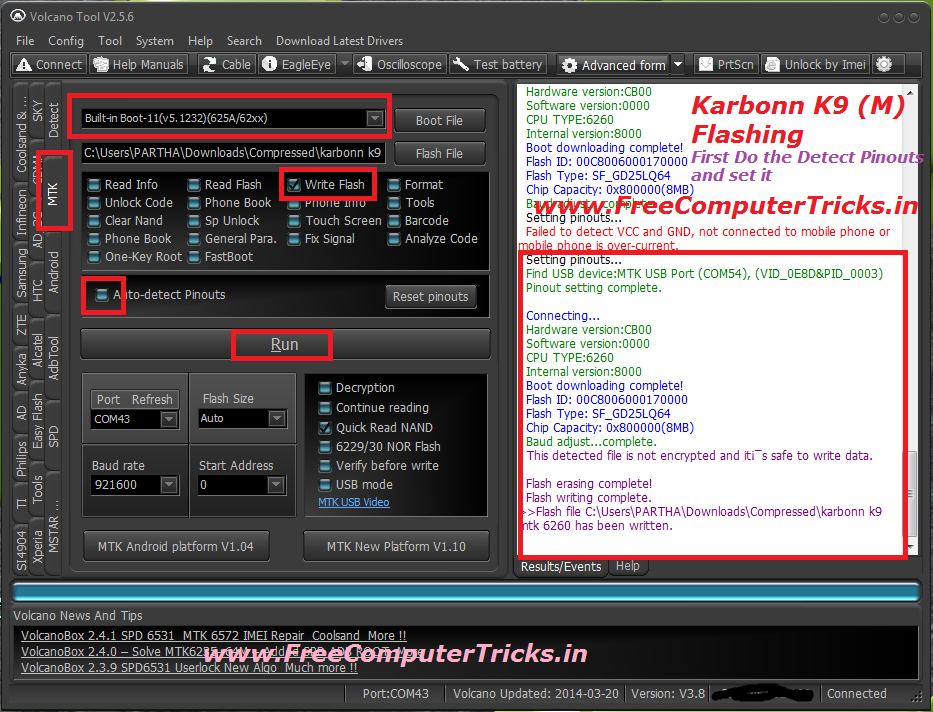
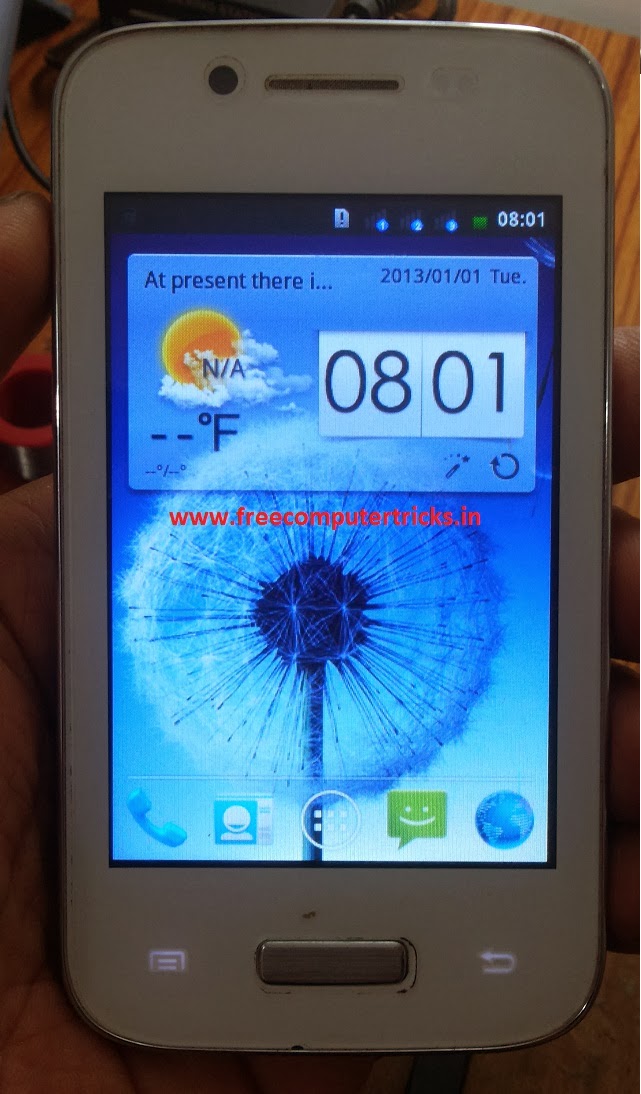
Karbonn K9 (M) MTK CPU 6260 Flash success with Volcano Tool, To flash the Karbonn K9 MTK you have to do the Pinout setting manually in Volcano Tool not only this all MTK 6260 CPU may need to set the pinout manually. So it's not so difficult to set the pinout in Volcano Tool, this tutorial is about how you can set the pinout manually in volcano tool and how the flash the Karbonn K9 mobile which has MTK 6260 CPU.

Not all Karbonn K9 Mobile has the MTK CPU some are also have Mstar CPU. So this topic is about How you can flash the Karbonn K9 (M) MTK 6260 CPU.


The Karbonn K9 is not switched on even when I try to format the phone using volcano tool it's not format also, then I download the Karbonn K9 MTK 6260 Flash file and finally flash the phone using Volcano Tool and it's done now the phone is working fine.

How to know the Phone has Software problem?

1) The phone may be dead means not switched on
2) The phone is restarting
3) The phone is hanged
4) The phone is switched off when make and receive calls
5) The phone's IMEI is missing
6) The phone is switched off when insert SIM Card
7) Some options are not working well


How to  Set Pinout Karbonn K9 MTK 6260 ?

See the below Image

Karbonn K9 MTK Set Pinout

After Pinout Setting Complete go back to MTK Tab and see the below Image to flash the phone.


How to Flash Karbonn K9 MTK 6260 CPU with Volcano Tool ?


Karbonn K9 MTK 6260 Flash done with Volcano Box

Note: Use Volcano Box Power and P-05B Jig


Search Tags: how to flash karbonn k9 phone, karbonn k9 m how to flash with volcano tool, karbonn phone flashing, karbonn flash files download, karbonn k9 new mtk cpu how to flash, volcano tool successfully flashed phones, karbonn k9 mtk 6260 flash file, karbonn k9 phone flashing, how to flash a phone, how to know the phone has software problem, mobile free flashing tutorials by Free Computer Tricks, All mobile flashing tutorials online for free, karbonn mobile flashing procedure with volcano tool, how to use volcano tool, Volcano Tool latest setup, All about Volcano tool the flashing tool for mobile phones, Karbonn K9 dead solution, how to repair karbonn k9 new mtk 6260 cpu not booting.


Sunday, March 23, 2014

Micromax X263 MTK 6252 CPU Set Pinouts Volcano Tool - www.FreeComputerTricks.in


Here is the way how you can format Micromax X263 MTK CPU 6525 using Volcano Tool, So to do a Format you have to set the pin-outs manually and then you can able to format the Micromax Mobile phone with Volcano Tool V2.5.5.

Important : Before format first back up the flash file from the phone (Read Flash) It is always safe, because if your phone is dead after format then you can easily flash the phone with the back up file.


Micromax X263 MTK - 6252 Set pinouts Volcano Tool

Micromax X263 6252 CPU set pinouts done with volcano tool

  • After Pinout Setting Complete
  • Go to MTK Tab
  • Click on Format or choose any action
  • Uncheck Auto Detect Pinouts
  • Then Click on RUN

Monday, March 17, 2014

Micromax X250 Restart Problem Solved By Format Success With Volcano Tool


Micromax X250 restart problem solved ! Just format the micromax x250 with volcano tool, below is the picture of successfully format with volcano box.


micromax x250 restart problem solved


Micromax x250 Format with volcano tool


micromax x250 format done with volcano tool


MTK 6223 CPU
USE JIG = P-10C
BOOT KEY = PWR. Key


Micromax X225 Read Info, Read Flash and Format Done With Volcano Tool


Micromax X225 Read Info, Read Flash and Format success with volcano tool.


CPU=MTK 6223
JIG= P-10C
Boot Key = PWR Key


Micromax X225 Read Info With Volcano Tool

micromax x225 read info with volcano tool


Micromax x225 Read Flash


micromax x225 read flash done with volcano tool

Micromax x225 Format success with volcano tool


micromax x225 format done with volcano box


Friday, March 14, 2014

Beetel GD404 Flashing Done With Volcano Tool


Beetel GD404 Write flash done with Volcano Tool. Just see the below screenshot of Beetel GD404 CPU Type MTK 6252.


Beetel GD 404 Flash Done: Volcano Tool v2.5.4


Beetel GD404 write flash success with volcano box

Beetel GD404 Format Done with Volcano Tool v2.5.4 


Beetel GD404 MTK 6252 CPU Format success with volcano tool without deleting IMEI .


How to Do ?

  • Go to MTK Tab 
  • Tick on Format
  • Then Click on Run
  • Then Do a Safe Format
  • Press the power on Key (Boot Key For Beetel GD404)

Thursday, March 13, 2014

Karbonn K64 Flash Done With Volcano Tool V2.5.4 - www.FreeComputerTricks.in


Karbonn K64 flash (Write Flash) Done with volcano tool v2.5.4, Karbonn K64 which has SPD CPU SC6531 and it successfully flashed with volcano box.


Karbonn K64

CPU = SPD SC 6531
JIG = P-05B
Connect Volcano Box Power To Phone


Karbonn K64 Flash Success With Volcano Box

Karbonn K64 Write Flash Done With Volcano Tool SPD 6531 CPU


Karbonn K64 Flash File For Volcano Tool Download Here

Go to that link and download from 4shared 

This file has tested on volcano tool and it's work fine on Karbonn K64 Mobile

Friday, March 7, 2014

LAVA B6 Read Flash Done With Volcano Tool v2.5.3 ( Read Info, Read Flash & Write Flash )


Lava B6 MTK CPU 6253 read flash done with volcano box, below is the process how to read info and read flash for the Lava B6 mobile phone, in the same way you can Write Flash with Volcano Tool.


LAVA B6 MTK 6253 CPU Read Info, Read Flash and Write Flash with Volcano Tool

How to Flash LAVA B6 with Volcano box


  • Open Volcano Tool
  • Go to MTK Tab
  • Click on Read Flash
  • Then Click on Run
  • LAVA B6 MTK 6253 CPU Boot Key = Power Button


After Completing the read flash process you will asked to save the file i.e. TELACOM53_09A_PMWY_PCB01_GPRS_MT6253_S00.LAVA_B6_S019.bin, choose the location and click on Save.


Wednesday, March 5, 2014

YXTEL G926 Pattern Unlock Done With Volcano Tool v2.5.3 - www.FreeComputerTricks.in


YXTEL G926 pattern lock remove, hard reset and GMail account reset done with volcano tool v2.5.3. Follow the below process to hard reset YXTEL G926 with volcano box.


YXTEL G926 hard reset done Volcano Tool


YXTEL G926 Format Done with Volcano Tool (CPU=SPD 6820/8810)


yxtel g926 format success with volcano tool


YXTEL G926 Format Log:


Detection initiated...
  Vcc: null
  Gnd: 5
  Analyzing D+ and D-...
  D+ = 3, D- = 2
  Detection D+/D- with 1.39 seconds.
  Continue to detect BOOT pin...
  Found [SPD] USB device: SCI USB2Serial,(VID_1782&PID_4D00)
  UsbVcc(VCC) = 1 10, BOOT(Pull Down) = 4

  Setting...
  Find USB device:SCI USB2Serial (COM37), (VID_1782&PID_4D00)
  Pinouts setting complete!


  Internal version: SPRD3
  Boot downloaded.
  Start boot please wait a moment....
  Spreadtrum Boot Block version 1.1
  Boot downloaded.
  Flash ID: 00C800BC90555400
  FLASH LEN:0x20000000

  mtdparts=sprd-nand:256k(spl),512k(2ndbl),256k(params),512k(vmjaluna),10m(modem),3840k(fixnv),3840k(backupfixnv),5120k(dsp),3840k(runtimenv),10m(boot),10m(recovery),200m(system),190m(userdata),60m(cache),256k(misc),1m(boot_logo),1m(fastboot_logo),3840k(productinfo),512k(kpanic),512k(simlock)
  Analysis flash internal data successfully.
>>Set to Factory successfully.


Sunday, March 2, 2014

Karbonn A90 Hard Reset / Format Done With Volcano Tool 2.5.3


Karbonn A90 Format Success with volcano tool v2.5.3 and the below is the screenshot. 


Karbonn A90 Format done with volcano tool (WWW.FreeComputerTricks.in)


Karbonn A90

CPU = 6820/6810
SPD CPU
Use Jig P-05B


Karbonn A90 Read Flash Success with volcano tool v2.5.3


Karbonn A90 read flash done with volcano box

Friday, January 10, 2014

YXTEL C910 China Mobile Read Flash Success With Volcano Tool - www.FreeComputerTricks.in


This process will help you to read user locks and all other security codes of the mobile YXTEL C910. So to do that please follow the steps below to Read Flash for the mobile YXTEL C910 and save it for future use. The YXTEL C910 flash file can be used to flash the same model of YXTEL.


Steps:


  • Open Volcano Tool 

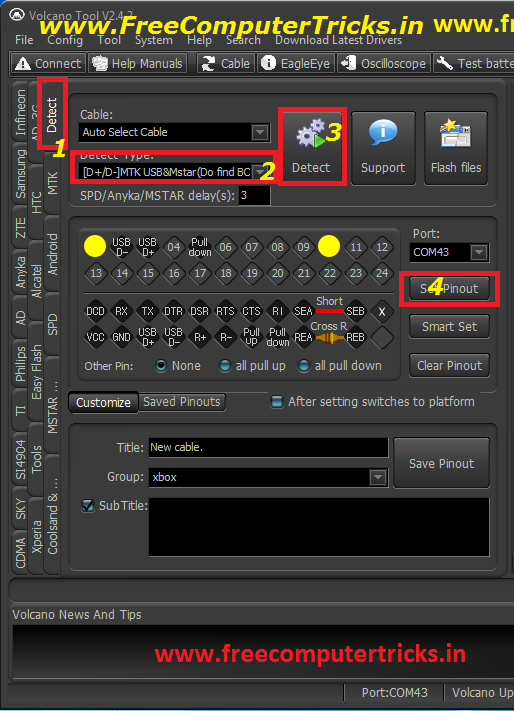
  • Go to Detect Tab

  • Set the Detect Type to [D+/D-]MTK&Mstar(Do Find BOOT)

  • Click on Detect

  • Then Click on Set Pinout


Set Pinout YXTEL C910 on Volcano Tool

  • Now Go Back to MTK Tab

  • Select Boot Built-in Boot-11(v5.1232)(625A/62xx)


  • Click on Read Flash

  • Un-Tick  Auto-detect Pinouts

YXTEL C910 Read Flash with Volcano Tool V2.4.2

  • Click on RUN


That's all Now you can get the user set codes for the mobile phone and also you can save the back up flash file of YXTEL C910 to your computer, which can be use on another YXTEL C910 mobile to flash.


Wednesday, January 1, 2014

YXTEL C930 Face Lock Solution (Volcano Tool) - www.FreeComputerTricks.in - Solved 100%


Here I am going to show you how you can remove YXTEL C930 Face lock easily using Volcano Tool v2.4.2, also this tutorial helps you to remove face lock on the yxtel mobile without losing your phone data. Just Read Flash with volcano tool where you can find the password of the phone.


Steps:

Read Flash with Volcano Tool v2.4.2

YXTEL C930 Mobile CPU Type-6260


yxtel c930 face lock removed with volcano tool


  • After Wrong face detection you will be asked to enter password to unlock the phone

  • Read Flash with volcano (Follow the above link or Click Here)

  • See the results of volcano tool and you will get a privacy code :6969 and this code is to unlock the phone


  • Then go to settings and and do a Factory Reset ( Use the same code) after that your phone will not ask any face lock and then off the face lock.


  • Before you did all this thing you can simply try the default security code for YXTEL C930 (6969)


If you are facing any problem feel free to post comment


Regards:


YXTEL C930 Successfully Unlocked With Volcano Tool v2.4.2 (Read/Write Flash and Format) YXTEL C930 CPU Type-6260


Here is the tutorial about YXTEL C930 Mobile with CPU-6260, how to Read/Write Flash and Format using Volcano Tool V2.4.2. This tutorial is easy to understand and very help full to the mobile service personnel, So to do this follow the below steps, also I put some screenshots for better understanding and enjoy.


Steps:


  • Open Volcano Tool V2.4.2

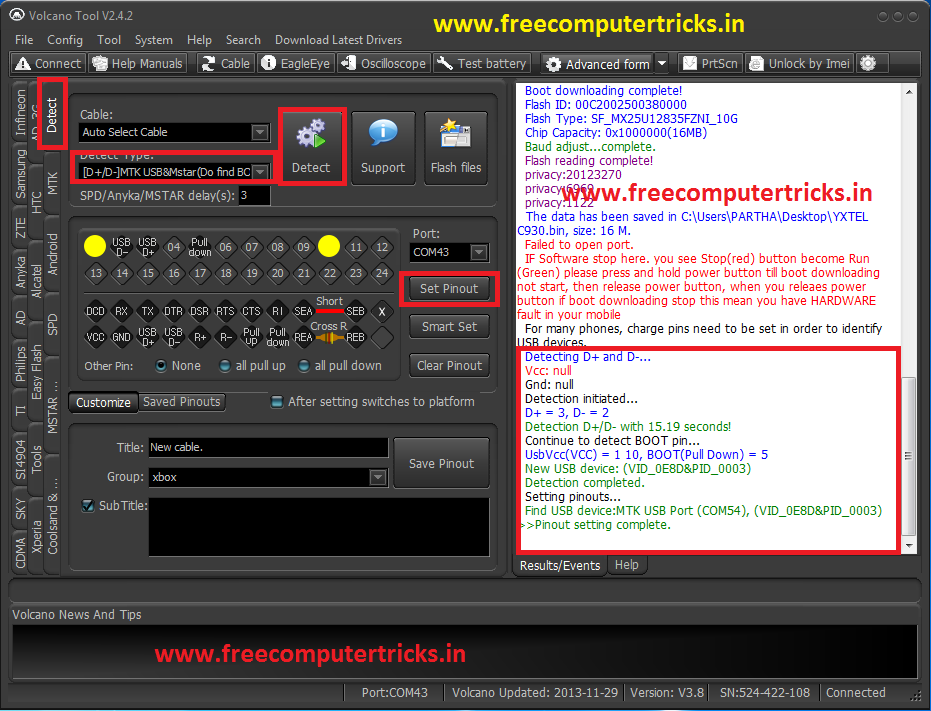
  • Go to Detect Tab and Select [D+/D-]MTK USB&Mstar(Do find BOOT)

  • Now Connect the Phone YXTEL C930 (Use the Box Power Cable and Insert Jig Cable)

  • Click on Detect (No Need To Press Any Buttons)

  • Then Click on Set Pinout

  • Now Come Back to MTK Tab

  • Select Built-in Boot-11(v5.1232)625A/62xx)

  • Select Operation Like Read Flash, Write Flash and Format etc.

  • Uncheck Auto-detect Pinouts

  • And finally Click on Run (No Need to Press Power Button)


Please See the below screenshots


PINOUT Setting For Yxtel C930 Using Volcano Box

YXTEL C930 PINOUT Setting Volcano


YXTEL C930 READ FLASH WITH VOLCANO
YXTEL C930 CPU-6260 Read Flash Done With Volcano Box (Volcano Tool v2.4.2)

In this way you can also Write flash and write IMEI to the YXTEL c930.


HAPPY NEW YEAR
           TO
ALL VISITORS


📚 You May Also Like to Read