Showing posts with label Volcano Tools. Show all posts

Sunday, October 1, 2017

VolcanoBox Inferno Tool UniTool EXT Volcano V1.4.0 - Download Latest Inferno UniTool VolcanoBox


Download latest version of Inferno Tool UniTool Volcano Version 1.4.0. InfernoTool_UniTool_EXT_Volcano_V1.4.0_20170930 with multi features to do FRP and other unlocking on Android Smart Phones, it supports MTK, Qualcomm, Spreadtrum and other CPU to Format, Read and Write Flash and also to remove or unlock FRP and Password Lock.

Download latest Volcano Box Inferno Tool UniTool Volcano Box Inferno Uni Tool Release date 30th September,2017 (30-09-2017), get the download link below.

Inferno Tool Volcano Team - Volcano Box UniTool Platform Ver 1.4.0

What's new in VolcanoBox UniTool 1.4.0 ?

World's 1st Added Huawei Modem E5573cs-609
  • Firmware ver 21.323.014.01.274
  • Fix Huawei Modem E5573s-320 Patch Flash
  • Fix Huawei Modem E5573s-320 Erase Flash
  • Fix Huawei Modem E5330s-B2 Patch Flash

User have to Patch once then reconnect it and Patch flash again and do not reconnect it just patch flash Again to make device work.

 Added Expert Mode for SECURE Phones
  • Use Expert Mode to Select Manually "DA" & "Auth" & "Preloader" to work on those devices which are Secured as well as not supported.
Solved some MT6580 were not boot


Paste HWModem.SYS into Inferno Unitool Folder

Complete list of Modem & Firmware Supported

E5330S-B2
            21.210.21.XX.274
            21.210.21.XX.306
            21.210.21.XX.1065
            21.210.25.XX.274
            21.210.25.XX.306
            21.210.25.XX.1065
E8231-S1
            22.618.13.XX.274
            22.618.13.XX.1065
            22.618.13.XX.306
            22.618.17.XX.274
            22.618.17.XX.1065
            22.618.17.XX.306
E5573CS-609
            21.318.XX.XX.274
            21.323.00.00.274
            21.323.014.01.274
E8372H-608
            21.316.01.01.274
            21.316.01.02.274
            21.316.01.03.274
            21.316.01.04.274
E5573CS-322
            21.318.XX.XX.306
            21.323.XX.XX.306
E8372H-153
            21.313.XX.XX.306
            21.318.XX.XX.306
            21.321.XX.XX.306
E5573S-320
            21.315.01.00.306
            21.315.01.01.306

Downloads:


Saturday, May 3, 2014

Volcano Tool V2.6.3 SPD 6531 Dead Problem Solved and Added CDMA Tool 1.0


Volcano Box Latest Update has been released, Volcano Tool V2.6.3 the latest Tool version of Volcano Box which has many more new things in it. Download Volcano Tool v2.6.3 Latest Setup 2 May, 2014.


Volcano Tool V2.6.3 What's new ?


  • Solved SPD 6531 Read Flash Makes Phone Dead
  • Solved SPD 6531 Format Makes Phone Dead
  • Solved SPD 6531 Read/Write
  • Added Coolsand RDA8851E 27LQ128 Support
  • Added New Flash IC For SPD Android 6820/8810
  • MTK Android Added New CPU MT6592 Read/Write
  • MTK Android Added New CPU MT6592 IMEI Repair


Volcano Tool V2.6.3 SPD 6531 Dead Solution and CDMA Tool v1.0


Volcano Tool Added CDMA Tool 1.0


CDMA Phones Supported List


Huawei
C2829, C2830, C2831, C2835, C2839M, C2856, C2930T

Alcatel
C131, OT-255c

Haier
C2030, C380, C5000, C5100, CG220, OL2110

Huawei Modem
EC122, EC150, EC156, EC1260, EC1261

Karbonn
B121

Lava
L661

LG
LG6210, RD3500, RD3510, RD3530, RD3540, RD3550, RD3600, RD3610, RD3630, RD3640, RD6100, TS3520

Micromax
3xx Modems, C100, C111

Samsung
B119, B139, B159, DE26, B159, DE28, B189, B199, B209, B219, B229, B229,
FD09, B259, B269, B279, B309, B319, B339FM, B619, F219, S189, S259, W169

ZTE
C132, C332, F285, M131, N600+, N788, S100, S130, S160, S1602, S165,
S170, S183, S185, V9A, V9C

ZTE Modem
MF190


Download Volcano Tool Latest Setup v.2.6.3 from the below link


Thursday, April 24, 2014

Celkon C44 Read Flash & Write Flash Done With Volcano Tool Using USB Cable


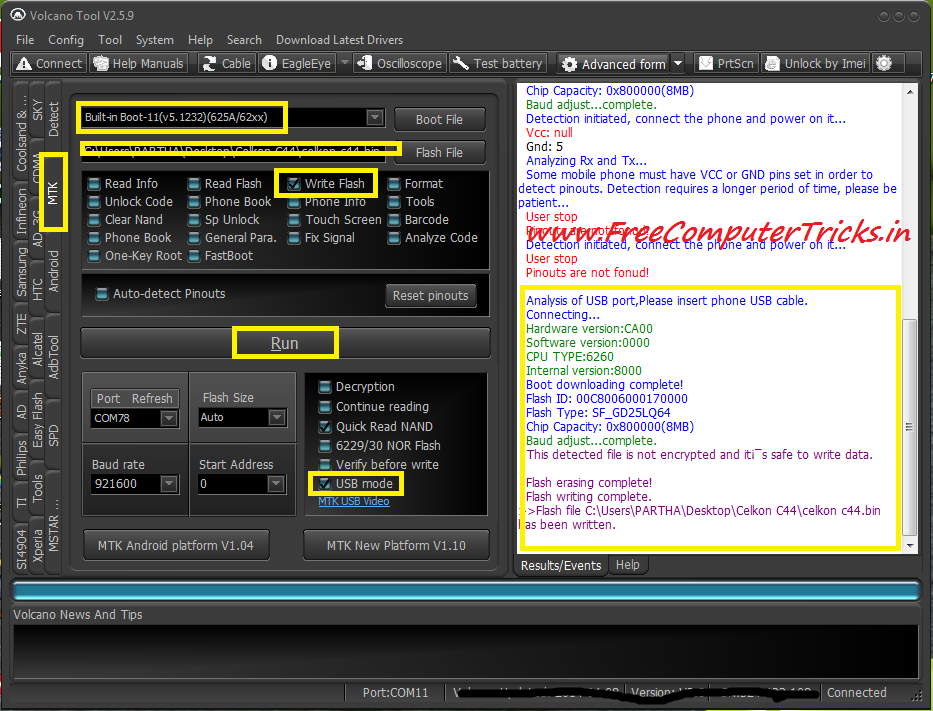
Celkon C44 MTK 6260 Read and Write flash success with Volcano tool using USB Cable, the below is the procedure how to write flash and read flash of Celkon C44 which has a MTK 6260 CPU with Volcano Box.


Celkon C44 Write Flash Volcano Tool


  • Open Volcano Tool
  • Go to MTK Tab
  • Select Built-in_Boot 11
  • Select the Flash file for Celkon C44
  • Tick on Write Flash
  • Untick Auto Detect Pinouts
  • Tick on USB Mode
  • Now Click on Run and Connect the USB cable to Switched off phone


Celkon C44 MTK 6260 CPU Flash done with volcano tool in USB Mode


Search Tags: how to flash celkon c44 with volcano tool, celkon c44 flash file download, celkon c44 mtk 6260 cpu flash file and how to flash, celkon c44 flashing tool flash tool, celkon mobile flash with volcano tool, celkon c44 usb flashing, celkon c44 read flash write flash with volcano tool, how to write flash celkon mobile, celkon mobile flash solution and procedure Free Computer Tricks, mobile flashing tutorials, celkon mobile flashing tutorial volcano tool.

Wednesday, April 16, 2014

Forme C2+ SPD 6620 Read Flash With Volcano Tool Using Rx and Tx


How to read flash Forme C2+ Color mobile phone using volcano tool with the help of Rx and Tx. In this way you can also flash the Forme C2+ with Volcano Tool.


How to Find Rx and Tx Forme C2+ and Read Flash Volcano Tool

  • Use Universal Jig 
  • Sold 5 Wire to the Universal Jig
  • In Forme C2+ there is no Rx Tx mark only 6 Pins
  • In forme C2+ 2pins are Ground sold any one wire to any one of these 2 pins and sold other 4 wires to other 4 pins
  • Now connect the Box power to the phone


  • Open Volcano tool
  • Go to SPD Tab
  • Select 6610/20 Boot
  • Tick Auto detect Pinouts ( Remember Rx Tx should be selected not USB D+ D-)
  • Select any Task i.e. Read Flash
  • Click Run
Forme C2+ Rx Tx Volcano tool Read Flash

Volcano Tool will automatically find the Rx Tx Pinout and Read the flash file of Forme C2+.


Forme C2+ Log Volcano Tool


Detection initiated, connect the phone and power on it...
  Vcc: 5
  Gnd: 1
  RX: 3, TX: 2
   
  Waiting for phone's response, press the Power on the phone. 
  Internal version: Spreadtrum Boot Block version 2.0
  Boot downloaded.
  Start boot please wait a moment....
  Spreadtrum Boot Block version 1.2
  CPU TYPE:SC6610/20 [66100000]
  FLASH ID: 00C8004000160000
  Flash Type:[GD]  GD25Q32
  Size:0x400000(4MB)
  Reading completed.
  The data has been saved in C:\Users\xxxx\Desktop\Forme C2+\MOCOR_09A_MP.W11.16_P2_Release_20140415_115306_FullFlash.bin, size: 4 M.

Thursday, April 10, 2014

Micromax X222 Flash Done With Volcano Tool Using USB Cable


How to Write Flash, Read Flash, Read Info and Format Micromax X222 With Volcano Tool.


  • Go to MTK Tab
  • Choose the task i.e. Read Flash
  • Un-tick Auto Detect Pinouts (This should no be selected)
  • Tick on USB Mode
  • Click Run
See the below Image


Now connect the USB Cable to Micromax X222 by pressing Menu Button (Center Button)


Micromax X222 Read Flash with Volcano Tool

In this way you can Read Info, Write Flash and Format the phone, just make sure that the "Auto Detect Pinouts" not selected this is important.


Note: When you format the Micromax X222, it will erase the IMEI No


How to Repair Micromax X222 IMEI with Volcano Tool


Just Sold Rx, Tx and Use box power cable for Micromax X222 VCC and GND

Select Auto detect Pinouts

Press the Power Button


Micromax X222 IMEI Repair Volcano Tool

Monday, April 7, 2014

Karbonn K451+ CPU Type MTK 625A Write Flash Done With Volcano Tool


Here is the way how to flash Karbonn k451+ MTK 625A CPU with volcano tool, the flash MTK 625A flash file size is 3MB.


Steps:

  • Open Volcano Tool
  • Go to MTK Tab
  • Select Built-in Boot-11(v5.1232)(625A/62xx)
  • Select the Karbonn K451+ MTK Flash File
  • Tick on Write Flash
  • Un-Tick Auto-detect Pinouts
  • Tick on USB Mode
  • Click on RUN
  • Now connect the phone to Computer With USB Cable with Battery
 

Karbonn K451+ write flash done with volcano tool v2.5.7 MTK 625A CPU

No need to press any boot key for Karbonn K451+ MTK CPU

Saturday, April 5, 2014

Wynncom W100 MTK 6252 CPU Read Flash With Volcano Tool - Read Privacy and User Code With Volcano


Wynncom W100 read user code with read flash success with volcano tool v2.5.7, below is the process how to read flash with volcano tool for the mobile Wynncom W100 which has a MTK 6252 CPU.


  • Open Volcano tool
  • Go to MTK Tab
  • Tick on Read Flash
  • Then Click on Run
  • Press Power Button to Boot


Wynncom W100 MT6252 Read Flash with Volcano tool to know the User Code


The Flash file is
RATECH52_3232_10A_PCB01_GSM_MT6252_S01.WYNNCOM_W100_RGT_A801_110707


Search Tags: how to flash wynncom w100 with volcano, hard reset wynncom mobile, user code read wynncom w100 with volcano tool, read flash with volcano tool all china mobiles, how to read user code with volcano tool, all china mobile read codes with volcano tool, MTK 6252 CPU read codes with volcano tool, wynncom w100 read info codes with volcano.

Friday, April 4, 2014

Karbonn A6 Stuck On Logo Successfully Done With Volcano Tool V2.5.7


Karbonn A6 SPD 6820/8810 CPU stuck on logo problem solved by format with volcano tool, so just format the Karbonn A6 SPD cpu with volcano tool to overcome the stuck problem on Logo.


Steps:

  • Open Volcano Tool
  • Go to SPD Tab
  • Select Built-In Boot_14 (6820/8810)
  • Tick Format
  • Click on Run


If not detected the pinout press and hold Volume Up Key


karbonn a6 format success with volcano tool SPD 6820 CPU

Monday, March 31, 2014

Wiwo W333 MTK 6252 CPU Read Flash and Format Success With Volcano Tool


Wiwo w333 mtk 6252 cpu Read Flash and Format success with volcano tool, the below is procedure to read flash of wiwo w333 phone, in this way you can also format and write flash to the wiwo w333 mtk cpu phone.

Note: Before Format any phone please back up the flash file first.


Wiwo W333 Read Flash With Volcano Tool


WIWO W333 MTK 6252 CPU Read Flash With Volcano Tool


Wiwo W333 MTK 6252 Boot Key = Power Key


Search Tags: how to flash wiwo w333 mtk 6252 mobile, MTK 6252 mobile flashing, how to flash WIWO mobile phone, how to flash MTK 6252 CPU with volcano tool, how to flash wiwo w333 phone, how to format wiwo w333 mtk 6252 cpu with volcano tool, MTK 6252 CPU Read Flash, Write Flash and Format with Volcano tool, Volcano tool latest version 2.5.7, Volcano tool successfully flashed phones, Volcano tool all in one china phone tool, Wiwo w333 cpu type, wiwo w333 which cpu,

Karbonn K9 New MTK CPU 6260 Flash Done With Volcano Tool V2.5.6


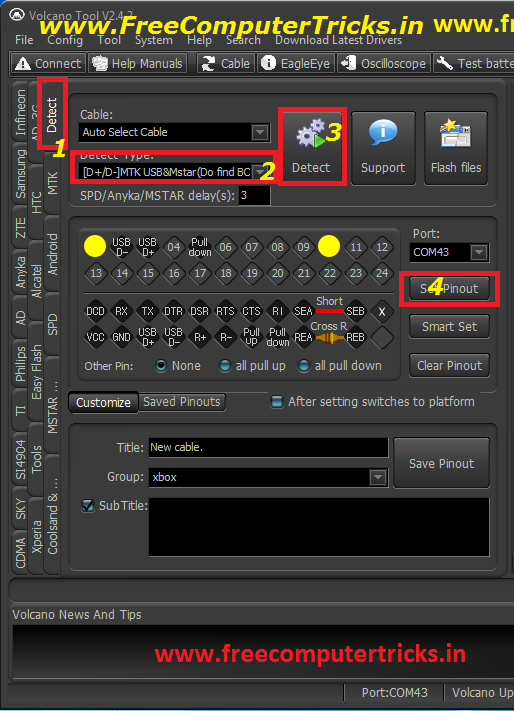
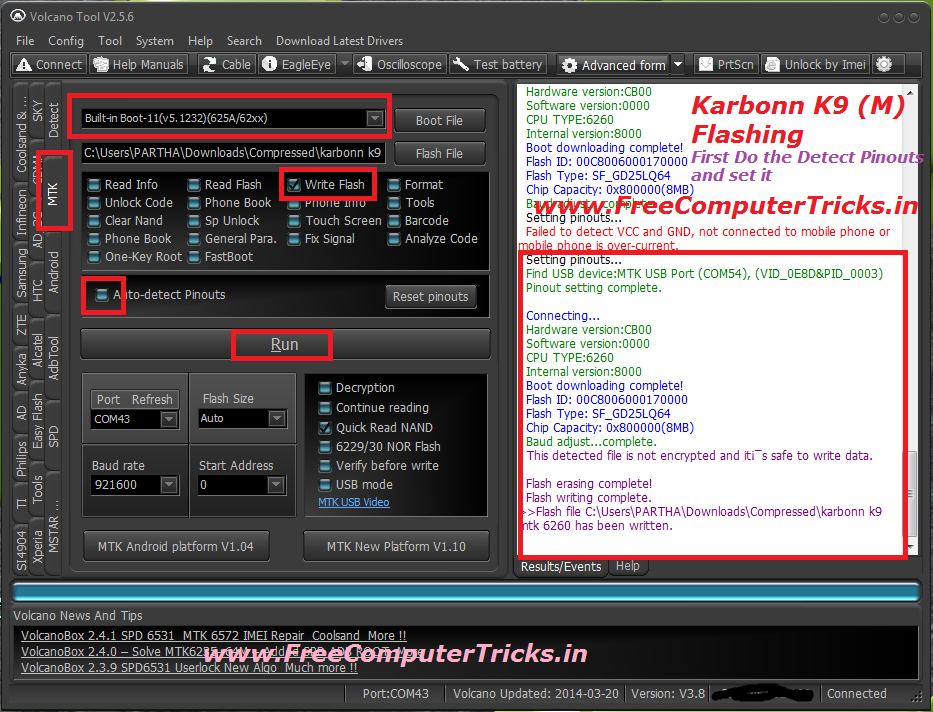
Karbonn K9 (M) MTK CPU 6260 Flash success with Volcano Tool, To flash the Karbonn K9 MTK you have to do the Pinout setting manually in Volcano Tool not only this all MTK 6260 CPU may need to set the pinout manually. So it's not so difficult to set the pinout in Volcano Tool, this tutorial is about how you can set the pinout manually in volcano tool and how the flash the Karbonn K9 mobile which has MTK 6260 CPU.

Not all Karbonn K9 Mobile has the MTK CPU some are also have Mstar CPU. So this topic is about How you can flash the Karbonn K9 (M) MTK 6260 CPU.


The Karbonn K9 is not switched on even when I try to format the phone using volcano tool it's not format also, then I download the Karbonn K9 MTK 6260 Flash file and finally flash the phone using Volcano Tool and it's done now the phone is working fine.

How to know the Phone has Software problem?

1) The phone may be dead means not switched on
2) The phone is restarting
3) The phone is hanged
4) The phone is switched off when make and receive calls
5) The phone's IMEI is missing
6) The phone is switched off when insert SIM Card
7) Some options are not working well


How to  Set Pinout Karbonn K9 MTK 6260 ?

See the below Image

Karbonn K9 MTK Set Pinout

After Pinout Setting Complete go back to MTK Tab and see the below Image to flash the phone.


How to Flash Karbonn K9 MTK 6260 CPU with Volcano Tool ?


Karbonn K9 MTK 6260 Flash done with Volcano Box

Note: Use Volcano Box Power and P-05B Jig


Search Tags: how to flash karbonn k9 phone, karbonn k9 m how to flash with volcano tool, karbonn phone flashing, karbonn flash files download, karbonn k9 new mtk cpu how to flash, volcano tool successfully flashed phones, karbonn k9 mtk 6260 flash file, karbonn k9 phone flashing, how to flash a phone, how to know the phone has software problem, mobile free flashing tutorials by Free Computer Tricks, All mobile flashing tutorials online for free, karbonn mobile flashing procedure with volcano tool, how to use volcano tool, Volcano Tool latest setup, All about Volcano tool the flashing tool for mobile phones, Karbonn K9 dead solution, how to repair karbonn k9 new mtk 6260 cpu not booting.


Sunday, March 30, 2014

Download Volcano Tool Latest Setup V2.5.7 - Volcano Tool Updates


Volcano Tool Latest setup released v2.5.7, here you can download the latest setup of volcano box which has most new features added in it.


Volcano Tool V2.5.7 Latest Setup


Volcano Tool V2.5.7 World's 1st to support the following chipset/CPU 


Added SPD 7710
Added SPD SC 7710
Added SPD 7710 Root
Added SPD SC 7710 Root
Added SPD 7710 ADB Root
Added SPD SC 7710 ADB Root
Added SPD 7710 Factory File Support
Added SPD SC 7710 Factory File Support
Added SPD 7710 Read Flash File in Factory Format


Added SPD 7710 Write Flash File in Factory Format
Added SPD SC 7710 Read Flash file in Factory Format


Added SPD SC 7710 Write Flash File in Factory Format
Added SPD 7710 Support to Android Tool
Added SPD SC 7710 Support to Android Tool
Added SPD 7710 Factory File Support to Android Tool
Added SPD SC 7710 Factory File Support to Android Tool
Added SPD Flash EMMC Factory File
Added New SPD Android Flash Support
Lot of Improvement for ADB Factory Backup for MTK
Adjust MTK Android Read Flash
Adjust MTK Android EMMC Read Flash
Improved MTK Android Read Phone Partitions 


Saturday, March 29, 2014

LAVA KKT34i Read Flash With Volcano Tool V2.5.6


LAVA KKT34i Read Flash done with Volcano Tool V2.5.6, CPU Type  MTK 6260.


Steps:
  • Open Volcano Tool
  • Go to MTK Tab
  • Select Built-in Boot-11(v5.1232)(625A/62xx)
  • Click on Read Flash 
  • Now Click on RUN and Press the Power button on Phone


LAVA kkt34i read flash success with volcano tool mtk 6260 cpu


LAVA KKT34i Read Flash Volcano Tool Log:


Volcano Updated: 2014-03-20
  Connecting...
  Connection successful,connected state!
  Version: V3.8
  SN:524-422-108
  Port:COM11
  After format or Flash you have to press & hold power button for at least 1.30 mins.
  Note for win7 users :
  Start your Win 7 64bit with F8 key and choose 'Disable Driver Signature Enforcement'.
  After that the spd drivers will have the ability to be loaded.
  Available Ports:COM1 COM11
  Detection initiated, connect the phone and power on it...
  Vcc: 4
  Gnd: 2
  RX: 9, TX: 7


  Connecting...
  Hardware version:CA00
  Software version:0000
  CPU TYPE:6260
  Internal version:8000
  Boot downloading complete!
  Flash ID: 00C2002500360000
  Flash Type: SF_MX25U3235E             
  Chip Capacity: 0x400000(4MB)
  Baud adjust...complete.
  Flash reading complete!
  privacy:4321
>>privacy:1234

Sunday, March 23, 2014

Micromax X263 MTK 6252 CPU Set Pinouts Volcano Tool - www.FreeComputerTricks.in


Here is the way how you can format Micromax X263 MTK CPU 6525 using Volcano Tool, So to do a Format you have to set the pin-outs manually and then you can able to format the Micromax Mobile phone with Volcano Tool V2.5.5.

Important : Before format first back up the flash file from the phone (Read Flash) It is always safe, because if your phone is dead after format then you can easily flash the phone with the back up file.


Micromax X263 MTK - 6252 Set pinouts Volcano Tool

Micromax X263 6252 CPU set pinouts done with volcano tool

  • After Pinout Setting Complete
  • Go to MTK Tab
  • Click on Format or choose any action
  • Uncheck Auto Detect Pinouts
  • Then Click on RUN

Monday, March 17, 2014

Micromax X250 Restart Problem Solved By Format Success With Volcano Tool


Micromax X250 restart problem solved ! Just format the micromax x250 with volcano tool, below is the picture of successfully format with volcano box.


micromax x250 restart problem solved


Micromax x250 Format with volcano tool


micromax x250 format done with volcano tool


MTK 6223 CPU
USE JIG = P-10C
BOOT KEY = PWR. Key


Micromax X225 Read Info, Read Flash and Format Done With Volcano Tool


Micromax X225 Read Info, Read Flash and Format success with volcano tool.


CPU=MTK 6223
JIG= P-10C
Boot Key = PWR Key


Micromax X225 Read Info With Volcano Tool

micromax x225 read info with volcano tool


Micromax x225 Read Flash


micromax x225 read flash done with volcano tool

Micromax x225 Format success with volcano tool


micromax x225 format done with volcano box


Friday, March 14, 2014

Beetel GD404 Flashing Done With Volcano Tool


Beetel GD404 Write flash done with Volcano Tool. Just see the below screenshot of Beetel GD404 CPU Type MTK 6252.


Beetel GD 404 Flash Done: Volcano Tool v2.5.4


Beetel GD404 write flash success with volcano box

Beetel GD404 Format Done with Volcano Tool v2.5.4 


Beetel GD404 MTK 6252 CPU Format success with volcano tool without deleting IMEI .


How to Do ?

  • Go to MTK Tab 
  • Tick on Format
  • Then Click on Run
  • Then Do a Safe Format
  • Press the power on Key (Boot Key For Beetel GD404)

Thursday, March 13, 2014

Karbonn K64 Flash Done With Volcano Tool V2.5.4 - www.FreeComputerTricks.in


Karbonn K64 flash (Write Flash) Done with volcano tool v2.5.4, Karbonn K64 which has SPD CPU SC6531 and it successfully flashed with volcano box.


Karbonn K64

CPU = SPD SC 6531
JIG = P-05B
Connect Volcano Box Power To Phone


Karbonn K64 Flash Success With Volcano Box

Karbonn K64 Write Flash Done With Volcano Tool SPD 6531 CPU


Karbonn K64 Flash File For Volcano Tool Download Here

Go to that link and download from 4shared 

This file has tested on volcano tool and it's work fine on Karbonn K64 Mobile

Wednesday, March 12, 2014

CFORE S411 China Mobile Read Flash / Format Done With Volcano Tool


Cfore S411 china mobile phone successfully format and Read Flash done with Volcano Tool and using this process you can also flash the CFORE S411 mobile phone.


Volcano Tool : CFORE S411 Read Flash Done

CFORE S411 Read Flash Success With Volcano Tool V2.5.3


Volcano Tool : CFORE S411 Set Pinouts Done

Cfore S411 Set Pinouts with Volcano Tool (Read and Write Flash & Format China Mobiles)


Note: 


  • First Set the pinout 
  • Then go to MTK Tab Choose a task and Click on RUN
  • Make sure that the Auto-detect pinouts should be unchecked


📚 You May Also Like to Read