Showing posts with label Download HWK Ufs SarasSoft. Show all posts

Saturday, December 7, 2013

How to Flash Nokia X6-00 Through USB Using Ufs - HWK SarasSoft


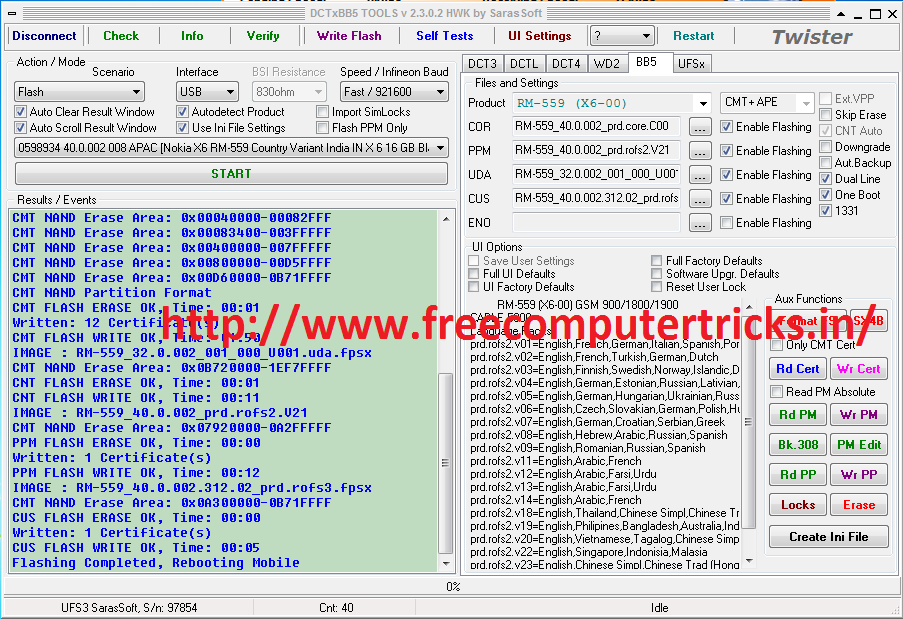
Here is the way how you can do a USB Flash of the Nokia X6-00 using the UFS or HWK SarasSoft. To do a USB Flashing of X6-00 You need UFS Box and USB Cable to Connect the Mobile to the Computer and after that follow the steps below of see the screenshot to understand the settings on the DCTxBB5 TOOLS.


NOKIA X6-00 USB FLASH DONE WITH UFS/HWK


Nokia x6-00 USB Flashing with Ufs

Set the interface as per the screenshot.

Then Click on Write Flash 

Remove Battery from the phone

Insert USB Cable


Now Insert Battery and Press the Power Button

Now the Flashing will Start wait until complete 


Nokia X6-00 USB Flashing Done with UFS/HWK


Thursday, October 10, 2013

How to Install HWK Setup v 2.3.0.1 Offline : HWK 2013 Offline Setup


Now HWK support suite 2013 has the online installation process only, to install hwk suite setup you have to use ufsx control panel v 2.3.0.1 and Install Online, but here is a way through which you can install UFSx+HWK Setup offline.

UFSx HWK Offline Setup 2013

HWK Suite setup can be installed for N-Box, GTS-Box, TORNADO UFS -3, UFSx and SarasSoft Micro UFSx Box. Now HWK has a new release UFSx_Support_Suite_Setup_v02.03.00.02, which is the new support suite for HWK Suite Setup and released of 22 Jully,2013. So to install HWK Suite Setup DCTxBB5, LG_GSM, SAMs and SeDbx v 2.3.0.1, you have to first install the new HWK support suite UFSx_Support_Suite_Setup_v02.03.00.02 then you can install HWK Suite Support through online.


Procedure to Install HWK Suite setup Offline


As there is no offline Installation for HWK Suite setup 2013, but you can backup your installation for future use and do not need to download these file again using Internet. That means here I will show you how you can backup SarasSoft HWK 2013, which can be used in any other Computer without Installing Through Online using HWK Control Panel 2013. If you use Online Installation through HWK/UFSx Control Panel, you have to download files online and automatic install on your computer and the total file size is about 150MB, which will take more time to download if you have slow Internet Connection. So follow the steps below to backup your HWK/UFSx Installation for future use or can be used in another computer.


Steps:


  • Create a Folder "HWK Suite 2013 Backup" on your Desktop

  • Now go to C:\Program Files\SarasSoft and Copy the UFS Folder to HWK Suite 2013 Backup Folder Which you have created on the Desktop


  • Then Go to C:\Program Files\Nokia and Copy the Phoenix Folder to HWK Suite 2013 Backup Folder

  • Then go to C:\ and copy the Wintesla Folder to HWK Suite 2013 Backup Folder
SarasSoft HWK Backup 2013


So now you have the HWK Suite 2013 backup in your HWK Suite 2013 Backup Folder and make sure that you have UFS, Phoenix and Wintesla Folders in the HWK Suite 2013 Backup Folder. Copy the HWK Suite 2013 Backup folder to PEN Drive or to any removable storage to use it on another computer and follow the steps below.


Now go to another computer where you want to install UFSx/HWK Suite setup 2013

  • Just install UFSx_Support_Suite_Setup_v02.03.00.02 Don't Run "Update Box"

  • Connect the UFSx Box to PC and Let the Driver to Install

  • Go to C:\Program Files\SarasSoft and Paste the UFS Folder you have backed-up, if asked to replace files and folder Click Yes to All

  • Go to C:\Program Files\Nokia and Paste the Phoenix Folder

  • Then go to C:\ and Paste the Wintesla Folder

  • Now go to C:\Program Files\SarasSoft\UFS\UFS_DBX Right Click on SeDbx (SONY-ERICSSON toll) Sent to --> Desktop (create shortcut) Do this for C:\Program Files\SarasSoft\UFS\UFS_LG_GSM, C:\Program Files\SarasSoft\UFS\UFS_SAMs to have the sortcuts on your Desktop.

  • Now go to C:\Program Files\Nokia\Phoenix and send the DCTxBB5 as shortcut to Desktop

  • Now Open the UFS_Panel which is on your Desktop

  • Click on Check Box then Click on Update Box, Again Click on Check Box (On Hardware Tab UFS_Panel) you should have Internet connection to Update Box
 
HWK UFSx Offline setup 2013 v 2.3.0.1
  • Go to Software Tab on UFS_Panel Click on Check Server (It will check whether you have missed any file, if you have missed any file it will show you have 3 or 4 files found to install, So now click on Install, it will take 1 to 2 seconds to install. If you get no files found to install that means all the required file you have)

  • Now Close the UFS_Panel

  • Now Open DCTxBB5 and Click on Connect


Enjoy

Free Computer  Tricks


Monday, October 7, 2013

How to access HWK Support Site Without Connecting the UFS Box


As you know that you can't access hwk sarunasoftware support site without connecting the UFS box to the computer, but here is a way through which you can visit the sarunasoftware support site without the Box. You should visit the support area once through the DCTxBB5 tool and then you don't need to connect the box to PC for visiting the HWK support area. 


HWK UFSx Support Site


So here is the procedure how you can backup the cookies and restore that cookies on another computer to use sarunasoftware support site. The backup procedure is based on FireFox browser so you need FireFox browser installed on PC and Firefox should be the default browser. When you visit the support area through the DCTxBB5 tool, make sure that the support site should be open with Firefox. So to access HWK sarunasoftware sarassoft support area follow the steps below.


Steps:

  • Make Firefox as your Default Browser

  • Connect your UFS-3 Box/HWKuFs Micro Box Saras Soft to PC

  • Open DCTxBB5 (DCTxBB5 TOOLS V 2.3.0.1 HWK by SarasSoft)

  • Click on Connect after that Click on "Support" button to visit the support area of HWK SarunaSoftware 


Support Area HWK Suite

  • It will open the hwk support site (Firefox), where you can download flash files for Nokia, LG, Samsung etc.

  • Minimize the Firefox and go to My Computer


  • Then change the Folder Options to "Show hidden files and folders" (Go to Tools Menu --> Folder Options---> View Tab and select Show hidden files and folders Then Click OK)

  • Go to C:\Documents and Settings\Administrator\Application Data\Mozilla\Firefox\Profiles\qehbbrul.default

  • Backup (cookies.sqlite, cookies.sqlite-shm and cookies.sqlite-wal) these three cookies file (Copy to Pen Drive) 

  • Now go to another PC having Firefox Browser (Close the Firefox if Running)

  • Go to C:\Documents and Settings\Administrator\Application Data\Mozilla\Firefox\Profiles\qehbbrul.default and Copy the coockies you have in Pen Drive and Paste in side the folder, it will ask to replace the files click Yes.


Now Open Firefox browser and visit srunasoftware support site, no need to connect the UFS Box and enjoy.


HWK Suite Setup 2013 Step By Step Install:HWK Suite Setup/Support Suite Installation Error-Solved!


Steps to Install HWK latest Suite 2013 on PC (UFSx/UFS3/UFS)

 
UFS/HWK step by step installation (Old UFS Box)


  • Download UFSx_Support_Suite_Setup_v02.03.00.02 Here 


  • Then Connect the UFS Box to PC and Run UFSx Control Panel
 
UFSx HWK Control Panel v 2.3.0.1
  • Click on "Check Box" 
 
UFSX Control Panel "check box"
  • Click on "Update Box" (Box Status: Updated and Server Status: Support OK, if you get any error try "Update Box" Again or wait for some time and try to Update Box)

  • Then Click on "Check Box" Again (See the Check Box Log Below)

  • Now go to Software Tab and Click on "Check Server"
 
UFSX Control Panel - check server
  • Click "Install" (It will take some time to complete the Installation Process, all the installation complete through online)

  • After complete the installation Click on "Check Server" if you get "No New Items to Install" that means all the files are installed successfully.

  • Close the UFSx Control Panel

  • Open DCTxBB5 which is on your desktop and Click Connect.
 
DCTxBB5 TOOLS v2301 HWK BY SARASSOFT

That's all Now you have successfully installed HWK suite and support suite latest version 2.3.0.1 by SarasSoft on your computer.


Note:
  • Disable your Antivirus before Install UFSx HWK setup.
  • All the files will install Online only and takes some times to get installed.
  • If you are getting error message while "Update Box", Make sure you have uninstalled all HWK version from PC.
  • Uninstall all HWK Support Suite and Restart Your PC then Try to "Update BOX".
  • Once you have successfully Update the Box, No need to Update Box again on the same PC.
  • Box Status: Failed:-6 Try Again to {Update Box} then {Check Box} Now go to Software Tab {Check Server} and Click on {Install}
  • HWK: NOT AUTHORISED, Update Box Authentication stage error: Connection Closed Gracefully. Check Box Again
  • None of Boxes Selected or Active: Use [Check Box] in Hardware Page
  • Ufs_panel: Can't open internet URL, InternetOpenURL failed!if you get this error Just Click "Install" again.


Can't open internet URL, InternetOpenURL failed!

  • The latest version of UFSx Support Suite is UFSx_Support_Suite_Setup_v02.03.00.02.exe download it from hotfile.

 
UFSx_Support_Suite_Setup_v02.03.00.02 Download from Hotfile


  • Your OLD UFS Box will work
  • In case of HWK error "Please Reinstall HWK Support suite" make sure that all the files are successfully installed.
  • Click on "Check Server" you will get this message/log "Last Server Update: 20013/08/21 No New Items to Install" that means you have successfully Installed all the file needed.


UFSx HWK Control Panel Logs:


Update Successful Log:UFSx_Support_Suite_Setup_v02.03.00.02 


UFxBoot V2.2 (c) SarasSoft 2003., Id: 62 CF 1 10
UFS_USB V2.8 (c) SarasSoft 2007., Sn: 97844
HID: C9AE1D364360007A, HWK: A1.04-PRO1
HWK: NOT AUTHORISED, Update Box
Authentication successful.
Upgrade client is up-to-date.
Upgrade process completed.


Check Box Log:

App: UFSx (HWK) Control Panel v 2.3.0.1 by SarasSoft
Box: 1 Location: 803 Serial: 97844
UFxBoot V2.2 (c) SarasSoft 2003., Id: 62 CF 1 10
UFS_USB V2.8 (c) SarasSoft 2007., Sn: 97844
HID: C9AE1D364360007A, HWK: A1.04-PRO1
LIC: True
None Authorised Copy of Software Detected, Reinstall
Bad IX: AB1D
Failed: 100
Your IP: 59.99.145.129
Support: Account Ok
Wrong Installation, Try to Use [Install] in Software Page


If you are facing any problem regarding UFS/HWK Setup Installation, please post through comment


Sunday, October 6, 2013

How to Install HWK New Support Suite SarasSoft 2013 - HWK Support Suite Update Errors - Install Latest UFS/UFSx/UFS3/HWK Support Suite 2013


As you know HWK new version 2013 has been released, you can download UFSx_Support_Suite_Setup_v02.03.00.00 by searching in Google, Click the below link to download UFSx_Support_Suite_Setup_v02.03.00.00 go to the below link and go to hotfile download link to download the latest HWK support suite or HWK control panel sarasSoft 2013.

Download
UFSx_Support_Suite_Setup_v02.03.00.00 


UFSx/HWK Latest Support Suite Setup Download

The UFSx_Support_Suite_Setup_v02.03.00.00 can be used with Old UFS box, to use the UFS HWK and Install it on your computer follow the below steps. The previous version of HWK Support Suite setup v 2.2.0 (HWK_Support_Suite_Setup_v02.20.000) is not working now, if you want to use your UFS/UFSx/UFS-3 box download and install latest support suite setup v02.03 and use your UFS box to flash Mobile phones.


How to Install HWK Suite Latest Setup SarasSoft HWK 2013

  • First Uninstall ALL previous versions of HWK Suites

  • Install UFSx Support Suite Setup "UFSx_Support_Suite_Setup_v02.03.00.00"

  • Now Connect your UFS to PC
UFSx (HWK) Control Panel v 2.3.0.1 by SarasSoft Update UFS Box

  • Run UFS Control Panel

  • Under "Hardware" Tab Click on "Scan Boxes"

  • Then Click "Check Box" (Box Status should be "True" and Server Status "OK")


  • Now Click "Update Box"

  • Switch to the "Software" Tab

  • Then Click "Check Server"

  • Now Click "Install"


The default Application Install Path is C:\Program Files and Nokia Install Path C:\Program Files\Nokia\Phoenix You can change the path if need.

FAQ:

Q: How to install New UFSx on OLd UFS Box
A: Follow the above steps to install new UFSx setup on old box

Q: How to install UFSx and HWK on PC
A: Follow the steps above

Q: Internet Connection got disconnected while installing HWK through UFS control panel
A: If you have in the last step, Just Click Install when you connected to Internet.

Q: Unable to Install HWK Support Suite, HWK Suite Setup on My Old UFS-3/UFSx/UFs Box

Error Message:

HWK Update Client v 2.2.0.0

Upgrade log:
---------- HWK Update Client  v 2.2.0.0 ----------
---------- HWK upgrade started:10/6/2013 12:24:14 PM ----------
-- Target Id  : 62 CF 1 10
-- UFSx Boot  : UFxBoot V2.2 (c) SarasSoft 2003.
-- UFSx Firmw.: UFS_USB V2.8 (c) SarasSoft 2007.
-- UFSx S/N   : 97854
-- Features   : 00000001
-- Licence 5  : True
-- UFSx Vendor: TWISTER
-- HWK ID     : A1.04-PRO1-C9AE1D364360007A
-- HWK Status : 1, DL: 0
----------
Locating HWK Upgrade server...
HWK Upgrade server found!
Preparing connection to server...
Connecting to HWKUpgrade server...
Server connection successfully established.
Authenticating on server...
Authentication stage error: Error: Server returned unrecognized reply

A: Download "UFSx_Support_Suite_Setup_v02.03.00.02" and follow the above steps to Install without error.

Q: UFS HWK Not Update Now 100% Solved (www.freecomputertricks.in)
A: "UFSx_Support_Suite_Setup_v02.03.00.02" and follow the above steps 100% solved

Q: ufs hwk new setup 2013
A: "UFSx_Support_Suite_Setup_v02.03.00.02"


Tuesday, August 27, 2013

MXKEY v3.5 revision 2.6, Public-Release - Download MXKEY Latest Driver and Software


MXKEY is a device, which helps to flash Nokia mobiles. Here is the mxkey software 'mobileEx_setup_v3.5_rev2.6(20130509).exe' for those who are repair Nokia Mobiles. 


MXKEY v3.5 revision 2.6, Public-Release

Release Note


v3.5 revision 2.6, Public-Release
NOKIA module updated to version 2.6
added: WP8 support
Refurbish Flashing support by USB
Recovery(Dead) Flashing support by USB
added: Service Utility for WP8
Factory Reset without flashing
Read/Write Production Data(Product Code,PSN,HW version, etc.
Read/Write WP8 NV items )*
Read/Write WP8 CERTIFICATE(NPC,CCC,HWC,RDC) )*
Write CoverColor )*


added: SuperDongle Auth for WP8 phones
SuperDongle Auth is required to write important/secure data
bugfixed: RAPUV2 security repair function
revised internal fire module to enable download firmware package by product codeadded latest flash update v 12.46.000.1 to setup minor bugfix
Write function require SuperDongle Auth
SL3 Logger updated to version 2.6 minor bugfix and improvements
FIRE module updated to version 1.5 minor bugfix and improvements 


Download MXKEY latest version software and driver 'mobileEx_setup_v3.5_rev2.6(20130509).exe' HERE


Friday, August 10, 2012

HWK SarasSoft Latest Suite Setup Download


As you know that SarasSoft HWK Ufs used for flashing mobile phones,It support LG, Motorola, Nokia, Samsung, Sony-Ericsson Phones to flash. Here is the latest version of saras Soft setup suite to be use for HWK Ufs box and Ufs-3, download and install process is given below. This is most recent release from HWK SarasSoft.

HWK UFS3 Latest setup download

HWK Release Date: 06/11/2011 (Official SarasSoft HWK Latest Release)
HWK Latest Release includes the following updates

DCTxBB5 v2.2.0.3

1. BB5 RAPU Based Products USB Flashing / UI support added:
RM-670,RM-679,RM-681V,RM-701,RM-730,RM-750,RM-763,RM-774,RM-779,
RM-781,RM-814,RM-815,RM-816
(700,T7-00,Vertu Con.T,600,702T,500,303,701,603,300,C5-08,C5-05,C5-06)
2. DCT4 INFINEON Based Products Flashing / UI support added:
RH-130,RH-131,RM-724,RM-725,RM-769 (100,100.1,C2-05,C2-05.1,101)
3. Vertu products names changed to RM-582V, RM-681V to keep compatibility
with DataPackageManager application.
4. New Flashloaders included.
5. Fixed BSOD bug on W7 x64 when Connect Box. 


LG_GSM v2.2.0.3 

1. Infineon:
A190,A190a,A190b Read Lock Keys, Unlock, Dual IMEI Fixed.
2. Infineon EgoldVoice64_ULC2:
KG370,KG375,KG376,MG370a,MG370b added (FL,CUL,DUL,IM)
3. Infineon XMM2130: LG500G,LG800G added (FL)
4. Infineon XMM2150:
A200,A225,A230,A250,A255,A258,C330,T500,T505,T510, T515,
T530 added (FL,DUL)
S365 added (FL,CUL,DUL,IM)
Note: Use [Unlock] before IMEI rebuild.
5. Fixed BSOD bug on W7 x64 when Connect Box.

SAMs v2.2.0.3 

SWIFT-AEROFONE
E1080T-SEA,E1175T-MEA,E1190-CHN,E1195,E1195-CHN,E1230
added (PUNL,PIM,FL)
E1055G info/unlock bug fixed.
xx-DX models renamed to xx-SEA (note: DD is IND not SEA)
E2222 (UNL,SECT,IM)
SWIFT-3G
(CUNL,SECT) fixed for C3630C,C3730C,S3930C
E3213K,i6320C,i6330C,S3710,S3770,S3778,S3830U,S561 0,
S5610K,S5630C added (CUNL,SECT,FL)
INFINEON
IMEI2 Rebuild added for DUOS models.
Minor bugs in AT protocol fixed:
(not read Codes and IMEI Rebuild fails on some models)
Notes:
Some S3550 units stucks on DFFS (CSC) Flashing,
Solution: Untick [Use EBL from FLS Pack] CheckBox.
COMMON
Fixed BSOD bug on W7 x64 when Connect Box.

Latest Software Version of HWK Updater and Suite Setup :

HWK_Support_Suite_Setup_v02.20.000.exe

HWK_Suite_Setup_v02.20.000.exe

HWK_Suite_Minor_v02.20.001.exe

HWK_Suite_Minor_v02.20.002.exe

HWK_Suite_Minor_v02.20.003.exe
 

To download this setup files just copy and paste in Google Search engine and you will get the links in search result page. For example
"HWK_Support_Suite_Setup_v02.20.000.exe" and the screenshot is below.
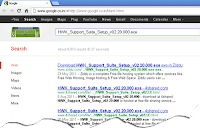
How to download HWK UFS 3 Suite Setup?
How to install:

1. Install HWK Support Suite v02.20.000
2. Connect your UFS+HWK then run the HWK Update Client
3. Run HWK Update Client click Next then Wait for a moment --> Start HWK update >>>
4. Install HWK Suite Setup v02.20.000
5. Then Install available minor updates in version order such as HWK Suite Minor v02.20.001, v02.20.002, v02.20.003


LG
Motorola
Nokia
Samsung
Sony-Ericsson

Some HWK Release Date :

2011 November 06
HWK Release Date: 06/11/2011

2011 August 22
HWK Release Date: 22/08/2011

2011 July 05
HWK Release Date: 04/07/2011

2011 May 22
HWK Release Date: 22/05/2011

2010 December 15
HWK Release Date: 26/10/2010

2010 December 15
HWK Release Date: 15/10/2010

๐Ÿ“š You May Also Like to Read