Showing posts with label Photoshop. Show all posts

Tuesday, July 8, 2025

📸 Old Photo Restoration and Colorization Using AI: A Journey from Damage to Digital Beauty (With AI Prompt to clean or restore the damaged phone)


In every household, there lies a box or an album filled with faded memories—old black-and-white photographs that capture moments long gone. These are not just images; they are emotional time capsules holding stories of laughter, love, and legacy. Unfortunately, time does take its toll. Mold, scratches, water damage, and fading often ruin these precious keepsakes.

But today, thanks to powerful AI photo restoration and colorization tools, bringing these memories back to life is no longer a dream—it’s reality. In this blog, we explore how one severely damaged childhood photo was beautifully restored and colorized using AI—and how you can do it too.
 Old Photo Restoration and Colorization Using AI: A Journey from Damage to Digital Beauty (With AI Prompt to clean or restore the damaged phone)


🧒 The Story Behind the Photo

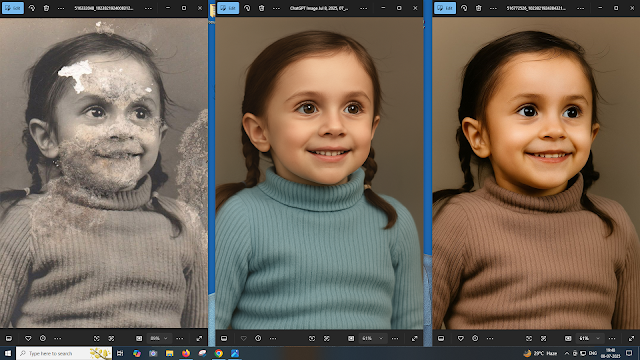
A vintage black-and-white photo of a little girl wearing a ribbed sweater and smiling with curiosity had suffered the effects of time. The image had:

  • Mold and water damage across the face and chest

  • Faded paper texture

  • Blotches and cracks that obscured features like the mouth and nose

  • Large portions of the face and background missing

It looked almost beyond repair.

This was not just a picture—it was a memory frozen in time, and the goal was to give it a new life while keeping the emotional warmth intact.

🛠️ How Restoration Was Done Using AI

Using modern tools like DALL·E, GFPGAN, Remini, or Photoshop Generative Fill, AI can now reconstruct facial features and recolor black-and-white photos with astonishing accuracy.

Here’s the prompt used for AI-based restoration:


✅ Restoration Prompt Used:

"Restore and beautify an old, heavily damaged black-and-white photograph of a young girl. Remove all visible mold, cracks, tears, and stains from the image—especially across the face, sweater, and background. Smooth and reconstruct missing facial features like the nose, mouth, and eyes realistically, maintaining the original joyful expression. Add natural-looking skin tones, soft brown eyes, and dark brown hair in neatly parted twin braids. Recolor the ribbed sweater with a warm, earthy tone (e.g., cocoa brown), preserving the texture. Use soft lighting and a neutral beige background to maintain the vintage feel while giving a clean, high-resolution modern finish."


🎨 The Magic of Colorization

After removing the damage, the next step was colorization. Adding color to a black-and-white image not only enhances realism but also adds emotional warmth. In this case, the AI tool was instructed to use:

  • Warm skin tones

  • Dark brown hair styled in braids

  • Brown ribbed sweater to preserve vintage clothing style

  • Neutral background to avoid distraction and keep focus on the subject

The result? A lifelike, clean, vibrant version of the photo—almost like it was taken with a modern camera.

📷 Before vs After: What Changed?

AspectBefore (Original)After (AI Restored)
DamageMold, cracks, missing facial partsCompletely cleaned, face reconstructed
ColorBlack & whiteWarm skin tone, natural sweater color
SharpnessBlurry, low detailHigh resolution, sharp and vivid details
Emotional AppealDistracted by damageInnocent smile fully restored


🔧 Tools You Can Use for Photo Restoration

Here are the tools that you can use to restore your old photographs:

  1. Remini App – For smartphones; excellent for restoring portraits

  2. DALL·E + Prompting – For creative AI-based restoration and enhancement

  3. Photoshop AI (Generative Fill) – For advanced users

  4. GFPGAN (Github/Open Source) – For face restoration

  5. MyHeritage In Color™ – For quick colorization online

Each tool has its own strengths. If you’re dealing with light damage, online tools work great. For heavy restoration like the image we used, combining tools gives better results.

📌 Step-by-Step: How You Can Restore a Damaged Photo Using AI

Step 1: Scan Your Photo

Use a good-quality scanner to digitize your photo in at least 300 DPI resolution.

Step 2: Clean the Image (Optional)

Use tools like Photoshop or Snapseed to adjust brightness and remove large spots manually if needed.

Step 3: Use AI for Restoration

Upload your image to a tool like Remini, GFPGAN, or DALL·E with the prompt (like the one above).

Step 4: Apply Colorization

Once the damage is restored, use a separate tool (like MyHeritage or Photoshop Neural Filters) to add color.

Step 5: Download and Save

Save your photo in high resolution. You can print, share, or even frame it for your home.


💡 Tips for Better Results

  • Use clear, descriptive prompts for AI tools.

  • Mention emotions (e.g., “joyful expression”) to retain personality.

  • Choose natural colors—AI tends to over-saturate unless guided.

  • Always keep an untouched original version backed up.


💬 What This Restoration Meant

Restoring a photo like this isn’t just about pixels—it’s about bringing history to life. For the family, it was as if a lost memory had been returned. A child’s smile, once hidden under layers of damage, now shines bright again.

This shows how AI isn’t just about automation—it’s a tool for empathy, healing, and preservation.


🧭 Final Thoughts

AI-based photo restoration and colorization have revolutionized how we protect and relive the past. What used to take hours of manual editing can now be done within minutes—with breathtaking accuracy.

If you have an old family photo hidden in an album or drawer, don’t let it fade away forever. Digitize it, restore it, and give it the second life it deserves.

EXAMPLE AND DONE WITH CHATGPT

Old Photo Restoration and Colorization Using AI: A Journey from Damage to Digital Beauty (With AI Prompt to clean or restore the damaged phone) - OLD PHOTO

Old Photo Restoration and Colorization Using AI: A Journey from Damage to Digital Beauty (With AI Prompt to clean or restore the damaged phone) CHATGPT USED THE BELOW PROMPT

🔧 Prompt Used to Clean, Recolor, and Beautify the above Damaged Photo: AI IMAGE RESTORE PROMPT - 1

"Restore this heavily damaged vintage photograph of a young girl. Remove all visible mold, stains, and scratches on the face, sweater, and background while preserving the natural texture. Reconstruct missing or faded facial features realistically—especially eyes, nose, mouth, and cheeks—maintaining the original expression. Smooth out the damaged areas of the sweater without losing its ribbed pattern.

Recolor the image with soft, natural tones—light brown or dark brunette hair, warm skin tones, and subtle color in the sweater (like pastel blue, green, or beige). Keep the background neutral and clean. Add a touch of photo enhancement to make the image look vibrant but true to its vintage character. The final result should look like a professionally retouched and colorized portrait with minimal artifacts and high emotional clarity."


Old Photo Restoration and Colorization Using AI: A Journey from Damage to Digital Beauty (With AI Prompt to clean or restore the damaged phone) USED THE BELOW PROMPT


🎨 Restoration & Recolor Prompt (Used for the Image Above): AI IMAGE RESOTRE PROMPT -2

"Restore and beautify an old, heavily damaged black-and-white photograph of a young girl. Remove all visible mold, cracks, tears, and stains from the image—especially across the face, sweater, and background. Smooth and reconstruct missing facial features like the nose, mouth, and eyes realistically, maintaining the original joyful expression.

Add natural-looking skin tones, soft brown eyes, and dark brown hair in neatly parted twin braids. Recolor the ribbed sweater with a warm, earthy tone (e.g., cocoa brown), preserving the texture. Use soft lighting and a neutral beige background to maintain the vintage feel while giving a clean, high-resolution modern finish. Final image should appear professionally restored, lifelike, and emotionally warm."

You can use or modify this prompt in AI tools like DALL·E, Remini, GFPGAN, or Photoshop Generative Fill for similar high-quality results.


Sunday, October 31, 2021

COVID CERTIFICATE ID Card Size Photoshop PSD Template A4 Size


How to print COVID Certificate in Identity Card size using photoshop, If you need to print the COVID Certificate in ID card size and laminate using 85x110MM lamination pouch, then here is the all in one solution for you, Here you can download covid certificate id card size photoshop PSD template to print the certificate in ID card size and also you will get the video tutorial on our YouTube channel.


COVID CERTIFICATE ID Card Size Photoshop PSD Template A4 Size 


Please download the COVID CERTIFICATE ID Card Size Photoshop PSD Template A4 Size below and follow the instruction in the video on our YouTube channel.

COVID CERTIFICATE ID Card Size Photoshop PSD Template A4 Size - Sample


How to print covid certificate in id card size?

Photoshop covid certificate id card size template?

Photoshop templates.

Covid vaccine certificate pdf to id card.

How to open PDF file on Photoshop?


SIZE OF THE ID CARD

3X4" (INCH) OR 7.2CMX10.2CM

LAMINATION POUCH SIZE: 85X110 MM

DOWNLOADS

COVID CERTIFICATE ID Card Size Photoshop PSD Template A4 Size 


Download the Photoshop template 

Open the template in photoshop

Then open the COVID certificate pdf file in photoshop

Resize the image and drag on to the template

Again resize the image as required.

For more details please Follow the instruction in Hindi and Odia on our YouTube channel.

Thursday, February 27, 2020

Stamp size photo size in Photoshop || Stamp size photo size in inch in India


Hi friends in this topic I will tell you about stamp size photo size which is commonly used in every official place, but there is some different size of stamp size photo which has been using in different official work, so to know the complete details about stamp size photo please go through the topic.


  • Stamp Size : (2cm x 2.5 cm)
  • SSLC Size : (2.5cm x 2.5 cm)
  • Normal Stamp size : (2.5cm x 3 cm)
  • Pan Card Size : (2.5cm x 3.5 cm)
  • Passport Form Size : (3.5cm x 3.5 cm)
  • Normal Passport Size : (3.5 cm x 4.5 cm)
  • USA Size : (5cm x 5 cm)
  • Normal Size: (3.5cm x 4.5 cm)


  • Stamp Size Photo Size(Dimensions) in cm: 2cm x 2.5cm
  • Stamp Size Photo Size(Dimensions) in Pixels: 236 x 295 pixels
  • Stamp Size Photo Size(Dimensions) in Inches: 0.787402 inches x 0.984252 inches
  • Stamp Size Photo Size(Dimensions) in mm:  20mm x 25mm
  • Stamp Size Photo Resolution: 236 x 295 pixels (300 dpi)


What is the stamp size photo size? Stamp size photo size in India? Photoshop Stamp size photo


How to crop stamp size photo in Photoshop? Stamp size photo resolution Photoshop?

COMMONLY USED STAMP SIZE PHOTO SIZE?


Stamp Size : (2cm x 2.5 cm)


Passport Size Photo Size in India FCT || Passport size photo size in pixels in Photoshop?


Here in this topic I will tell about the Passport size photos size around the world and specially in India which passport size photo size use for official purpose and how many sizes are there in Passport size photos and what the official size of passport size photos. Passport size photos crop size and dpi in Photoshop, if you have a Photo studio then please go through the below details about Passport size photo size to crop in Photo shop. Passport size photo width and height in inches for Photoshop and what is the passport size photo dpi to crop the photo to get best passport size photo.

Search Tags:

how to make passport size photo?
passport size photo maker?
passport size photo size in pixels in Photoshop?
how to print passport size photo in word?
how to print passport size photo in hp printer?
how to print passport size photo in Photoshop?
how to print passport size photo in paint?
make passport photo online free?
What is the Passport size photo dimensions in India?
Passport Size Photo Size in India-FCT || Passport size photo size in pixels in Photoshop
The most commonly used passport size photo size is 1.3 inch x 1.7 inch with 300 dpi, so if you want to crop the image then set width 1.3 inch and height 1.7 inch and dpi 300 and finally you will get the passport size photo. The above image is in the same size and in a 4x6 page you will get 8 passport size photo.

PASSPORT SIZE PHOTO SIZE?


Passport size photo size in centimeters (3.5 cm x 4.5 cm and 300dpi)


Passport size photo size in inches (1.38 in x 1.77 in and Resolution 300dpi).


Passport size photo size in centimeters and Passport size photo size in Inches?

Friday, August 23, 2013

Stamp Size Photo Dimension - What is the size of a Stamp size photo


In the previous topic I have discussed about the size of a passport photo and how to create in Photoshop, from that topic we came to know that, the normal passport photo size is 3.5 cm x 4.5 cm with 300dpi. Here I will tell you about the size of a stamp size photo and a sample stamp size photo is given below with the size of 3.5cm x 3.5cm.

Here you will get the various Stamp size photograph used on various official applications or forms or for any other purpose. Usually stamp size photo is used on ID cards or on some specific official documents, and here we are giving some frequently used size of Stamp size photo to crop the photo using Photoshop or you can also use any other photo editing software on your Computer.
Stamp Size photo size - crop with adobe Photoshop

To Know About the Size of a Passport Size Photo Click here

Some Stamp Size Photo Dimensions:
  • Stamp Size : (2cm x 2.5 cm)
  • SSLC Size : (2.5cm x 2.5 cm)
  • Normal Stamp size : (2.5cm x 3 cm)
  • Pan Card Size : (2.5cm x 3.5 cm)
  • Passport Form Size : (3.5cm x 3.5 cm)
  • Normal Passport Size : (3.5 cm x 4.5 cm)
  • USA Size : (5cm x 5 cm)
  • Normal Size: (3.5cm x 4.5 cm)

Friday, August 2, 2013

Create Your Own Passport Size Photos Within 30 Seconds - How To Create Passport Photos With Photoshop


Yes it's absolutely right you can create passport size photos within 30 seconds with a single click or by pressing the Ctrl+F2 Key on your keyboard using Photoshop. If you want to know how to create your own passport size photos, then this topic will help you regarding that.

Here I am going to show, how can you create passport photo using adobe Photoshop. To make it simple you can use Photoshop action file and can be download from the link below. To use the Photoshop action for making passport size photo you have to download the action file which has been attached below and save the file then open the file, the action file will automatically load the Photoshop. The action file set to the shortcut key Ctrl+F2, that means just open the photo which you want to make the passport size photos and press Ctrl+F2 the remaining things will automatically done and finally you will get your passport size photos on a 4x6 page.

To create passport size photos just follow the step by step procedure below and a video tutorial also given in this topic. So let's start the steps for passport size photos using Photoshop. For this you do not need to be an expert in Photoshop, as I told you have to download the action file, save it and open it, then open the photo you want to make passport size and press Ctrl+F2 key on the key board, that's all the rest will be automatically done for you.
Steps To Create Passport Size Photos Using Photoshop

Requirements:
  • You should have adobe Photoshop installed on your computer (Any version ) (Recommended Adobe Photoshop CS5)
  • you need an Internet connection to download the Photoshop action file or you can download it from any Internet cafe and take the file in pen drive.
Steps:

1) Download the Photoshop Action File Here

2) Save the file and open it (It will open with Photoshop)

3) Now open the photo you want to make passport size photos

4) Press "Ctrl+F2" key on your keyboard
Passport Photo Crop in Photoshop
5) Now a crop area will be selected, you can drag and adjust the area you want to crop.

6) After selecting the crop area just press "Enter" Key
Create Passport Photos in Photoshop
7) That's all now your passport size photos ready, 8 passport size photos on a 4x6 page, just take a print out of this or you can save it and take the print out later.


Download the Passport Action File For Photoshop below


Watch the video How to create passport size photos with Photoshop within 30 seconds.

Wednesday, July 31, 2013

Actual Size of A Passport Photo and How to Crop the Passport Size Photo in Photoshop (3.5x4.5cm)


Most of us having the confusion about the size of a passport photo and how to crop or create a passport from a camera photo. so here I am going to tell you something about the passport photo size and also show you how you can create a passport photo from an image using adobe Photoshop. If you are new to Photoshop this topic will help you well for creating passport photo. This topic also helpful to Digital Studio owners, Multimedia Students or a home user who has the Photoshop on the PC and want to learn Photoshop to create passport size photos. Normally a passport photo size is 3.5cm x 4.5cm (Width x Height), In some cases the passport photo size will be 2inch x 2inch.

Some passport photo size in cm. inches and pixels:

Size (cm)                    Size (inches)                   Size (pixels)
                                                                                            (300 dpi)
5.08x5.08 cm         2x2 inches                 600x600 pixels
3.5x4.5 cm           1.38x1.77 inches         413x531 pixels
3.81x3.81 cm        1.5x1.5 inches            450x450 pixels
3.5x3.5 cm           1.38x1.38 inches         413x413 pixels
3x4 cm                1.18x1.57 inches         354x472 pixels
5x7 cm                1.97x2.76 inches         591x827 pixels
3.3x4.8 cm           1.30x1.89 inches         390x567 pixels 

The most common passport photo sizes are: (2x2") and (3.5x4.5cm), which are frequently used in India, among these two the (3.5x4.5cm) passport photo size is mostly used.

How to create a passport photo in Photoshop ?
  • Open Photoshop and open the photo, which you want to make a passport photo
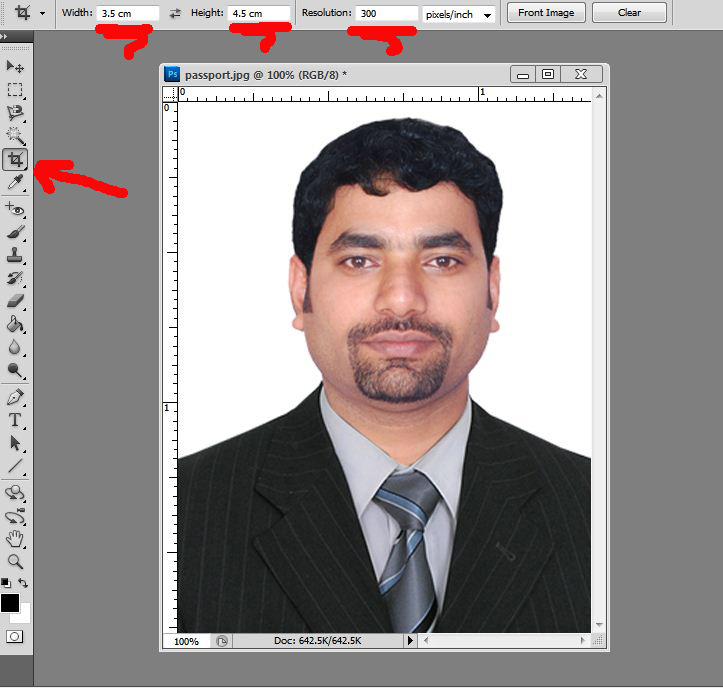
  • Select the Crop Tool or press 'C' then give the 'Width' 'Height' and 'Resolution' (3.5 cm x 4.5 cm and 300dpi) or you can also give the size in inches like (1.38 in x 1.77 in and Resolution 300dpi).
Passport Photo Crop in Photoshop
  • Then crop the photo
  • So now here is your single passport size photo.
Passport Photo Dimensions or Size
You can create a new 4x6 page and drag the passport photo on to it and make copies of the passport photo to take print out.
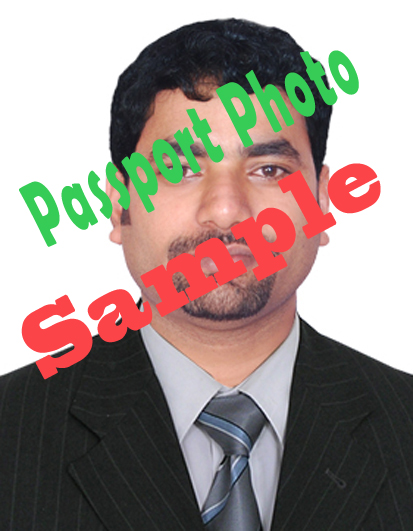
Passport Photo Size Sample (3.5 cm x 4.5 cm, 1.38x1.77 inches, 413x531 pixels and 300dpi)
The above image is a sample of passport photo size, which is cropped with 3.5x4.5cm with 300dpi. You can download the Passport size photo sample and crop the image to this size and you can easily make your passport size photo.

Sunday, March 24, 2013

Photoshop PSD Coats For Passport Size Photo : Free 6 .PSD Format coat For You to Edit Your Photos


If you want to edit your photos, specially passport size photos, then here is some coats for your which are in psd format. You can add these coats to your normal passport size photos if you do not have a coat for passport size photo.

Take a photo with normal T-shirt and download the coats, then you can edit and wear these coats by using Adobe Photoshop, if you know photo editing using Photoshop. You can also use it for 4x6 photos.
Photoshop PSD Coat Sample1
Download Photoshop PSD Coats Part 1 in PSD Format Here
Photoshop PSD Coat Sample 2
Download Photoshop PSD Coats Part 2 in PSD Format Here

How to download these files ? Click on the link, you will go Google Drive then Click on File Menu then click on Download to download the file, see the screen shot below.
How to Download PSD Coats From Google Drive Link

Thursday, October 20, 2011

Free Download Photoshop 5x7 Backgrounds


Photoshop Backgrounds free download and edit your personal photos. Free Photoshop HD Backgrounds download and enjoy studio backgrounds. Download Photoshop 5x7 beautiful background for Photo editing, by using these backgrounds you can edit a photo with Photoshop or any other photo editing software and change the photo background to look the photo attractive.

Here we provides Photoshop background images with a size of 5 inches width and 7 inches height or 750 x 1050 pixels with resolution 96 dpi. As the background images are available with the size of 5x7 you can crop it to any other size you need. You can change a photo's background by using Adobe Photoshop Windows Software or you can also use any other photo editing software.

As you know you can edit and make your photo looks better by using Photoshop and one of the basic photo editing tips is to change the background of the photo. When you click a photo with Digital camera or Smartphone at that time you may not find the proper background to shoot the photo but you can change the background by using the photo editing software like Adobe Photoshop CC, Cyberlink Photodirector, Adobe Lightroom Classic CC, Adobe Photoshop Elements, DxO Optics Pro, Apple Photos for mac OS, Corel Paint Shop Pro etc.
Free Download Photoshop 5x7 Backgrounds
Download Most Beautiful Photoshop Backgrounds (5X7):

As you can see the above image, it's a sample image of all 10 stylish studio background images. You can download the full resolution background images form the below links. 


Studio Bluer with pendant Style Background | Download
Change Photo Background With jewelry and Other object mixed | Download
Photo background image with temple pillar and flowers mixed | Download
Background image with victor style tree and light green mixed | Download
Stylish designed Blue background image with jewelry | Download
Photoshop background with flower bunch and bluer border | Download
Background portrait with flower and mix green background | Download
Photo editing background with flower and waterfall mixed | Download
Victor style image with flower background for photo editing | Download
Background image with flower on the pillar and other mixed | Download

The above are some new and styled Photoshop backgrounds for photo editing and make you photo to looks better. Download photo editing background images to change the photo background using any photo editing software.

Download Free Photoshop Landscape Backgrounds Here


Download beautiful HD Photoshop landscape backgrounds, to edit wedding photos, marriage photos and reception photos. Download the below photos and use Photoshop to edit your personal photos and use these as background to design more you can download other background and mix with these backgrounds using Adobe Photoshop or use any other Photo editing software.

Download 6 Best Photoshop Backgrounds:
Download or save Photoshop landscape designed backgrounds and use these to edit your photos. If you are using any other photo editing software on your Windows computer then you can also use these photo editing background images. The below is a sample image of 6 best Photo editing software backgrounds used for photo editing, to download all images in full size please download it from the links given below.

Download 6 Best Photoshop Backgrounds to use in any Photo Editing Software
Background Image For Photo Editing Software | Flower Background | Download 
Background Image For Photo Editing Software | Flower With Desktop | Download 
Background Image For Photo Editing Software | Flower, Pants, Moon | Download
Background Image For Photo Editing Software | Flower Background | Download
Background Image For Photo Editing Software | Colored Weddings| Download
Background Image For Photo Editing Software | Flower, Tree, Grass| Download

Download Free Photoshop Landscape Background Here:

Download Photoshop Landscape or Photo editing software background images free here, the below is the sample image of all backgrounds and download from the below link. Photoshop wallpapers, Photoshop backgrounds, designed backgrounds, photo editing backgrounds etc. if you have the question where to download Photoshop backgrounds then you are in right place to download photo editing background images to edit photos with beautiful flower, tree, temple, car, rose, plants, grass, butterfly, car, bike, river, sea, sea beach, boat  and other backgrounds.
Download Free Photoshop Landscape Backgrounds Here
Photoshop Background Image For Photo Editing Software | Car Background | Download
Photoshop Background Image For Photo Editing Software | Bike Background | Download
Photoshop Background Image For Photo Editing Software | Flower Background | Download
Photoshop Background Image For Photo Editing Software | Water Background | Download
Photoshop Background Image For Photo Editing | Sea Beach Background | Download
Photoshop Background Image For Photo Editing Software | Interior Background | Download
Photoshop Background Image For Photo Editing | Nature Background | Download     

10 Beautiful Photoshop Wedding Backgrounds


Download free beautiful Photoshop wedding background. Designed studio and nature backgrounds for Photoshop to edit wedding photos. If you are a Photoshop designer you must need some beautiful landscape background for editing wedding photos. See the sample images below and to download wedding background Photoshop just click on the Download link.

The landscape Photoshop background images are well designed with mix content or images such as background with temple, Photoshop background with gradient colors and mix with flowers,  Photoshop background with hanging diya, landscape with dream color mix, background with small rectangle frames, background JPEG with birds, plants, flower border, trees and rose etc.

All the Photoshop backgrounds available here to download. All the images here have good resolution with beautiful color mixing, if you look at the size of the Photoshop background it has width: 1600 pixels, Height: 1060 pixels with 96 dpi resolution. So download 10 beautiful Photoshop Wedding Background here and enjoy happy editing with Photoshop.
Beautiful Photoshop Wedding Backgrounds Samples - Download Full Images from the below links
Download Photoshop Wedding Backgrounds:

Photoshop Wedding Background With Lighted Diyas | Download
Photoshop Wedding Background With Love Dream and Flowers | Download
Photoshop Wedding Background With Temple | Download
Photoshop Wedding Background With Extra Small Photo Frames | Download
Photoshop Wedding Background With Mixture of Colors | Download
Photoshop Wedding Background With Made for Each Other | Download
Photoshop landscape backgrounds Samples - Download from the below links
Photoshop Wedding Background With beautiful Landscape image | Download
Photoshop Wedding Background With gradient and tree | Download
Photoshop Wedding Background With Tree and Birds | Download
Photoshop Wedding Background With Flower Border | Download

Download 10 beautiful Photoshop landscape wedding backgrounds with well designed to use on Photoshop to edit all types of photos, you can also use these background images to write quotes, Download Photoshop backgrounds and enjoy photo editing.

📚 You May Also Like to Read