Showing posts with label Wi-Fi Hotspot. Show all posts

Sunday, January 27, 2013

How to Connect to Internet on PC Using Nokia Lumia 610


Here is the way how you can use your Nokia lumia 610 to access Internet on the computer. Turn Nokia lumia 610 into Wi-Fi hotspot, but in Lumia windows phone it's called tether to share your mobile Internet connection. So want to use the Internet on your laptop but don't have access? When you wireless tether your phone to your computer or other device, you can use your mobile data connection on that device. A Wi-Fi connection is created similar to Wi-Fi Hotspot.
Nokia Lumia 610 ( Tethering )
Steps to create Wireless access point on Nokia Lumia 610

1) Go to Settings ---> and select Internet Sharing

2) Set Switch Sharing to On

3) To change the name of your connection, select setup ---> Broadcast name, then write a name. You can also type in a password for the connection.

4) Select the connection on the other device and give the password that you have given and now you can access the lumia 610 Internet connection on other device such as On your Laptops.

A small definition about what is tethering ? 

                Tethering is mean to connect one device to another. In the mobile or Tablet world, tethering allows sharing the Internet connection of the phone or tablet with other WiFi enabled device such as laptops. This normally done over the wireless LAN (Wi-Fi), Bluetooth or by physical connection using a cable for example, through USB. If tethering is done over Wi-Fi, also called Mobile Hotspot and act as a portable wireless access point and router to get connected to it. 

Saturday, January 26, 2013

How To Turn Your Windows 7 Laptop Into Wi-Fi Hotspot - With Video Tutorial


Do you know? that you can use the windows 7 PC as a WiFi Hotspot. If you are searching for Wi-Fi hotspot and don't know how to do it, then here is the procedure through which you can easily turn your windows 7 PC into Wi-Fi Hotspot. For this you need a Wifi enabled Desktop, if you don't have wifi on your Desktop then you should purchase one and fix it to the PCI slot. If you are using Laptop, then not to worry all the laptop now a days come with Wi-Fi. You do not need any kind of software to do it, just do some settings and you will able to share your Windows 7 laptop's Internet with friends.

Requirements :
  • A Desktop/Laptop with Wifi having Windows 7 OS
  • Internet Connection on the PC (LAN or 3G Datacard)
For Example : Windows 7 Laptop having Internet (BSNL 3G Datacard) and want to share the Internet with others by turning it into a wifi hotspot. The procedure is as below.

1) Attach the BSNL 3G Data card to Laptop and finally connect it to get internet connection on the laptop (using the software given by BSNL in the Data card) or if you have broadband connection, just connect it to the LAN port. Now your Laptop has the Internet on it.

2) Go to Control Panel\Network and Internet\Network and Sharing Center and click on the Manage Wireless Networks from the left panel.

3) Click Add ---> Create an ad hoc network ---> Click Next

4) In the Network name, type any name on it ( here it's mypc1) and in the Security key enter abc12345 (for example) and Click Next. You can choose your Network name and Security key.
Wi-Fi Hotspot on the Windows 7 Laptop
5) Now Click on Turn on Internet connection sharing and you will get a message Internet connection sharing is enabled, Click Close.

You have successfully created the wifi hotsopt on the Laptop. On another laptop you will get Wireless Network Connection mypc1, Click Connect and give the key abc12345 and you will be connected to the laptop and can use the Internet now. This wireless network may not be access through some wifi enabled mobile phones.

Watch the Video to set up wifi hotspot on Laptop using Windows 7.

Friday, October 28, 2011

How to Use Nokia 5800 Mobile as a WiFi Hotspot


Normally we use Nokia Mobiles as USB modem to access internet on Computers. Just Download OVI Suite from the Nokia website, install it on your PC, Connect the Nokia Phone with a Data Cable and get connected to the internet.

But do you know that, if you have a Nokia Mobile with Wi-Fi option then you can connect your Wi-Fi devices such as Laptops, ipod, ipad or other Wi-Fi mobiles to access internet of the mobile by turning it on as a Wi-Fi Router.
So how can we do that, here is the example for  Nokia 5800 Mobile Handset and the procedure is almost same for all Nokia Wi-Fi enabled Handset, just follow these steps bellow.
How to Use Nokia 5800 As a Wi-Fi Hotspot
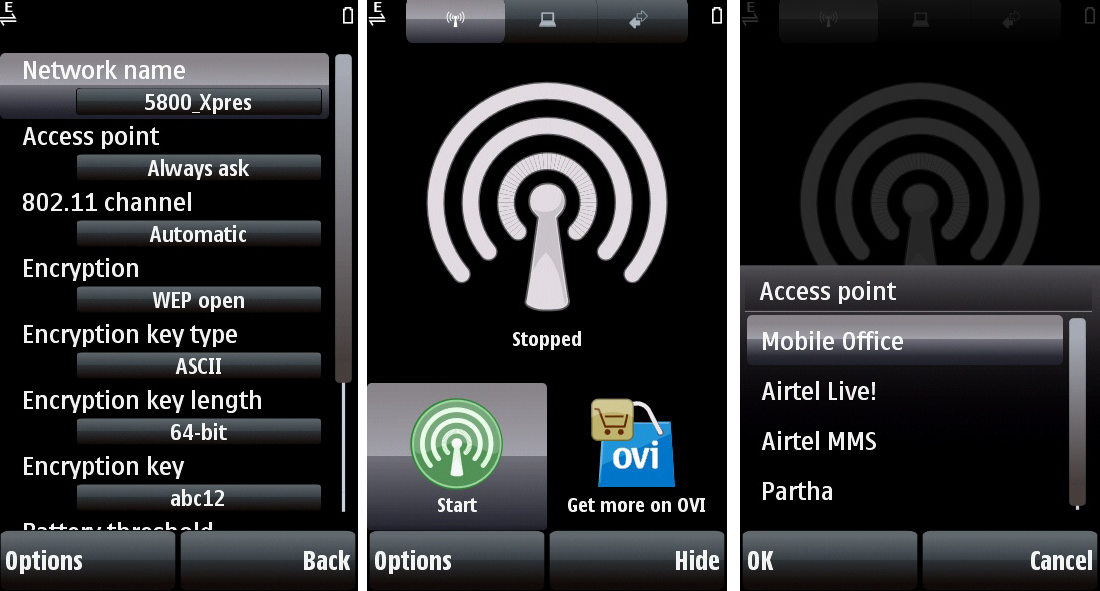
You need to install an Application Called Joikuspot on the Nokia 5800 to make it a WiFi HotSpot.It's simple to download just go to store.ovi.com and register for an account, then come back to your mobile, open Ovi store Sign in using the user name and password that You have created, then make a search for Joikuspot you will get JOIKUSPOT LIGHT WiFi HotSpot Which is Free and JOIKUSPOT PREMIUM WiFi HotSpot for which you have to pay, let's go for the LIGHT download and install it.

Steps:
  • Install Joikuspot app on the phone.
  • Now open the Application and click allow sharing internet connection.
  • Set a Password on it.
  • Now you can use the phone as Wi-Fi hotspot, access the hotspot with password.
Then open the JoikuSpot it will ask to "Allow sharing your internet connection with external devices" select No, then go to Option-> Settings-> Encryption Select WEP Open select OK, then Encryption key length 64-bit which requires 5 characters or 128-bit which requires 13 characters just go for 64-bit it can be changed later if want, then Joikuspot automatically generate a Encryption key you can change it just select and give a key i.e abc12, then go back and select Start then select Yes it will ask for Access point select Mobile Office if you are using Airtel SIM or as per your service provider, now go to the Laptop search for Wifi Click Connect and give the Encryption key you have created. That's all now you can access internet on your Laptop through the WiFi.

~~~::: Nokia Launched Nokia 6.1 with Android One :::~~~
Nokia 6.1 Key Specifications:
  • Network Speed: LTE Cat. 4, 150 Mbps DL/50 Mbps UL
  • WiFi: 802.11 a/b/g/n
  • Bluetooth: 5.0
  • GPS/AGPS+GLONASS+BDS+FM/RDS, NFC
  • Operating System: Android Oreo
  • RAM: 4 GB (LPDDR 4)
    CPU: Qualcomm Snapdragon 630, octa-core, 2.2 GHz
  • Storage: Internal memory 64 GB2 eMMC 5.1
  •                    MicroSD card slot Support for up to 128 GB3
  • Display: Size and type 5.5” (13.97 cm) IPS LCD, full-HD
You can get more details on Nokia Official Website.

📚 You May Also Like to Read