XOLO Era X Flash File, Flash Tool and USB Driver
Download Xolo Era X flash file/firmware here to flash the phone. The below is the direct link to download Xolo era_x firmware along with that you will get the Xolo Era X flash tool and Xolo Era USB driver. To know how to flash the Xolo Era X phone you can watch video tutorial below, So here is the complete flashing solution for Xolo Era X using free tool. If you have facing any software issue on the phone such as Unfortunately Google Stopped or the phone working slow or the phone hang on Xolo logo or if you switch on the phone it goes to Recovery automatically or you have any other software issue on the phone then you can follow this topic to solve software error on that phone.
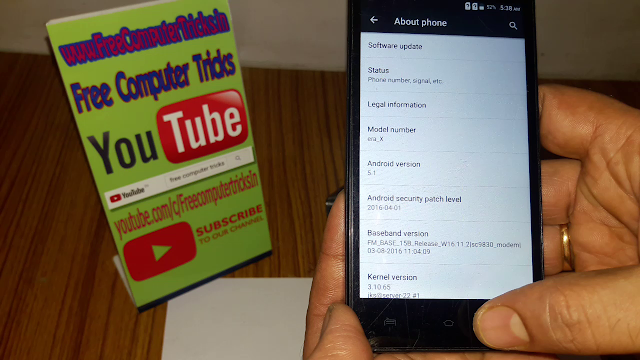
As you know the phone has Spreadtrum chipset and can be flash using SPD Research Download Tool. To flash the phone you need to download the Xolo era X firmware, flash tool and USB driver, then follow the below steps to flash the phone. Xolo Era X firmware available version is Android 5.1 and Android 6.0, you can use the latest Xolo firmware version to flash the phone or else if you need flash the same version that the phone has.
XOLO era X Flashing Prerequisites:
To flash the phone you need to have the flash file and flash tool and USB driver, so download the files to flash the phone and follow the flashing Xolo SPD guide, The below tools and devices required to flash the phone.
- An Windows Computer or Laptop (Recommended Windows 7 32bit)
- Xolo Era X Flash File or Firmware
- Xolo Era X Flash Tool (Spreadtrum Flash Tool)
- Xolo Era X SPD USB Flashing Driver (Spreadtrum Driver)
Xolo Era X Downloads:
Download Xolo Era X Flash File, Flash Tool and USB Driver.
Download XOLO Era X Stock ROM (Flash File)
File Name: Xolo_Era_X_S112_20160217.zip
File Size: 935 MB
Flash File Download Link: Download from Media Fire
File Name: Xolo_Era_X_S120_20160603.zip
File Size: 980 MB
Flash File Download Link: Download from Media Fire
File Name: Xolo_Era_X_S206_20161108.zip
File Size: 919 MB
Flash File Download Link: Download from Media Fire
How To Flash XOLO Era X?
As you know the phone has Spreadtrum chipset and can be flash using SPD Research Download Tool. To flash the phone you need to download the Xolo era X firmware, flash tool and USB driver, then follow the below steps to flash the phone. Xolo Era X firmware available version is Android 5.1 and Android 6.0, you can use the latest Xolo firmware version to flash the phone or else if you need flash the same version that the phone has.
 |
| XOLO Era X Flash File, Flash Tool and USB Driver |
XOLO era X Flashing Prerequisites:
To flash the phone you need to have the flash file and flash tool and USB driver, so download the files to flash the phone and follow the flashing Xolo SPD guide, The below tools and devices required to flash the phone.
- An Windows Computer or Laptop (Recommended Windows 7 32bit)
- Xolo Era X Flash File or Firmware
- Xolo Era X Flash Tool (Spreadtrum Flash Tool)
- Xolo Era X SPD USB Flashing Driver (Spreadtrum Driver)
Xolo Era X Downloads:
Download Xolo Era X Flash File, Flash Tool and USB Driver.
Download XOLO Era X Stock ROM (Flash File)
File Name: Xolo_Era_X_S112_20160217.zip
File Size: 935 MB
Flash File Download Link: Download from Media Fire
File Name: Xolo_Era_X_S120_20160603.zip
File Size: 980 MB
Flash File Download Link: Download from Media Fire
File Name: Xolo_Era_X_S206_20161108.zip
File Size: 919 MB
Flash File Download Link: Download from Media Fire
How To Flash XOLO Era X?
- Download and Extract the flash file using unzip software
- Install Spreadtrum USB driver (SPD flashing Driver)
- Open SPD Upgrade Tool R4.0.0001/Research Download Tool
- Load Firmware File the Xolo_era_X_S120_20160603.pac file
- Then Click on Download Button to Start Downloading flash file to the phone
- Now switch off the phone and hold volume Up then connect to the Computer
- Wait until the flashing process complete
- You can also watch the flashing tutorial video here