Showing posts with label FRP Tool. Show all posts

Tuesday, November 13, 2018

New FRP/Google Account Bypass and Flash Tool For Samsung, Xiaomi, HTC, SPD, Qualcomm and MediaTek Etc.


Hi friends, today you will get another Factory Reset Protection bypass tool or so called Google Account remove or bypass tool for all most all Android versions and this supports Samsung, Xiaomi Redmi, HTC, Spreadtrum, Qualcomm and MediaTek, so download and enjoy the new FRP/Google account bypass tool and unlock all recent Android smartphones without any paid tool. This tool works on all most all Samsung, Mi, HTC Android phones and it also supports other devices having Spreadtrum, Qualcomm and MediaTek chipset Android phones.
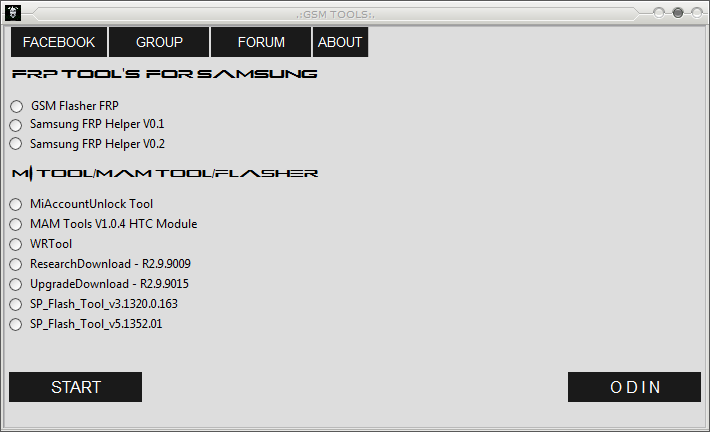
FRP BYPASS AND FLASHING TOOL:
  • File Name: GSM TOOLS BY gadgets Doctor.zip
  • Tool Type: FRP Bypass or Google Account Remove Tool.
  • File Size: 100 MB
  • Download Link: MediaFire
  • Password: GADGETS DOCTOR

How to Use This FRP/Google Account Bypass GSM TOOL?

  • Download the FRP Unlock Tool (Link Given Below)
  • Unzip the file using the password - GADGETS DOCTOR
  • Now Open the Tool and choose the option you need
  • Now click on Start button and connect the phone with Fastboot Mode or ADB Mode.
  • After Unlock Success Remove the phone and Switch it ON.
 
New FRP/Google Account Bypass and Flash Tool For Samsung, Xiaomi, HTC, SPD, Qualcomm and MediaTek Etc.

GSM FRP Bypass Tool Features:
  • GSM Flasher FRP
  • Samsung FRP Helper V0.1
  • Samsung FRP Helper V0.2
  • Mi Account Unlock Tool
  • MAM Tools V1.0.4 HTC Module
  • WR Tool
  • Research Download Tool
  • Upgrade Download Tool
  • SP Flash Tool
  • ODIN 3

You can use all the above options or function on the same tool in the GSM TOOL, and it's free to use for every one, so download the new FRP bypass tool and use to unlock and flash any Android smartphones.

Download Link: https://devoloperxda.blogspot.com/2017/05/a-new-frpgoogle-account-bypass-and.html

Sunday, July 1, 2018

Download Miracle FRP Tool 1.07 Free Full Setup File


Miracle FRP Tool 1.07 released new update on 1st July 2018, here you can direct download all updates for Miracle FRP Tool for free and high speed download links are available here. As you know Miracle has released Miracle FRP Tool or Miracle Factory Reset Tool and using this tool you can remove frp lock of all most all Android smartphones and it supports Qualcomm FRP Reset, Spreadtrum FRP Reset, MediaTek FRP Reset and Others FRP Reset. This tool also has a different version for Motorola FRP Reset called Miracle Moto FRP Tool.

If you have Miracle Box, then upgrade to Miracle FRP Tool using dongle and buy it from the authorized dealers. The tool has all the new features and can be unlock frp on any device with latest Android security patch updated. So if you want to download the Miracle FRP Tool, then please download it from links given below.

MIRACLE FRP TOOL

More then Millions Mobile Supported
Version 1.07

Miracle Eagle / Miracle Box, Please Buy Miracle FRP PACK (4in1)

# FREE Miracle eMMC Tool with Miracle FRP Tool Pack
# FREE Miracle Moto Tool with Miracle FRP Tool Pack
# FREE Miracle VIVO Tool with Miracle FRP Tool Pack

SINGLE CLICK FRP REMOVED
  • Spreadtrum Mobile
  • MediaTek Mobile
  • Qualcomm Mobile
  • MTK Universal = More then anyone
  • Qualcomm Universal = More then anyone
  • Universal Method = More Then Millions
  • Samsung 4 Different Methods for FRP Removal
Method Supported
  • ADB Mode
  • Fastboot Mode
  • EDL Mode
  • Diag Mode
  • Download Mode
  • Factory Mode
  • Universal Fastboot Mode
  • Universal ADB Mode
  • TWRP
Reboot Tool
  • Reboot Fastboot to Edl
  • Reboot Fastboot to Normal
  • Reboot Adb to Bootloader/FastBoot
  • Reboot Adb to Download
  • Reboot Adb to Edl
  • Reboot Ftm to Edl
  • Reboot Adb to Recovery
Miracle FRP Tool V1.07 Free Downloads 

Miracle FRP Tool V1.07 | Download Link 1
Miracle FRP Tool v1.07 | Download Link 2

Download Miracle FRP Tool 1.07 2018 from the above link, and use for Factory Reset Protection bypass/remove/reset/unlock, do it on any Android smartphones which supports Qualcomm, MediaTek, Spreadtrum FRP Unlock.

Monday, May 28, 2018

(Answered) How to Solve Msm Download Tool Start Error - Oppo Flash Tool?


Msm Download Tool start error, one of the following license required  Code Meter 6000136:171000 Failure reason CM Container Entry Not Found Error 200. This is an error message you may see when the you flash Oppo Android smartphones using MSM Download Tool, this error comes due to wrong configuration of the flash tool or any other supporting tools. The Flashing Error "MsmDownloadTool.exe:Start Error One of the following license is required: . CodeMeter 6000136:17100 Failure reason: CmContainer Entery not found, error 200." and here is the final solution to solve the error comes while flashing with Msm Download Tool.

Msm Download Tool Oppo Flash Tool:

This tool is used for flashing and unlocking Android smartphones, using this tool you can flash Oppo, One Plus, Vivo and some other brands which supports Msm Download Tool. This tool supports .ofp firmware for example if the firmware ROM file name is CPH1801EX_11_A.01_171230.ofp then it can be flash with Msm Download Tool. When you use this tool to flash firmware on your Android smartphone, sometimes you may get some flashing errors or flash tool issues, and here we will show you how to solve Msm Downlaod Tool Starting Error and if you have other flashing errors then you can ask for solution through comments.
Msm Download Tool Start Error Solution Here - Oppo Flash Tool
Download Oppo Msm Download Tool Latest Version:
Oppo All Flash Tools Download Link | Download Here

Code Meter (CodeMeter) Error Import Update Failed error 303 Solution
 Msm Download Tool Start Error Solution:
  • Download the above tools and extract it.
  • Now uninstall Code Meter Control Center and Pda Net Desktop Tools if installed, then restart the Computer.
  • Now Install the Tools You have downloaded (CodeMeterRuntime and PdaNetA5105) and after installation complete please restart the Computer again.
  • Now open ENABLE (ENABLE.exe) and click on Enable.
  • Now double click on OPPOMsmDownloadToolNoneLic_2001 file and you will see Update for Cm Container(CmContainer) Successful.
Update for CMContainer 130- Firm Item Successful
  • Now open Msm Download Tool and it will not show any errors.
How to Flash Oppo A71 CPH1801 Using Msm Download Tool - Error Soluion
Watch the Video Tutorial How to Solve Msm Download Tool Start Error : Watch On YouTube.
 
Now flash the Oppo phone using Msm download tool, this process is tested and working fine. If you are facing this problem to flash Oppo A71 CPH1801 then here you will get the solution for Oppo A71 flash tool Msm Download tool start error. Download Oppo A71 CPH1801 firmware, you can download it by searching on Internet, then follow the above steps to solve flash tool errors and unable to flash Oppo A71CPH1801 solution here.

Saturday, April 7, 2018

MediaTek (MTK) FRP Unlock Solution Without Any Box


Today we will discuss, how unlock Factory Reset Protection (FRP) on any MTK/MediaTek chip-set based Android smart phone. There are various procedure to unlock FRP of MediaTek (MTK) Android phone, some procedure based on using any Mobile flashing Box and other one is unlock without using any Mobile Flashing Box, as you know you can easily unlock FRP of MTK phones using Android Mobile Flashing Box like, Miracle Box, Volcano Box, Uni-Android Tool Box, Avator Box, GSM Aladdin Dongle, Infinity Box with Dongle, Inferno Dongle, Sigma Box, GPG Dragon Box, Spiderman Box, Piranha Box etc. so if you have any one of these Chinese mobile flashing box then you can easily flash and unlock FRP of any MTK base phone runs any version of Android operating system.

Factory Reset Protection (FRP)

This feature has been implemented in Android version 5.1 and higher to protect your device from theft and misuse. If you lost your Android phone and it's locked then nobody can use it, if the phone has been reset to factory then it will ask to enter the Email Id and Password used on the phone, otherwise it will stuck on the Email verification screen. To use the phone you need to enter Email Id and Password associated to the particular device, which helps you to recover your Contacts and all other things related to Google features, such as Google Drive content, Play Store etc. If you forgot the login details associated with the Android Mobile phone then you can official unlock your User id and password by visiting the "Forgot Password" link on the phone. For more information regarding Device Protection or Factory Reset Protection Please visit [Samsung Official Link]


MTK MediaTek Android Smart Phone FRP Unlock Free Tool Download 100% working

What If You Forgot The FRP Email ID and Password?

Factory Reset Protection (FRP) id and password is the Gmail id and password used on the Android device, that means when you Hard reset the Android 5.1 and higher it will ask to re-verify the email id and password to use the phone. If you forgot email id and password and at the same time you have gone through a Factory reset or hard reset of the phone, then it's difficult to pass the reactivation process on the phone. But you can also recover the Gmail id and password to pass the reactivation process on the phone, to recover Gmail id and password you need to connect the phone to the Internet and click on the Forgot password link on the login page or you can also visit [Account Recovery Google] to know more about Recover your Google Account.

What You Have To Do? When You Unable To Recover The FRP Email Id and Password.

By going through the above details on this article, you may have some idea about Factory Reset Protection or FRP, so now is the time to know how you can unlock the FRP, if you unable recover the Email and password associated with the device then follow the below steps in this topic to unlock FRP. As we said before you can easily unlock FRP lock by using any Chinese Mobile Flashing Box otherwise you can follow the below steps to Unlock FRP lock on any MediaTek (MTK) Android base phone.


This device was reset. To continue, sigh in with a Google Account that was previously synced on this device

MediaTek (MTK) Factory Reset Protection (FRP) Unlock

To unlock FRP lock on your Android smart phone runs on MediaTek CPU you can download Miracle Box which is working without hardware Box. {Download it Here} download this Miracle tool which is working fine without box and free to download, download this free MediaTek frp remove tool and unlock all most all FRP lock on any MediaTek MTK CPU/chipset runs on any version of Android operating system.


Download Free Miracle Box Software Here

Samsung FRP Unlock Solution

Android FRP Unlock Solution With Test DPC APK

Android Fastboot FRP Reset Tool Download

All in One Spreadtrum SPD FRP Unlock Tool Free Download

So by following the above details you can easily do FRP unlock of any Android device, just download the MTK Android FRP Tool for free and use it to unlock Android FRP lock on your smart phone. Download Miracle Box v2.54 100% free tool for flashing and unlocking FRP, Miracle Box free MediaTek FRP Unlock Tool, MediaTek FRP Unlock Tool 2018 Download Free, MTK FRP Unlock Tool.

Sunday, October 8, 2017

Vivo Y21L 4G Hard Reset and FRP Unlock - Solved


How to hard reset and do frp unlock of Vivo Y21L Android smart phone? Here is the complete solution for Vivo Y21L Hard Reset and FRP unlock done with RB Soft Mobile Tool V1.6. Please follow the below process to Format User Data and Reset FRP on Vivo smart phone for the Model Vivo Y21L 4G.

Vivo Y21L 4G Hard Reset and FRP Unlock Done

VIVO Y21L Hard Reset and FRP Unlock Solution:

1) Open RB Soft Mobile Flash Tool.
2) Put the VIVO phone to EDL Mode.
3) Now go to Qualcomm Tab on RBSoft Tool.
4) Now click on "Reset FRP" to FRP unlock or
5) Click on "Format User Data" to Hard Reset VIVO Phone.

Vivo Y21L FRP and Hard Reset OK RBSoft V1.6 Mobile Tool

Vivo Y21L Unlock and Hard Reset Log:

Reset FRP

Searching For EDL Port...Found At COM8
Building Connection...Ok
Reading Cpu Info...Ok
Sending Loader To Device...Ok
Waiting programmer to boot...Ok
Sending Config Data...Ok
Reading Partition List...Ok
Searching frp...Found
Reseting frp...Ok
Found
Reseting frp...Ok
Rebooting Device...Ok
RBSoft V1.6 Mobile Tool

Format User Data

Searching For EDL Port...Found At COM8
Building Connection...Ok
Reading Cpu Info...Ok
Sending Loader To Device...Ok
Waiting programmer to boot...Ok
Sending Config Data...Ok
Reading Partition List...Ok
Searching useradata...Found
Formating Userdata...Ok
Rebooting Device...Ok
RBSoft V1.6 Mobile Tool 

Vivo Y21L EDL Mode

Hold both Volume Key (Up and Down) then connect USB Cable.

Sunday, September 17, 2017

Xiaomi Mi (2016002) Mi Max Remove Mi Account OK


Redmi Xiaomi Mi 2016002 Mi Max remove Mi account or FRP lock success. Here in this topic you will know how to remove mi account on Mi Max smart phone. If the Mi Max Android smart phone is mi account locked then do not need to flash the phone using this process here you can easily remove mi account on this phone.

Here in this process of removing mi account on Xiaomi phones, you can use a tool called RBSoft_V1.5_Full and easily remove the mi account. To remove mi account Mi Max you need to put the phone in to EDL mode and then install Qualcomm QDloader USB driver and use this tool to remove Mi account. In this process you do not need to flash the phone just follow the below process to remove mi account without flashing the phone.

How to remove Mi Account on Xiaomi Mi Max 2016002

Xiaomi Mi Max (2016002) Remove Mi Account:

1- Download RBSoft_V1.5_Full
2- Put the phone to EDL Mode
3- Open the RB Soft tool and go to 'Xiaomi' tab and select 'Mi Max'.
4- Then choose the COM Port and click on Remove Account

Mi Max Remove Mi Account Log:

Select Model: Mi Max
Selected Operation: FRP
Opening Port COM82...Ok
Sending Loader...Ok
Removing Account Wait...Ok
Closing Port...Ok
Job Finish Successfully.
Press and hold power key for 15-20 second for restart.

Saturday, September 9, 2017

Redmi Note 4 2016100 Locked EDL Mode And Mi Account - All In One Solution


Here in this topic you will get Redmi note 4 (2016100) locked edl mode and Mi account solutions and possible ways to unlock edl mode on this smart phone. There are some methods to unlock edl mode of redmi note 4, here we will discuss about the process and you can try any one of these method and hope you will successfully put the redmi note 4 into edl or download mode. The edl mode is only available in those smart phones run on Qualcomm platform. If you know any other way to unlock or enter the redmi note 4 in to edl mode then please post through comments.

Xiaomi Redmi Mi EDL Mode - Qualcomm QDLoader - USB Driver Installed On PC
In this topic we will discuss about Xiaomi Redmi Note 4 (2016100) locked edl mode and mi account. As you know on Redmi Note 4 we can easily enter into edl mode by using EDL Cable or EDL Command but extacly on the same model (Redmi Note 4) we wil not able to boot the phone into edl mode, because the phone has been updated to latest MIUI i.e. MIUI Version 8 or 9. If you are update the Mi phone to latest MIUI then the edl mode wil be locked or disabled and you will not able to enter into edl mode by using edl USB cable or EDL command, but by using the below methods you can access the edl mode on Redmi Note 4.

Xiaomi Redmi Note 4 (2016100) EDL Mode Solutions:

There are two main process to enter in to edl mode on xiaomi mi redmi note 4, one is using fastboot tool, that means software method and the second one is hardware method, here we will discuss both of methods below.

Xiaomi Redmi Mi 4 (2016100) Edl Mode Software Process:
Xiaomi redmi note 4 edl mode using Fastboot Tool, software tool, Edl Commands.

Method 1

1. Put the phone in to Fastboot Mode (Hold Volume Down and Connect USB Cable)
2. Download the Fastboot_edl-v2.zip from Here.
3. Extract the zip in your desktop
4. Open the folder and double Click on Reboot.bat
5. Now your device will reboot to EDL mode, then install Qualcomm edl USB driver.
6. Now flash Mi fastboot ROM using Mi Flash Tool.

Method 2

1. Download this Fastboot tool Here.
2. Reboot the phone to Fastboot Mode.
3. Now Open the fastboot tool and press number 4 and press Enter.
4. Now the phone will reboot in to edl mode.

Xiaomi Redmi Mi4 (2016100) Edl Mode Hardware Process:

Redmi mi 4 edl mode, how to use edl mode on redmi phones using hardware method, please see the below picture.

Method 1

1. See the "edl mode 1" image.
2. Shot or connect this two points.
3. Remove Battery and connect the phone to PC.
4. If the phone is not detected then connect battery again.

Redmi Note 4 EDL Mode Hardware Method 1 (edl mode 1)
In this way you can put the phone to edl mode using hardware method. In this method you need to do some changed if the phone is not detected, as shown on the above image connect this tow points, then remove battery and then connect the phone to PC, but in some cases after connect the phone to PC just connect the Battery again or just remove the connected points.

Method 2

1. See the "edl Mode 2" image. (This is the new process for edl mode redmi note 4 and success if all the above methods not work)
2. Shot or connect this two points.
3. Now connect the phone PC and install Qualcomm Edl mode USB driver.

Redmi Note 4 EDL Mode Hardware Method 2 (edl Mode 2)

After enter to edl mode you can easily flash the phone using Mi flash tool and fastboot rom with 'clean_all.bat' to remove Mi account. Download the correct firmware for the Mi smart phones then flash.

Note: This topic is only for tutorial purpose and we are not responsible for any kind of damage happens to the phone.

These process will help you to put Redmi Note 4 into edl mode, any one of these method will work for you. So in this topic you can do the followings on Redmi Note 4.

Redmi Note 4X boot-loop, can't boot into download mode via adb command, Test-point force into Download mode (EDL), Redmi Note 4 dead boot, Unbrick Redmi Note 4x etc.

This topic is helpful for below problems or errors.

Redmi note 4 miui 8 edl mode
Edl mode - Redmi Note 4
How to fix Redmi Note 4 with Locked Bootloader
Redmi note 4 edl mode disabled
How to unbrick Xiaomi Redmi note 4
How to enter EDL mode Redmi Note 4X
Redmi Note 4X flashing guide and unlock edl mode
Redmi Note 4 Force edl mode 

Tuesday, August 29, 2017

All Qualcomm CPU FRP Unlock Tool


In this topic you will know, how to remove or reset FRP lock on all Qualcomm CPU? To know how to remove FRP lock on Android smart phones having Qualcomm CPU please read the post carefully and follow it. This process is tested on various Android smart phones and the result is success and it's remove FRP lock easily on Qualcomm, but for higher Android version i.e. 6.1 you may not success with this tool.

Downloads:

You can download All Qualcomm FRP Unlock tool form the below link, download the FRP unlock tool and extract it, then run the tool and put the phone in to fastboot mode and remove the FRP lock. When you extract the zip file you may ask to enter the password for the zip file, just check below of the post to find the password of the zip file.
All Qualcomm CPU FRP Unlock Tool Download

Download Qualcomm FRP Unlock Tool

Steps: 


1- Download Qualcomm FRP Unlock Tool from above link.
2- Open the tool and put the phone in to Fastboot Mode
3- Now Press '0' and then press Enter


Zip Password =www.freecomputertricks.in


Lava X28 FRP Unlock With Fastboot FRP Tool


As you know Factory Reset Protection (FRP) is implemented on Andeoind 5.0 and above. So when you Hard Reset your Android smart phone, it will ask to reactivation using your Gmail id and password, but sometimes you may forget the id and password, at that time it will difficult to get over the FRP lock on the phone. So here we will show how to erase or hard reset FRP using simple tool and simple method.

In this topic we will show you, how to remove or erase FRP lock using a simple and small tool, on Lava Android smart phone and here is the process to do FRP unlock on Lava X28 Android 6.0 and it will also work on Android 7.0 Naugat smart phone.

Lava X28 FRP Unlock Using "Fastboot FRP Tool"

1- Download "Android Fastboot FRP Tool" From Here.
2- Now put Lava phone in to Fastboot mode.
3- Connect the phone to PC and install USB device driver.
4- Now open the Fastboot FRP Tool and enter 1 and press Enter key on the keyboard.

X28 Lava FRP Unlock Done

Now the phone will reboot and wait for sometime to boot up the phone, and now it will not ask any reactivation Gmail id and password and you have successfully completed the FRP unlock on the Lava X28 Android 7.0 Naugat Smart phone.

Lava X28 Fastboot Mode:

1- First Press Power Key then Press Volume Up Key
2- Now choose "Reboot to Bootloader" and press power key to reboot in to fastboot Mode


Password for the zip file = www.freecomputertricks.in

Monday, August 28, 2017

Lava X28 FRP Unlock Solution With Fastboot Commands


How to remove frp lock on Lava Android smartphones? Here is the tutorial about how you can unlock FRP lock on Lava Android smart phone without using any flashing box. Please read the below process to unlock Lava X28 FRP unlock without using any flashing box. Lava X28 has Spredtrum (SPD) chip-set and can be unlock Factory Reset Protection with Fastboot Mode, please read below details.

Lava X28 (SPD) FRP Unlock Process:

Steps:

1- Download Minimal ADB and Fastboot Tool Here. and Extract it.
2- Now boot the Lava X28 in to Fastboot Mode or Bootloader.
3- Connect the phone to PC and Install Lava fastboot and ADB USB drivers.
4- Now open cmd-here.exe in the "Minimal ADB and Fastboot" Folder
5- Now execute the below commands to unlock FRP on Lava X28

Lava X28 FRP Unlock Solution Without Any Box

Commands:

fastboot devices
fastboot erase persist
fastboot reboot

Lava X28 Reboot to Bootloader:

How to boot in to fastboot mode on Lava Android smartphones? Here you will find the key combination through which you can easily reboot to bootloader of boot in to fastboot mode on Lava X28, it will work on Android 7.0 smart phone also.


Lava Bootloader or Fastboot Mode:

1- First Press Power Key then, Press Volume Up Key (Phone Should not vibrate)
2- Now choose "Reboot to Bootloader" and press power key to reboot in to fastboot Mode.

Note: This process may not work on some Android smart phone having locked bootloader with Spredtrum (SPD) CPU. You can search this website to know how to unlock bootloader.

Saturday, February 25, 2017

All SPD (Spreadtrum) CPU FRP Unlock Solution


You must know about FRP Lock or some people called it Google Account lock. Anyway here is the definition of FRP (Factory Reset Protection) lock for the beginners, when you Hard reset the Android smartphone v5.0 or above using hard keys of the phone or without enabling the OEM unlock factory reset the phone using option menu, when the factory reset process is complete and switch on the phone it will ask to enter the Google Email id and password which is used before on that phone. If you forgot the Email id and password, then it's difficult to use the phone, because the phone stuck on the Account Verification page.


Today we will show how to remove or bypass FRP lock on Android Smartphones runs on SPD (Spreadtrum) CPU, without using any flashing box. In this tutorial you will know how to unlock FRP on SPD CPU Android phones using a small FRP reset tool, which work fine on most of the Spreadtrum phone.

All SPD (Spreadtrum) CPU FRP Unlock Solution
All SPD Spreadtrum CPU FRP Reset Tool

How to Reset FRP on Spreadtrum Android Phones?

1) First go to recovery mode on your Android smartphone having Spreadtrum CPU phone 
2) Now press volume down and select Reboot to Bootloader then press power key to OK.
3) Now the phone will reboot into Fastboot Mode.
4) Connect the phone to PC using USB Cable and install SPD USB driver.
5) Now open the SPD Fastboot FRP Tool.
6) Then enter no. 9 to remove SPD frp and press Enter key.
7) Now it will erase the FRP data and the phone will reboot into normal mode, it will take sometime to complete switch on.

Now you are successfully remove the FRP lock on Spreadtrum CPU phone, this tool is tested on some Android models, high security patch phones may not work with this tool.

Recovery and Fastboot Mode SPD CPU:

Try the following key combination to boot into Fastboot, Recovery and Bootloader Mode:

1) Volume Up + Power Key for recovery mode then choose reboot to bootloader.
2) Volume Down + Power Key
3) First press the Power key then hold Volume UP or Volume Down Key
4) Hold the both volume Key and Press Power Key

Note: This is only for tutorial purpose, we are not responsible for any damage happen to the phone.

Download Spreadtrum FRP Reset Tool Here.

This tool can also work on all other Android smartphone runs on other CPUs to remove FRP, hard reset etc. see the following details for that.

1.Check Device                   
2.Remove PATTERN                 
3.Remove MI Account              
4.Enter EDL Mode                 
5.Unlock Bootloader              
6.Unlock YUREKA BL               
7.Samsung Download Mode            
8.Open Command Prompt           
9.Remove Spd Frp
0.Remove Qualcomm Frp
a.Remove Xiomi Frp
b.Remove Lenevo frp
c.Remove Moto Frp
d.Remove YUFORIA Frp
h.Remove HTC Frp
m.Micromax Frp ADB Mode


If still you are facing any problem on FRP Unlock, can ask through comments on this page. While asking for FRP solution through comments, please give the complete phone details with model number, which help us to give the right solution for that.
 

Friday, February 24, 2017

Spice Xlife 415 FRP Unlock or Google Account Bypass


Here is the tutorial about, how to unlock Spice Xlife 415 FRP lock or Google account bypass for Xlife 415? This phone can FRP unlock using fastboot frp unlock tool, see the below details to download Xlife FRP reset tool and how to use it. If you forgot the email id and password of the phone to reactivate the phone, then you need to unlock the frp lock which helps you to bypass the email verification and create a new email id to use Play store etc.

Spice Xlife 415 FRP Unlock Solution

Spice Xlife 415 FRP Unlock Solution:

1) Go to recovery mode (Volume up + Power Key).
2) Now select reboot to bootloader and press power key to reboot.
3) Now the phone will reboot into Fastboot mode.
4) Connect the phone to PC and install adb driver.
5) Now open Android Fastboot Reset Tool.
6) Enter Number 9 to remove SPD FRP and press Enter key.

That's all now the phone will reboot and you have successfully remove the FRP lock for Spice Xlife 415 and bypass Google account.


Moto G4 Plus XT1643 FRP Solution Android 7.0


Here is the tutorial for FRP solution on Moto G4 Plus XT1643 runs on Android 7.0. The following process can be try to unlock FRP lock on Mot G4 Plus 7.0, there are some process to unlock FRP so please try one by one on the Moto G4 plus 7.0 to bypass or unlock or remove FRP lock.

Moto G4 Plus 7.0 FRP Unlock Process:

Moto G4 Plus XT1643 FRP Solution With TestDPC App

Fastboot Hard Reset and FRP Tools Download Free

Android Fastboot FRP Reset Tool - Download

Try the above process carefully to unlock FRP on Moto G4 Plus runs on Android 7.0, please follow the steps mentioned in that solution topic, if not success then try the following steps to unlock Moto G4 plus 7.0.

Moto G4 Plus Android 7.0 FRP Solution

 Moto G4 Plus Android 7.0 FRP Solutions:

1) Switch on the phone and connect to WiFi, then click NEXT
2) Now you see verify your Google account and ask to enter email or phone, type some text in that box and select the word.
3) Now you will see some options like CUT, COPY, SELECT ALL, Just after this you will see 3 dots, click on the dots you will ASSIST, then click on ASSIT.
4) Now it will open Google App search, type chrome in search and open it.
5) In Chrome search and download latest version of Test DPC and install it. 


Now go to this topic Moto G4 Plus FRP and follow the steps from serial no. 24 to 29 and you will be successfully remove the FRP on Moto G4 Plus Android 7.0.

Note: This is only for tutorial purpose and we are not responsible for any damage happen to the phone.

Note: If you have updated the Moto G4 Plus to latest security patch, then this process may not work on it.
 

📚 You May Also Like to Read